
Sign-up and first login
An account is created once, together with the company. Employees then join a ready company by invitation and do not sign up separately.
Step 1. Invitation code
A company is created with an invitation code. Easy Microbusiness issues it — through a request from the site, a partner or a manager.
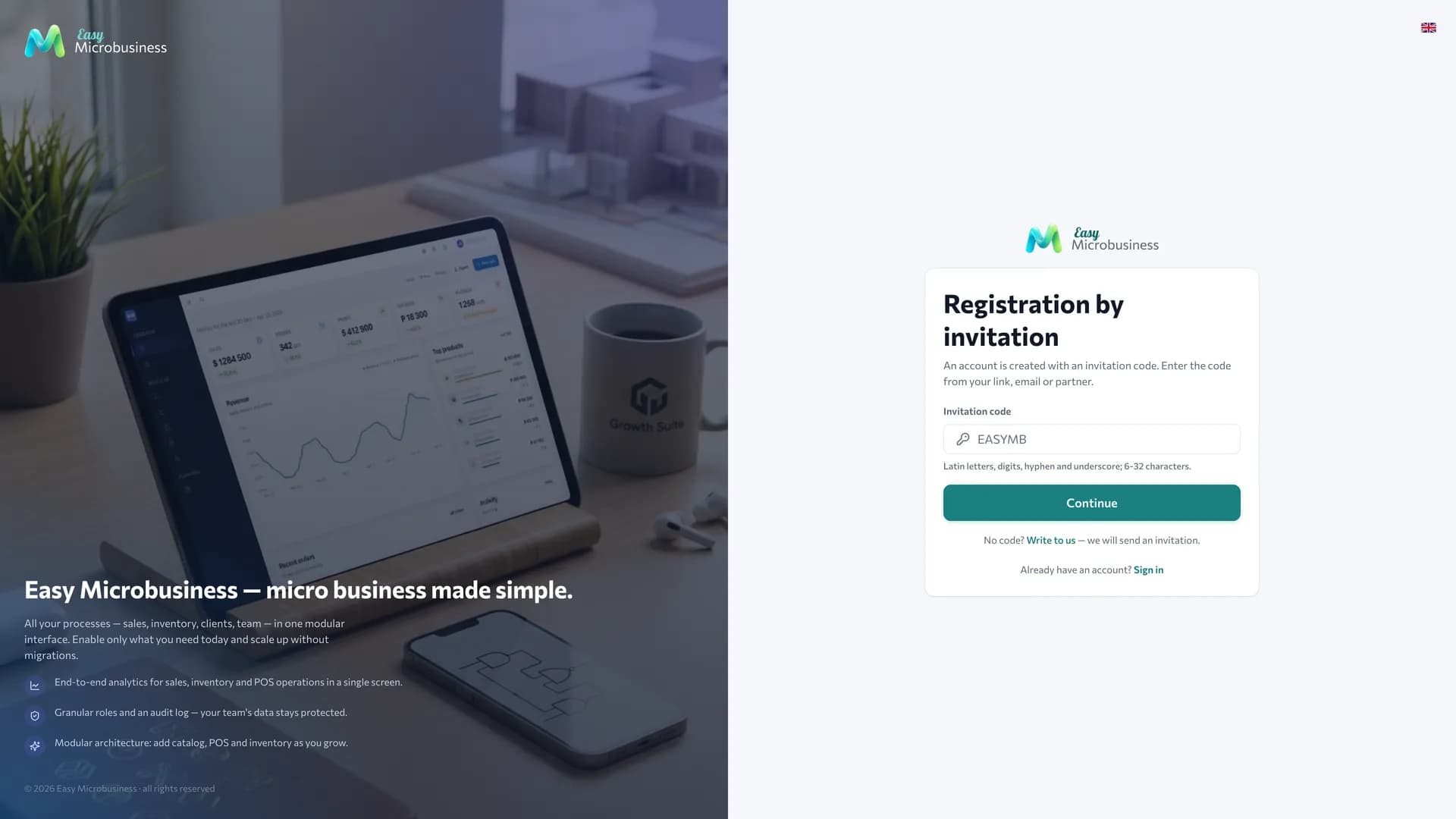
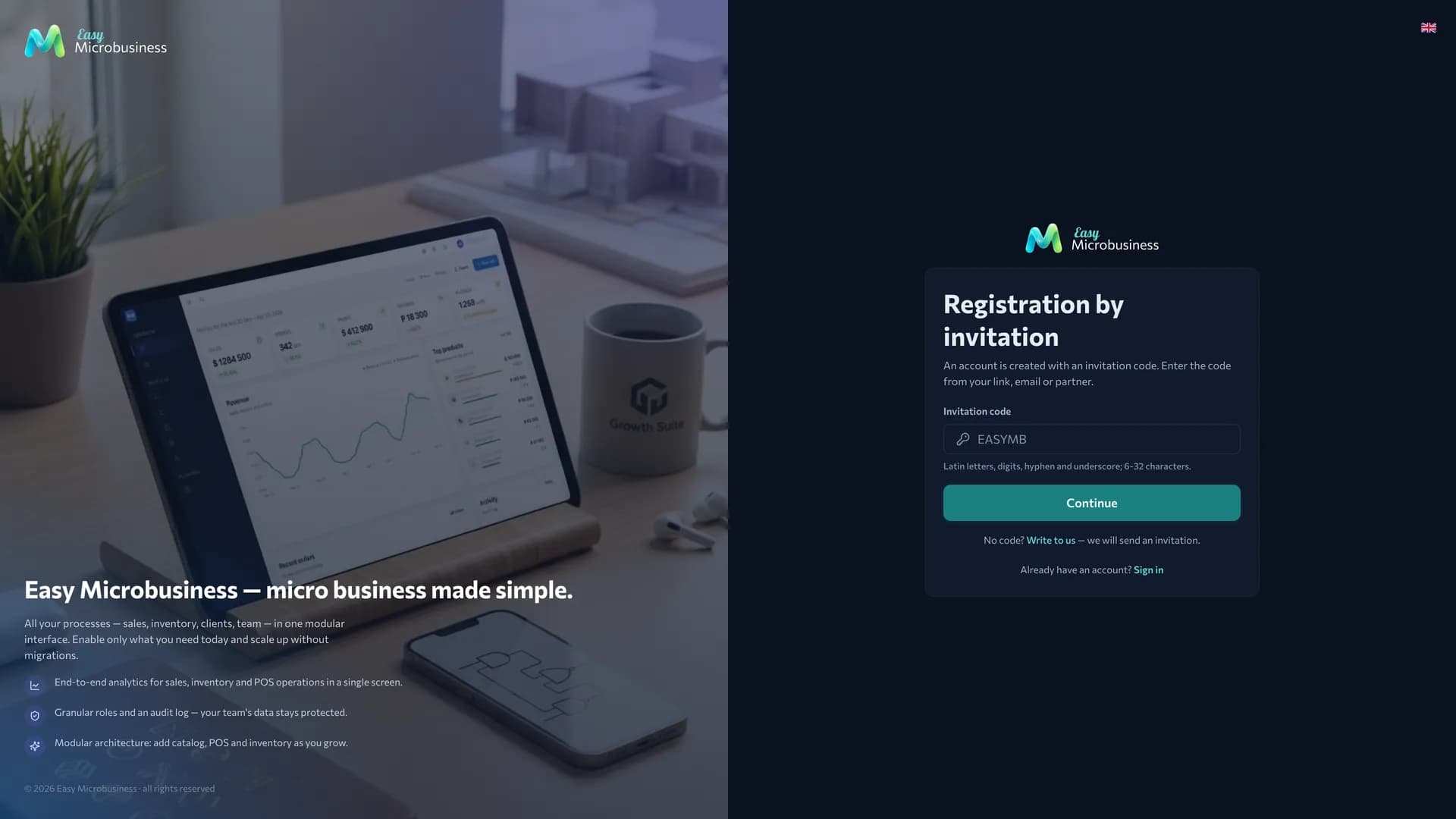
There are two ways in:
- follow a short link like
easymb.ru/go/YOURCODE— the code fills in itself; - open the sign-up page, type the code and press Continue.
The code uses Latin letters, digits, hyphens and underscores and is 6 to 32 characters long. Case does not matter. You can paste the whole link — the system will pull the code out of it.
If you have no code, the screen has a Write to us link and the invitation comes back in reply.
Step 2. Company and owner details
The form opens once the code is checked.
| Field | What it is for |
|---|---|
| First and last name | This is how colleagues see you in tasks, deals and chats |
| Company | The name. A company identifier is built from it — Latin letters, digits and hyphens, 3 to 64 characters; you can edit it |
| The activation letter goes here, and this becomes your login | |
| Password and repeat | At least 8 characters, with a strength indicator as you type |
| Consent | The terms of service and the data processing document open right from the form. The tick is required: it accepts the offer, and the system records the date and the version of the documents you accepted |
The country is not asked separately: Russia is the default. Language, currency, time zone and units of measurement are changed later in Administration → Localization.
After you submit the form, an activation letter arrives. The link in it works for 24 hours — follow it and the account becomes active. No letter — check the spam folder; if a day has passed, support will send a new link.
First login
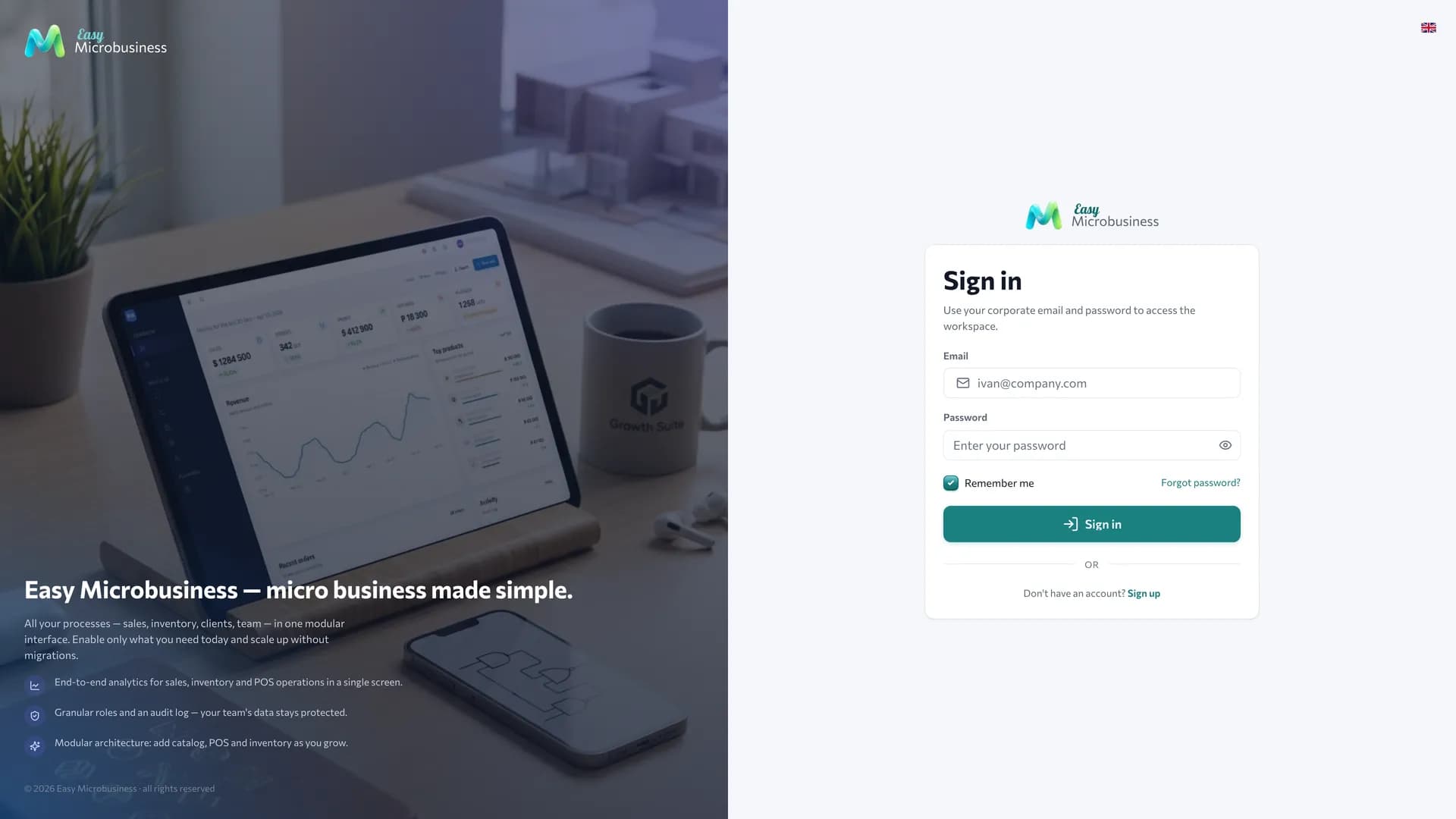
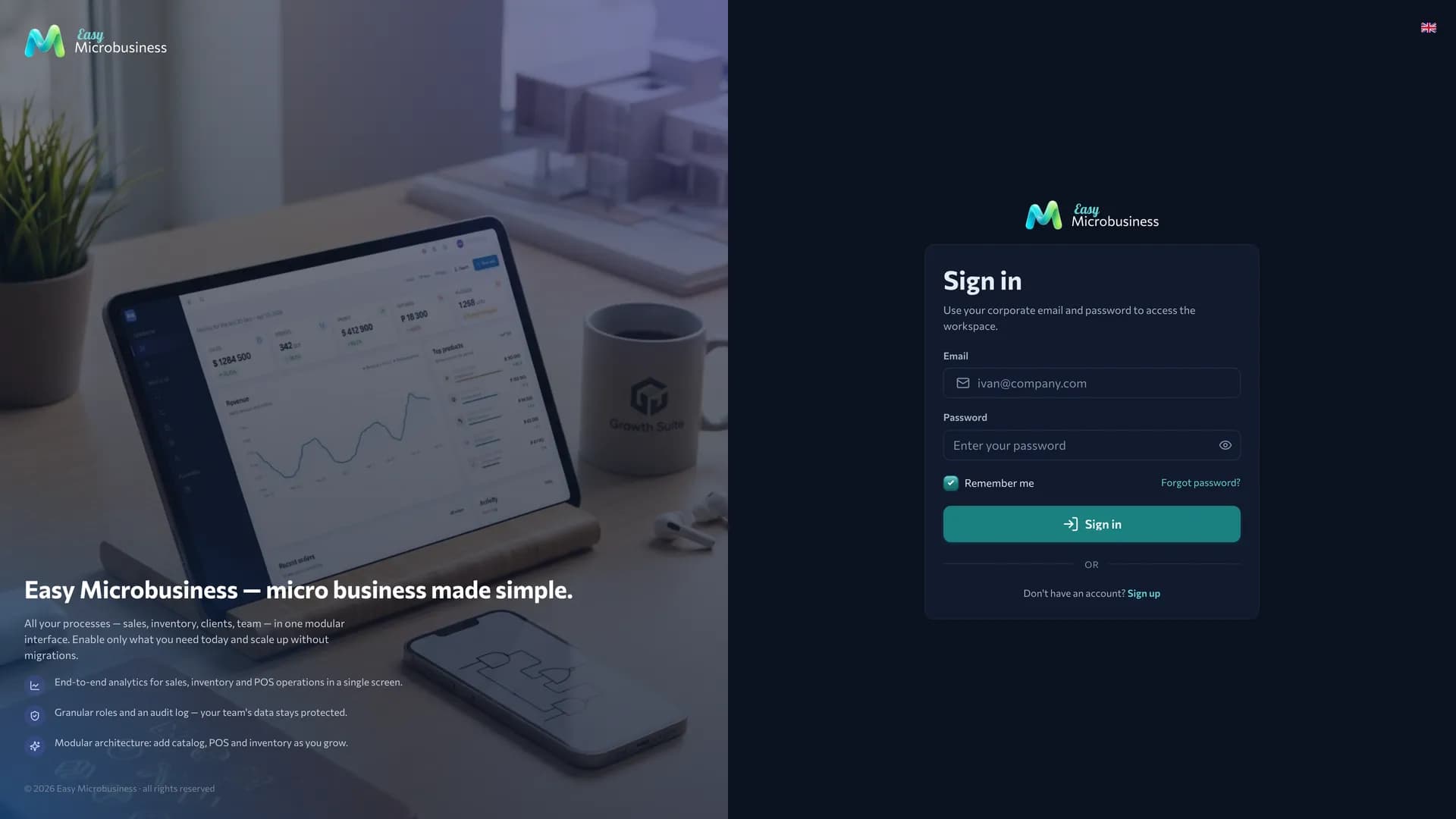
Enter the email and password you set during sign-up. If two-factor authentication is on, the system asks for a 6-digit code from your authenticator app.
Employee access is opened and closed by the company administrator on the Users page.
The setup wizard
The owner's first login opens a four-step wizard.
- "What do you do?" Pick one or several trades: retail, café, services, photo studio, car service, manufacturing, field services, projects. The choice drives what the wizard suggests next.
- "Which sections to enable". Core sections are always on, the rest are ticked. For some modules a "Work scenario" block appears here: Service offers a workshop or a car service, Restaurant offers a coffee shop or a full-service restaurant. The scenario brings settings, fields and print templates for your process.
- "Company details" — the name and the interface language.
- "All set" — a summary and the monthly charge for the selected modules.
Press Launch Easy Microbusiness and the settings are applied.
The wizard closes with Set up later: the system starts with the core set, and you connect modules in the module store.
Time zone, currency and units are not asked: they come from the company country. The first branch is created automatically at sign-up.
The set of modules and the scenario can be changed in Administration → Modules at any time. Components you no longer need are switched off, and their records stay in place for when you turn them back on.
How to invite employees
Employees are added by the company administrator. There are two ways.
- Administration → Invitations → Invite employee — enter the email and the role. The person gets a letter with a link and sets their own password.
- Administration → Users → Add user — set the password yourself, including from a CSV list, and hand over the access in person.
More detail is in Users and invitations.
Frequently asked
The code is not accepted. Check the keyboard layout: the code is entered in Latin characters. A code from an ad or a partner may have been switched off — request a new one from the link on the form.
The activation letter has not arrived. Look in the spam folder and check the address for typos. The link lives for 24 hours; after that support sends a new one.
We entered the wrong company name. The name is changed in company settings at any time. The company identifier stays as it was: public links rely on it.
We need a second company. Create a separate account with a new invitation code: one email belongs to one account.
We picked the wrong trade in the wizard. The set of business modules and the scenario can be changed later, and the data stays in place.
In short
- A company is created with an invitation code; employees are added by the administrator.
- The account is activated by a link from the letter, valid for 24 hours.
- The wizard has four steps: trades, sections, company details, summary.
- Everything picked in the wizard can be changed later in Administration → Modules.
Next — first steps: branches, catalog, team and the first sale.