
Users and invitations
Employees are added to a company by the administrator. That keeps the team list under control and lets you give a person the right role from the start.
How to invite an employee
Use this when the person will set their own password.
- Open Administration → Invitations.
- Press Invite employee.
- Enter the email and the role: Manager, Employee or Director.
- Press Create — the person receives a letter with a link.
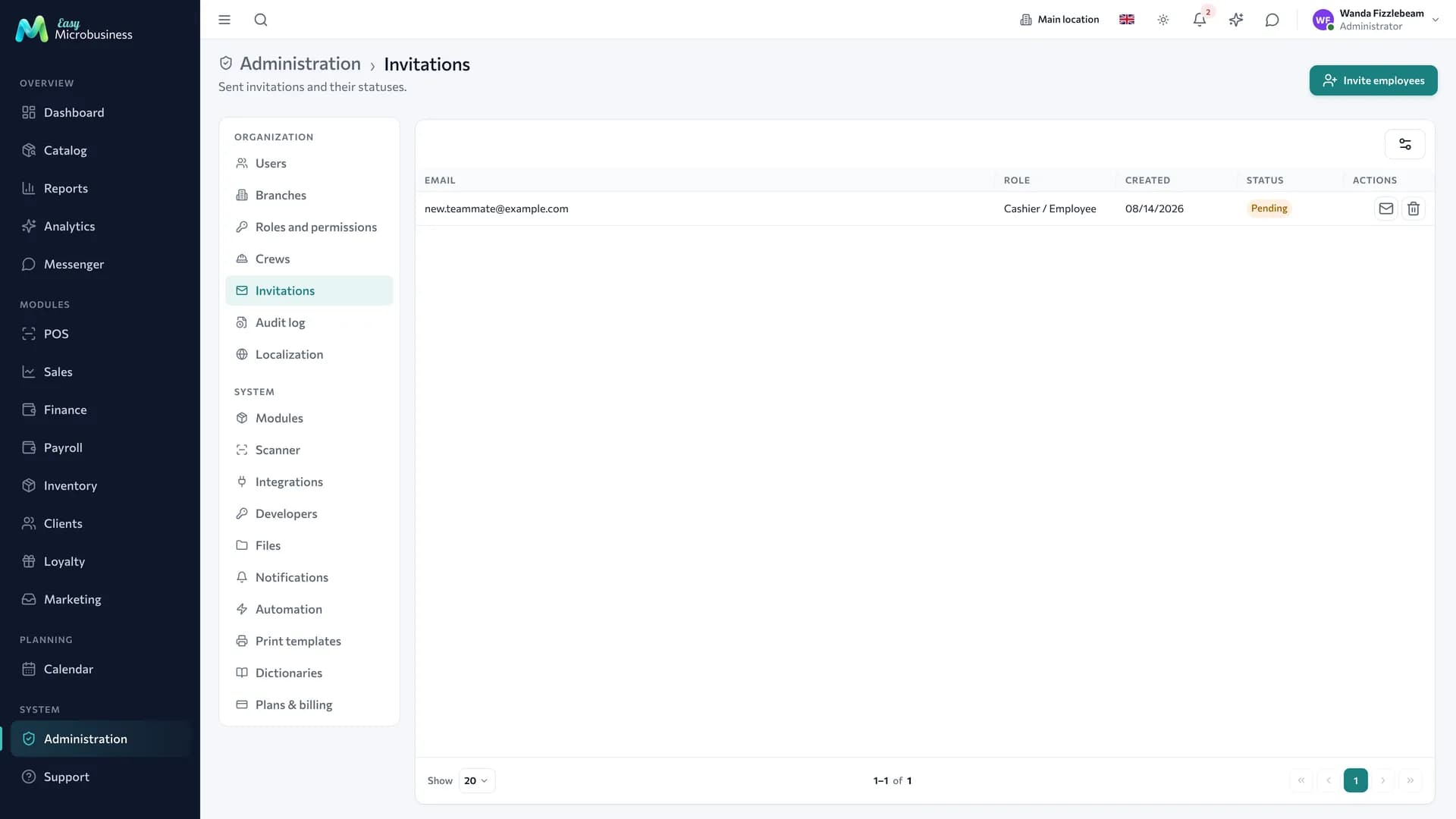
Each invitation has a status: Pending, Accepted, Expired, Revoked. An unaccepted one is sent again with Resend or closed with Revoke.
You can invite in bulk — one per row or as a list of addresses with a shared role.
The administrator role is not granted by invitation: a promotion is done inside the company, in the employee card.
How to add an employee with a password
Use this when you hand over the access in person: a shift without personal email, a bulk hire.
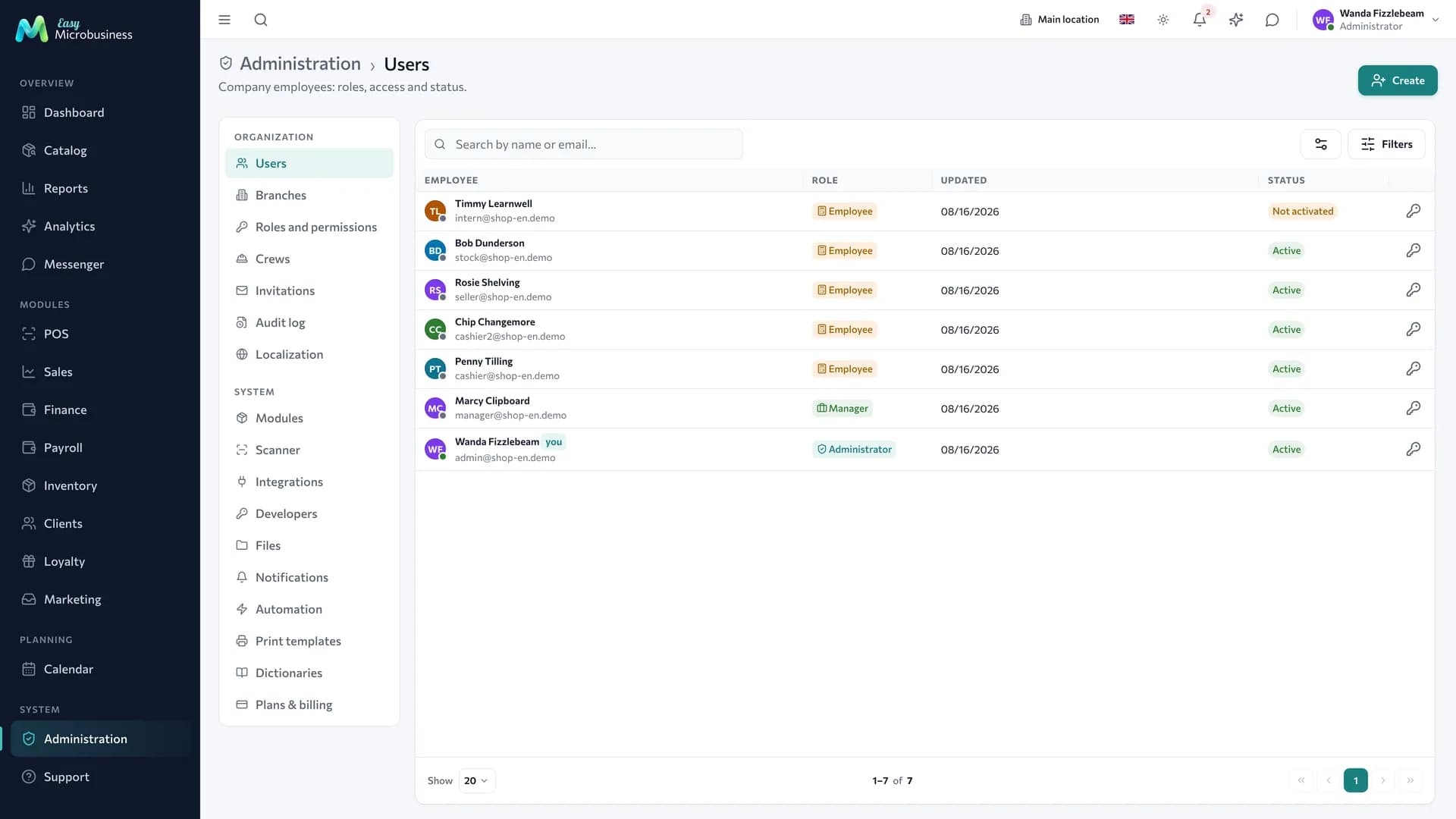
- Open Administration → Users.
- Press Add user.
- Choose the input method: One by one or List (CSV).
- Fill in first name, last name, email, password and role. The CSV row format is
firstName|lastName|email|password|role, with rolesmanager,employee,director. - Press Create employees.
Passwords are shown once. Press Download logins and passwords (CSV) and keep the file.
The branch is not asked in either form: the employee joins the company's default branch.
User statuses
| Status | What it means |
|---|---|
| Not activated | The invitation is sent, the password is not set yet |
| Active | Normal working state |
| Blocked | Login is closed: holiday, dispute, departure in progress |
| Deleted | The account is taken out of use, the history is kept |
Accounts stay in the system so that past receipts, orders and log entries keep the name: "the receipt was rung up by Ivan Petrov".
Role and branch
A user has a role (what they can do) and a branch (where they work). The role changes at any time — for example when a manager is promoted to director. Exceptions per section are set with the Permissions action in their row. More detail is in Roles and permissions.
If an employee works at several locations, the branch is switched in the top bar. Commission is counted at the location where the sale was made.
How to close access
- Find the employee in the Users list.
- Pick the Block action.
A new login is closed immediately, and an open session stops working within a few minutes. The Unblock action returns the access with the same permissions.
If a device is lost while the employee keeps working, block them, ask them to change the password and remove the block.
What to do when someone leaves
- Block the account — the login closes right away.
- Check open shifts: close an unclosed one so the day's revenue adds up.
- Reassign their deals, orders and tasks to another employee.
- If they were a crew lead, appoint a new one in the crew.
- Run the final calculation and record the payout in Payroll.
The history of their actions stays in the system — it is needed both for reports and for settling disputes.
Frequently asked
The employee did not receive the invitation. Check the spam folder and the address, then resend from the list. If company letters do not go out at all, set up the mail channel in Integrations.
The employee forgot the password. They restore it themselves from the login page. The administrator does not see passwords.
We need to close access temporarily. Blocking is reversible: permissions and history are kept, unblocking returns everything.
We need a second administrator. Add the person as Manager or Director, then change the role to Administrator in their card.
Security practice
- Give everyone a personal account instead of a shared "till" login. That is how you know who rang up a receipt and who made a refund.
- Block rather than delete if a person may come back.
- Review the list once a quarter — people who left often stay active for months.
- Watch role changes in the audit — they go into the audit log.
In short
- An employee is added by email invitation or with a password, including from a CSV list.
- Passwords in a bulk creation are shown once — download the CSV.
- Access is closed by blocking; the account stays for the sake of history.
- The administrator role is granted inside the company, in the employee card.