
System components
A component is a working screen of Easy Microbusiness: POS, inventory, orders, customers, deals, calendar. A business module answers "what do you do for a living", a component answers "which screen are you working in today".
Components arrive with a business module and are not bought separately. The same component belongs to several modules: the POS is needed by Retail store, Restaurant and Service alike, and you pay for the modules.
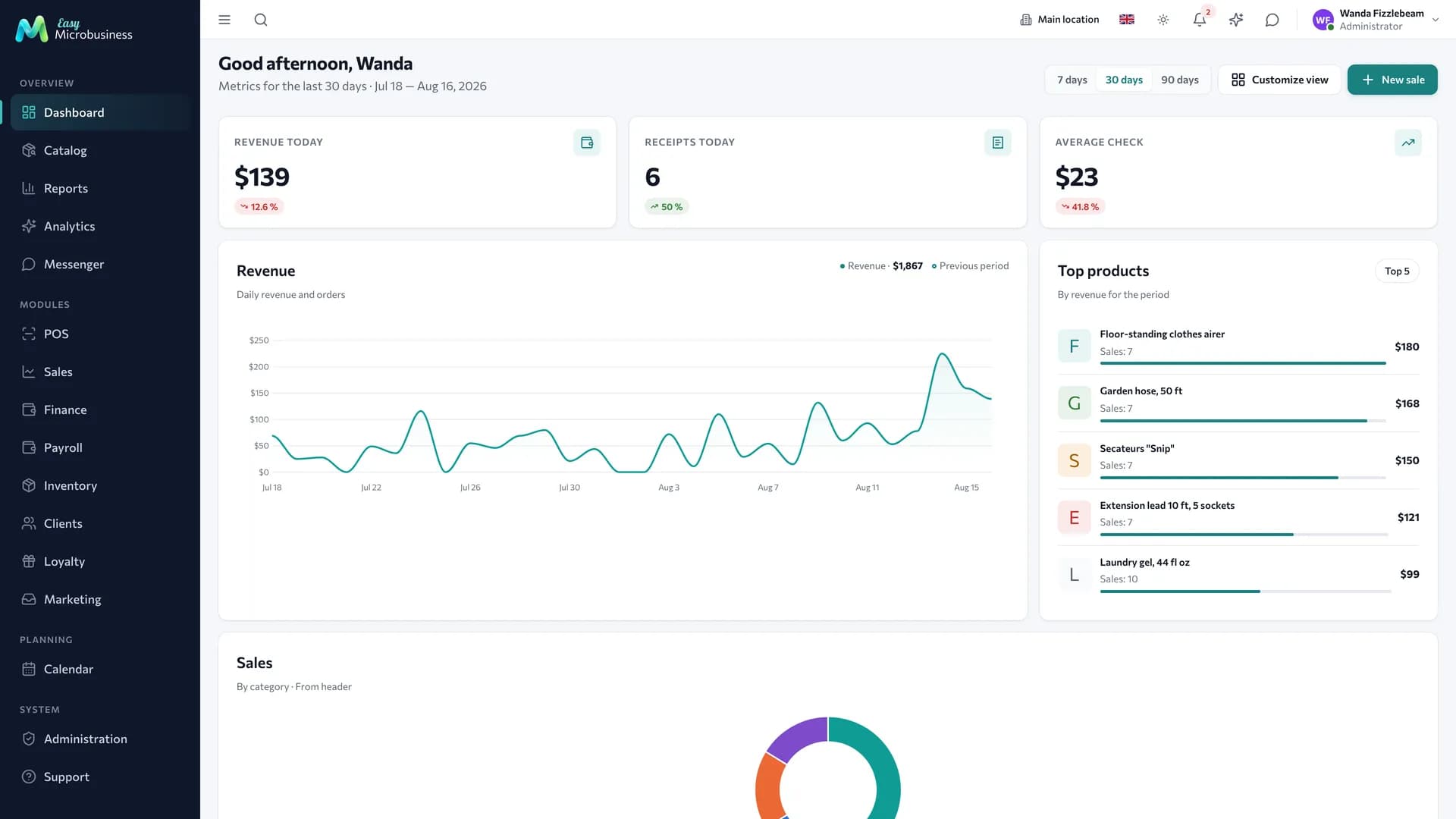
Components everyone has
These screens are open to any company regardless of connected modules.
| Component | What it is for |
|---|---|
| Catalog | The reference of goods and services every other section points at |
| Calendar | Bookings and events in time |
| Reports | Analytics, profit and loss, signals about problems |
| Messenger | Conversations inside the team and with customers |
| Integrations | Exchange with external services and hardware |
| AI assistant | A chat over your company data |
Integrations and the assistant are platform-wide. Integrations carry everything external — hardware, communication channels, third-party systems. The assistant opens from the top bar and works across every section.
Components that arrive with a module
| Component | What it does | Comes with modules |
|---|---|---|
| Point of sale | Receipts, shifts, payment, refunds | Retail store, Restaurant, Service, Beauty |
| Inventory | Stock, receipts, stock counts | Retail store, Wholesale, Manufacturing, Construction |
| Orders | Order queue, assembly, handover | Online store, Wholesale, Printing, Restaurant |
| Production | Shop-floor queue, material demand, runs | Manufacturing, Printing, Construction |
| Clients | Base, history, segments, loyalty | Almost every module |
| B2B pricing | Price lists, groups, buyer cabinet | Wholesale, Online store, Manufacturing |
| Loyalty | Points, tiers, promo codes | Retail store, Restaurant, Beauty, Fitness |
| Marketing | Leads, capture forms, segments, campaigns | CRM and nine more modules |
| Deals | Processes by stage, tasks, funnel | Service, CRM, Studio, Construction |
| Field service | Master on site, dispatch board, map | Field services, Service, Construction |
| Crews and work orders | Crews with shares, work orders, piece-rate pay | Construction, Field services |
| Scheduling | Resources, bookings, packages, waitlist | Beauty, Fitness, Education, Rental |
| Work planning | Task board, work schedule, links, people load | Construction, Events, Studio, Printing |
| Rentals | Handover, return, deposit, housekeeping | Rental |
| Study groups | Membership, course schedule, attendance log | Education, Fitness |
| Online storefront | Public store, cart, delivery | Online store |
| Restaurant floor and kitchen | QR menu, tables, bill, kitchen | Restaurant |
| Finance | Expenses, profit, accounts, receivables | Optional in every module |
| Payroll | Commissions, timesheet, payouts | Optional almost everywhere |
How components connect
Screens hand work over to each other:
- The catalog gives items to the POS, orders, the storefront, the menu and estimates.
- Inventory writes off stock on a POS sale, on an order handover and when a deal moves to the work stage.
- Clients collect history from every source: receipts, orders, visits, deals, conversations.
- A deal closes with a receipt at the POS, and an order turns into a sale.
- Reports pull revenue, cost and profit from all of the above.
That is why the same data is never entered twice: a customer added at the POS is immediately available for a booking, and a catalog item shows up both on a receipt and on the storefront.
How to switch components on and off
Components switch on by themselves when a business module is connected. They are managed manually in Administration → Modules:
- Keep the core components of a module on: the process leans on them.
- Turn optional ones on as you need them: not everyone needs inventory, and payroll matters once you have employees.
- A switched-off component hides its screens and keeps the data — everything is in place when you turn it back on.
- Integrations and the AI assistant have no toggle — they are always available. The assistant spends the AI balance as you use it.
Some components have their own settings — for example "Block selling below zero" in inventory. The list is in Component settings.
Permissions
A component being on does not mean everyone sees it: visibility depends on the employee role and their personal permissions. The Employee role, for instance, has no catalog, no inventory and no reports. See Roles and permissions.
In short
- A component is a working screen; it arrives with a business module and is not bought separately.
- Catalog, calendar, reports, messenger, integrations and the assistant are available to everyone.
- Components exchange data, so the same thing is never entered twice.
- A screen is visible when its component is on and the role allows it.