
Production
The working screens of a shop floor: the queue of manufacturing orders, material demand and the log of production runs. The component is for those who make products rather than buy them ready: it turns a bill of materials into real stock movement and an actual cost.
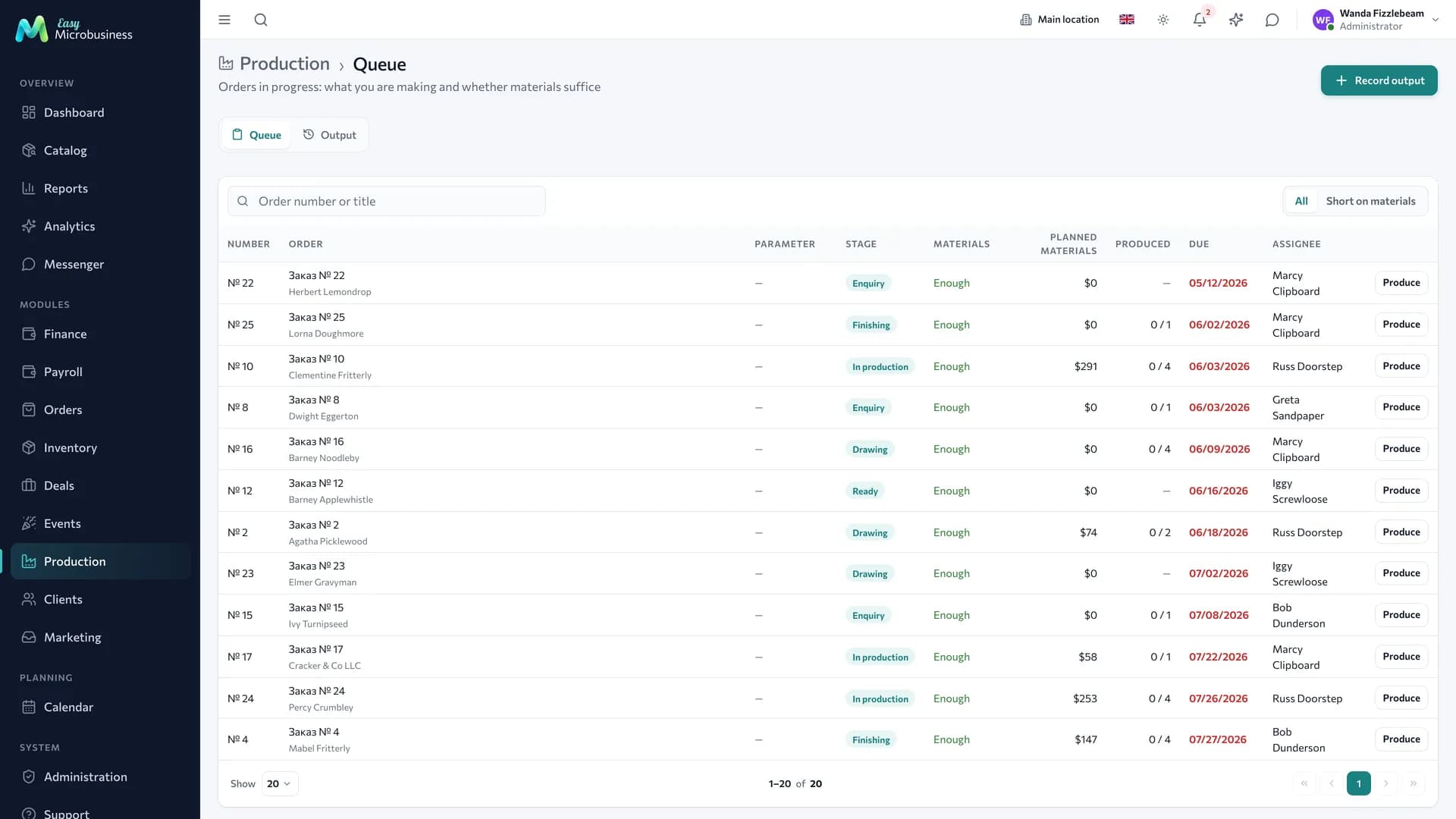
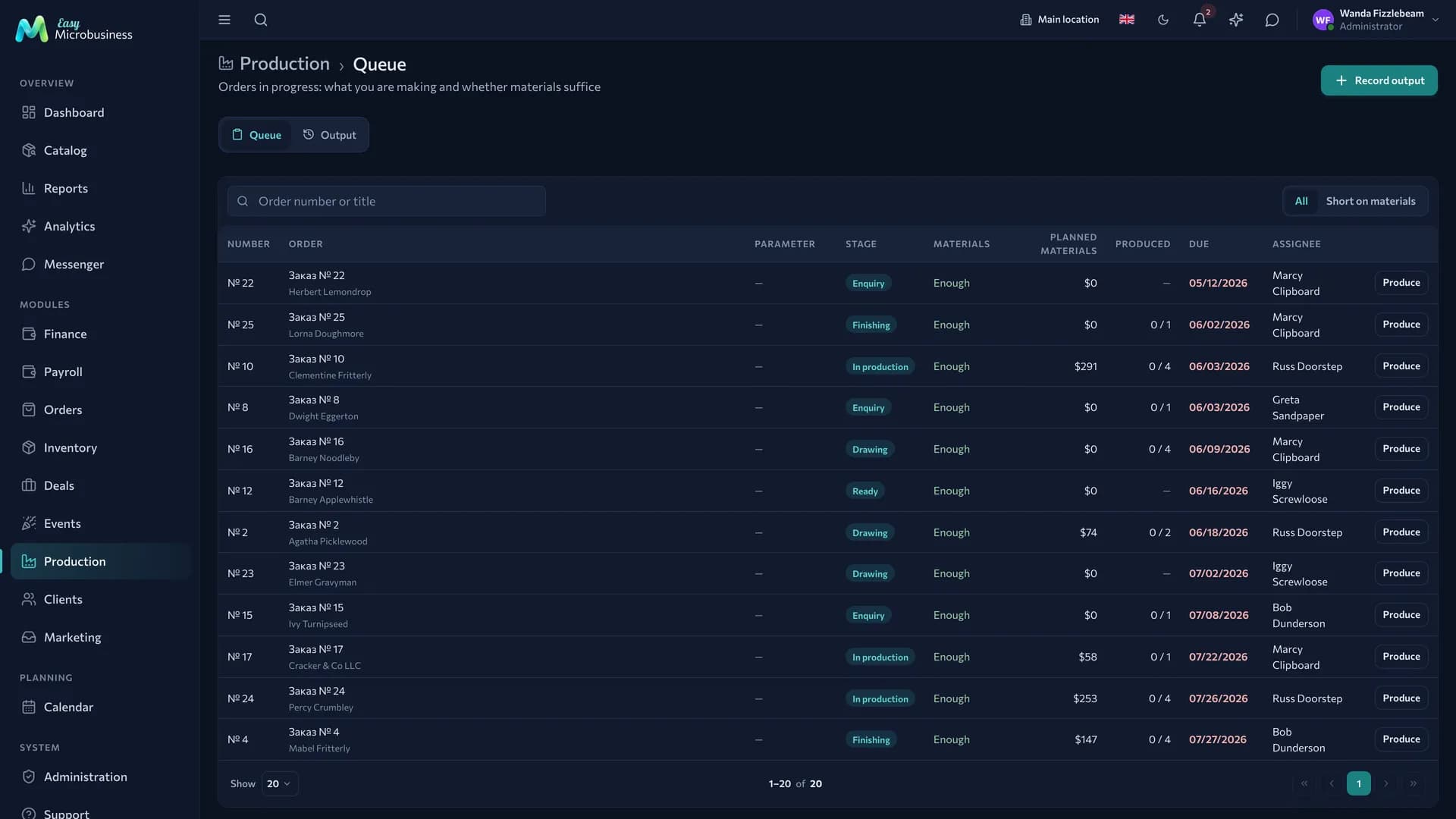
Production queue
The Queue tab collects manufacturing orders that are not closed yet.
| Column | What it shows |
|---|---|
| Order | Number, name and customer |
| Parameter | The main extra field of the order: the print run for printing, the item code for a furniture shop |
| Stage | Where the order is now: In production, Cutting and others |
| Raw material | How many material items are short in stock |
| Material plan | What the material will cost at reference prices |
| Produced | How much has already been made on this order |
| Deadline | The planned date; overdue ones are highlighted |
The Parameter column fills in when orders have a main extra field. Which one is main is set by the business module: Printing and advertising makes it "Print run".
The Materials short toggle leaves only the orders that are missing something. The shortage is counted on what has not been produced yet: if half the order is done, the demand is shown for the second half.
The Produce button in a row opens the run form with the item and the remaining quantity filled in.
Material demand for one order
A manufacturing order card has a Production tab: it unfolds the bill of materials into a list of materials for the whole run and compares it with stock.
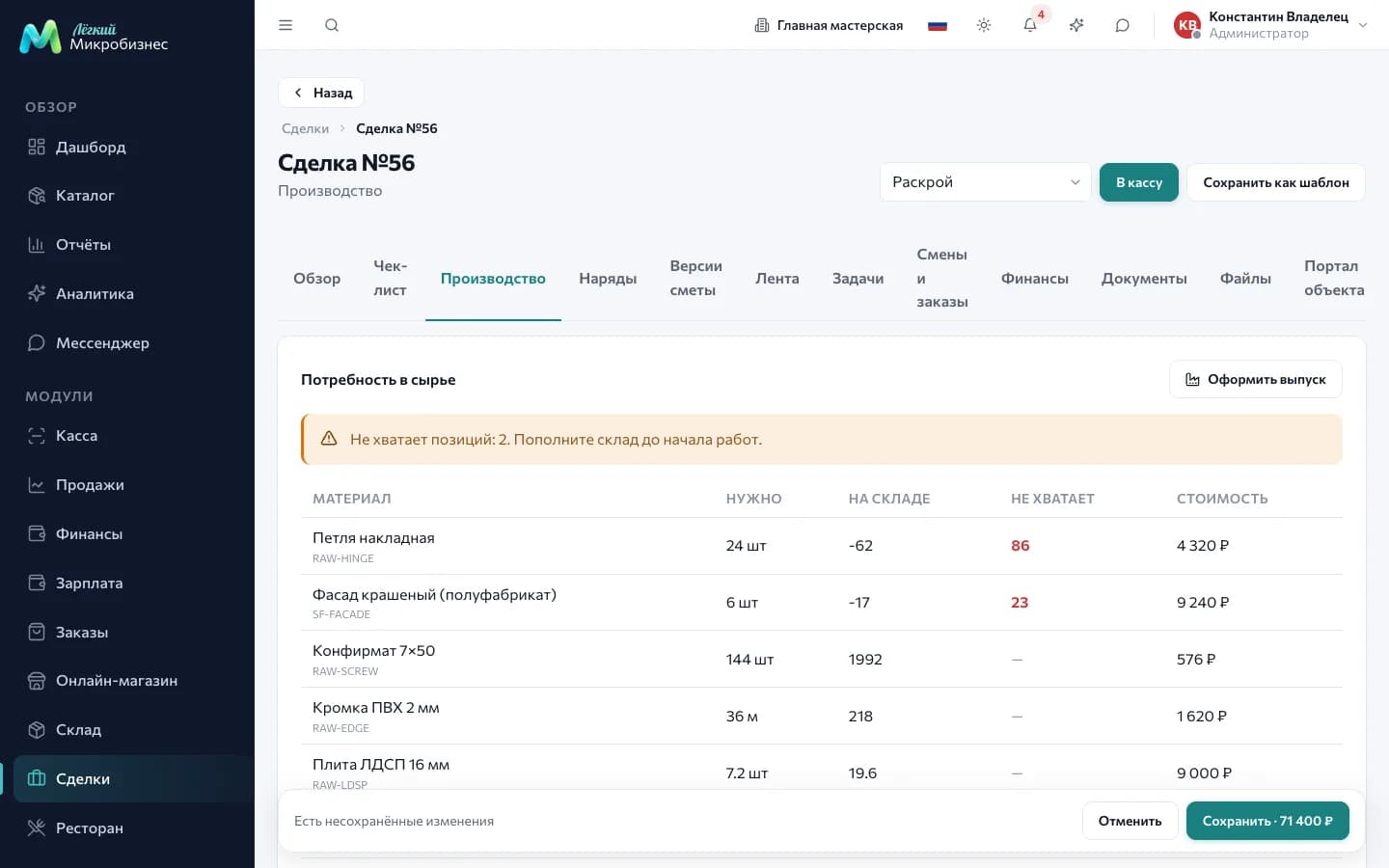
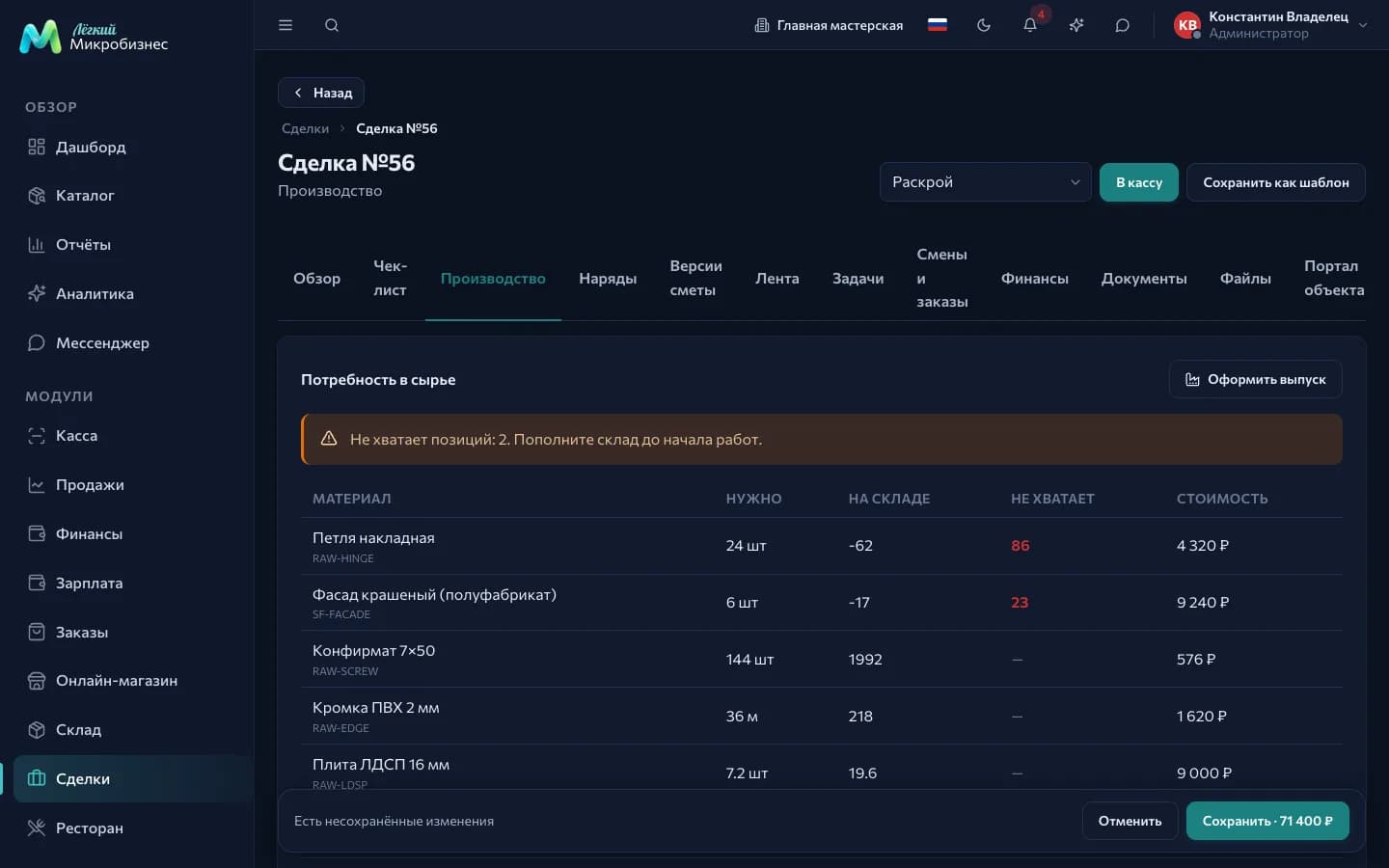
A semi-finished item stays a separate row: if it tracks stock, it is taken as ready. A run is also created from here, with the button in the tab header.
How to record a run
A run is the moment an item becomes a thing in stock.
- Press Produce in the queue or on the Production tab of an order.
- Check the item and the order.
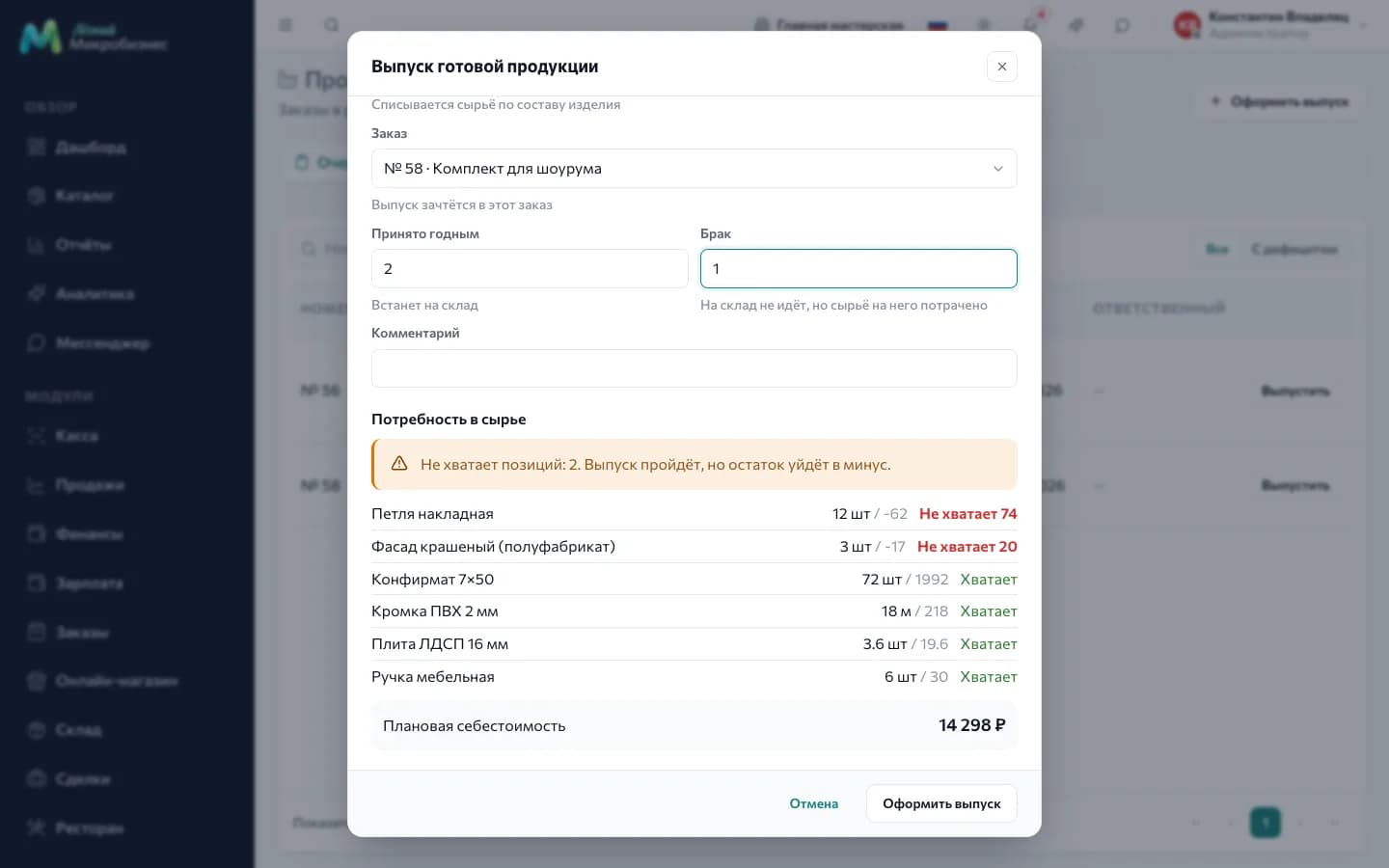
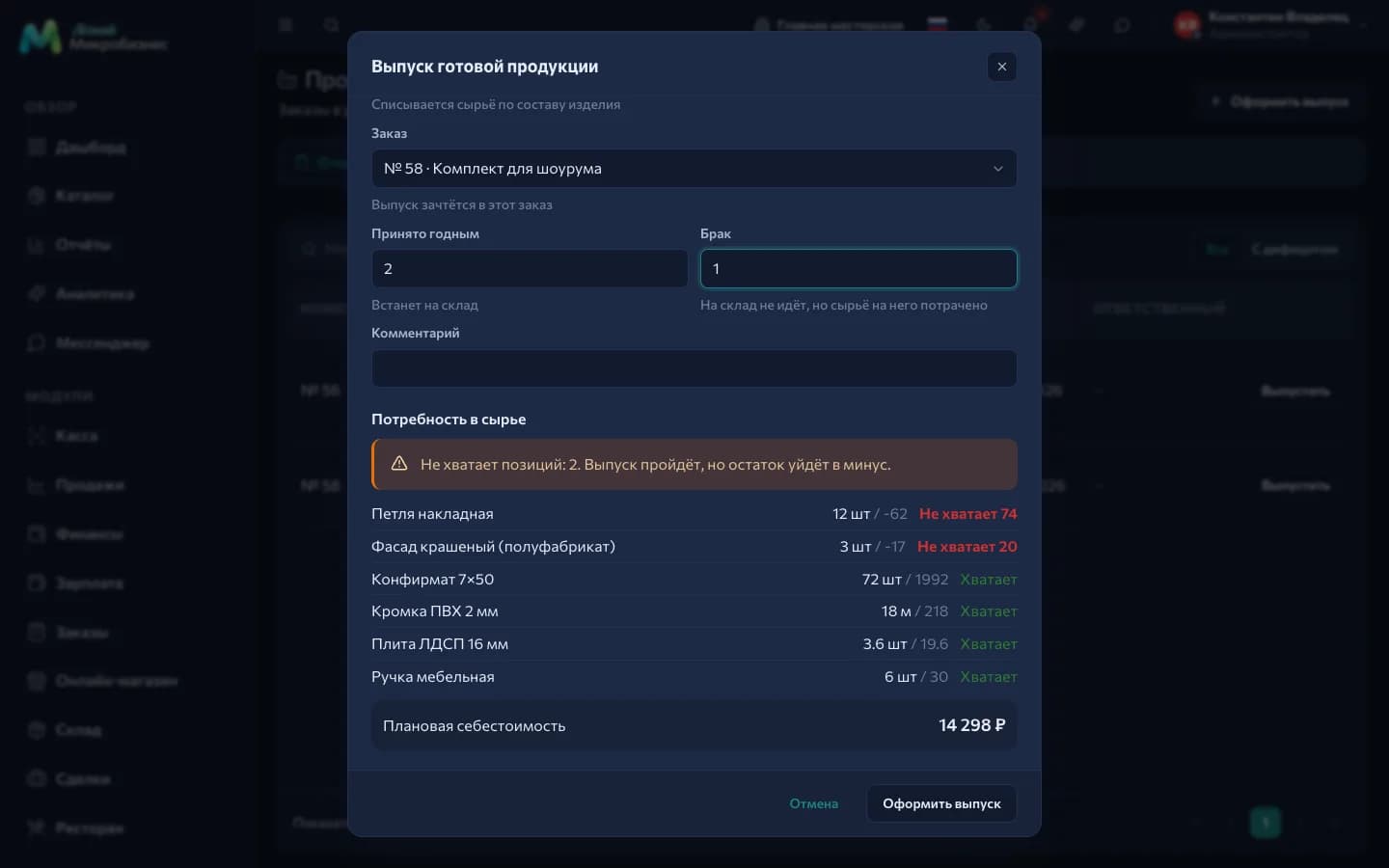
- Enter how many units were accepted as good and how many went to scrap.
- Confirm.
What happens:
- Raw material is written off by the bill of materials — for the whole quantity, scrap included: the material was already spent on it.
- The good units arrive in stock as a separate batch.
- The cost is calculated from the batches actually written off. The total is divided across the good units, so scrap raises the unit cost — and that is visible.
- The item cost in the catalog is recalculated as the average purchase price across all receipts.
A shortage of raw material does not stop a run by default: stock goes below zero and you see the warning in advance. For strict accounting turn on Block a run when raw material is short — instead of a warning you get a refusal naming the materials.
A run is recorded in the branch where the order is run. An order closed with the "Completed" outcome takes no runs: its cost was calculated at closing.
The run log
The Runs tab is the history: what was produced and when, how much went to scrap, what it cost. Three figures sit on top for the summary period, 30 days by default: good output, yield and run cost.
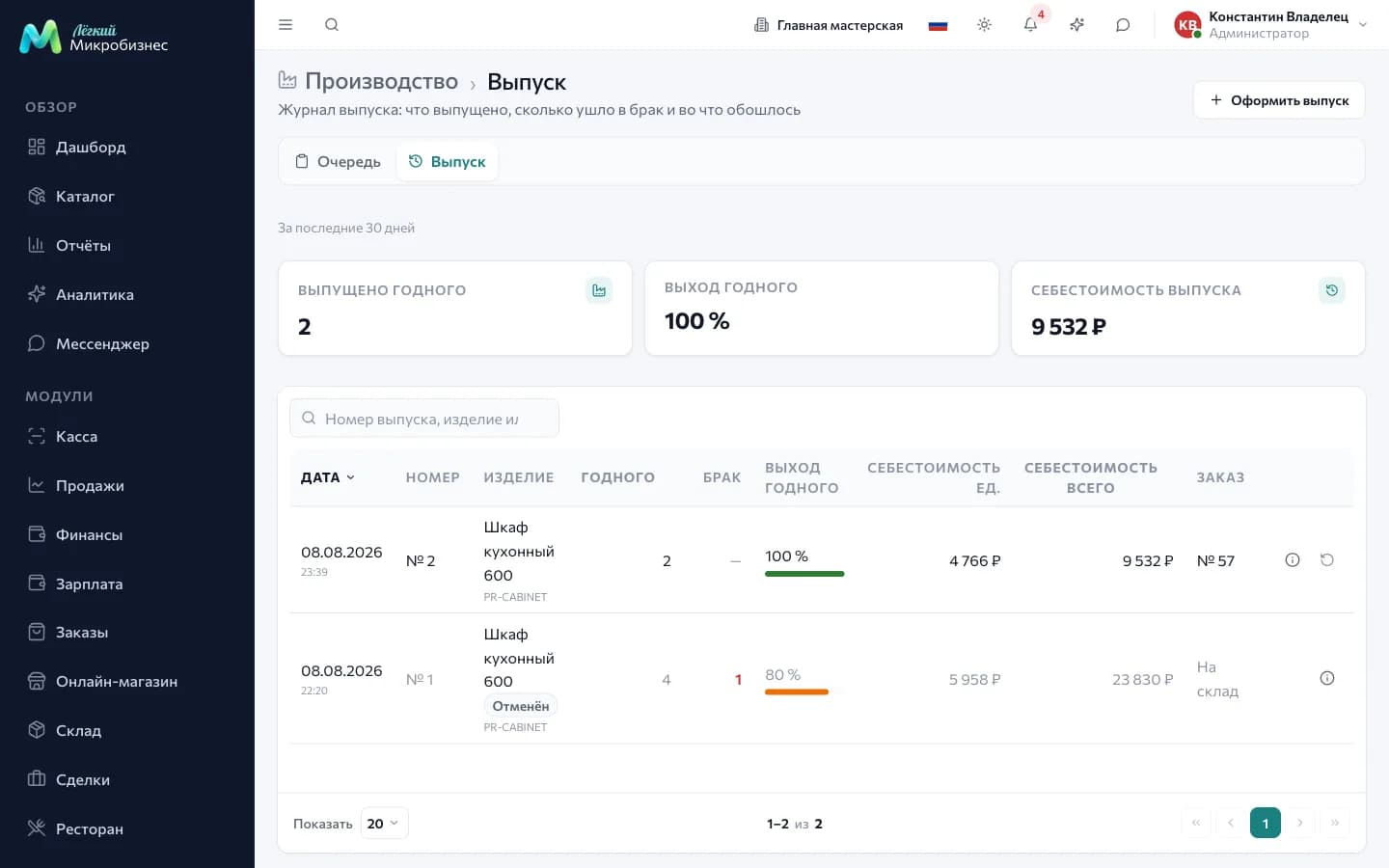
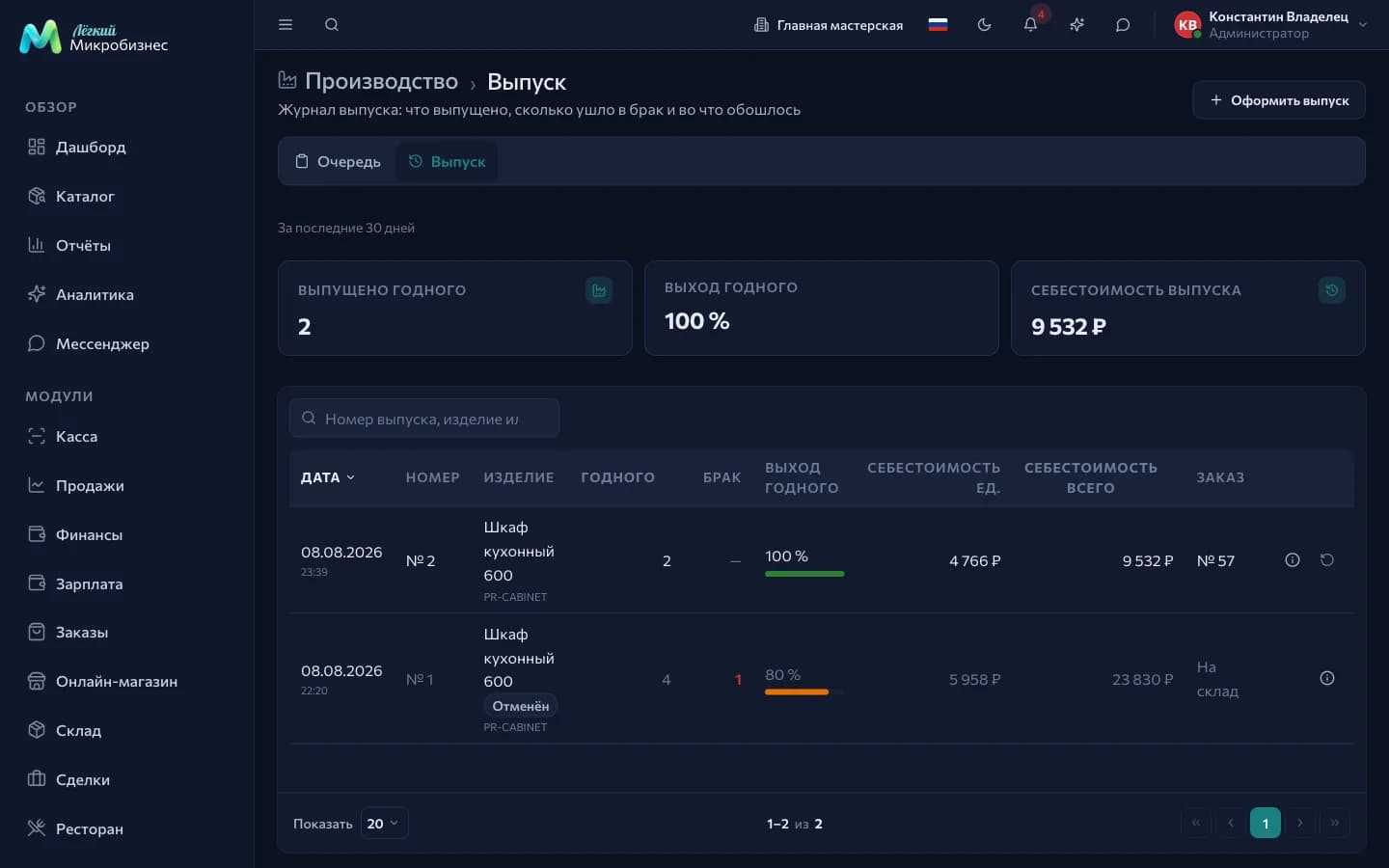
A yield below the threshold from settings (95 % by default) is highlighted in a warning colour, and fifteen points below the threshold in an alarming one. The highlight draws the eye and blocks nothing.
A run card shows how much of each material was consumed and what it cost.
A cancelled run stays in the log as a row marked "Cancelled", with its figures dimmed and left out of the summary.
How to cancel a run
Wrong item produced, a mistake in the quantity, a run recorded twice — a run is cancelled as a whole. To reduce the quantity, cancel the run and record a new one with the right number.
- Find the run in the log or open its card.
- Press the return-arrow button.
- Read the window: it shows what will be written off, what returns to stock and what does not.
- Add a reason if you like — it stays in the run card and in the audit log.
| Window block | What it shows |
|---|---|
| Written off from stock | The item and its quantity |
| Returns to stock | Every material with the quantity actually consumed |
| Does not return: not stored | Bill-of-materials lines without stock tracking — labour, depreciation |
| Cancellation reason | An optional field |
After confirmation raw material returns to the same batches it was written off from, with the previous cost and expiry. The item is removed from stock, a "Run cancellation" movement appears in the stock log, and the material demand for the order comes back.
Runs are cancelled by administrators, directors and managers — the same people who record them.
The item cost in the product card stays as it is: it is calculated as the average purchase price across all receipts. If the mistake is large, adjust the cost in the product card by hand.
Cancelling is available while the run has not been cancelled before, the item is still in stock and the order is not closed with the "Completed" outcome. If the item has been sold or transferred, reverse the sale or the transfer first.
Component settings
| Setting | What it does | Default |
|---|---|---|
| Block a run when raw material is short | A run is recorded only with enough stock; the refusal lists the materials | Off |
| Yield warning threshold, % | Below this value the log row is highlighted | 95 |
| Run summary period, days | How many days the figures above the log cover | 30 |
Turn the block on where raw material is expensive and stock is kept carefully.
Bill of materials
The composition is set in the product card on the Composition tab. Another item with its own composition can be nested — a semi-finished product. If it tracks stock, it is written off as ready during a run and produced separately; if it does not, its composition unfolds down to raw materials.
Who can do what
| Role | Queue and demand | Recording and cancelling runs |
|---|---|---|
| Administrator, director, manager | Yes | Yes |
| Employee | With a specific permission | No |
A run moves stock and cost, so it is closed to an ordinary employee by default. The Production permission is granted individually in user permission settings.
In short
- The queue shows what is in progress, what is short and what is due.
- A run writes off raw material for the whole quantity, scrap included, and puts good units into stock as a separate batch.
- Scrap raises the unit cost, and that is visible in the numbers.
- Cancelling a run returns raw material to the same batches and leaves an entry in the log.
Related sections
- Inventory — stock, batches and the movements a run creates.
- Catalog — where the bill of materials is set.
- Deals — the manufacturing order and its stages.
- Manufacturing and workshops — the module that brings this component.
- Printing and advertising — print runs, designs and customer approval.