
Deals
A deal carries anything that has a beginning, several intermediate steps and a clear end: a repair, a project, a request, a field job, a site, a print run. Industry specifics come from the deal type and the business module, so no separate program is needed for each process.
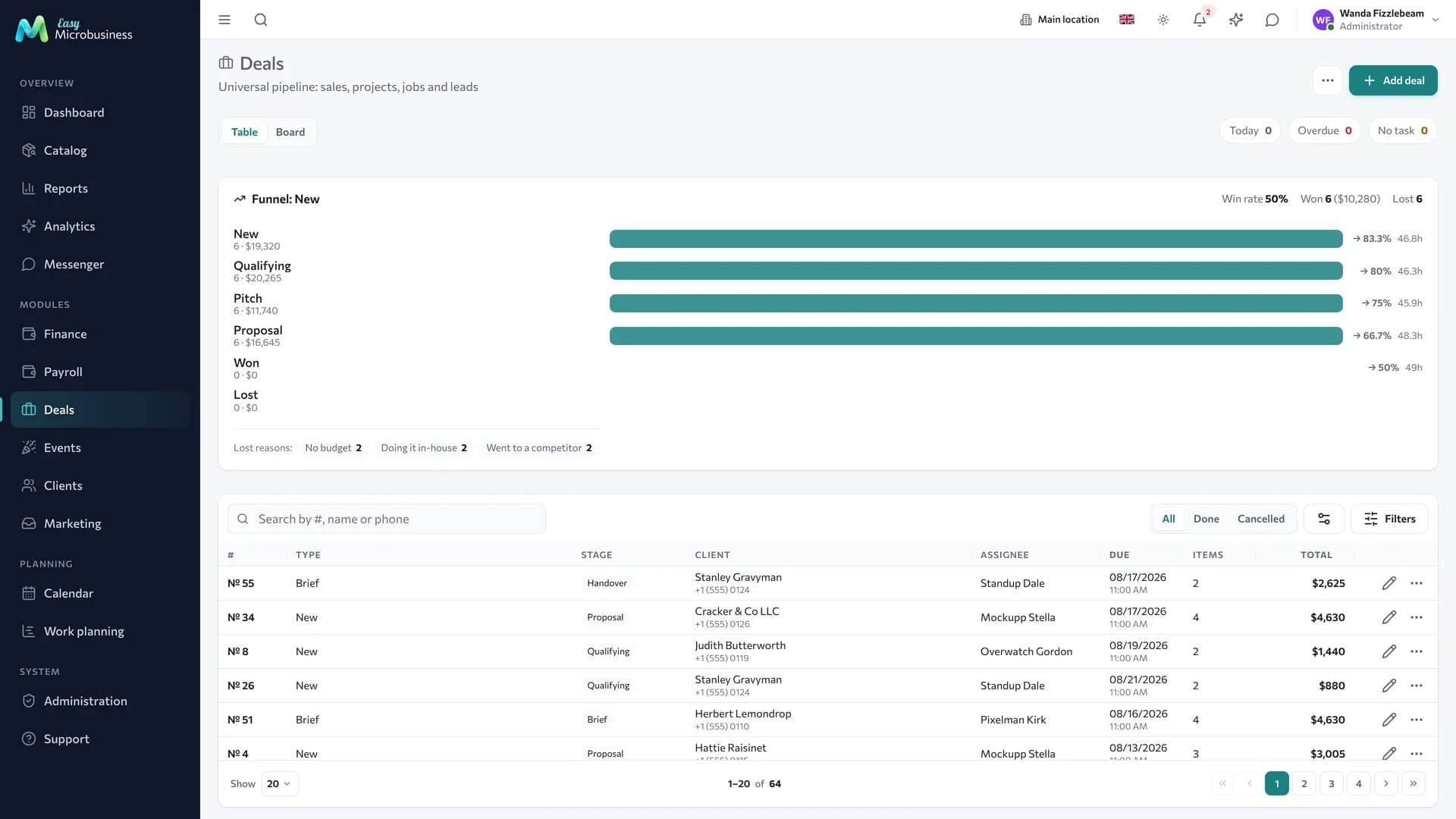
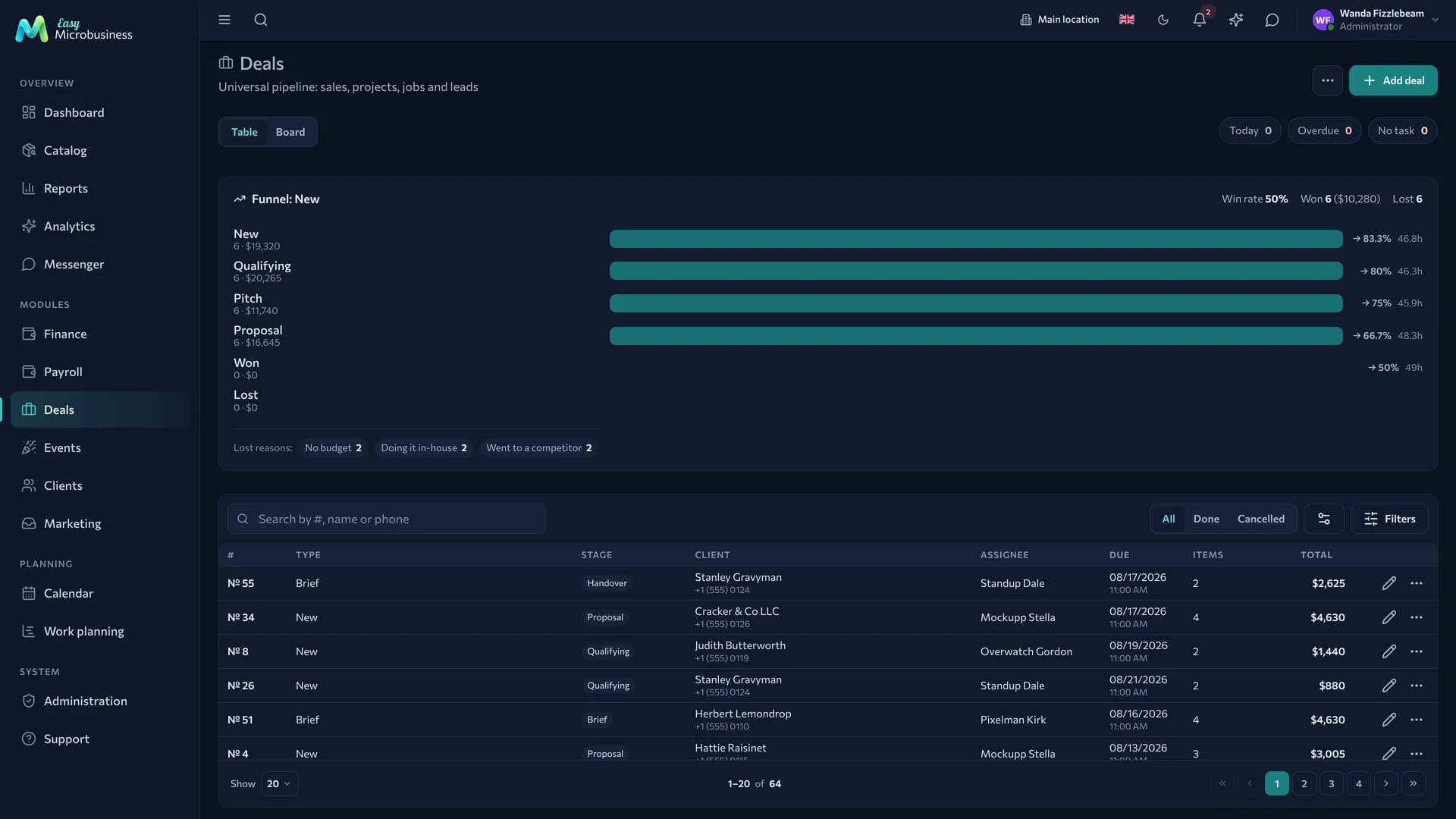
Deal type
The type sets which process you are running.
| Type | What it is about |
|---|---|
| Order | A customer order with contents and payment |
| Project | Long work with stages, checklists, an advance and stage payments |
| Production | Manufacturing to a specification |
| Field job | Work at the customer's location |
| Lead | An incoming enquiry before qualification |
| Intake | Taking an item into service |
| Maintenance | Scheduled servicing under a contract |
| Event | An occasion with a fixed date: an estimate per guest, a venue booking, preparation |
A type enables only the capabilities it needs: item contents, payment plan, schedule, address, estimate, checklists, guest count, enquiry channel. The form stays short and nobody scrolls past empty fields.
Stages and outcome
A funnel is an ordered list of stages: one initial, several working, and terminal ones that record the outcome — won, lost, completed, cancelled.
Moving to another stage does more than change a field: it can write off materials, create a task, notify the customer. If two people press the button at once, materials are written off once.
Loss reasons
For a stage with the "lost" outcome there is a reference of reasons: too expensive, chose a competitor, changed their mind, could not reach them. The Require a loss reason setting makes the choice mandatory. Loss analytics is built from this: usually two or three reasons account for most failures.
What lives inside a deal
- Items — works and materials linked to the catalog.
- Payment plan — stages with amounts and dates; the payment order in the contract is printed from it.
- Tasks — what to do and by whom, with a deadline. A deal with no next task lands in the "no task" filter: that is the main source of lost customers. With Work planning connected, tasks also get "Start", "Executor" and a "Milestone" toggle.
- Schedule — a Gantt chart for this deal: stages, links, critical path and a baseline. Appears together with Work planning.
- Feed — team comments and automatic records of stage changes.
- Stage history — who moved it and when; the time spent on each step is counted from it.
- Files — intake photos, designs, measurements, acts.
- Materials — issuing from stock to a site and returning what was not used. The tab appears with Inventory for types that do not write off materials at closing.
- Work orders — tasks for crews (Crews and work orders) with works, volumes and rates. Closing a work order accrues piece-rate pay in Payroll.
- Estimate versions — snapshots of the contents with prices and totals: what changed as the work went on.
Materials, work orders and estimate versions are project tools. The full scenario is in the Construction and renovation module.
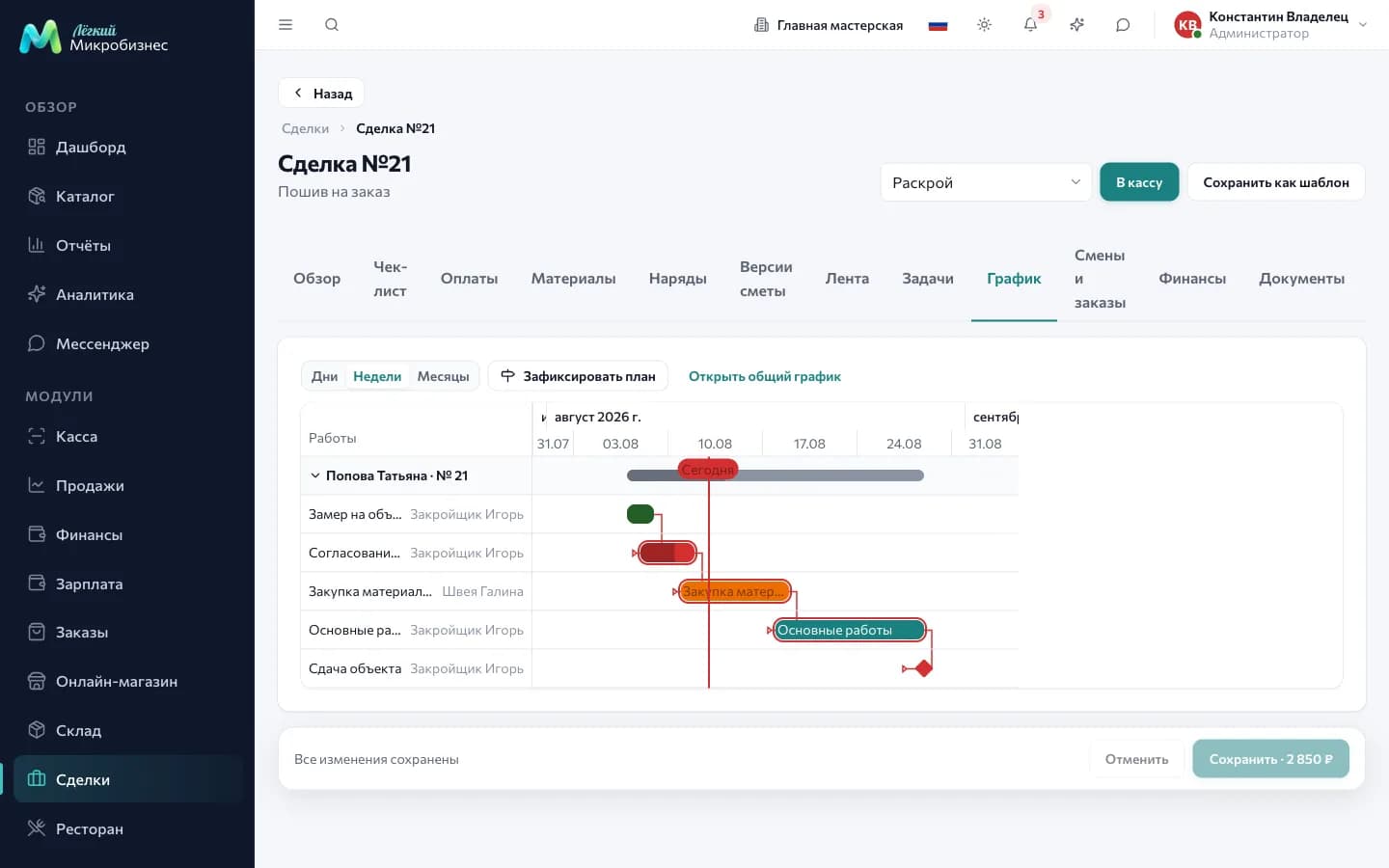
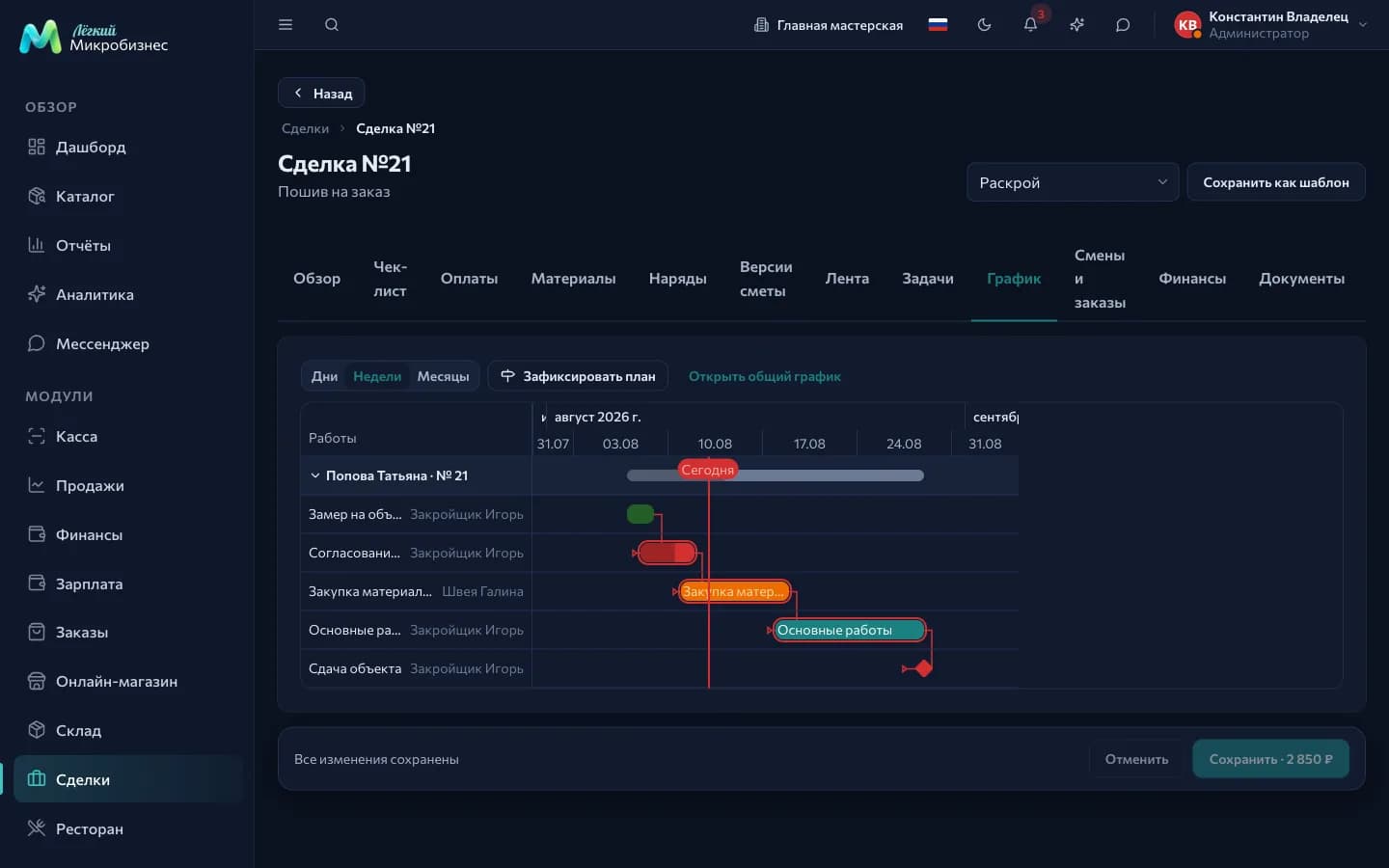
Estimate per guest
An Event type deal has a Guests field, and every estimate line has an per guest toggle. With the toggle on you set the rate per person: how many portions, sets or bottles one guest needs. The system multiplies it out and shows the calculation as 85 × 1 = 85.
Change the guest count and lines with a rate recalculate when the card is saved. Venue rental, crew work and delivery stay as they were. The industry scenario is in the Events and catering module.
Board and table
The deal list switches between a table and a board by stage. On the board a card is dragged from column to column, which suits a morning stand-up. In the table it is easier to filter and sort by amount and deadline.
The column header shows the number of deals and their total for the whole stage. The + button creates a deal directly in that stage.
A card is moved with the mouse, with a long press on a phone, through the card menu ("To stage: …") or from the keyboard: space picks a card up, arrows move it, a second space drops it, Esc cancels. The order inside a column is kept for everyone.
Moving into a stage with the "lost" outcome asks for a reason, exactly as a stage change from the table does.
A stage can carry a Card limit, set in the deal type settings. The column counter then shows 12/10 with a warning "More than 10 deals in this stage — the funnel is clogging". The limit is soft: it shows where the funnel stopped and still lets cards through. The field appears with Work planning connected.
Types with an address — field job, maintenance — have an Address column in the table, so you can see where a crew is going without opening the card. The customer card offers an "All field jobs at this address" link: the log filters down to one point with a chip showing the address itself.
Events day
The Events menu section is a day screen for occasions: event deals for a chosen date with time, venue, guest count, amount and a readiness row (prepayment, booking, owner, stage checklist). The New event button creates a new deal, and a card leads into an existing one. The screen is open to administrators, directors and managers. The full scenario is in the Events and catering module.
Public link for the customer
A deal has a permanent public link. Through it the customer sees the status without logging in: received, diagnosing, ready for collection. The link is printed as a QR code on the intake receipt, which noticeably cuts down "how is my order going" calls.
Client portal
For project and production deals the link turns into a portal — the Client portal tab. The client sees the stages with dates, a "Next up" hint and the files you marked. If showing the estimate is on, this is joined by the current estimate version with prices, the payment schedule and an Approve estimate button.
The portal is driven by three component settings: "Client portal by link" is the company-wide toggle, "Show the estimate and payments to the client" controls amounts, "Customer approval of files" controls decisions on files. A link is issued per deal and revoked with one button.
The link opens without a password and can be forwarded by anyone. Internal comments on payments are not shown to the client; amounts and dates are.
How to send a file for approval
- Open the "Client portal" tab and find the file in the list.
- Press Send for approval — the file becomes visible to the client and takes the Waiting for a reply status.
- Wait for the decision: on the portal the file gets Approve and Send back buttons. The second asks for a comment.
The decision comes back into the deal card as an "Approved" or "Sent back" badge with the client's comment, the owner receives a notification, and the fact lands in the audit log.
The Withdraw from approval button returns the file to the ordinary ones and clears the client's decision, so re-approval starts fresh.
The button appears where the client can actually answer: the "Customer approval of files" setting is on and a link for this deal has been issued. The industry scenario is in the Printing and advertising module.
Who does what
- Employee — runs their own deals, adds works, moves them along stages.
- Manager — sees every deal, assigns owners, closes outcomes.
- Director — looks at the funnel, conversion and loss reasons.
In short
- One deal type per process: repair, project, field job, event.
- A stage transition can write off materials, create a task and notify the customer.
- A public link shows the customer the status; the client portal shows stages, estimate and files.
- A deal with no next task lands in the "no task" filter — the first sign of a customer slipping away.
Related components
- Field service — the master's screen and the dispatch board.
- Crews and work orders — work orders on a site and piece-rate pay.
- Catalog — deal items.
- Inventory — material write-off at the right stage.
- Point of sale — closing a deal with a receipt.
- Scheduling and Calendar — field jobs and intakes in the schedule.
- Work planning — task dates, the board and the schedule with dependencies.
- Clients — deal history in the customer card.