
Study groups
The component for places where the same people come on a schedule for weeks: a school, a studio, a club, courses, a driving school. A group is a fixed membership with its own schedule, and the log answers "who was in class" and deducts a class from a package.
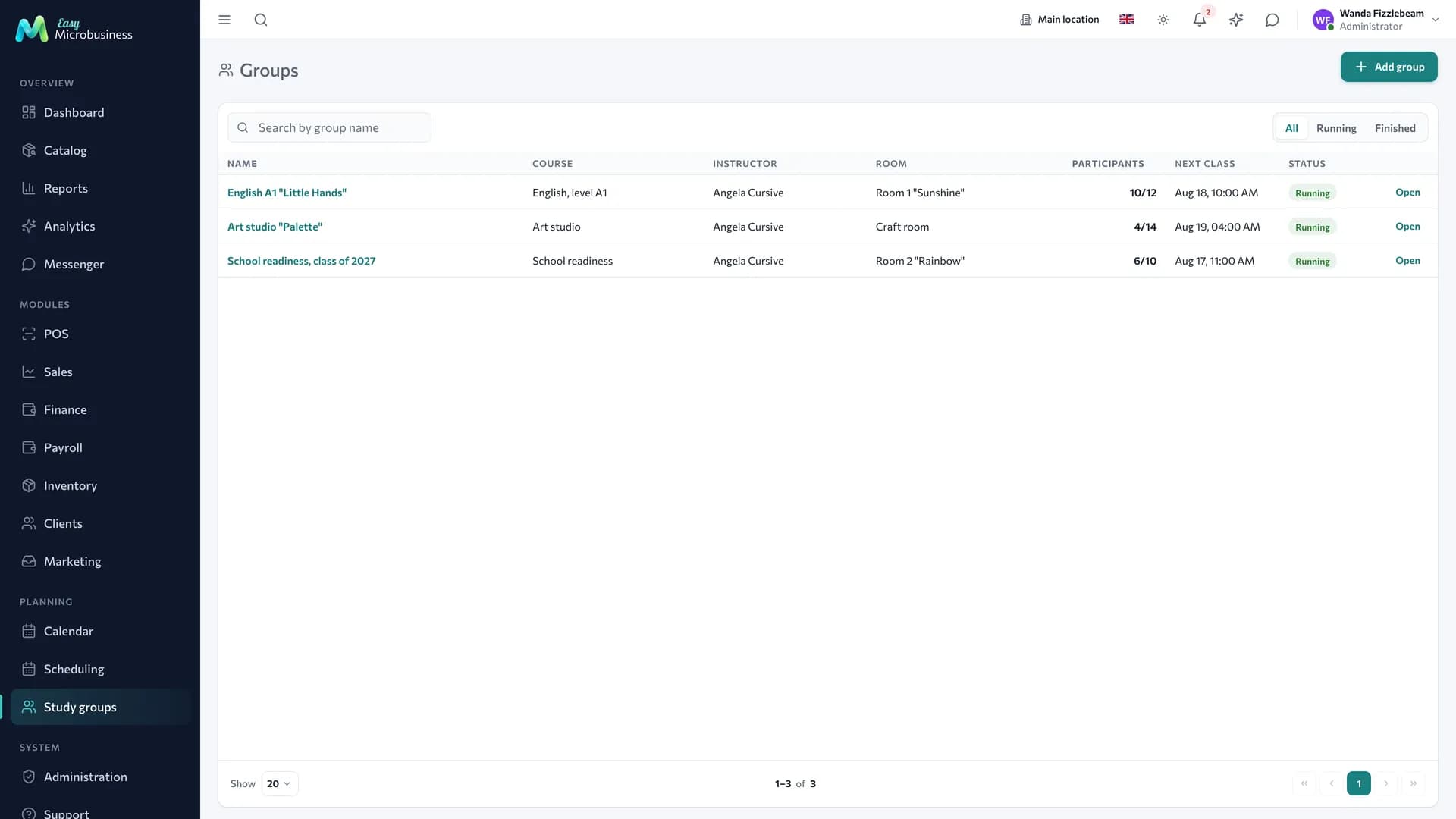
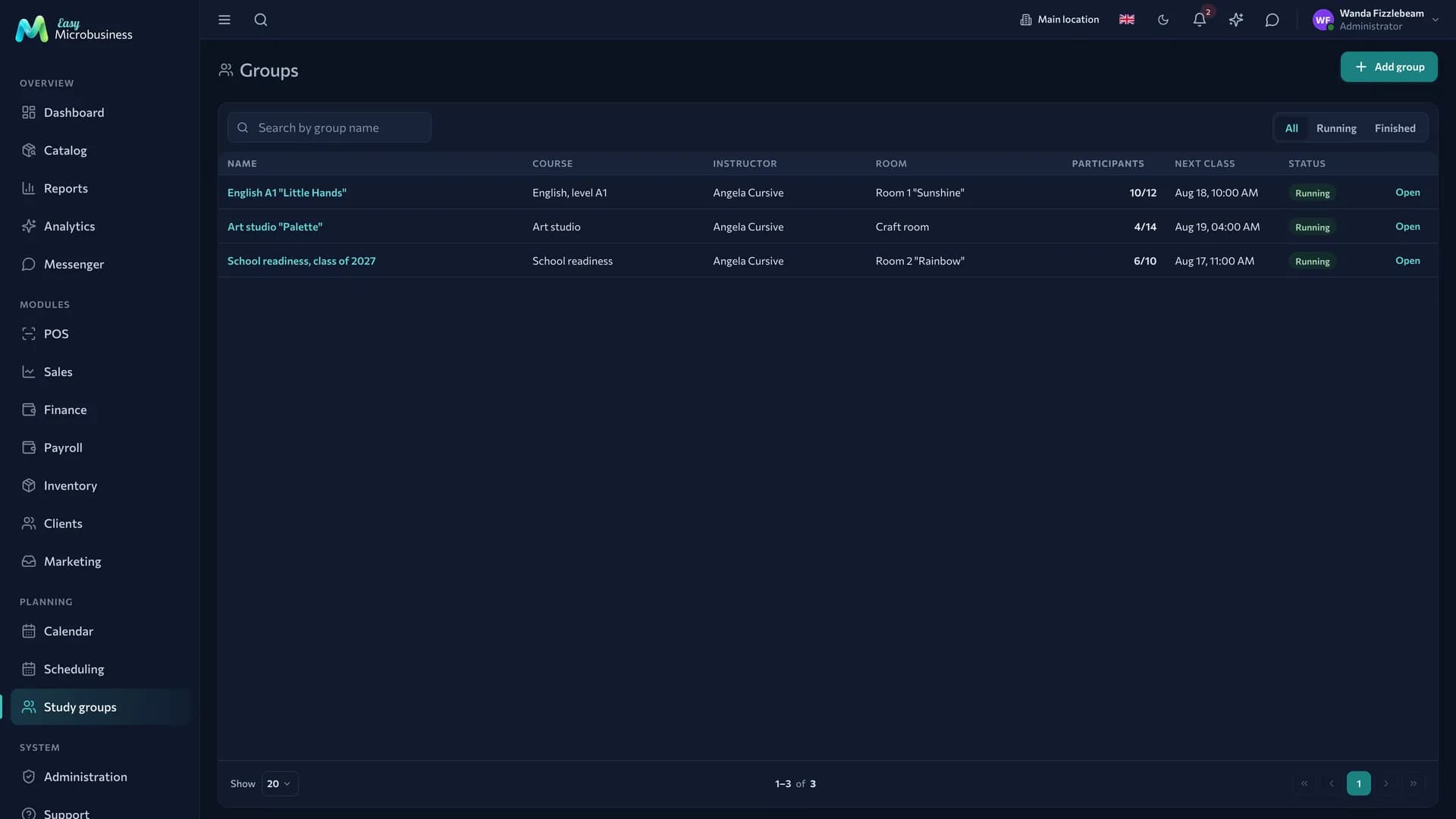
The interface terms are neutral — Groups, Attendees, Instructor: the same screen serves a language school, a martial arts club and a dance studio.
The group card
The list shows the course, the instructor, the room, the number of attendees ("5/12" — five students out of twelve seats), the date of the next class and the status. The card has four tabs: General, Members, Schedule, Log.
| Status | What it means |
|---|---|
| Recruiting | The group is being filled, classes have not started |
| Running | Classes are on schedule |
| Completed | The course has ended; the group stays in history together with its log |
How to set the schedule
- Open the Schedule tab.
- Pick the days of the week and the time, set the duration.
- Set the course period.
- Save — the rule unfolds into a series of classes.
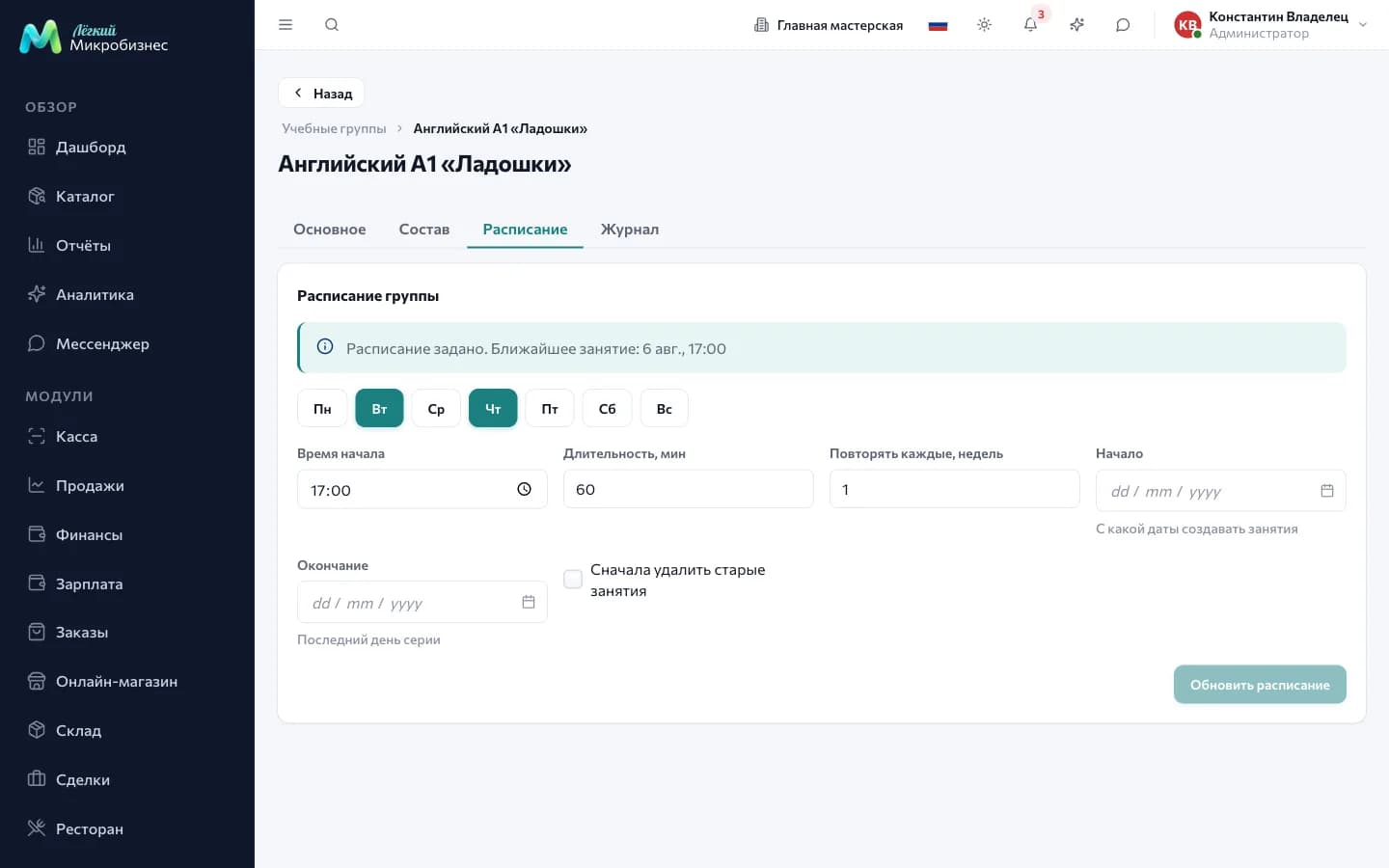
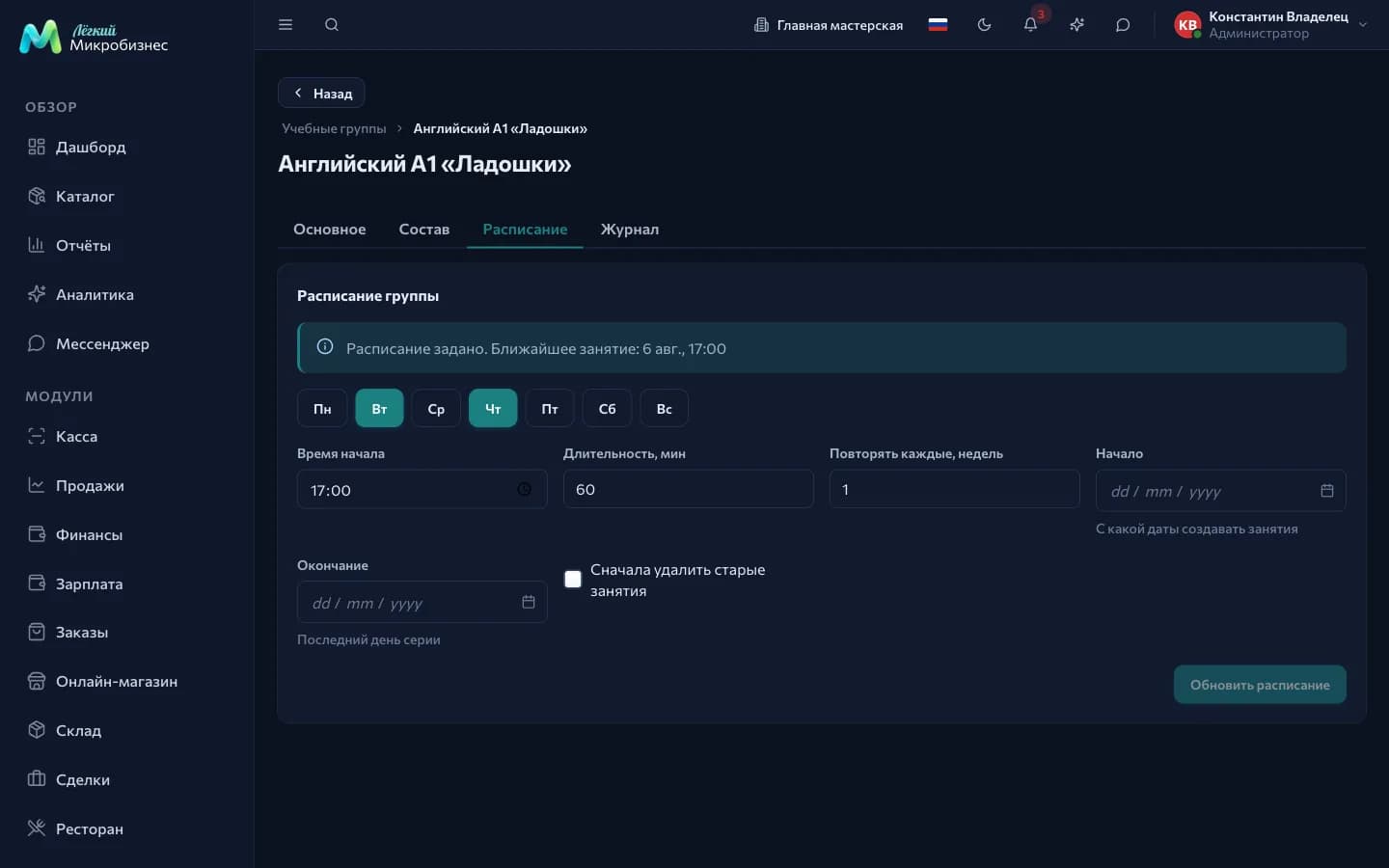
Group members go straight into every class, so there is no need to enrol them one by one.
When a schedule is rebuilt, the system asks whether to remove the previous classes and reports how many it removed.
Attendance log
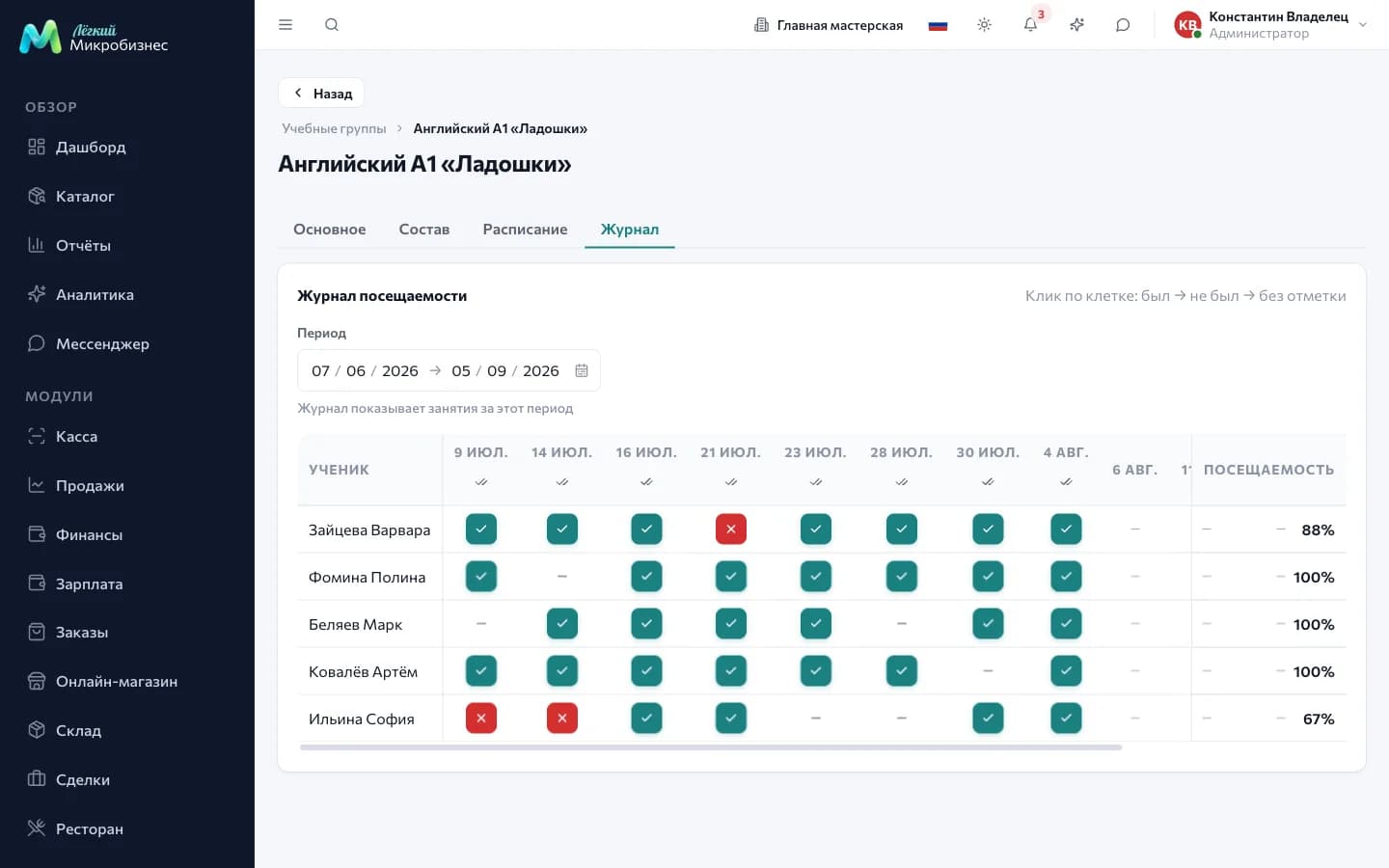
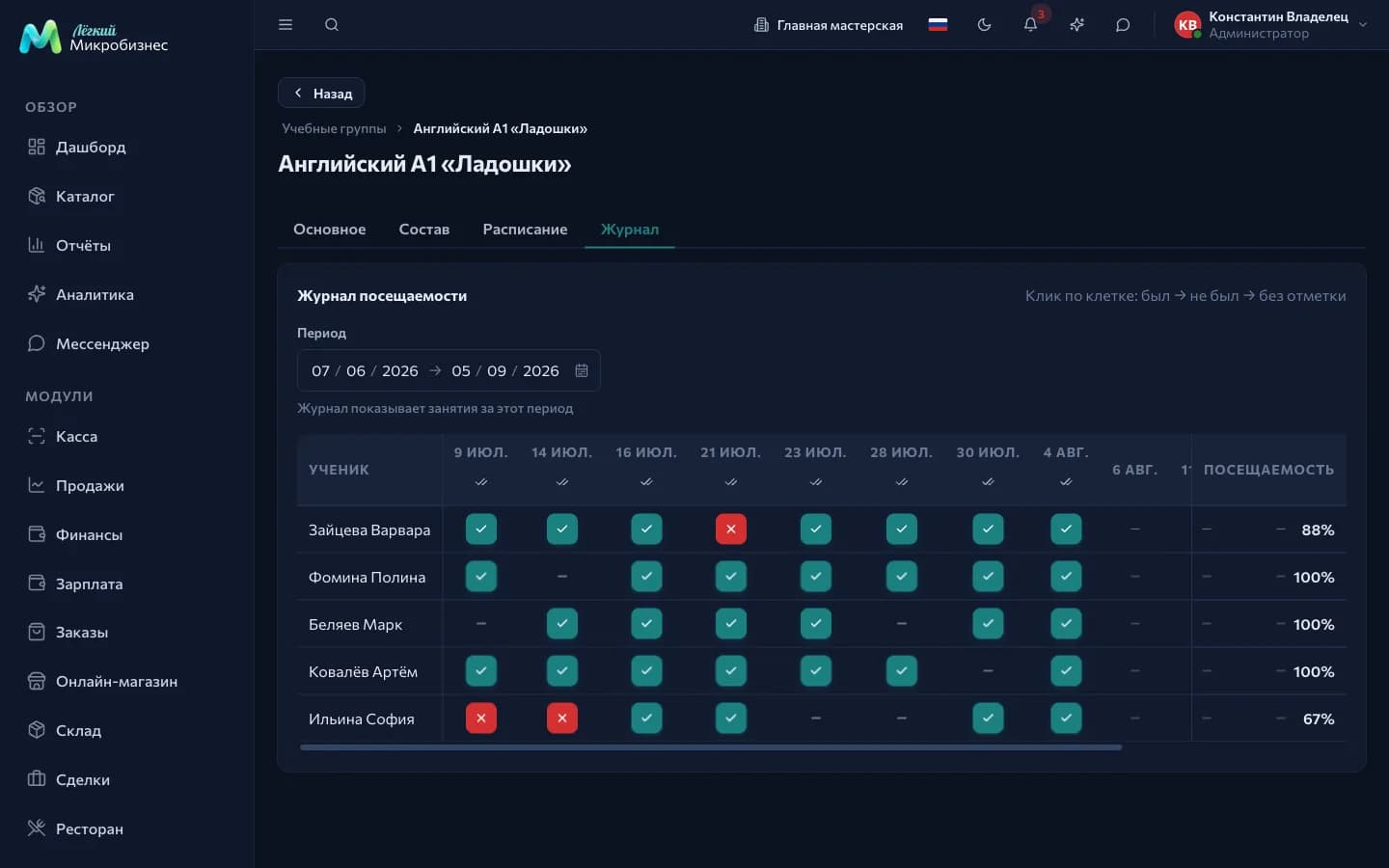
The log is an "attendee × class" matrix. Clicking a cell cycles the mark: attended → missed → cancelled in advance → no mark.
Above a date column there is a "mark everyone present" button. It asks for confirmation and reports the result: how many were marked, how many classes were deducted from packages and where the deduction did not go through.
The "attended" mark deducts a class from a suitable package. If there is no active package, the system says so.
The log period is chosen by dates; by default it is two months back and one month ahead. The student column stays in place when the table scrolls horizontally.
Members
A student is enrolled into a group and joins its classes. Capacity is checked at enrolment, so a group does not overfill.
An expelled attendee stays in the history: the log of past classes is kept as it is. The same screen brings a person back into the group.
How to connect
The component is offered by the Education and courses and Fitness and sports modules. Scenarios that work with a fixed membership — a children's centre, a language school, a driving school, a martial arts club — switch it on right away.
Frequently asked
A student came to another group's class. Mark them in the attendee list of that class in the Scheduling section: the group itself does not change.
A class did not happen. Cancel the class booking — attendees get no marks and nothing is deducted.
A mark was set by mistake. Return the cell to "no mark": the deducted class comes back to the package.
In short
- A group is a fixed membership, and its schedule is set by one rule for the whole course.
- Attendees join classes automatically.
- The "attended" mark in the log deducts a class from the student's package.
- An expelled student stays in the history, and past classes keep their marks.
Related components
- Scheduling — group classes as resource bookings, one-off class rosters and the waitlist.
- Clients — students, packages and the "Education" tab.
- Point of sale — selling a package.
- Reports — attendance and group occupancy.
- Education and courses — the full school scenario.