
Fitness and sports
The module for clubs, studios, sections and personal trainers: a class grid, packages of visits and time-based memberships, arrival marks at the front desk, a waitlist when a class is full and a client cabinet.
Five scenarios
At connection the module asks for a scenario. It brings halls and trainers with working hours, class types with durations, a ready package price list, schedule settings, dashboard panels and print forms.
| Scenario | Who it is for | What it brings |
|---|---|---|
| 🏋 Gym with a training floor (default) | Memberships and open access to the floor | A group programme hall for 20 and a trainer for personal sessions, sessions of 55–90 minutes, monthly and annual memberships, a morning card for "weekdays until 16:00", a pack of 8 personal sessions, a 4-hour cancellation window, a visit burned on a no-show |
| 🧘 Group class studio | Yoga, pilates, dance on a class grid | A large hall for 14 and a small one for 8, classes of 55–75 minutes, packages of 4 and 8 classes, a monthly unlimited card capped at "no more than 6 times a week", a 6-hour cancellation window |
| 🥋 Martial arts club | Fixed groups by age and level | A mat for 16, sessions for children and adults, monthly packages of 8 and 12 sessions, "Belt / grade" and "Parent contact" fields, a 12-hour cancellation window |
| 🏊 Swimming pool | Sessions by lane | Two lanes of 8, open swimming and aqua aerobics of 45 minutes, a package of 8 sessions, a morning unlimited card for "weekdays until 12:00", a "Certificate valid until" field |
| 💪 Personal trainer | One-to-one work without an administrator | One trainer resource with a 15-minute buffer and a 45-minute minimum booking, personal and split sessions, packs of 5 and 10 sessions, two customer reminders |
The scenario can be changed later in the module card. A change adds the missing services, resources and price list positions: what you created, your customers and the class history stay in place. Component settings are aligned with the new scenario.
Every scenario brings three print forms — Club services contract, Package receipt and Club rules — customer fields for the training focus and the group level and two automation scenarios: "Booking reminder" and "Bring inactive customers back".
What is included
Core components
- Scheduling — the class grid, front desk, packages, waitlist, online booking.
- Clients — the card with the training focus, the group level and visit history.
Optional components
- Point of sale — selling packages, single sessions, water and supplements.
- Study groups — fixed membership and the attendance log.
- Loyalty — points on purchases, tiers and promo codes.
- Payroll — paying trainers for sessions and for attendees.
- Finance — expenses, profit and customer debts.
- Marketing — requests from capture forms, segments and campaigns.
Catalog, reports, calendar, messenger, integrations and the AI assistant are available right away.
How the day goes
- The class grid. Sessions are created as a series: "Mon, Wed, Fri at 19:00" — a month ahead in one action. A class carries a number of seats, and the "Open class" flag puts it on the online booking page.
- A sale. A package is rung up at the POS as a price list tile, or issued by hand in Scheduling → Packages.
- A booking. The customer books themselves — from the online booking page or their cabinet — or the administrator books them. With no seats left, they join the waitlist.
- Arrival. At the desk the administrator finds the customer on the Front desk screen and marks their arrival: a class is deducted from the package.
- A reminder. A message goes to the customer before the session.
- Retention. Packages nearing their end are visible in the "Expiring" segment, and those who stopped coming get the "Bring inactive customers back" scenario.
Packages: visits, validity and access rules
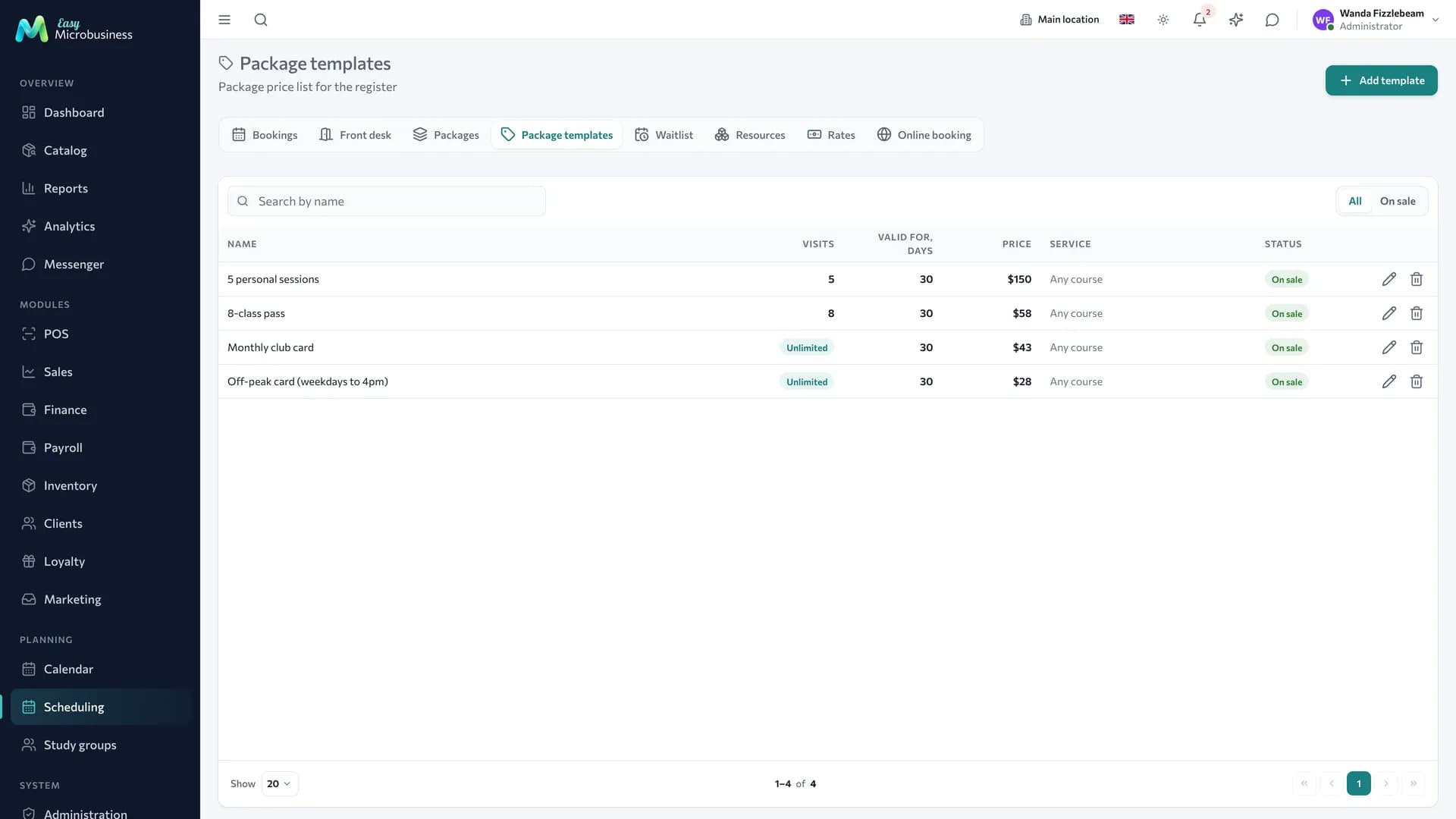
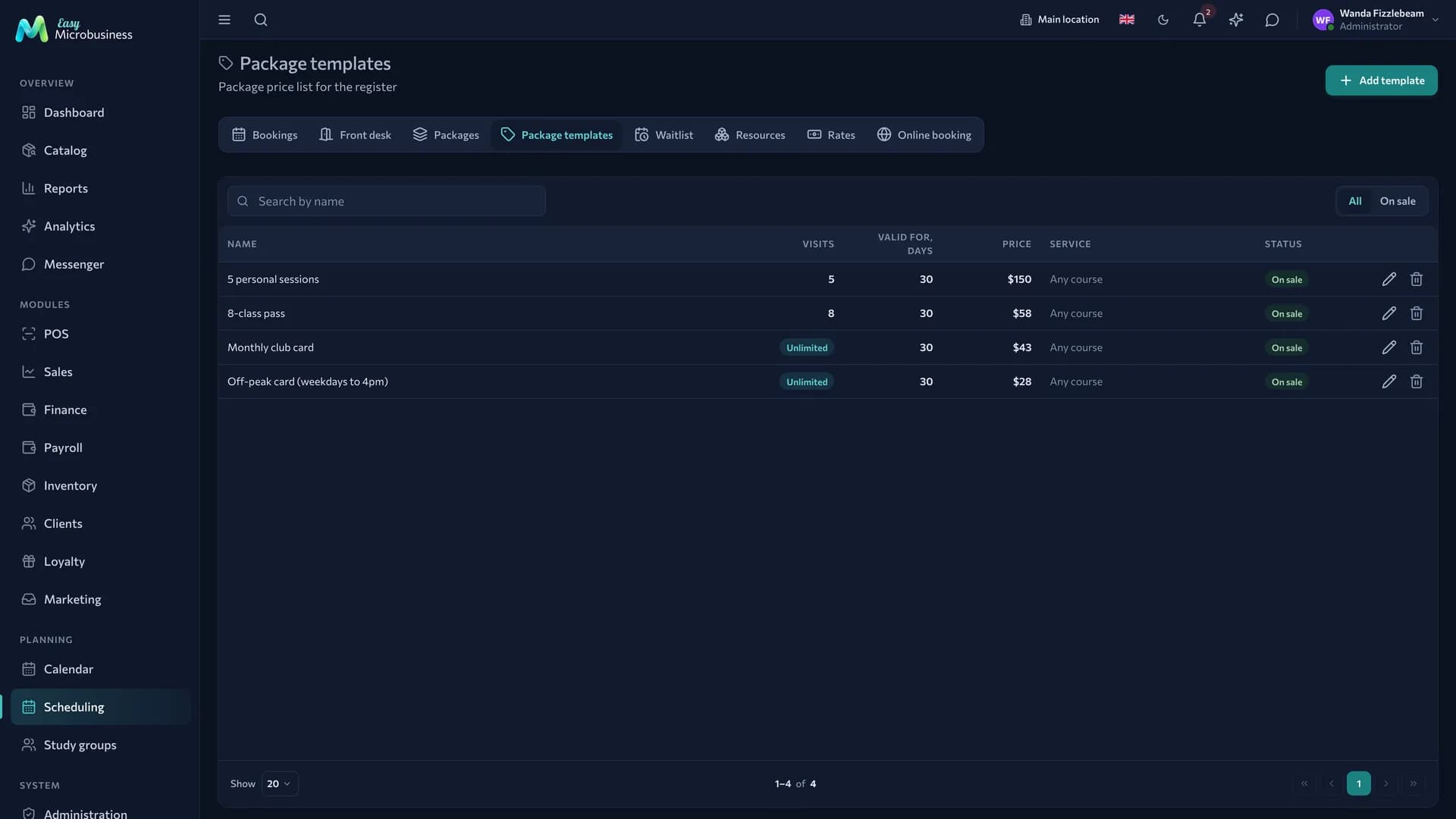
The price list lives in Scheduling → Package templates. A position carries a name, a number of classes, a validity in days, a price, a service and an "on sale" flag.
A membership is a package without a class count. The Unlimited (by date only) checkbox removes the visit counter: the card works until its validity ends. The validity period is required in that case.
The Access rules block limits when a card can be used:
| Rule | What it sets | Example |
|---|---|---|
| No more than, visits and Per period | A visit limit per calendar week or month | Unlimited, but no more than 6 times a week |
| Admit from / Admit until | A time-of-day window | Morning card: from 07:00 to 16:00 |
| Days of the week | Which days the card works; empty means every day | Weekdays only |
Rules are set on the price list and copied into the sold package: a card bought in March lives by March's terms. When issuing by hand, the Price list position field fills in the name, price, validity, service and access rules.
A week starts on Monday and a month on the first, both in the company time zone: a customer counts "three times a week" by the calendar.
If a class falls outside the window or the period limit is used up, the system names the reason: "The class is outside the package window" or "The visit limit for the period is used up".
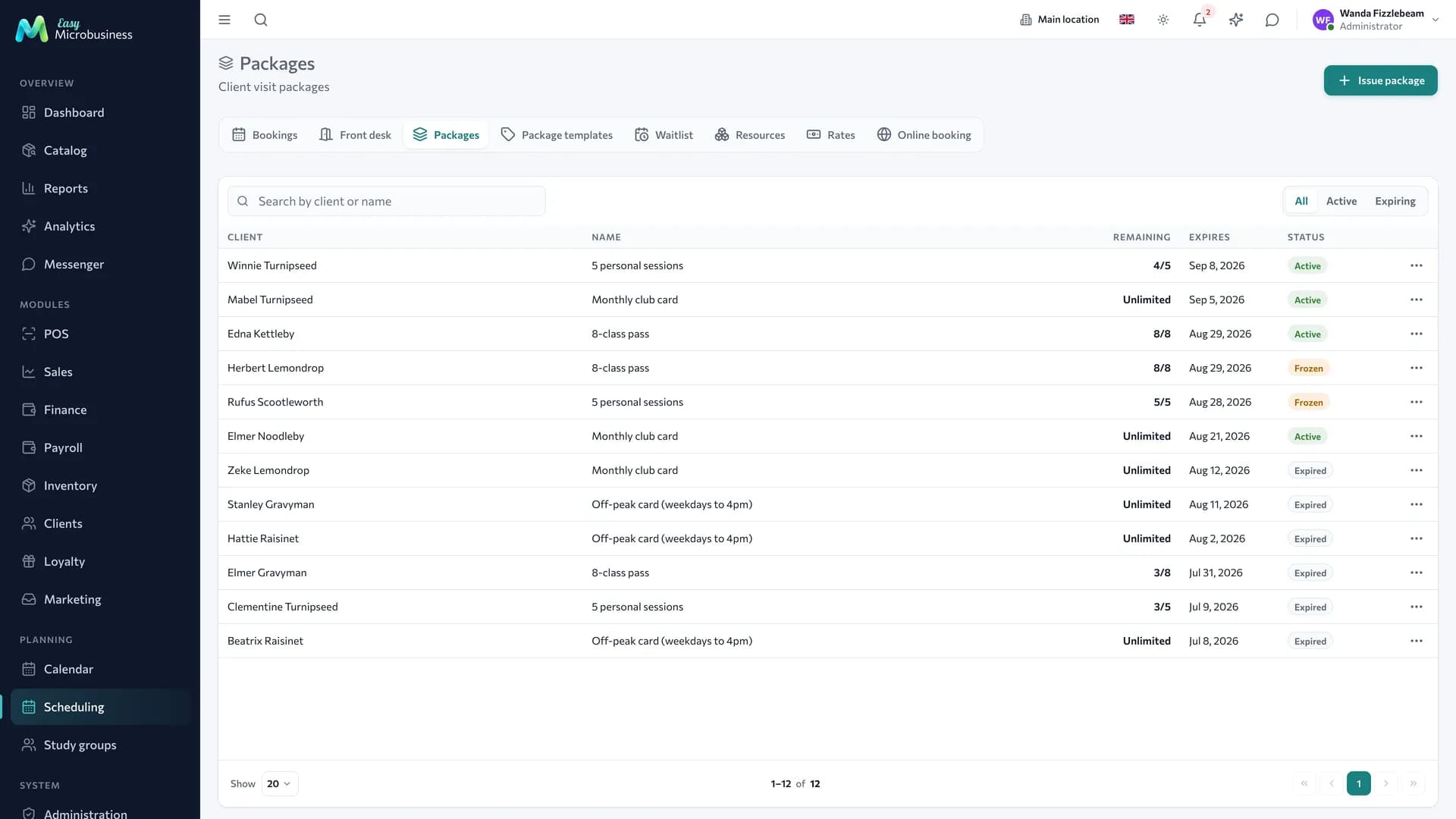
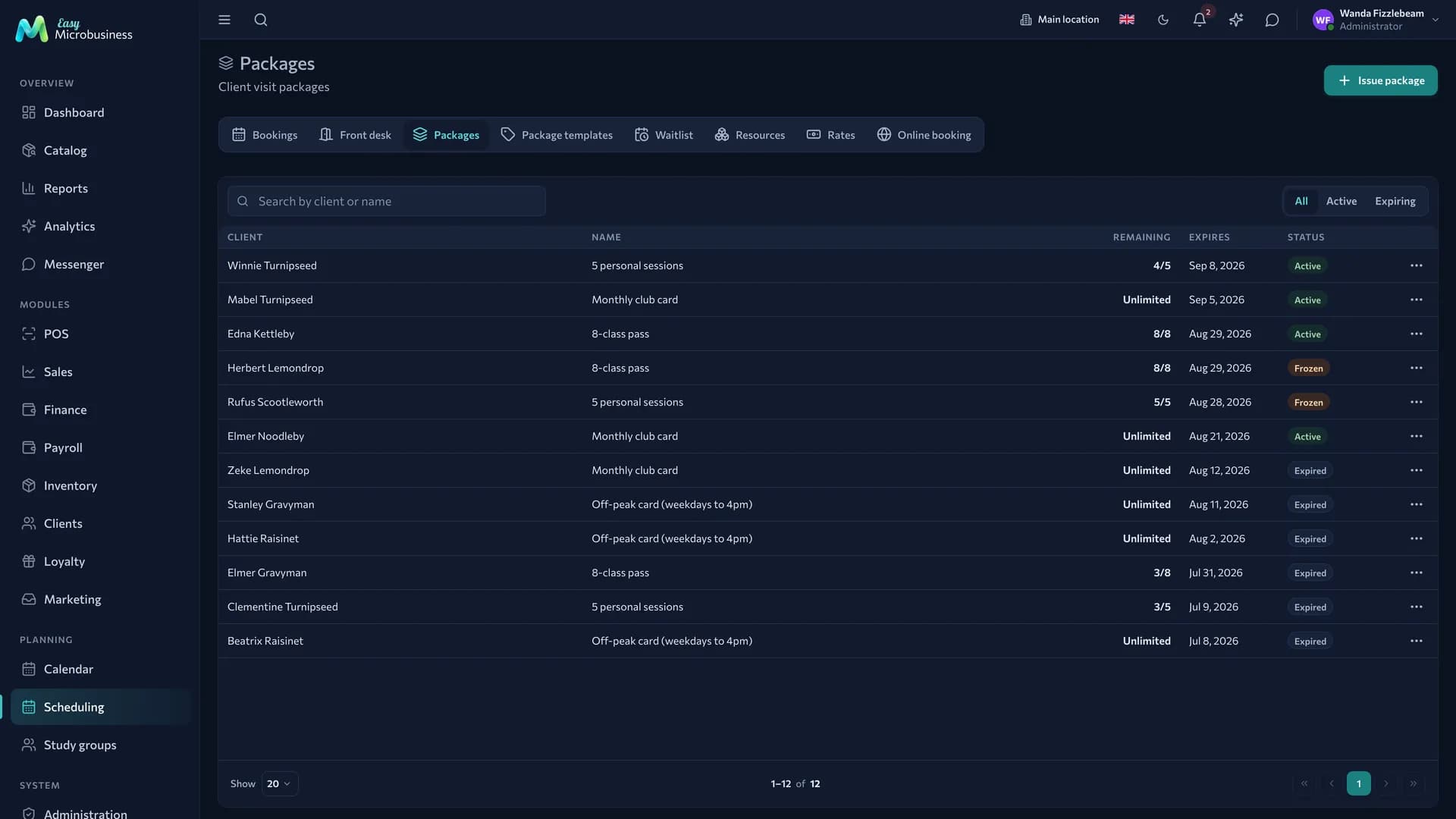
The Scheduling → Packages section has a search by customer and name and three segments: All · Active · Expiring. "Expiring" means active packages ending within the next 14 days.
Freezing pauses a package for illness or a holiday and asks for confirmation. With the "Freezing extends package validity" setting, the end date moves by the idle days. Full days are counted.
The rest of the mechanics — deduction on the "attended" mark, returning a visit, movement history, the cancellation window — is shared by the platform and described in Scheduling.
Open classes and online booking
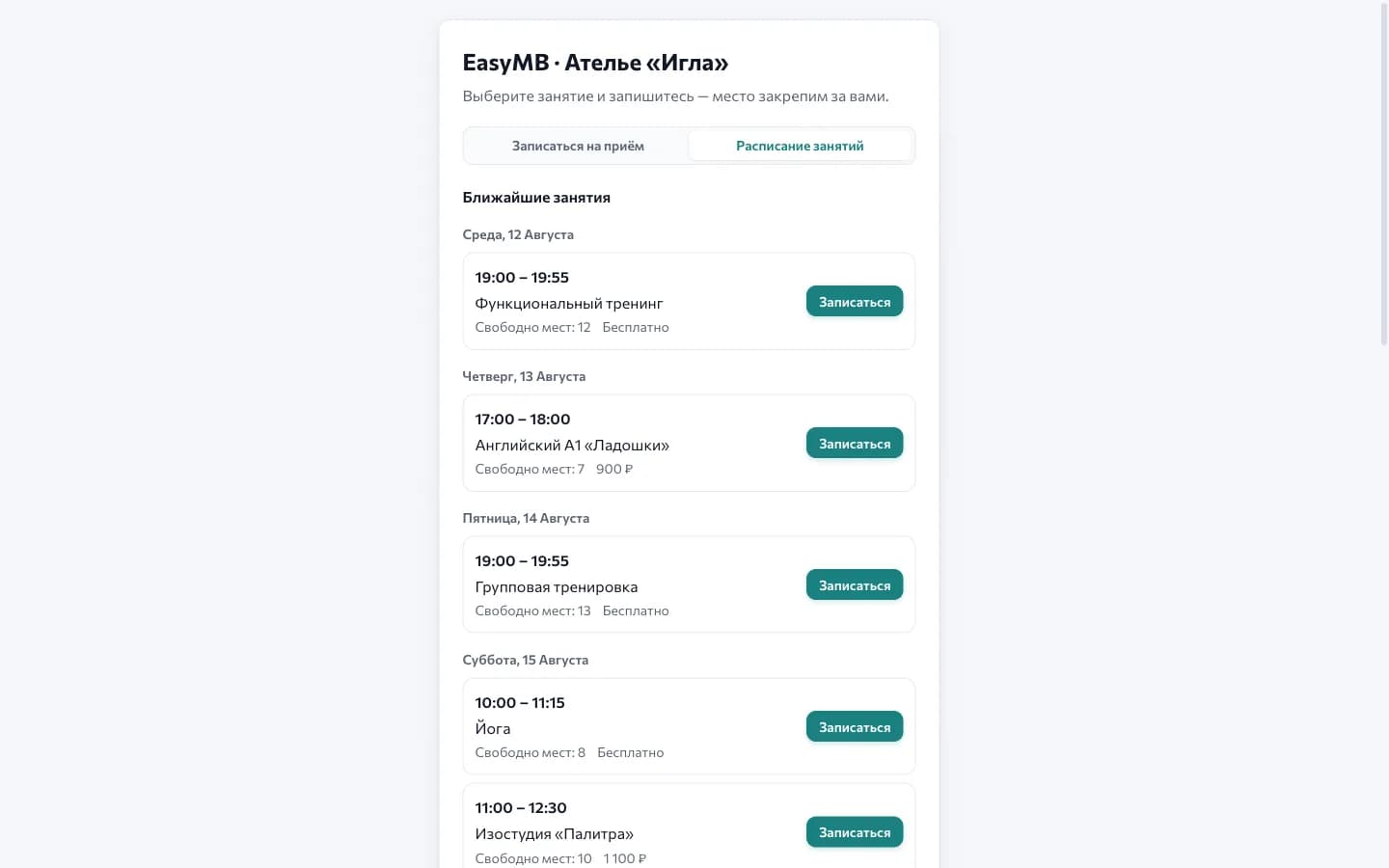
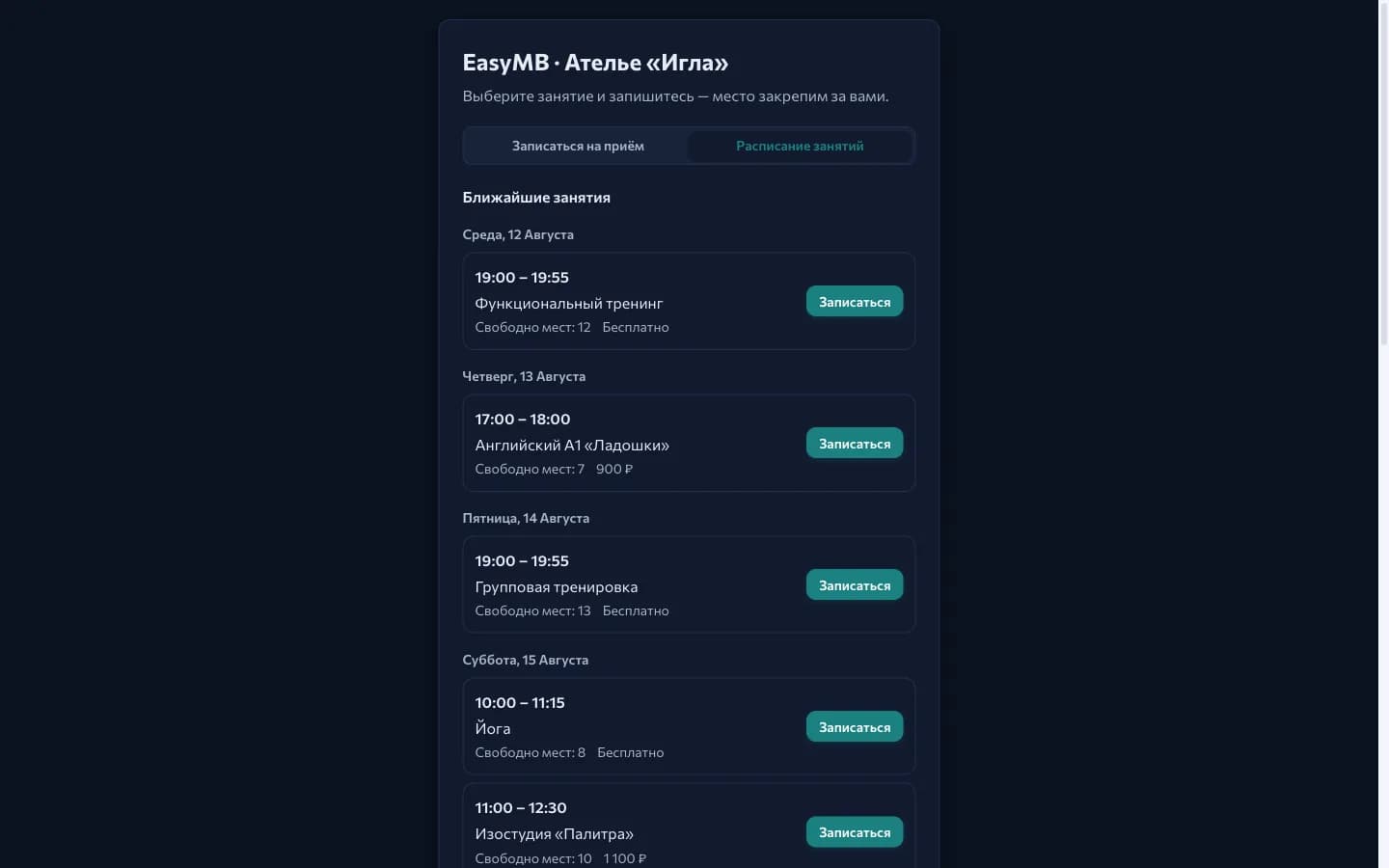
The public page is switched on in Scheduling → Online booking, and the class schedule appears on it through the Allow online booking into group classes setting. The club scenarios turn it on at connection.
A class goes out when it has seats and the Open class flag. The flag appears as soon as capacity is filled in and is inherited by the whole series, so a class grid is created in one action and is visible outside right away. Classes of active study groups are visible without it.
The flag exists because a booking for two and a corporate session also have capacity but do not need publishing.
With no seats left, the customer sees a Join the waitlist button. No registration is needed. Up to ten different attendees a day are booked from one phone number.
Waitlist
The queue lives in Scheduling → Waitlist. A customer joins it three ways: for a specific class, for a group or for a resource interval. For a class the interval is not asked — it comes from the booking itself.
When a seat frees up, the Book button in the queue row places the attendee into the class and closes the row. If seats have gone again, the person stays in the queue.
Pressing "Join the waitlist" again creates no duplicate.
Front desk
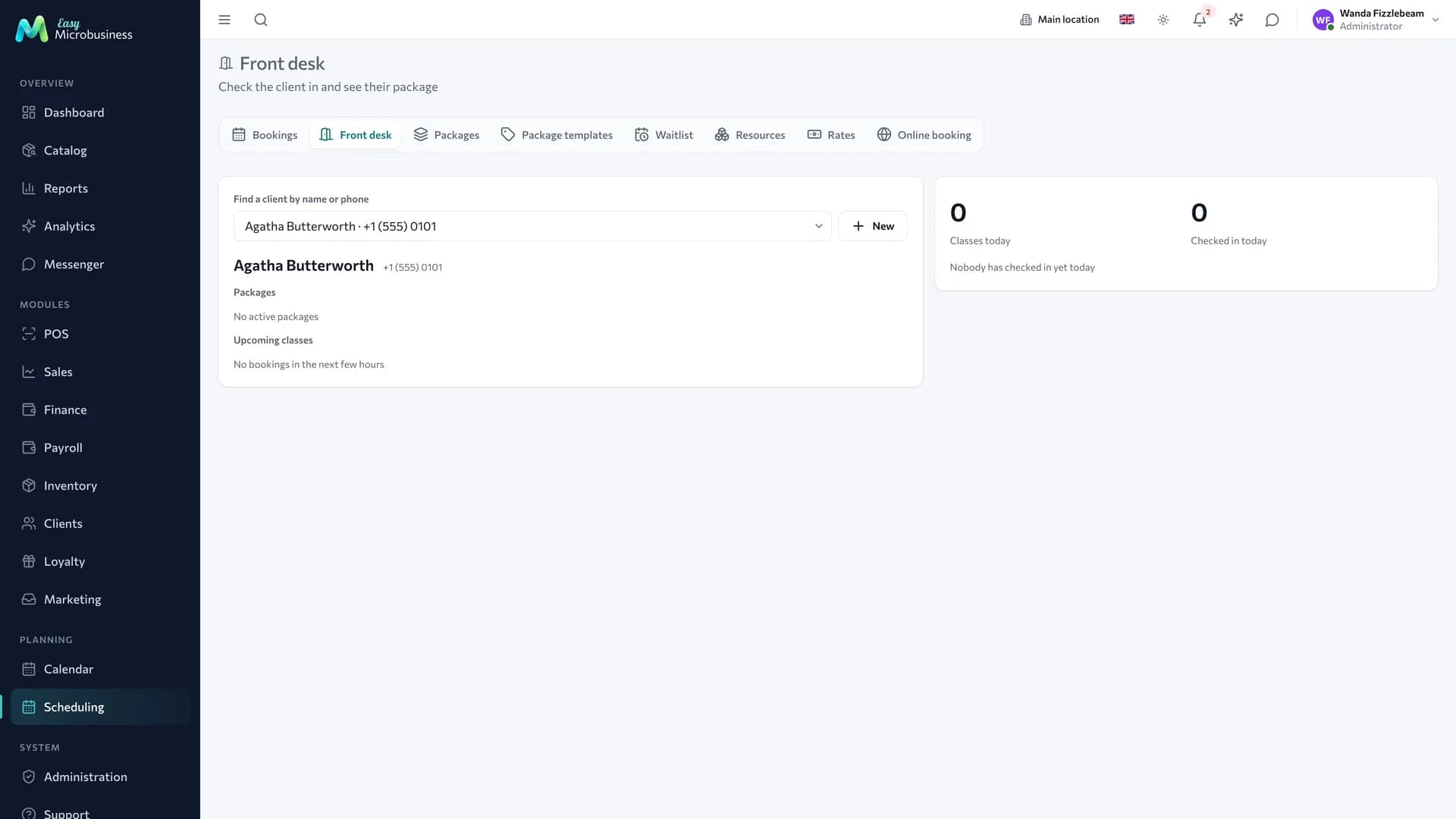
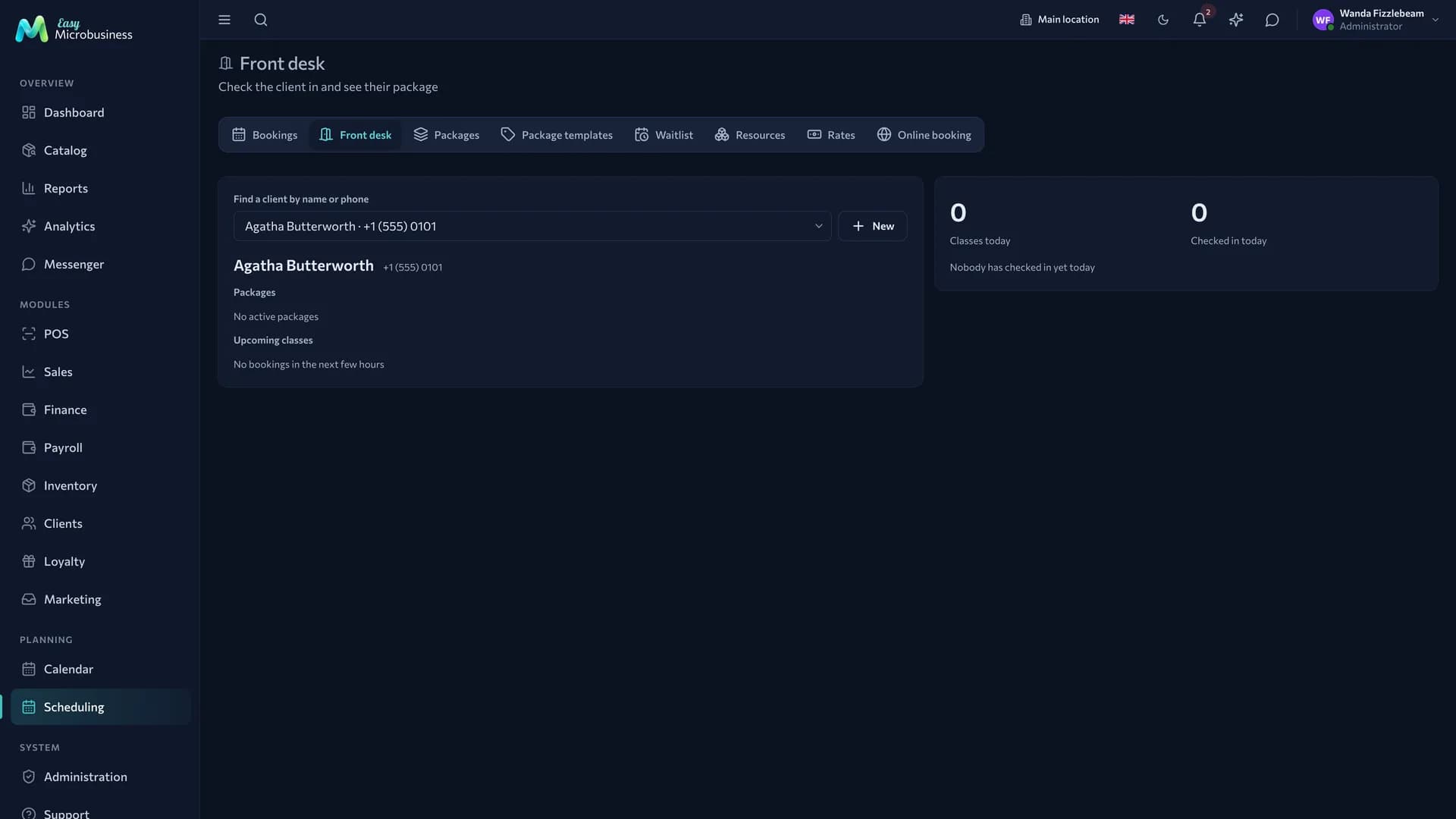
The Scheduling → Front desk screen is the administrator's workplace at the entrance. It is open to administrators, directors and managers.
- Find the customer by name or phone.
- Look at their active packages with balance and validity and their upcoming classes.
- Press Mark arrival — the attendee gets "attended" and a class is deducted.
The button opens 4 hours before the start and works for another 2 hours after the end. Until then it shows "Too early to mark" with a hint about when it opens.
After the mark the system says whether a class was deducted and how many are left, whether the person checked in on an unlimited card, or that they have no active package.
Mark a visit without a booking records a walk-in on a membership when there is no class in the schedule. It asks for confirmation, deducts one class and names the package. The access rules are checked the same way: a morning card will not work in the evening.
Client cabinet
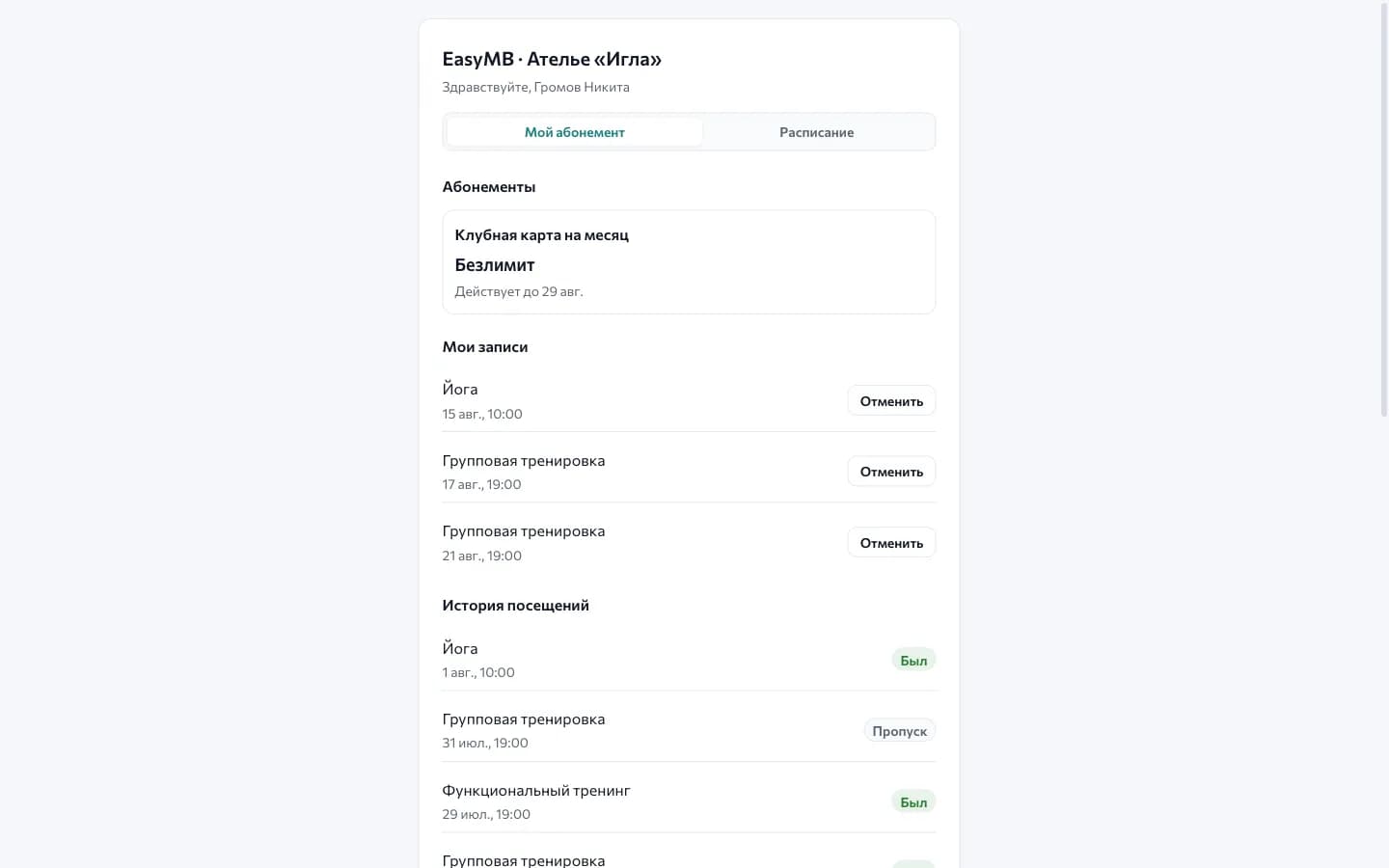
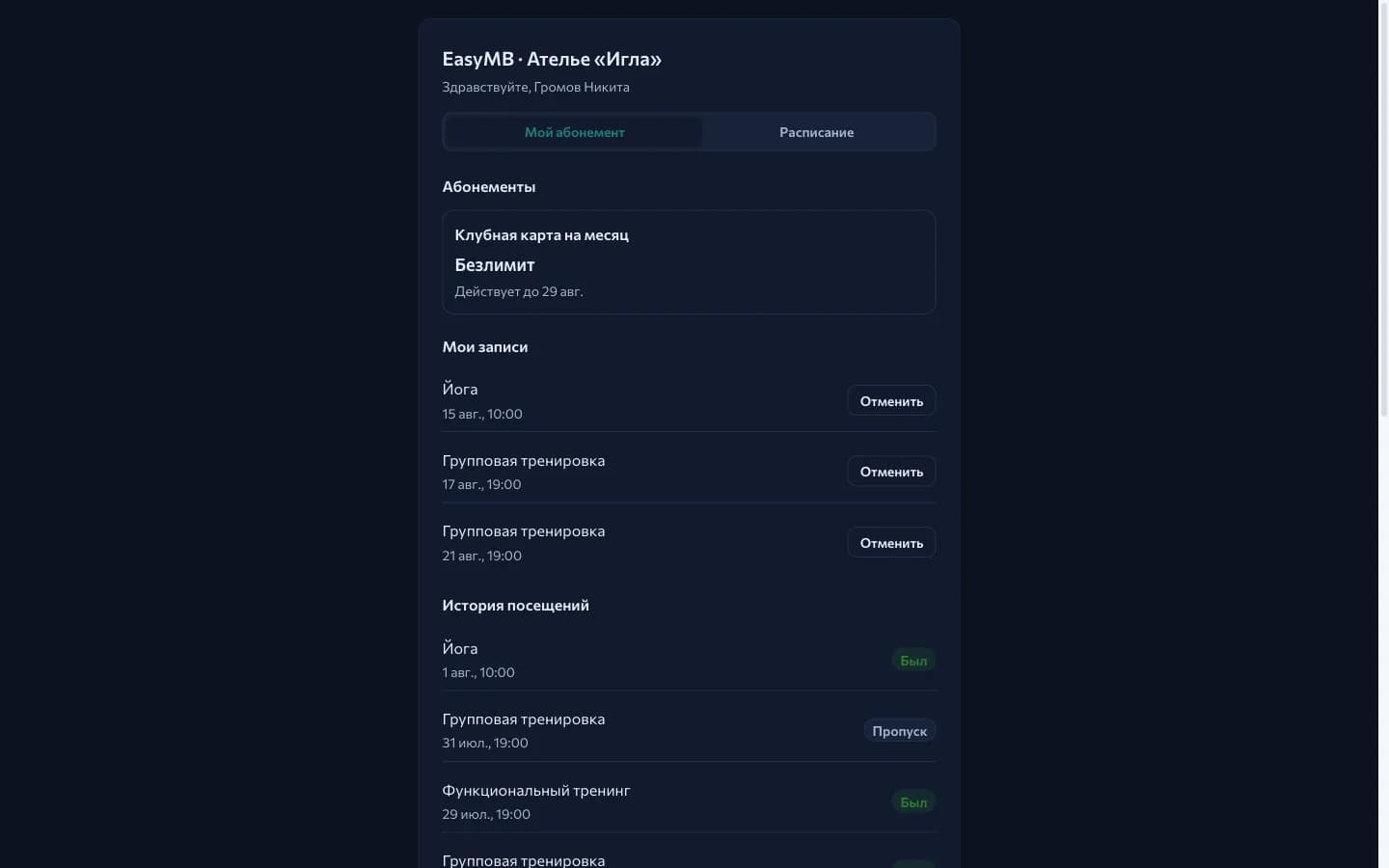
- Turn on the Scheduling component setting Client cabinet. The club scenarios turn it on right away.
- Open the customer card, the "Prices and interactions" tab, the Client cabinet block.
- Press Issue link and send it to the customer.
The link works without a password or registration. Next to it you can see when the customer last visited. Reissue replaces the previous link at once, and Revoke closes the cabinet. The link shows the package and the bookings but no price list, no debt and no order placement.
The cabinet has two tabs:
- My package — active packages with balance, validity, a "Frozen" mark and access rules in plain words ("Mon, Tue, Wed, Thu, Fri · from 07:00 to 16:00"); own bookings with a Cancel button; visit history with "Attended" and "Missed" marks.
- Schedule — classes for the next two weeks with free seats, the Book and Join the waitlist buttons and the "You are booked" and "In the queue" markers.
Cancellation works within the free cancellation window: beyond it the button is replaced by "Cancellation N h ahead", and a late cancellation is settled with the administrator. A class where arrival has already been marked stays in the history.
The cabinet closes if the Scheduling component is switched off, the setting is removed, the customer is deleted or the company is paused for non-payment.
Trainer pay
A group session on packages costs 0 ₽, and a percentage of it gives zero. That is why a fixed rate in commission rules has two multipliers:
- Count by shift hours — a rate per hour of a session;
- Rate per attendee — the rate is multiplied by the number of attendees marked "attended".
Only one multiplier is used. In the accrual preview the rates are labelled with different units — ₽/h and ₽/person. For an individual booking the rate is counted per unit.
What to look at in reports
The club dashboard assembles itself: the "Classes today", "Attendance over 7 days", "No-shows over 7 days" and "Revenue today" indicators, the "Classes today" panel, a load panel by hall and the activity feed.
- Attendance — the attendance rate, visits and misses, class occupancy.
- Resource load — where the schedule does not work: empty halls by day and hour.
- Packages — how many were issued and for how much, what share of classes has been used, what expires within two weeks.
- Revenue and trainer pay — how much sessions brought in and how much went out in pay.
Frequently asked
How is a membership different from a package of 8 classes? A membership has no visit counter: it works until its validity ends. Freezing, extension, movement history and selling at the POS work the same way.
How do we limit a morning card? With the access rules of the price list position: "Admit from 07:00", "Admit until 16:00", weekdays only. Cards sold under it inherit the limit.
A customer came to the floor without a booking. Press "Mark a visit without a booking" at the front desk: one class is deducted from the card.
How do we account for personal sessions? They are ordinary bookings with a trainer. The visit is deducted by the "Deduct a package when a booking is completed" setting, which is on in every scenario of the module.
Can we keep some classes private? Yes, that is what the "Open class" flag is for: only what you mark goes outside.
A customer cancels at the last moment. Beyond the free cancellation window a cancellation counts as a no-show. In the club scenario a visit is burned on a no-show.
In short
- A membership is a package without a visit counter, living by its validity date.
- Access rules are set on the price list and copied into the sold card.
- The front desk marks arrival and immediately says whether a class was deducted.
- The client cabinet gives a customer their balance, booking and self-service cancellation.
Similar modules
- Courses with a curriculum and an attendance log — Education and courses.
- One-to-one sessions and treatments — Beauty and care.
- Renting a hall to outside trainers — Rental.