
Field services
The module for services delivered at a customer's home or office: a request with an address, a day plan on the dispatch board, a field job from the master's phone and crew pay by fact. It fits cleaning, installation, computer help, equipment maintenance and any field crew.
What is included
Core components
- Clients — addresses, visit history per address, regular customers.
- Deals — the request by stage, its contents, payments and history.
- Field service — the master's screen on site and the dispatch board of the day.
- Crews and work orders — crews with shares and work orders.
- Scheduling — master availability: a field job becomes a booking.
- Payroll — piece-rate pay for closed work orders.
Optional components
- Point of sale — payment on site.
- Inventory — supplies written off from a site.
- Work planning — a task board and a schedule when work spans several days.
- Finance — expenses, profit and customer debts.
Catalog, reports, calendar, messenger, integrations and the AI assistant are available right away.
How the day goes
- Intake. A request is created with an address, a type of work and a convenient time. The "Field address", "Type of work" and "Entry code" fields come with the module. The address is required — the crew drives by it and the route is built from it.
- Planning. The dispatcher lays out the day on the Dispatch board: drags a card onto the right master and sets a time. Overlaps are marked by the board.
- Assignment. The customer receives "The master is assigned", and the master's time is booked in the schedule.
- The field job. The master opens the Field section on their phone and runs the request with three buttons: On the way → On site → Work completed.
- The work. On site the master writes off supplies, takes before and after photos and has the customer sign on screen.
- Closing. The customer receives "Work completed", an act with the customer signature is printed, and the piece-rate pay goes into payroll.
Field job stages and customer messages
The request funnel comes with the module.
| Stage | What it means | What goes to the customer |
|---|---|---|
| New | The request is accepted, no executor assigned | — |
| Assigned | There is a master and a time | "The master is assigned" |
| On the way | The master has set off | "The master is on the way" |
| On site | The master is on site, work is under way | — |
| Completed | The work is accepted, the request is closed | "Work completed" |
| Cancelled | The visit did not happen | "The visit has been cancelled" |
The "On the way" and "On site" stages record the time of entry, so you can see how long the master travelled, how long they worked and whether they made the promised window.
Stages carry checklists: address and entry code clarified, arrival window agreed, executor assigned, before and after photos taken, work accepted by the customer. They are edited in the deal type settings.
The message texts live in the company templates and are edited as ordinary text. Sending is switched off entirely with the Notify the customer about stage changes toggle.
Each text has its own channels: email, SMS, Telegram, WhatsApp. Email is on straight away. SMS and messengers are turned on in the System component settings and work once a connector is set up in Integrations.
When editing the texts, remember: the substitutions are the customer name and the request number. There is no arrival time, master name or amount, so the ready texts name the request number and explain what happens next.
The master's screen
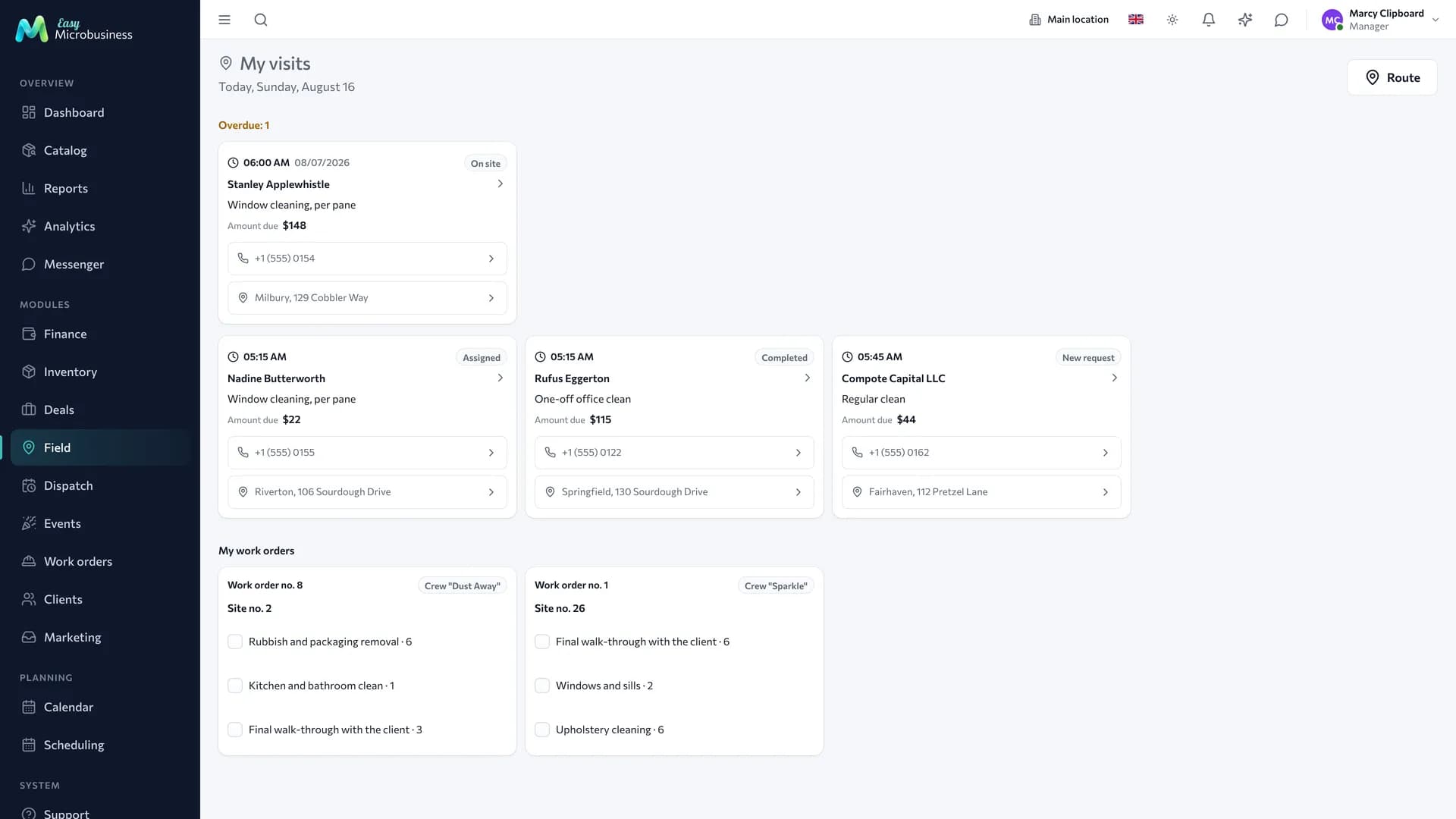
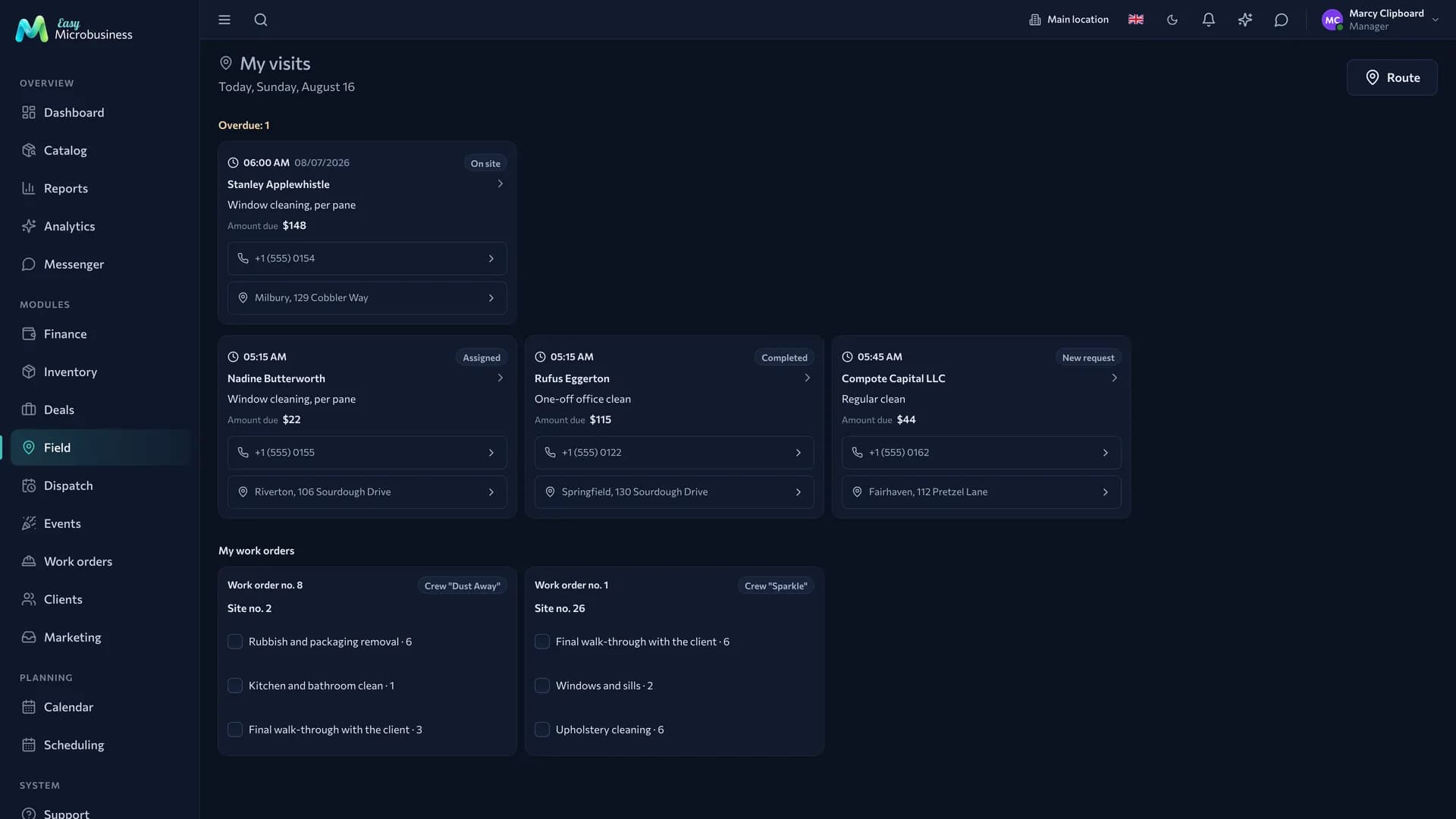
The Field section is designed for a phone. Under the "My field jobs" heading the day is written out — "Today, Monday, 9 August".
- Today's jobs by time: the work, the amount labelled Due, the customer address and phone. The address opens in a navigator and the phone dials on a tap.
- Overdue — a group at the top: unclosed jobs from previous days over the last month.
- Route — every address of the day as one link into a navigator, in time order.
- Crew work orders — works with volumes and marking completed straight from site.
Tapping a card opens the request. On a computer the jobs are laid out as a grid of cards across the screen.
If nothing is assigned for the day, the screen says so. Dispatchers and directors are offered an "Open dispatch" button there.
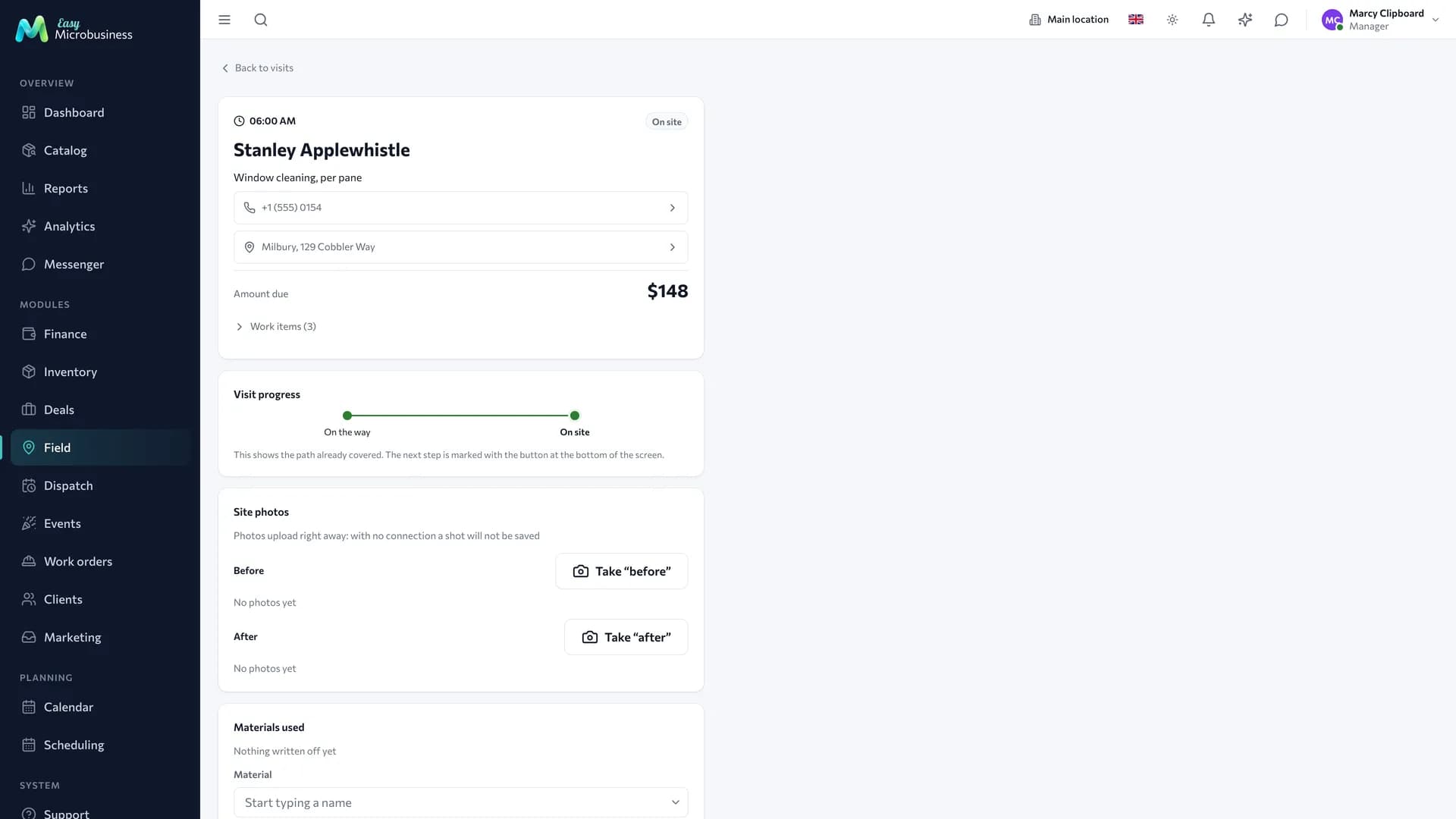
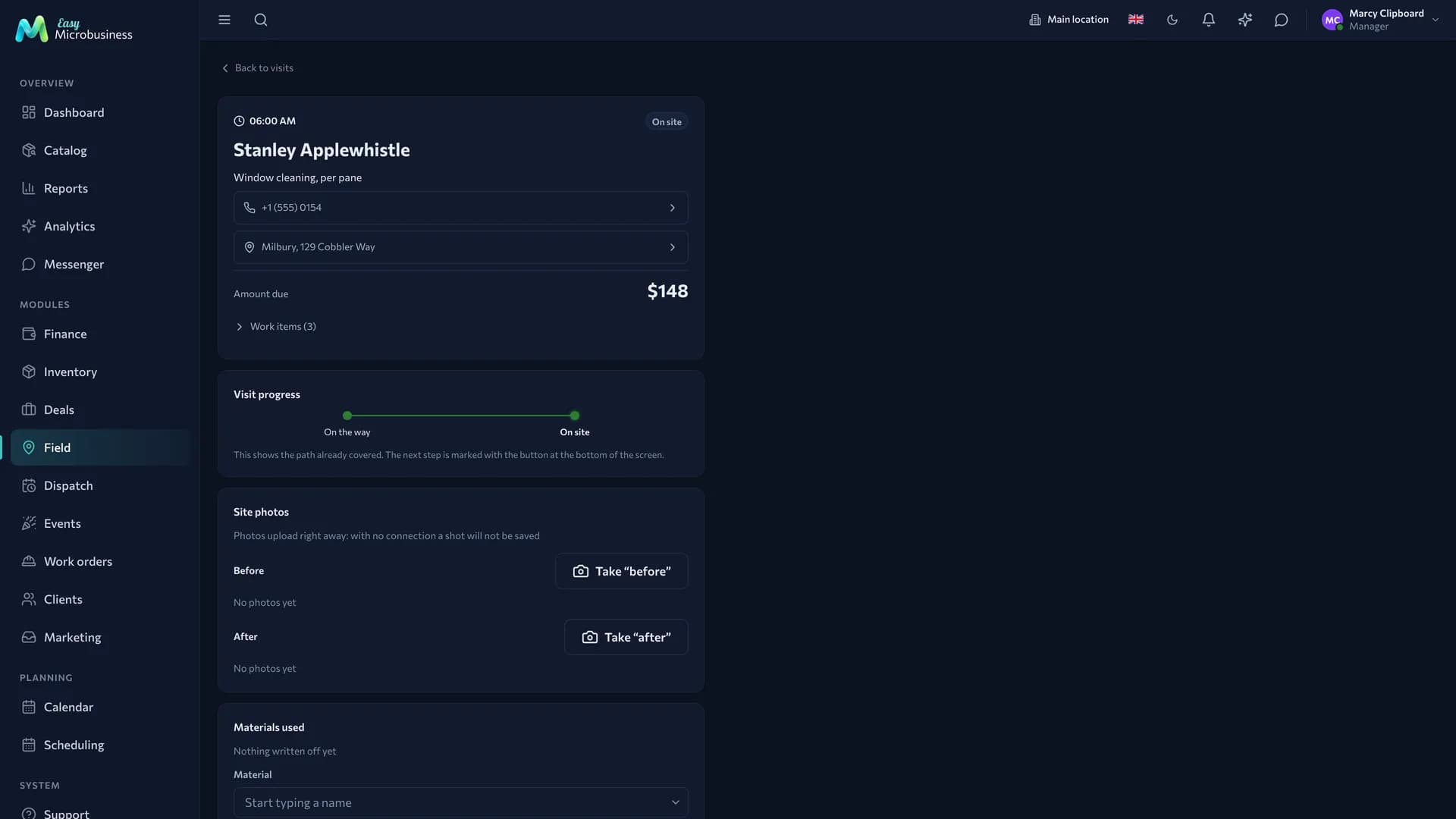
Under the customer name the card says what the work is; below are the phone and the address, the amount due and the scope of work. Then come the sections: "Job progress", "Supplies", "Payment on site", "Site photos", "Customer signature".
At the bottom there is a large button for the next step, which stays at the bottom edge on a phone. Next to it is The visit did not happen: it closes the request without completed work when the customer was not there. Closing and cancelling ask for confirmation.
Working without a connection. A stage change, a work mark on a work order and a customer signature are queued and sent when the network returns. Photos and payment need a connection, and the screen says so.
Payment on site
Customers often pay right away — in cash or by transfer. The field job card has a Payment on site section: amount, method (cash, transfer, other), a Take payment button. Next to it you can see "Paid" and "Remaining", and a fully settled job is marked "Paid in full".
The master records the fact of receiving money. The payment schedule and edits are the office's job in the deal card.
Supplies from a site
Materials are written off when they are actually used. The field job card has a Supplies section: pick the material and the quantity and press Write off to site. A mistaken issue is undone with Return to stock.
The office writes off always, and a master does so with the Inventory setting Executor writes off supplies from a field job on. The module turns it on at connection. A master works with their own jobs: the request is assigned to them or they are in the crew of its work order.
Photos and the customer signature
Site photos are split into Before and After — that pair settles the "it was already broken" question without an exchange of messages. A shot is compressed before sending so it does not eat mobile data. A master can delete their own poor photo within a day; after that an administrator does it.
The customer signs with a finger on the phone screen:
- The master enters who accepted the work.
- They press Hand the phone to the customer — the signature pad opens full screen.
- The customer signs and hands the phone back.
The signature goes into the Act of completed work as an image with the line "Work accepted by … · date". It can be retaken with Sign again.
The photos go into the act too: up to three shots "before" and "after" as separate blocks.
History by address
In the customer card, on the Addresses and sites tab, an address row unfolds into the visit history: how many times you came, for how much, when you were last there, who went and what was done. The All field jobs at this address link opens the deal log for that point.
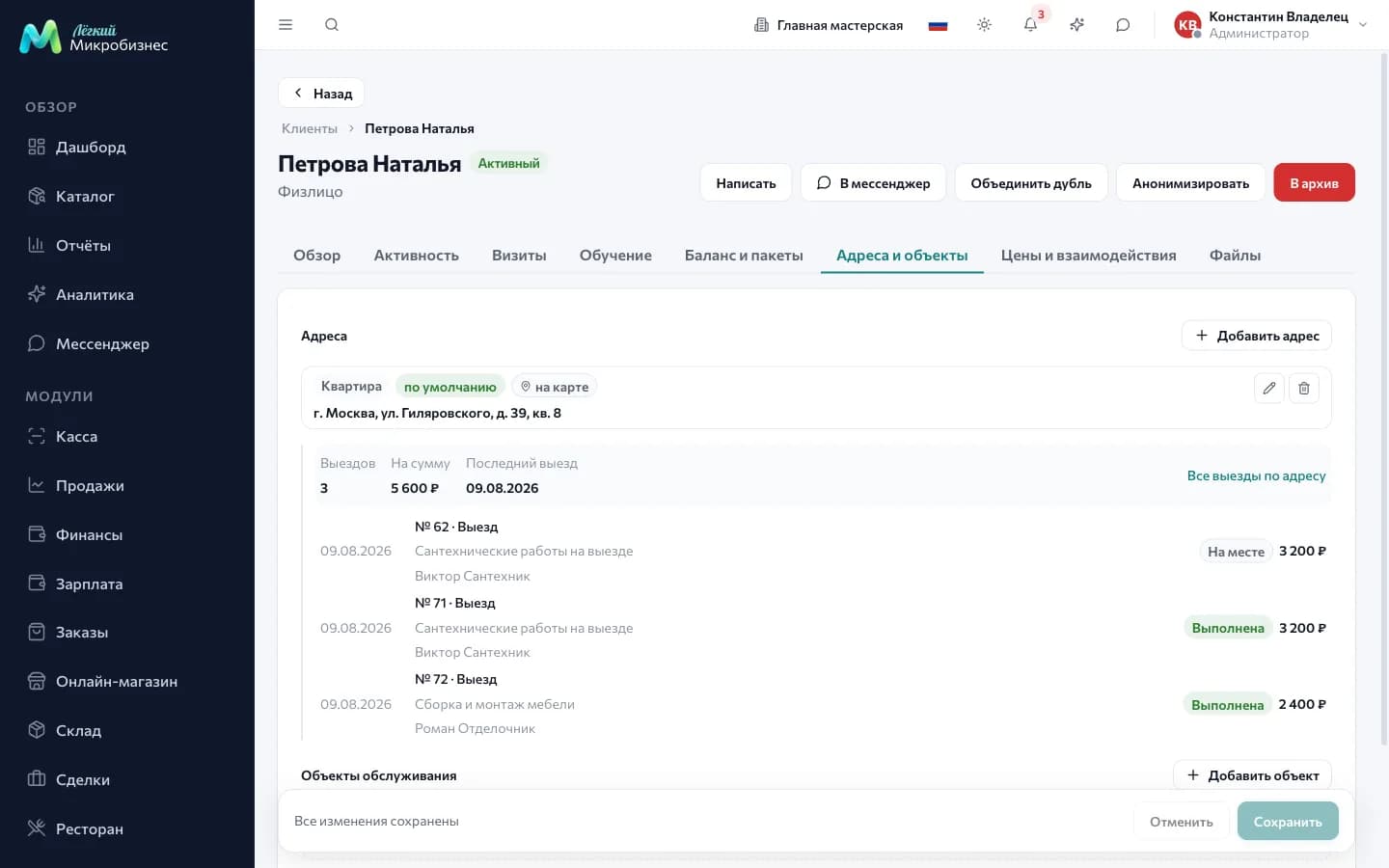
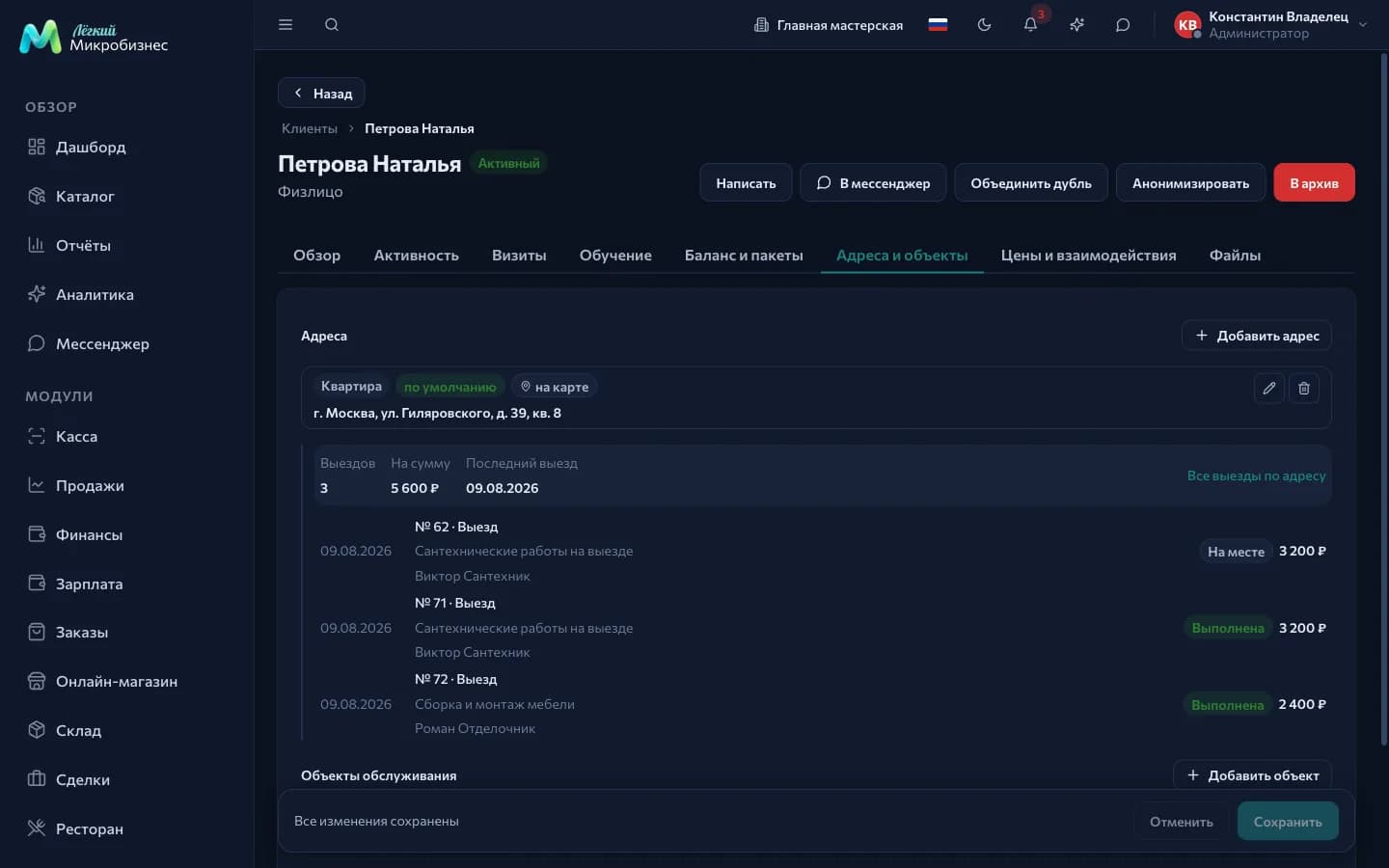
Completed visits count towards the total. A branch employee sees the history of their location.
This is the main difference between field work and office work: what matters is not only the customer but the serviced point. You come back to the same building for years, and knowing what has already been replaced there beats any note.
What to set up after connecting
- Types of work and a price list — cleaning, installation, repair, maintenance with the cost of a call-out and of the works in the service catalog.
- Crews — membership and the shares the pay is split by: the Crews section.
- Piece rates — how much an executor gets for a job.
- "Book the master's time in the schedule" — a field job with a time and an executor creates a booking. The module turns the setting on at connection.
- "Detect address coordinates" — without coordinates the map of the day is empty. The provider is picked there too: OpenStreetMap works without a key, Yandex Maps are more accurate on Russian addresses and need an API key.
- Print templates — the crew takes the "Field job sheet" on paper, and the customer signs the "Act of completed work".
An address with a flat and an entry code is parsed correctly: coordinates are found down to the building.
What to look at in reports
- How many requests are in progress and how many are overdue.
- Executor and crew output for a period.
- The average field job check and profit after piece-rate pay and supplies.
- Repeat enquiries at one address.
Frequently asked
What about regular maintenance? Create repeating visits — the system builds a series of requests on schedule and reminds about each one.
The customer was not at home. The master presses "The visit did not happen": the request closes with its own outcome and that is visible in reports.
The master arrived and there is no network on site. Step marks, work marks and the signature are kept on the phone and go out when the connection returns.
Can we take payment by transfer? Yes: the payment method is recorded on the receipt, and for companies an invoice with payment terms is issued.
In short
- A request is run as a deal with an address, and the day is assembled on the dispatch board.
- A master runs a job with three buttons and closes it with the customer signature.
- Supplies are written off from site, and before and after photos go into the act.
- The history by address shows what was already done there and when.
Similar modules
- Repairing equipment taken into a workshop — Service and repair.
- Construction and finishing with materials and an estimate — Construction and renovation.
- One-off events with a crew on site — Events and catering.