
Field service
The component for work at a customer's address: cleaning, installation, home repair, contract maintenance, on-location shoots. It gives two screens — the master's workplace in the field and the dispatch board of the day in the office.
A field job is a deal, so the component works together with Deals: the funnel and the card live there, while here is what the site and the dispatcher need.
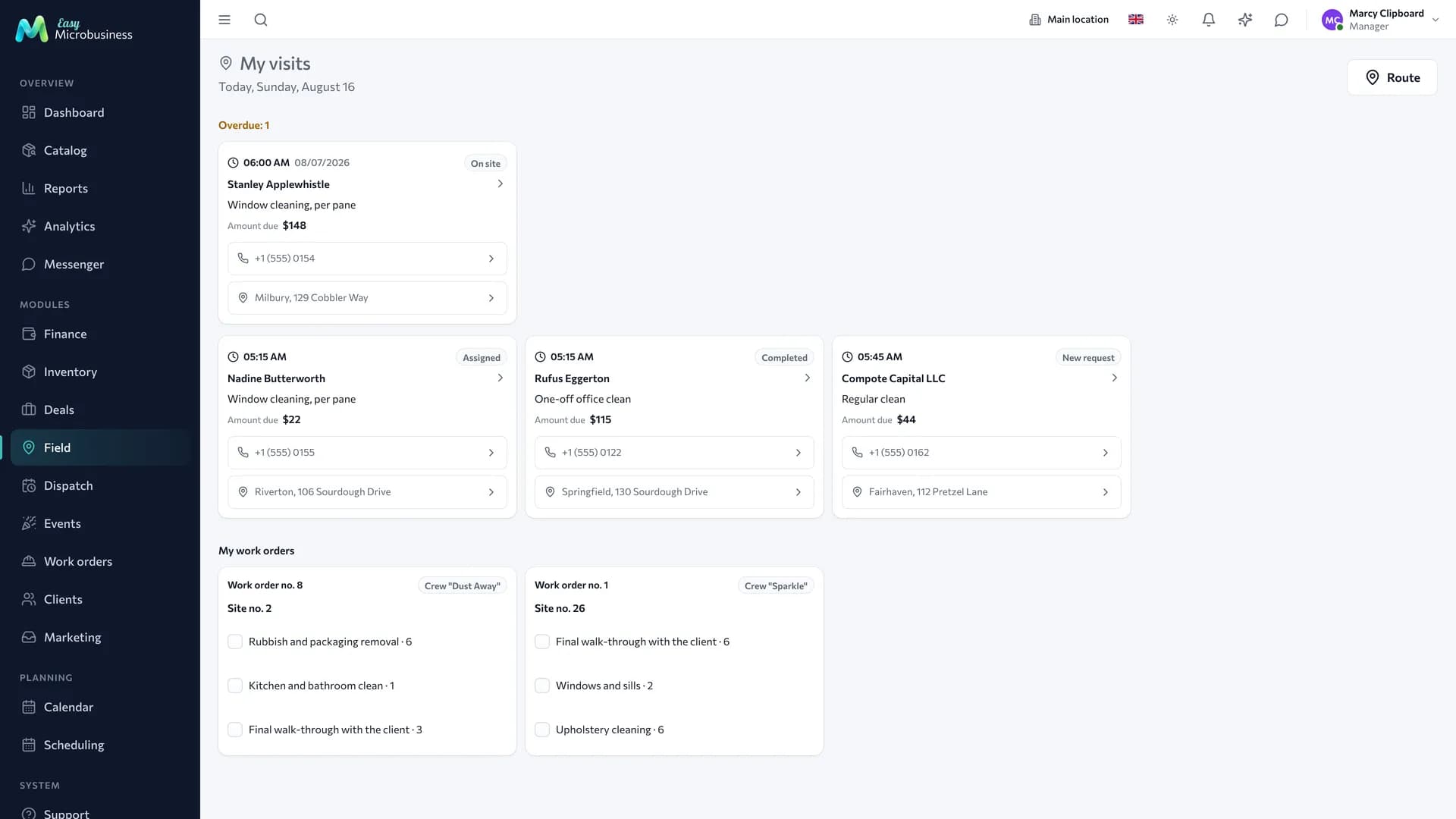
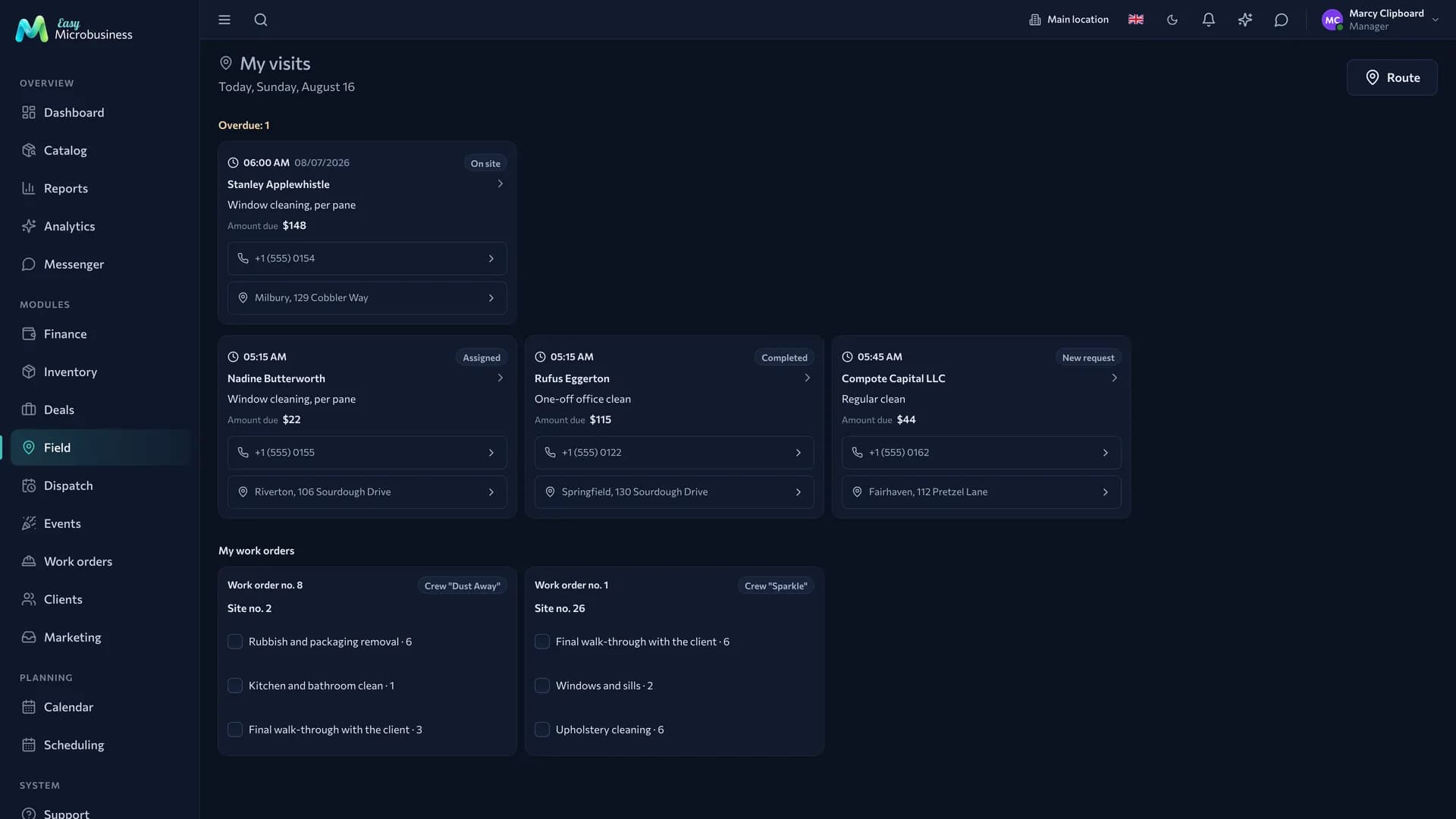
How a master runs a job
The Field section opens on a phone and is designed for one-handed use.
- Open a job from today's list. Inside are the address with a route button, the customer phone, the scope and the amount.
- Press On the way when you set off.
- Press On site when you arrive.
- Do the work and press Work completed.
Every mark changes the deal stage, and the dispatcher sees it right away.
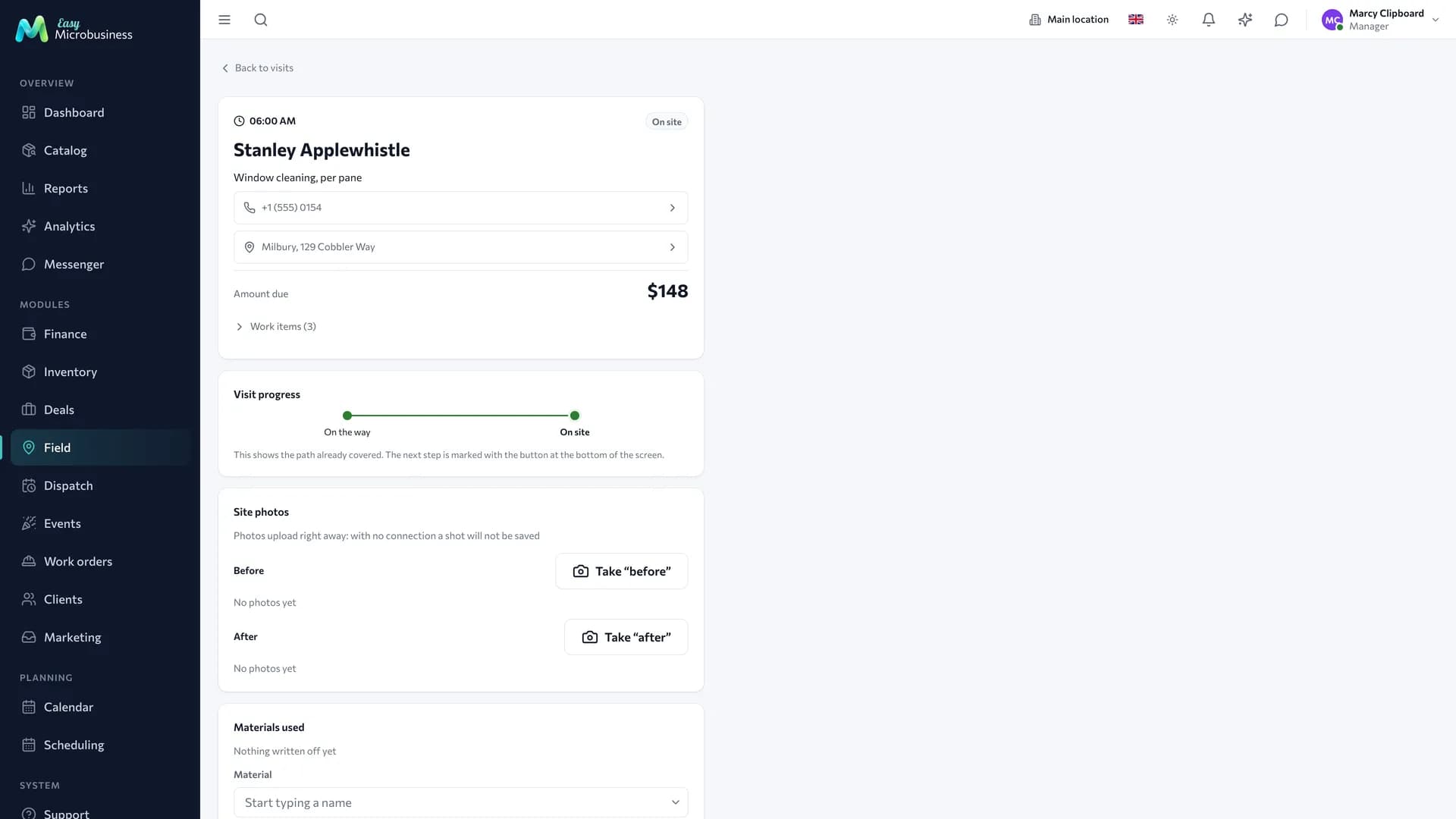
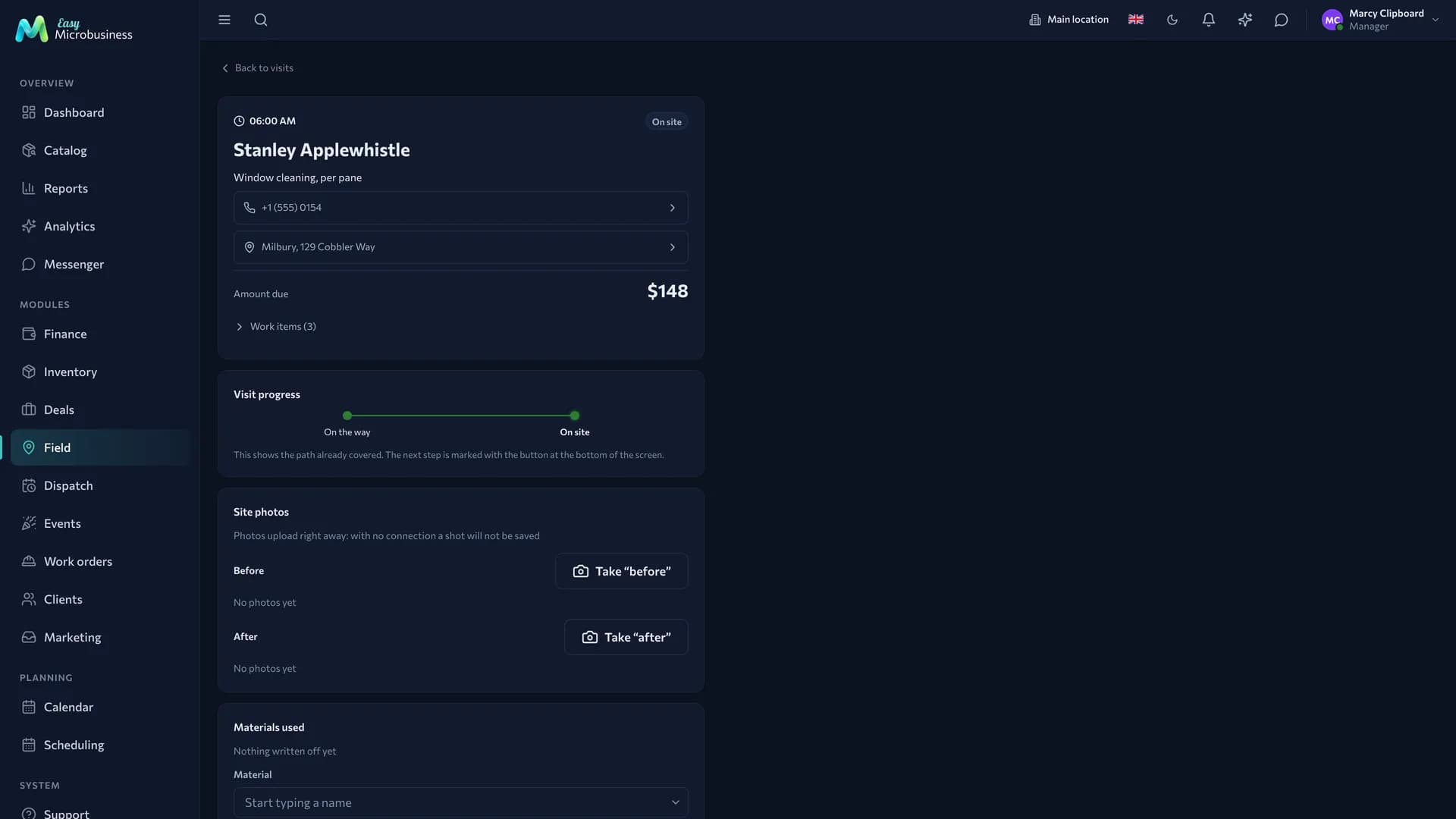
On site the master also:
- attaches before and after photos — they are compressed on the phone and go out even on a weak connection;
- takes the customer signature on screen, and it lands in the act;
- writes off supplies from their own warehouse, if the setting allows;
- takes payment on site in cash or by card.
Marks and write-offs survive a lost connection: in a basement or a lift they queue up and are sent when the network is back. Sending again creates no extra work.
Dispatch board
The Dispatch section is the plan of the day by executor. It is open to administrators, directors and managers.
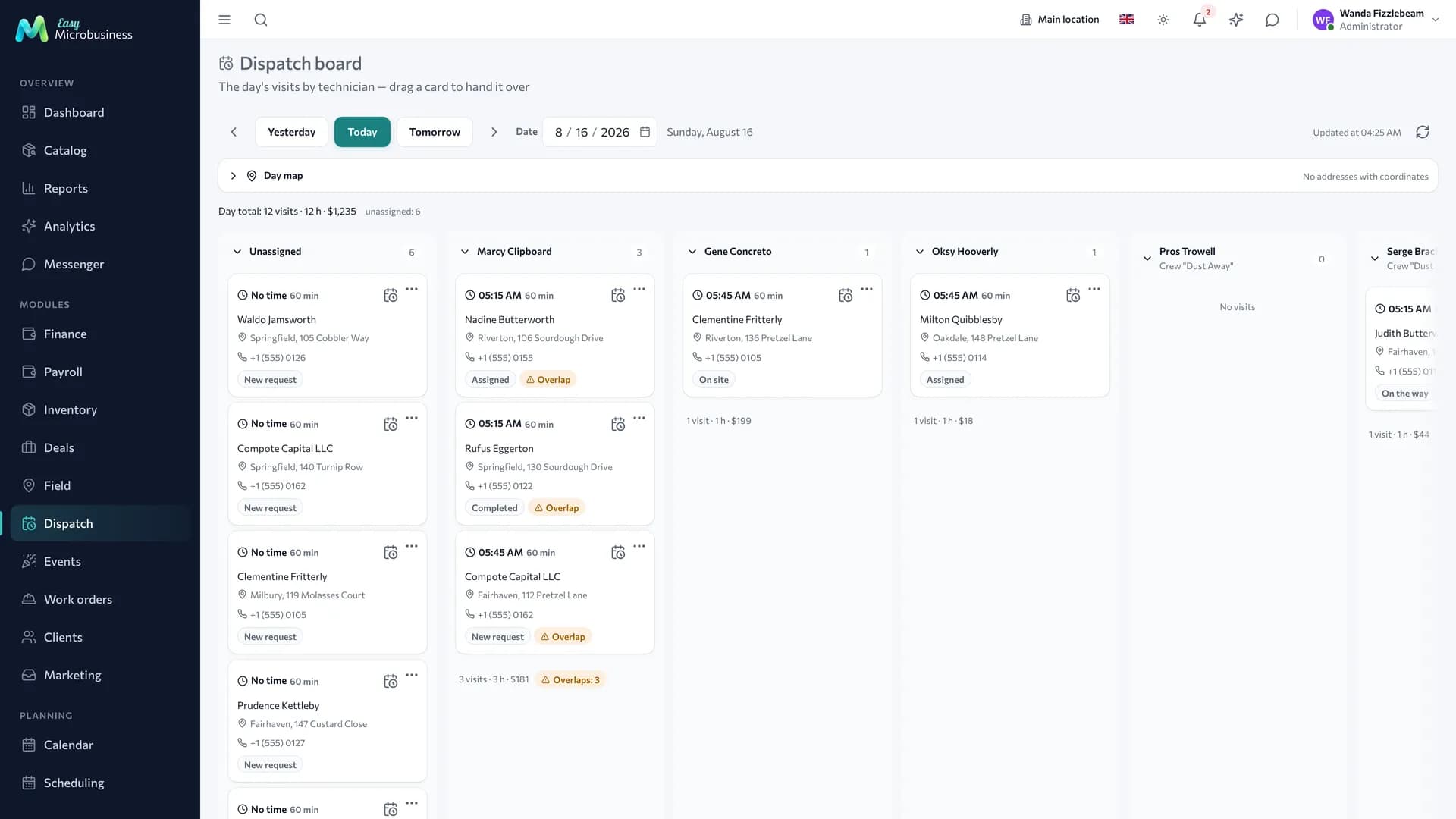
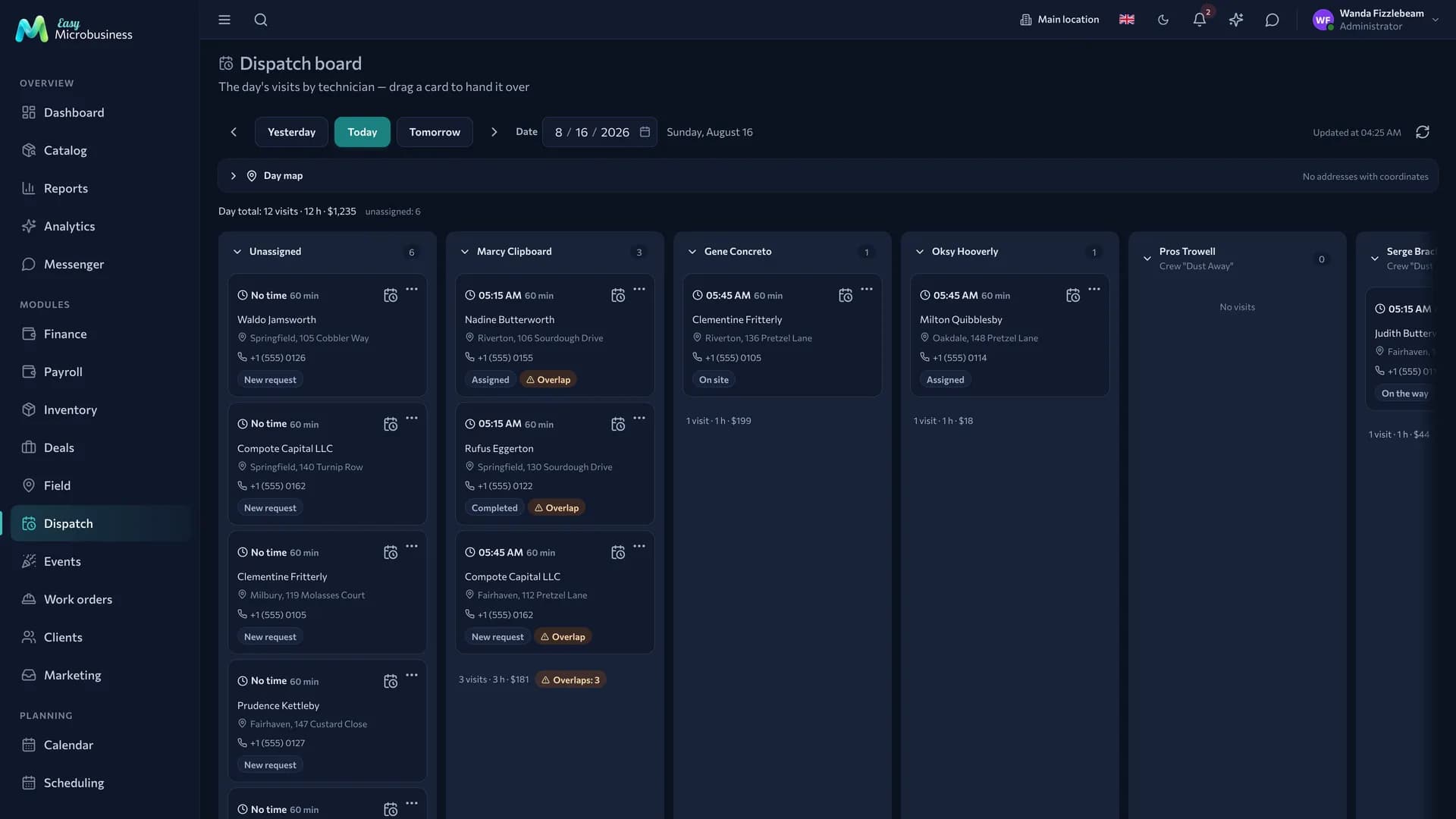
- Lanes — one per executor, cards inside by time: time, duration, customer, phone, works, address and stage. Lanes with overlaps rise to the top.
- Lane total — "4 jobs · 7 h 30 min · 46 800 ₽". A three-hour installation takes a master longer than three half-hour calls, and the number of cards alone does not show that.
- Unassigned — the column on the left with jobs that have no executor or no time. While they sit there, the day is not assembled.
- Map of the day — the job locations; they turn into a route once a specific executor is selected.
To hand a job to another master:
- Pick the card up with the mouse, a long press or the space bar.
- Move it to the right lane.
- Drop it — or use the card menu, the Hand over to "…" item.
The planning window sets the executor and the time. The arrow next to an executor's name collapses their lane, leaving the name and the job count, so everyone fits on screen when there are more than a dozen masters.
The board refreshes itself once a minute and when you come back to the tab. While you drag a card or fill in a window, the data under your hands stays put.
Address and map
The field job address is stored in the deal and turns into coordinates with the Detect address coordinates setting on. Coordinates feed the map of the day, the route and the sorting of jobs by proximity.
A repeated address is looked up once and the result is kept. The flat number is left out of the request: geocoders stumble on it and fail to find the building.
How to connect
Field service is part of the core of the Field services module. It is offered as an option to others:
- Service and repair — the "On-site repair", "Workshop + field + sales" and "Contract maintenance" scenarios;
- Construction and renovation — the "Installation and assembly" scenario;
- Studio — the "On-location shooting" scenario.
Frequently asked
The master does not see a job. Check whether they are the executor and whether a date is set: without a time the job sits in "Unassigned" at the dispatcher.
The map is empty. Turn on the coordinate detection setting — without it addresses stay plain text.
"On site" was marked by mistake. The dispatcher changes the stage from the deal card; both marks stay in the history.
In short
- A master runs a job with three buttons: On the way, On site, Work completed.
- Photos, the customer signature and supply write-offs happen right on site.
- Dispatch shows the day by executor and highlights overlaps.
- Offline, marks accumulate on the phone and go out when the network returns.
Related components
- Deals — the request itself, stages, items and payments.
- Crews and work orders — crew work orders the master sees in their day.
- Scheduling — the job time as a booking of the master.
- Work planning — stage dates when the work spans several days.
- Inventory — supplies written off on site.
- Clients — customer addresses and visit history.