
Online storefront
The storefront opens your catalog to the outside: a buyer follows a link, fills a cart and places an order without creating an account. The component arrives with the Online store module and is called Online store in the menu.
The storefront keeps no separate catalog and no separate stock: it shows the same products the cashier sees and reduces the same quantities. An online order lands in the shared order list.
How to publish the storefront
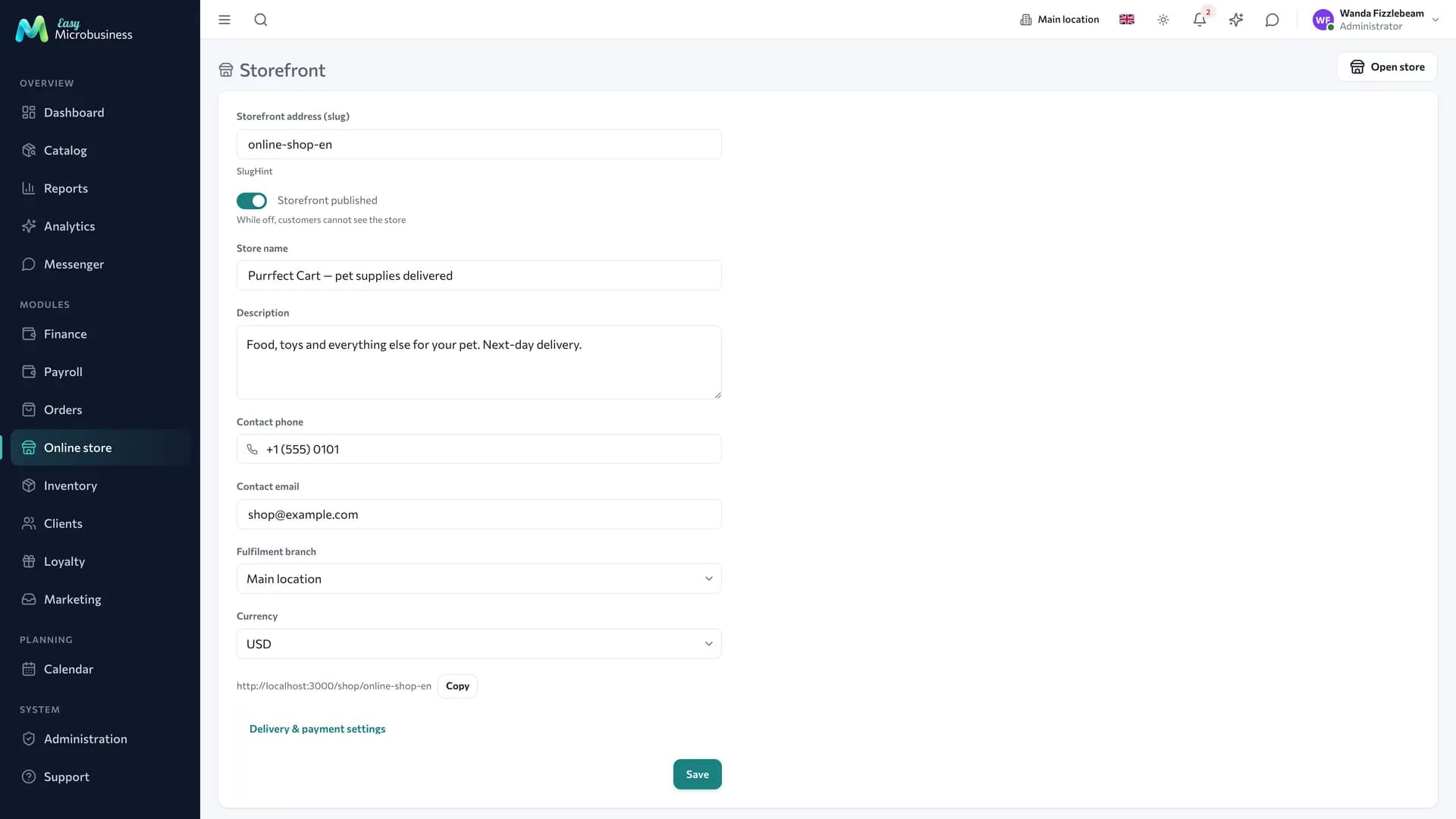
- Open Online store → Storefront.
- Fill in the title, description, cover, phone and email.
- Set the shipping branch — its stock defines availability and the goods leave from it.
- Set the page address.
- Turn the publication toggle on.
While the storefront is unpublished, its address answers "store not found", so the design can be set up quietly. The storefront also closes together with a switched-off component and during a pause for non-payment; products, orders and settings are kept.
What goes onto the storefront
Catalog items marked as visible in the store go onto the storefront. A product with no stock is either hidden or shown as "out of stock" — that is a component setting.
Do not put the whole catalog out: what works on a storefront is items with a photo, a description and a clear price.
Cart and checkout
The buyer does not register: at checkout they leave a name, a phone number and an address. If such a customer already exists in the base, the order is linked to them; if not, a card is created.
The company can require a minimum order amount or a prepayment — then the order is confirmed after payment.
Checkout is deliberately short: the more fields, the fewer buyers reach the end.
Delivery zones
Delivery cost and time are set with zones. A zone is a rule: how to match an address and what to charge for it.
| Field | What it sets |
|---|---|
| Method | Courier, pickup, collection point |
| Cost | What delivery to this zone costs |
| Free from | The order amount above which delivery is free |
| Minimum order | Below this amount the zone is unavailable |
| Time | Text such as "1–2 days" |
| Matching | By city or by postcode prefix |
Zones are ordered: an address is checked in turn and the first matching zone applies. Put specific cases above general ones.
For example, "Centre — 200 ₽, free from 3 000 ₽, 1 day" goes above "City — 400 ₽, 1–2 days".
Payment
Online payment goes through a payment session: it is created for a specific order, lives for a limited time and has its own link. The status runs "pending" → "paid", or "error" and "expired".
Until an acquiring provider is connected, payment on delivery is available.
Stock reserve
Goods are reserved when an order is confirmed rather than when "checkout" is pressed: otherwise abandoned carts would hold stock the cashier needs on the floor.
The reserve does not take stock below zero. If the last unit was sold on the floor, the order is not confirmed and the buyer sees that the item is gone. The exception is the Allow ordering without stock (backorder) setting: with it, zero stock is no obstacle.
How an order goes
- The buyer opens the storefront through a link and fills a cart.
- At checkout they enter contacts and an address — delivery is calculated by zones.
- The order appears in the shared order list with the "new" status.
- You confirm the order — goods are reserved at the shipping warehouse.
- You assemble it: print a picking list and mark items assembled.
- You hand it to a courier or to the customer — delivery has its own status, separate from the order status.
- You complete the order: stock is written off and the buyer receives a notification.
The buyer follows the order through a personal link from the letter, without registration or a password.
What the buyer sees
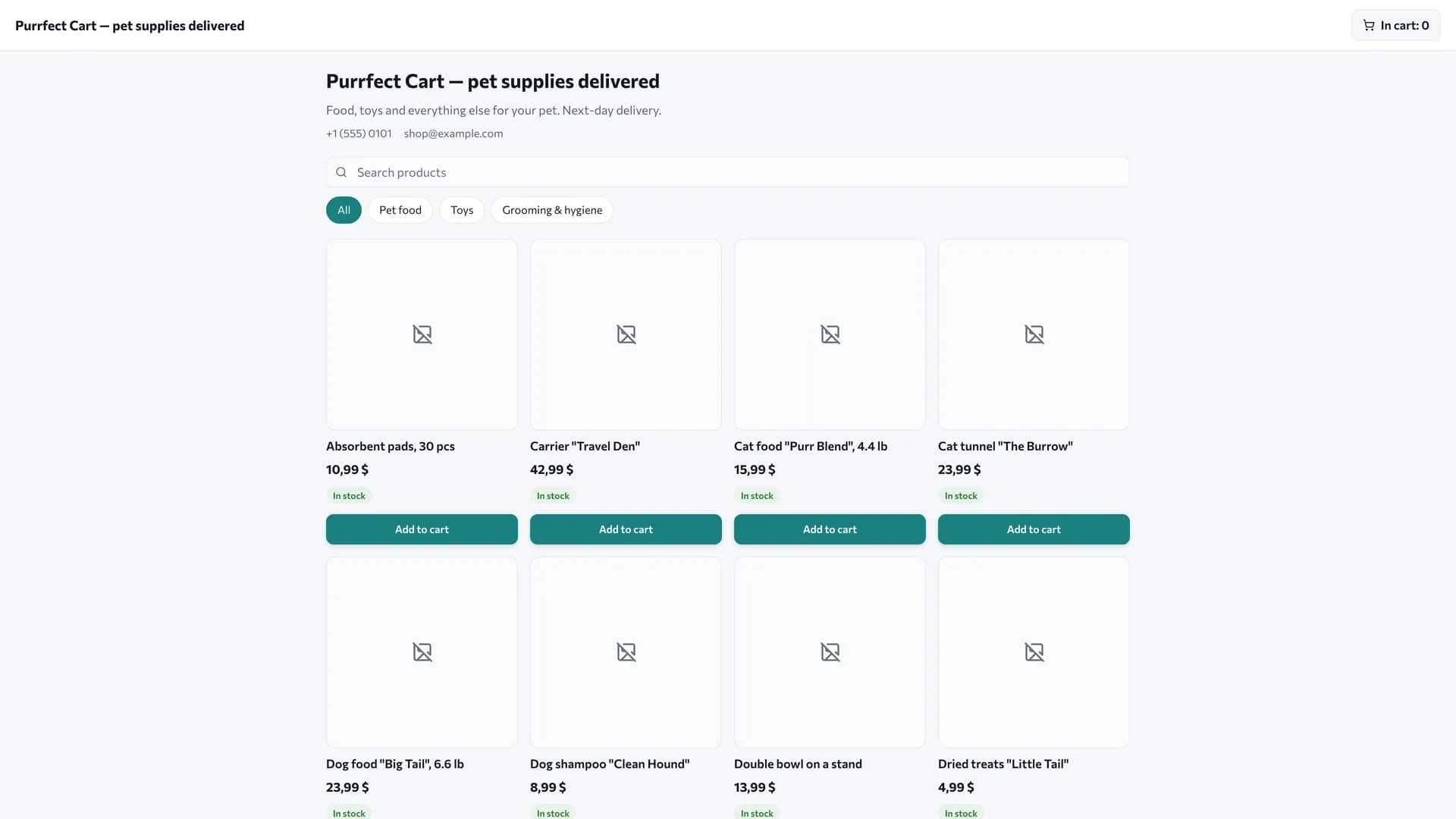
- The catalog with photos, prices and availability.
- The cart with the total and delivery cost recalculated.
- The checkout page: contacts, address, collection method, comment.
- The order page with its status. The header carries your store name with a link back to the catalog: a buyer opens the letter a week later and should know whose order this is.
Storefront scenarios
- Goods delivery — ordinary trade from stock: availability, zones, courier.
- Backorder and pre-order — a customer can order what you do not have, with a prepayment.
- Digital goods and services — no delivery and no stock.
In short
- The storefront shows the same products and the same stock as the POS.
- The buyer checks out without registration, using a name, a phone and an address.
- Delivery is calculated by zones, and the first matching zone applies.
- The reserve is placed when an order is confirmed rather than at checkout.