
Scheduling
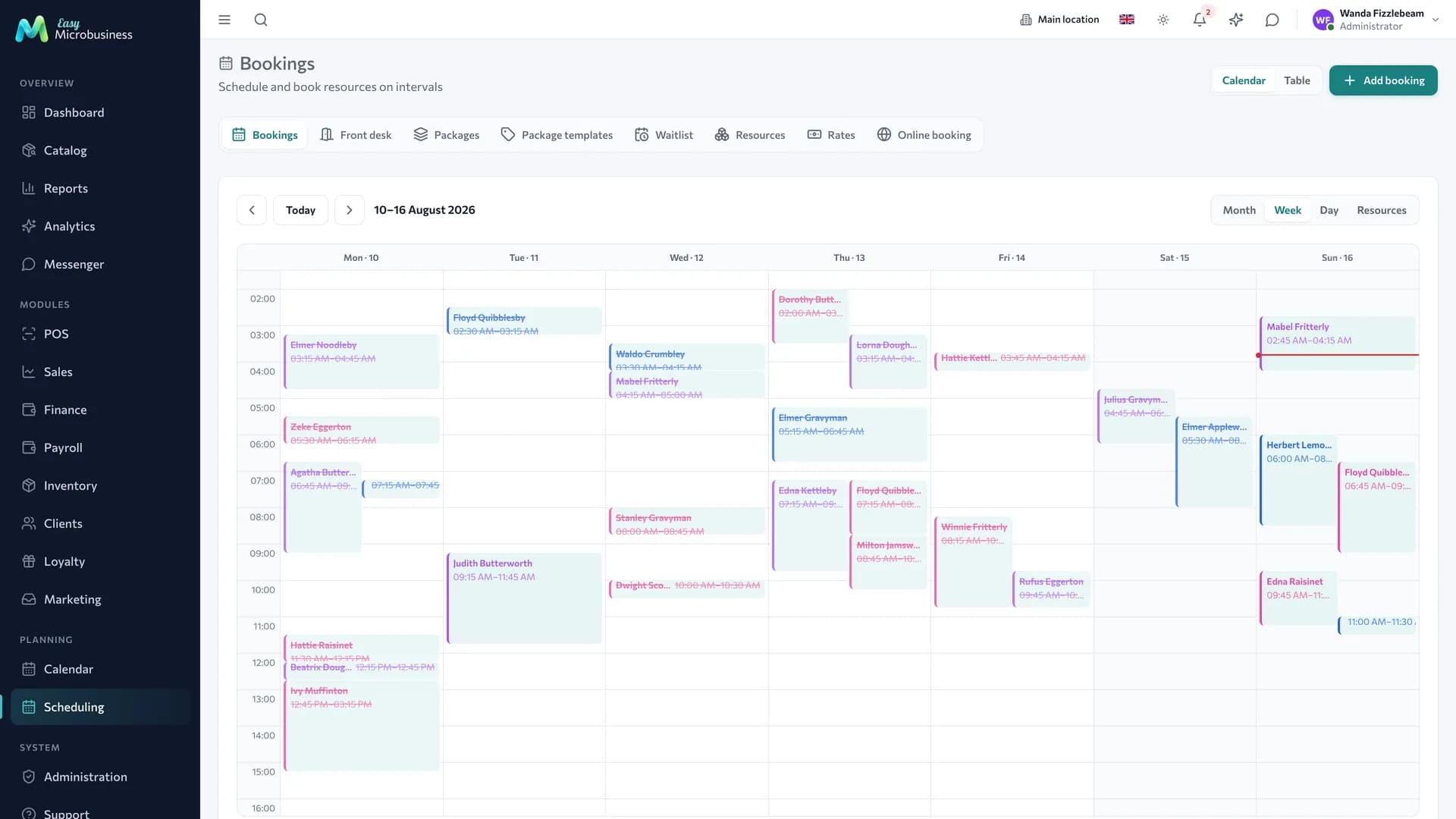
Scheduling answers one question: is this resource busy in this interval. It carries customer bookings with a master, equipment rental, group classes and table reservations. The Calendar shows the same thing visually.
Do not confuse it with Work planning — the similarly named section for deal task dates. Here you take up time and resources, there you run project stages.
The section switches with the bar above the list: Bookings · Front desk · Packages · Package templates · Waitlist · Resources · Rates · Online booking. Rentals and study groups live in their own sections — Rentals and Study groups.
Resources
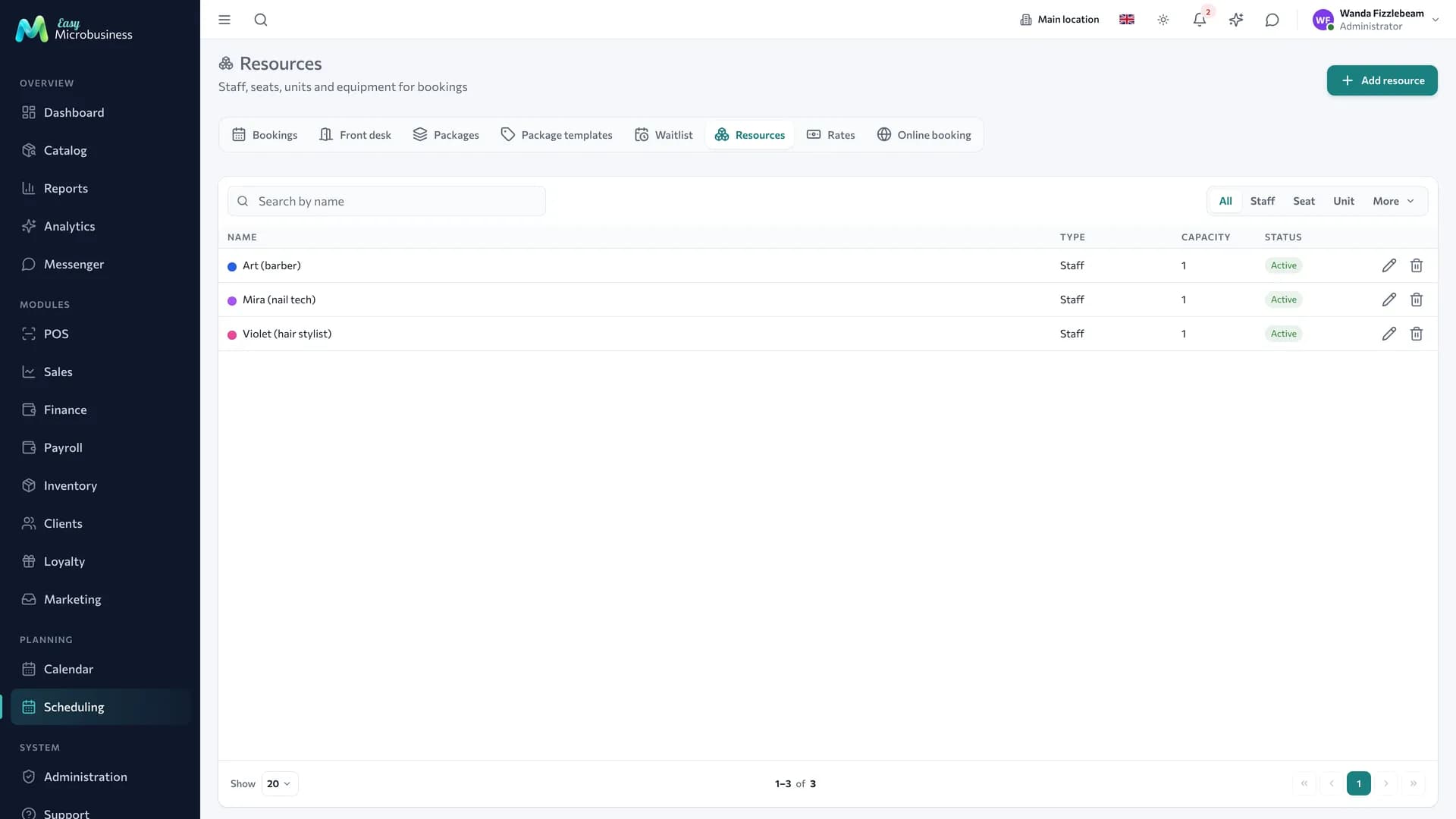
A resource is the thing being booked.
| Type | What it is | Example |
|---|---|---|
| Employee | A person | A master, a doctor, a trainer |
| Place | A seat | A chair, a table, a room |
| Object | A distinct unit | A hotel room, a coworking desk |
| Equipment | Machines and gear | A tool, a bicycle, a device |
To create a resource:
- Open Scheduling → Resources and start a new record.
- Pick the type and give it a name.
- Set the capacity — how many bookings the resource holds at once. For a master or a chair that is 1, for a hall more.
- Set the working hours by day of week.
- Add a buffer if needed — minutes between bookings for cleaning and preparation — and a minimum duration.
- Tick the services the resource provides. An empty list means "does everything"; as soon as one service appears, only that service can be booked.
The Employee behind the resource field links a resource to a user account. It fills in the owner of a new booking, and commission in Payroll is counted for them. A chair or a device has no such link.
The resource list is visible to everyone with access to scheduling. Administrators, directors and managers create and edit them; administrators and directors delete them.
Bookings
A booking is an interval on a resource with a status: pending, confirmed, completed, no-show, cancelled. A minimal booking is a resource and an interval; a customer, a service, a deal and a serviced object are added as needed.
The source is recorded separately: entered by an employee, booked by the customer, or arrived through an integration. That shows where the flow comes from.
The master's visit note is a separate field: what was done and what to keep in mind next time. It can be edited even on a completed booking and is visible in the customer card on the "Visits" tab.
Multi-resource bookings. One booking can occupy several resources at once — a master and a chair, a trainer and a hall. Availability is checked for all of them.
Group classes
A class with seats has a list of attendees. In the class card each of them shows a mark — booked, attended, missed, cancelled in advance — the balance of their package and whether a class was used up. The mark is changed from the row menu, and an attendee can be removed.
"Cancelled in advance" frees the seat: it goes to the next person, including from the waitlist.
As soon as a class has a capacity, the form shows an Open class — show on the online booking page checkbox. It decides whether the class is visible from outside: a booking for two and a corporate session also have seats but do not need publishing. The checkbox is inherited by a whole repeat series, so a class grid is created in one action. Classes of active study groups are visible outside without it.
Online booking
The Online booking subsection sets up the public page where a customer picks a service, a master and a time without registering.
The master list is filtered by the chosen service: those who provide it, plus generalists, remain. The Any master option shows the free slots of everyone suitable at once and gives the time to the least loaded one that day. Up to 10 bookings a day are accepted from one phone number.
The "Allow online booking into group classes" setting adds a second mode to the same page — a schedule of classes with free seats. When no seats are left, the customer sees a Join the waitlist button.
The page lives with the component: switch Scheduling off and the link stops opening. The same applies when a company is paused for non-payment.
Repeats
Regular bookings are described by a rule: a class every Tuesday, servicing every quarter. Bookings are created ahead — up to 180 days and no more than 200 classes at a time — and the series is limited by an end date. Changing one booking in a series leaves the rest alone.
Rates
The price of a booking is calculated from rates: per hour, per day or fixed. A rate is tied to a resource, to a service or to a pair of them; a seasonal one is limited by dates.
When several rates fit, the most specific of the active ones is used, and on a tie the highest priority. That way a base price list is covered with seasonal exceptions and nothing has to be rewritten.
A booking price can be set by hand. The discount follows the same limit as at the POS: an employee stays within the "Max manual discount, %" setting, while administrators, managers and directors have no limit.
Packages
A bundle of visits is sold up front and used up as the customer comes. A package has a name, a number of classes, a validity period and a service. The balance is visible in the Packages subsection and in the customer card on the "Balance and packages" tab.
The list has a search by customer and name and three segments: All · Active · Expiring. The last one collects active packages that end within the next 14 days.
Package templates
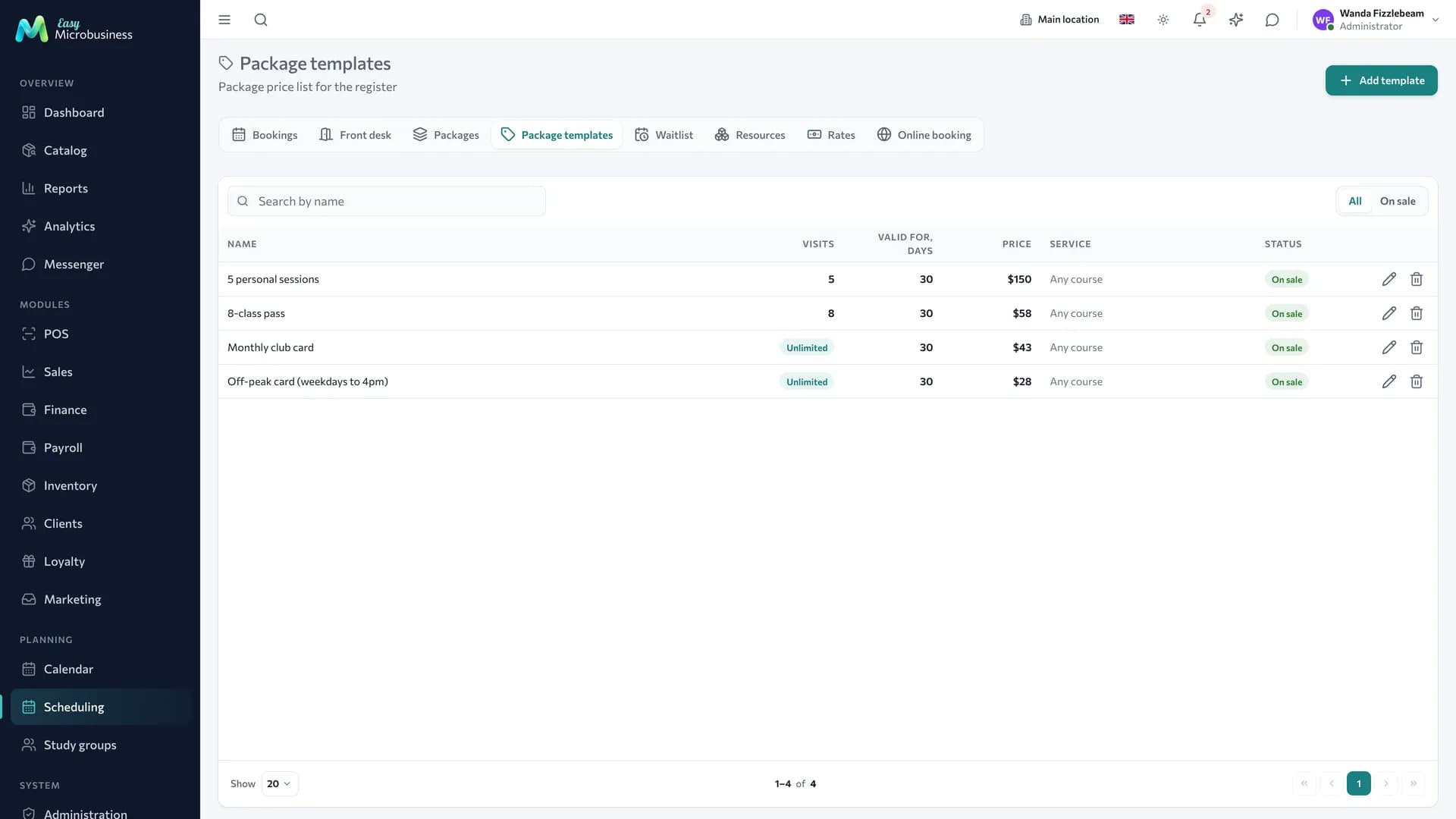
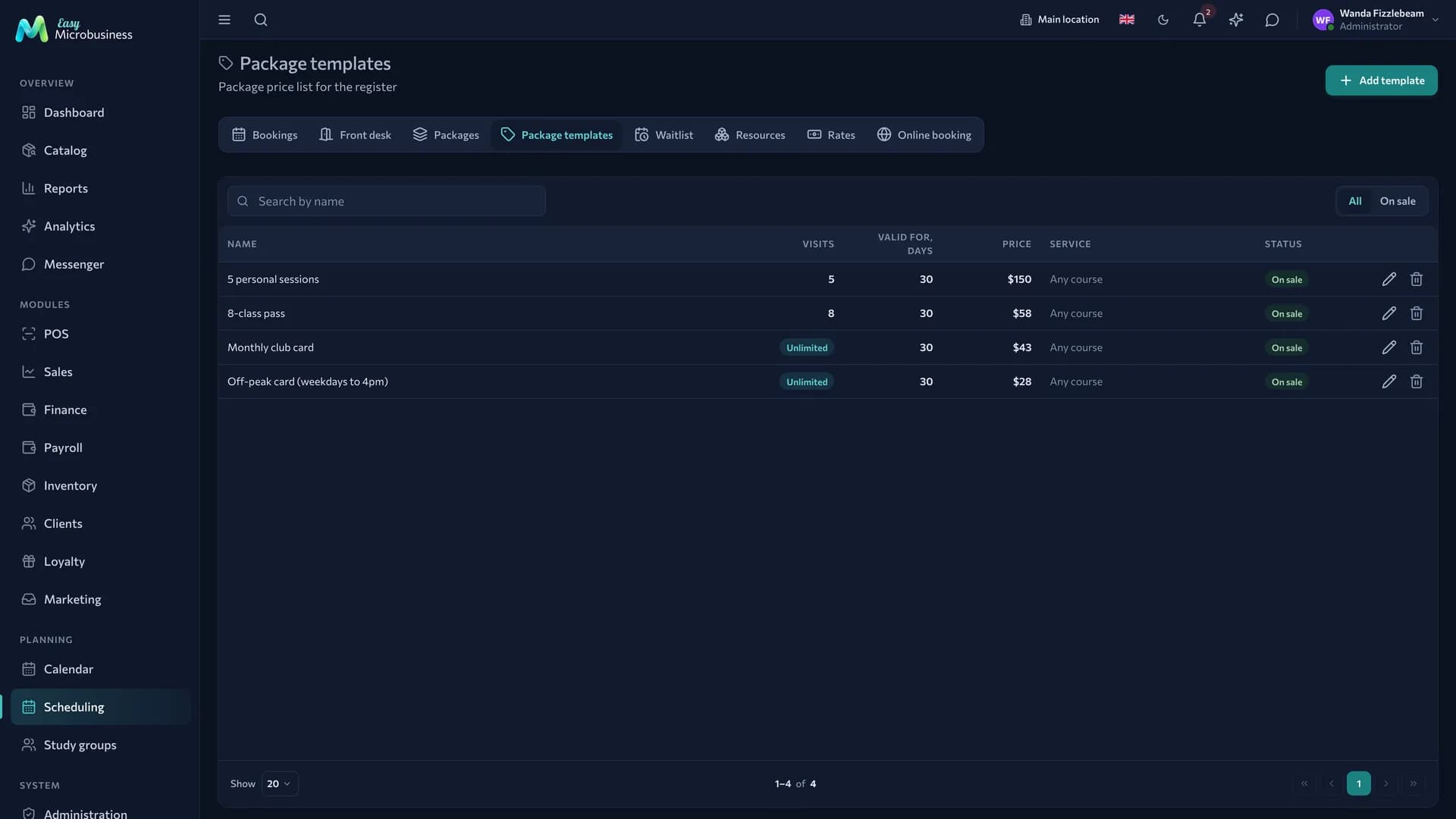
A template is a price list position: what you sell and for how much.
- Open Scheduling → Package templates.
- Set the name, the number of classes, the validity in days (empty means unlimited) and the price.
- Pick a service or leave "Any course".
- Mark it on sale — the template appears as a tile at the POS.
The Unlimited (by date only) checkbox removes the visit counter: such a package works until its validity ends, and lists show "Unlimited" instead of a balance. The validity period is required in that case.
A package can also be issued without a template, with the Issue package button. The "Price list position" field in that form fills in the name, price, validity, service and access rules.
Deleting a template that packages were issued from takes it off sale and keeps the history.
Access rules
Rules limit when a package can be used:
- a visit limit per calendar week or month — "no more than 6 times a week";
- a time-of-day window — "admit from 07:00 to 16:00";
- allowed days of the week; empty means every day.
A week starts on Monday and a month on the first, both in the company time zone. Rules are set on the price list position and copied into the sold package, so a later change to the price list does not affect packages already sold. A class outside the window or beyond the limit is not deducted, and the system names the reason. The walkthrough with examples is in the Fitness and sports module.
How a class is deducted
In a group class a visit is deducted when the "attended" mark is set. If no package was chosen in advance, a suitable active one is picked — the one expiring soonest, so it is not wasted. Removing the mark returns the class; cancelling a class returns what was deducted for every attendee.
For an individual booking a visit is deducted by the booking status. With the "Deduct a package when a booking is completed" setting, moving a booking to Completed picks a package and deducts a visit. Manually this is done with the Deduct a visit and Return a visit buttons in the booking card, available to administrators, managers and directors.
A deducted visit appears on the receipt as a separate "Paid with a package" line with a minus sign, so there is nothing to pay twice.
A package can be frozen for illness or a holiday. Freezing asks for confirmation and explains what happens to the validity: with the "Freezing extends package validity" setting the idle days are added to the end date. Full days are counted.
The row menu has two more actions:
- Return a class — give one deduction back with a reason;
- Movement history — every deduction, return and adjustment with date, class, reason and author.
Component settings
| Setting | What it does | Default |
|---|---|---|
| Burn a class on a no-show | The "missed" mark also deducts a class | Off |
| Free cancellation window, hours | The boundary after which "cancelled in advance" counts as a no-show | 24 |
| Freezing extends package validity | Idle days are added to the end date | Off |
| Warn about package expiry, days | How many days ahead the customer is messaged; 0 means no warning | 0 |
| Allow online booking into group classes | Adds a class schedule with free seats to the booking page | Off |
| Deduct a package when a booking is completed | Moving an individual booking to Completed deducts a visit | Off |
| Client cabinet | Turns on the cabinet by link and the issue block in the customer card | Off |
The settings are shared by the whole component: they apply in a school, a fitness studio and a salon alike. A mark can always be removed — the class returns to the package.
Field jobs and events as bookings
A field job lives in Deals while the master's availability lives here. The Deals setting Book the master's time in the schedule links the two worlds: as soon as a job has a time and an executor, a booking is created for the master. The resource for the master is created automatically.
The booking follows the job: moving the time moves it, changing the executor or the address moves it, cancelling cancels it, and closing with the "Completed" outcome completes it. An overlap does not block the booking — the dispatcher resolves it on the Dispatch board.
An event takes up a date through its own setting — Book the venue by event date. There are three differences:
- the booking is created from the date alone, without an owner: the Saturday is sold even before a coordinator is appointed;
- the venue is taken rather than a person. The resource is looked up among Places and Objects by an exact name match with the event address. Without a match the booking goes to the owner;
- the duration comes from the deal deadline when it is later than the start and fits within a day; otherwise from the Default event duration, hours setting, 4 by default.
The guest count is checked against the seat count of the venue. That is not the resource "capacity": capacity counts simultaneous bookings, while a hall may seat eighty at one banquet.
Deposits and no-shows
A booking has a deposit with its own state: not required, required, received, returned, retained. A retained deposit goes into other income as a separate operation.
Front desk
The Front desk subsection is the workplace at the entrance.
- Find the person by name or phone.
- Look at their active packages with balance and validity and their upcoming classes.
- Press Mark arrival — the attendee gets "attended" and a class is deducted.
The button opens 4 hours before the start and works for another 2 hours after the end. Until then it shows "Too early to mark" with a hint about when it opens. After the mark the system says whether a class was deducted and how many are left.
The Mark a visit without a booking button records a walk-in on a package when there is no class in the schedule: it asks for confirmation, deducts one class and names the package.
On the right is the summary of the day: how many classes are running and who has already checked in.
The subsection is open to administrators, directors and managers: it shows the customer's phone and packages.
Client cabinet
The Client cabinet setting turns on a page where a customer without a password sees the balance and validity of their packages, their bookings, visit history and the schedule for the next two weeks. From there they book a class, join a waitlist and cancel a session within the free cancellation window.
The link is issued from the customer card, the "Prices and interactions" tab, the "Client cabinet" block. The full scenario is in the Fitness and sports module.
Waitlist
When there are no free seats, a customer joins the queue. There are three ways to add them:
- for a specific class — the list shows its name;
- for a group — a seat may free up in any of its classes;
- for a resource interval — when the person is waiting for a slot with a master.
When a seat frees up, the Book button in the queue row places the attendee into the class and closes the row. For a queue on an interval you can see who to call.
In short
- A resource is the thing being booked; its capacity, hours and services set the booking rules.
- A group class holds a list of attendees with marks and package balances.
- A package is deducted by the "attended" mark, and for an individual booking by its status.
- Online booking, the front desk and the client cabinet cover the path from booking to arrival.
Related components
- Calendar — the visual schedule and drag and drop.
- Catalog — the service sets the duration and the price.
- Clients — booking history and reminders.
- Point of sale — paying for a booking and selling a package.
- Rentals — handover and return of a unit, deposit, housekeeping.
- Study groups — a fixed membership and the attendance log.
- Deals — field jobs and event dates as bookings.