
Point of sale
The POS turns a sale into records: a receipt, a shift, a payment, a refund, a shift report. The component arrives with Retail store, Restaurant, Service, Beauty and other modules where money is taken.
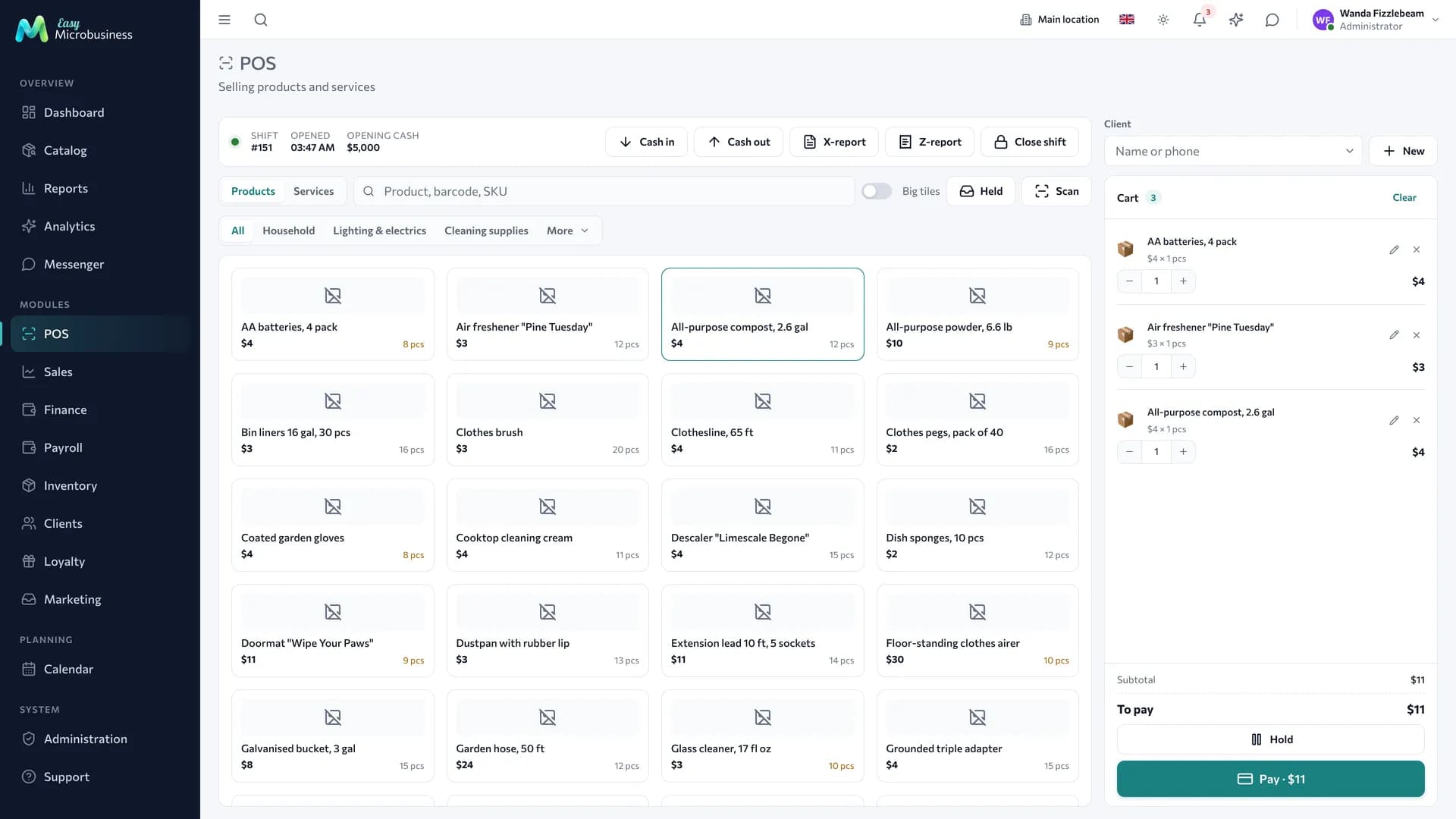
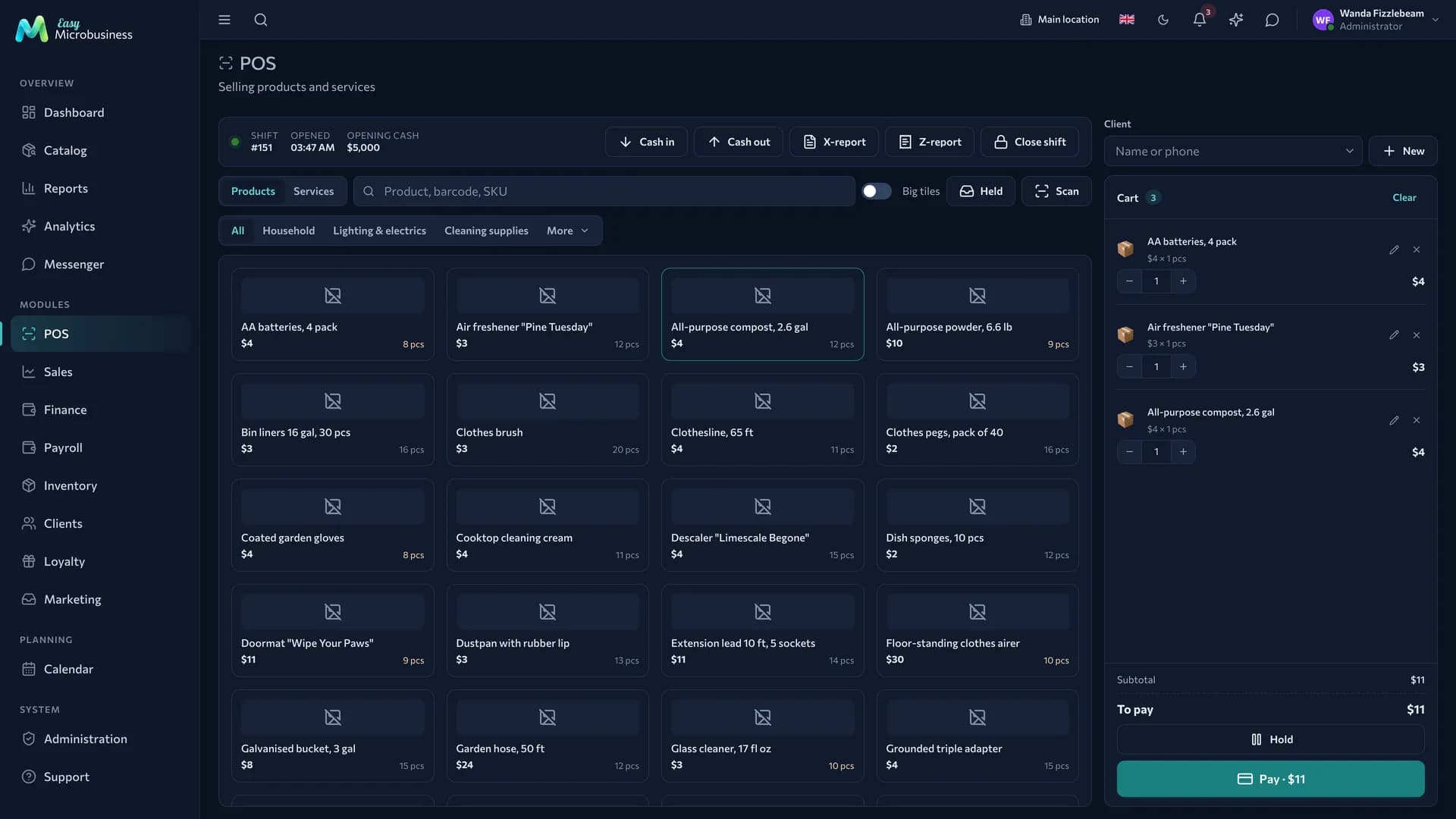
How to open and close a shift
Every sale belongs to a shift. It opens at the start of the working day and closes at the end.
- Press Open shift and enter the opening cash — how much is in the drawer.
- Work: ring up receipts and make refunds.
- At the end of the day count the cash, press Close shift and enter the final amount.
Closing produces a Z-report: sold, refunded, a breakdown by payment method, the cash discrepancy.
A shift belongs to whoever opened it. A cashier works with their own shift, while administrators, directors and managers work with every shift of their branch: closing a shift for a cashier who has left and taking its report is part of their ordinary work.
Cash collection is a separate operation: how much was taken out and by whom. Deposits and withdrawals belong to the shift's branch, so the Z-report matches what is in the drawer.
How to ring up a receipt
- Pick items on the left — by search, by category or with a barcode scanner.
- Add a customer if needed: the purchase goes into their history and earns points.
- Set a discount on a line or on the whole receipt.
- Press Pay and choose the method.
What else the POS can do:
- Split payment. Part in cash, part by card — on one receipt.
- Parked receipt. The customer went for money or is still choosing: the receipt is parked and comes back later without holding up the till.
- Modifiers. Additions to an item: "no sugar", "with delivery", "double portion" — with or without a price.
- Weighing. Switched on by the "Weighing mode" setting: the receipt gets a weight field, and with connected scales the weight fills in itself.
- Scanner. A barcode is read by a scanner gun or a phone camera.
Stock in the item list is shown for the branch you work in — the same one the receipt will write off from. If the branch has no warehouse of its own, the company default is used.
A posted receipt does not change. A correction is a refund plus a new sale, which keeps history and reporting trustworthy.
If a payment does not go through, the POS names the reason: the manual discount limit was exceeded, stock ran out, the shift was closed. A separate case is a card payment on a terminal: if the money was taken but the receipt could not be created, the POS warns you and asks to create the receipt by hand. There is no need to charge the customer twice.
How to sell a package
If you sell bundles of classes — a school, a studio, a gym, a salon — a third segment appears in the POS catalog: Packages.
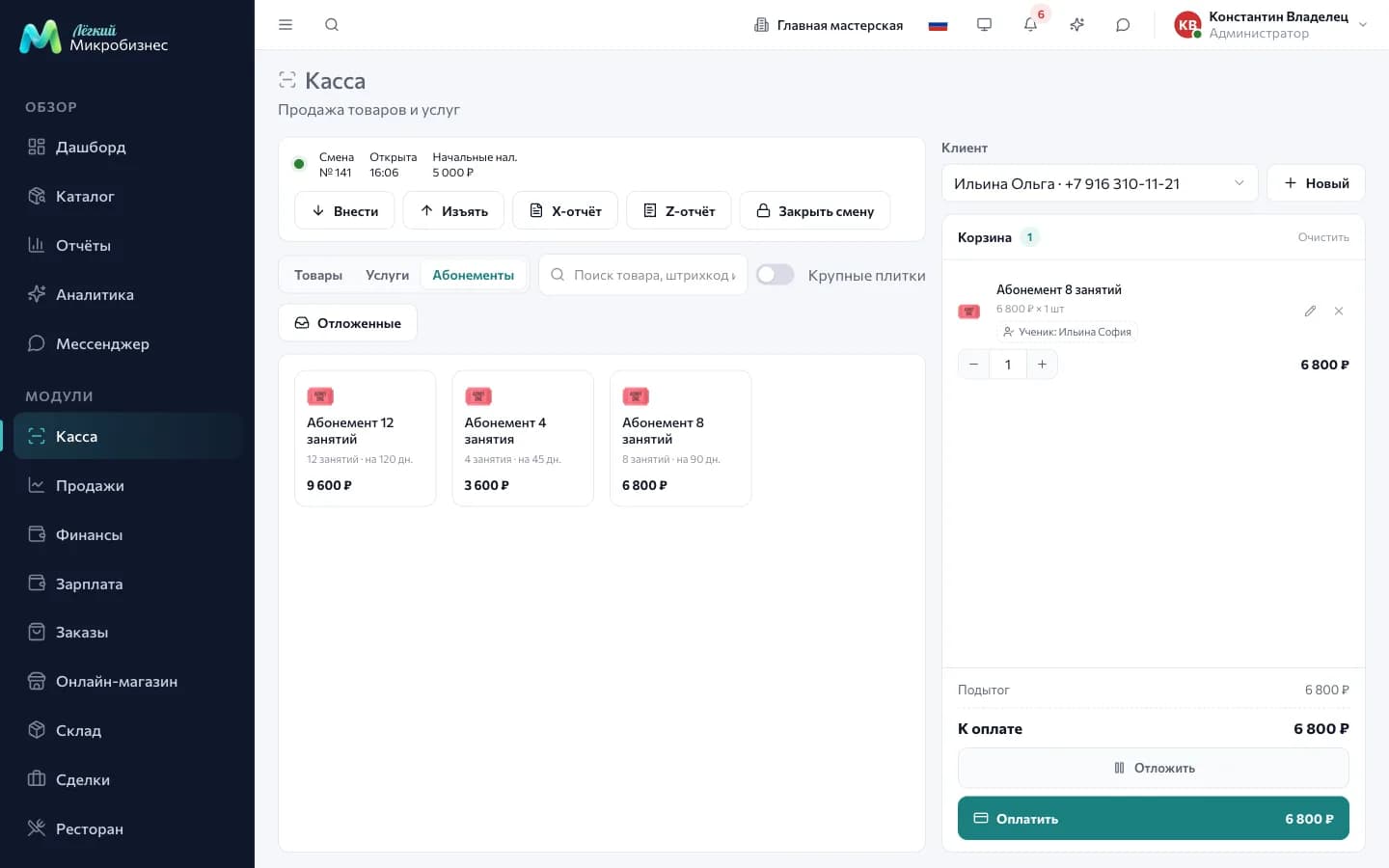
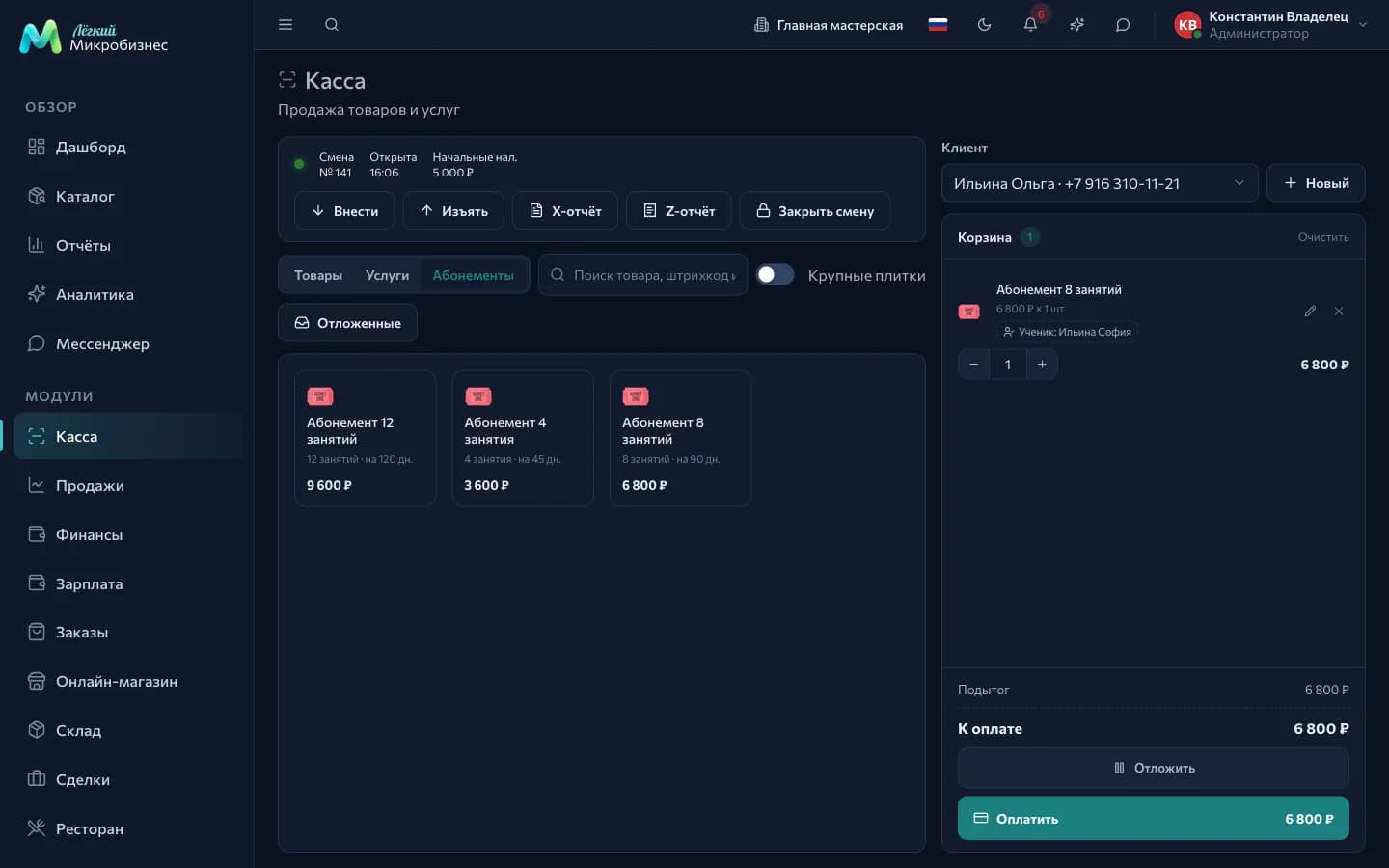
- Open the Packages segment — the tiles come from Scheduling → Package templates. Templates marked "on sale" are shown, each with the number of classes, the validity period and the price. An unlimited membership shows "Unlimited" instead of a class count.
- Pick a template — it becomes a receipt line.
- Add a customer. Until then, instead of the payment button there is a prompt: "Pick a customer — the package is issued to them".
- If one person pays and another attends, press Choose participant in the line. In the "Who gets the package" window the payer comes first, then their children, then any other customer.
- Take the payment.
Classes will be used up from the chosen participant's package, while the sale keeps who paid. The chosen participant is visible right in the receipt line. Several packages on one line go to one participant: for two children, add two lines.
The package appears when the receipt is closed, and the validity period counts from the sale. The balance is immediately visible in the customer card on the "Balance and packages" tab.
The segment shows up with the Clients component connected and does not show in the deal-handover mode, where the receipt closes a deal.
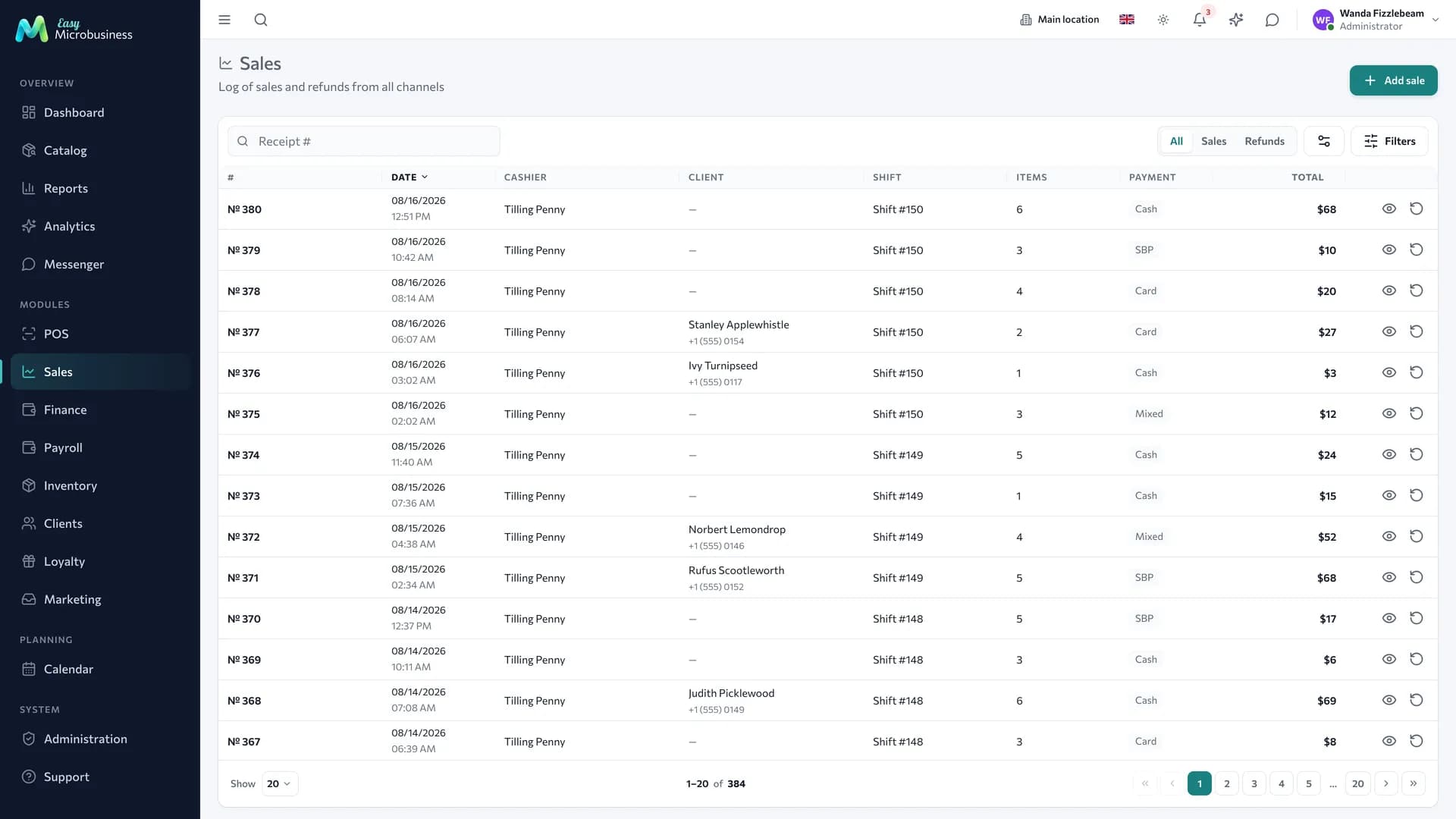
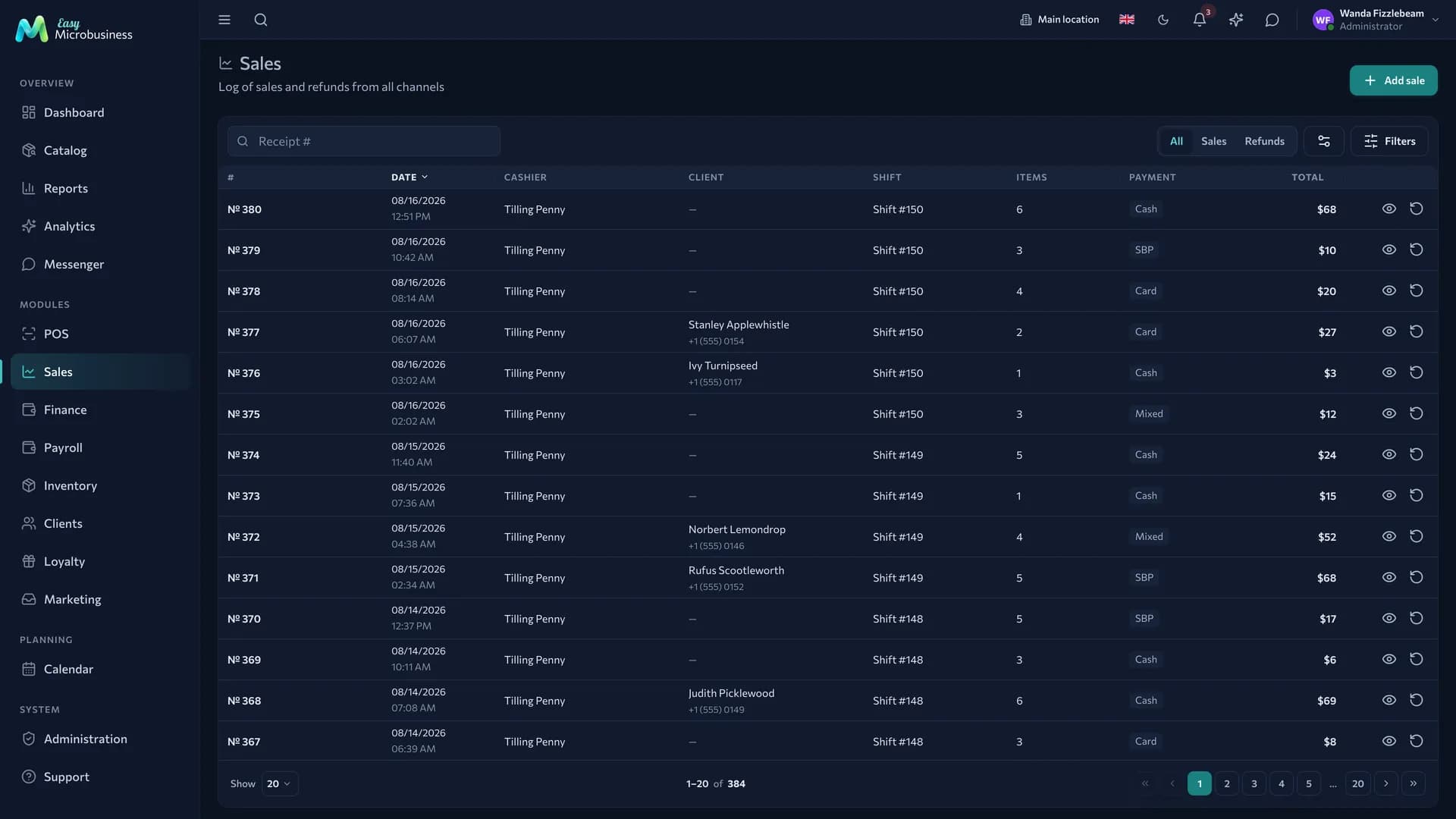
The log shows the receipts of the branch you work in. Cashiers and managers see their location; administrators and directors see the whole network or a single branch chosen with the switch.
How to make a refund
- Find the receipt in the Sales log.
- Choose refund and tick the items with quantities. Each one shows how much is still available and how much has been returned: "Available: 2 · returned: 1".
- Pick how the money goes back and confirm.
What happens:
- the money goes back to the customer by the chosen method;
- the goods return to stock;
- the current shift revenue goes down;
- the original receipt stays in the log with a link to the refund.
A refund belongs to the shift of whoever makes it and to the branch where the receipt was rung up: the money comes from that drawer and the goods return to that warehouse. For a receipt from another location the POS points you there: "The receipt was rung up in another branch — make the refund there".
A refund can be partial, and one receipt can be refunded several times. When everything has been returned, the window says so.
Refunds are open to everyone who works at the POS. Who refunded which receipt is visible in the audit log.
Refunding a package. The issued bundle of classes is cancelled together with the money. A package with at least one class already used is handled by an administrator: they adjust the package balance by hand and refund the agreed amount as a separate operation.
What happens after a receipt
| What | Where it shows up |
|---|---|
| Stock write-off | Inventory |
| Revenue and cost | Reports |
| Purchase history, points | Clients |
| Seller commission | Payroll |
Working without internet
The POS keeps working offline: receipts queue on the device and go to the server when the connection returns. The screen shows that there are unsent operations. Sending again does not create a duplicate.
Who does what
- Employee — opens their own shift, rings up receipts into it, makes refunds on receipts of their branch.
- Manager — sees the sales of their branch, closes any of its shifts and takes reports.
- Administrator and director — work across the network or a selected branch.
Component settings
POS settings hold "Default POS catalog" (products or services), "Primary dashboard action" (new sale or new intake), "Weighing mode", "Max manual discount, %" and the default opening cash. The values come from the business module and the scenario and can be changed by hand — see Component settings.
In short
- Sales happen inside an open shift; closing it produces a Z-report with the cash discrepancy.
- A posted receipt does not change: a correction is a refund plus a new sale.
- A refund can be partial and is made in the branch where the receipt was rung up.
- Offline the POS keeps receipts on the device and sends them when the connection returns.