
Component settings
The Modules section does two jobs: it connects business modules and tunes the components they bring. It opens from Administration → Modules.
How to connect a business module
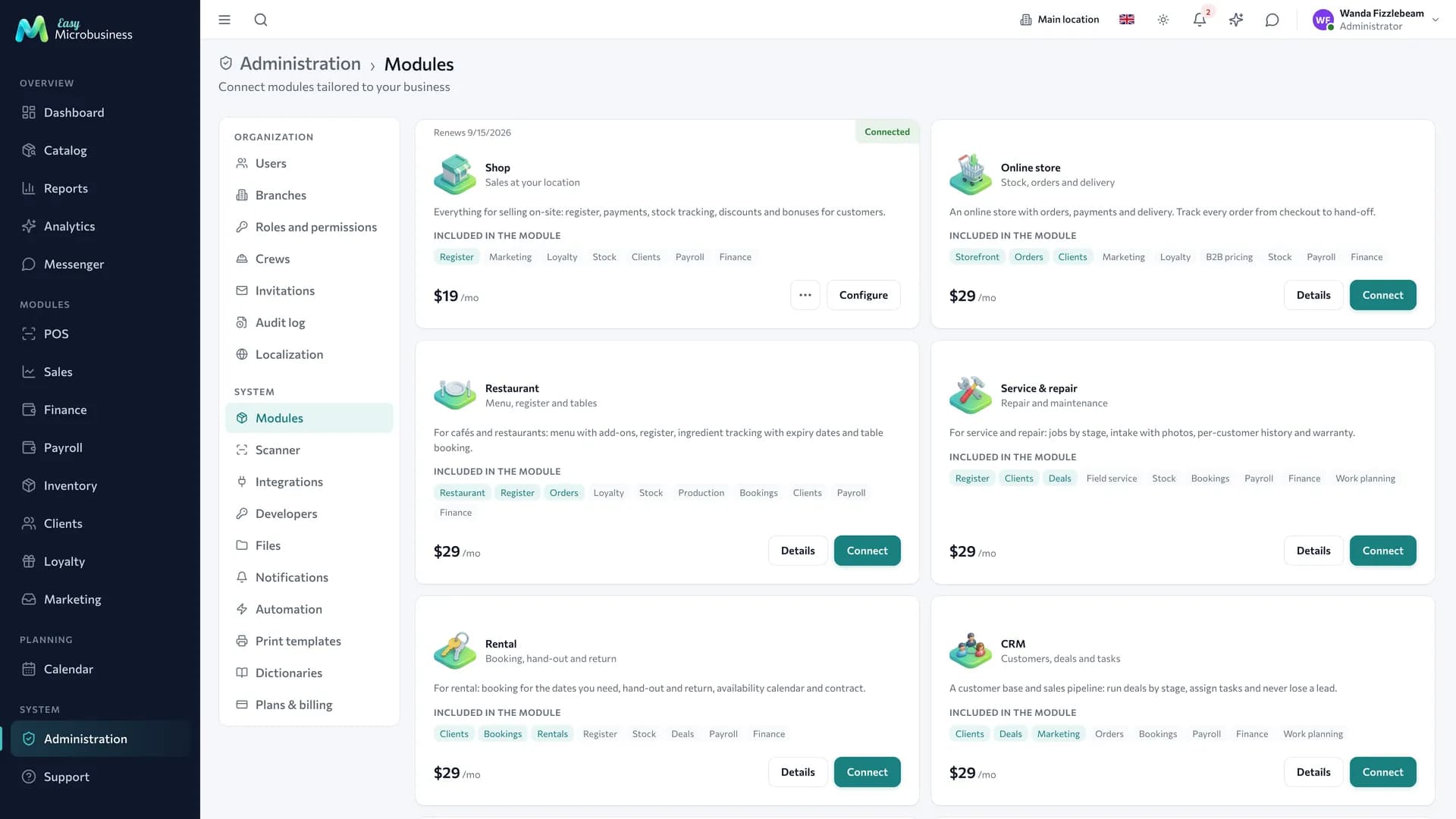
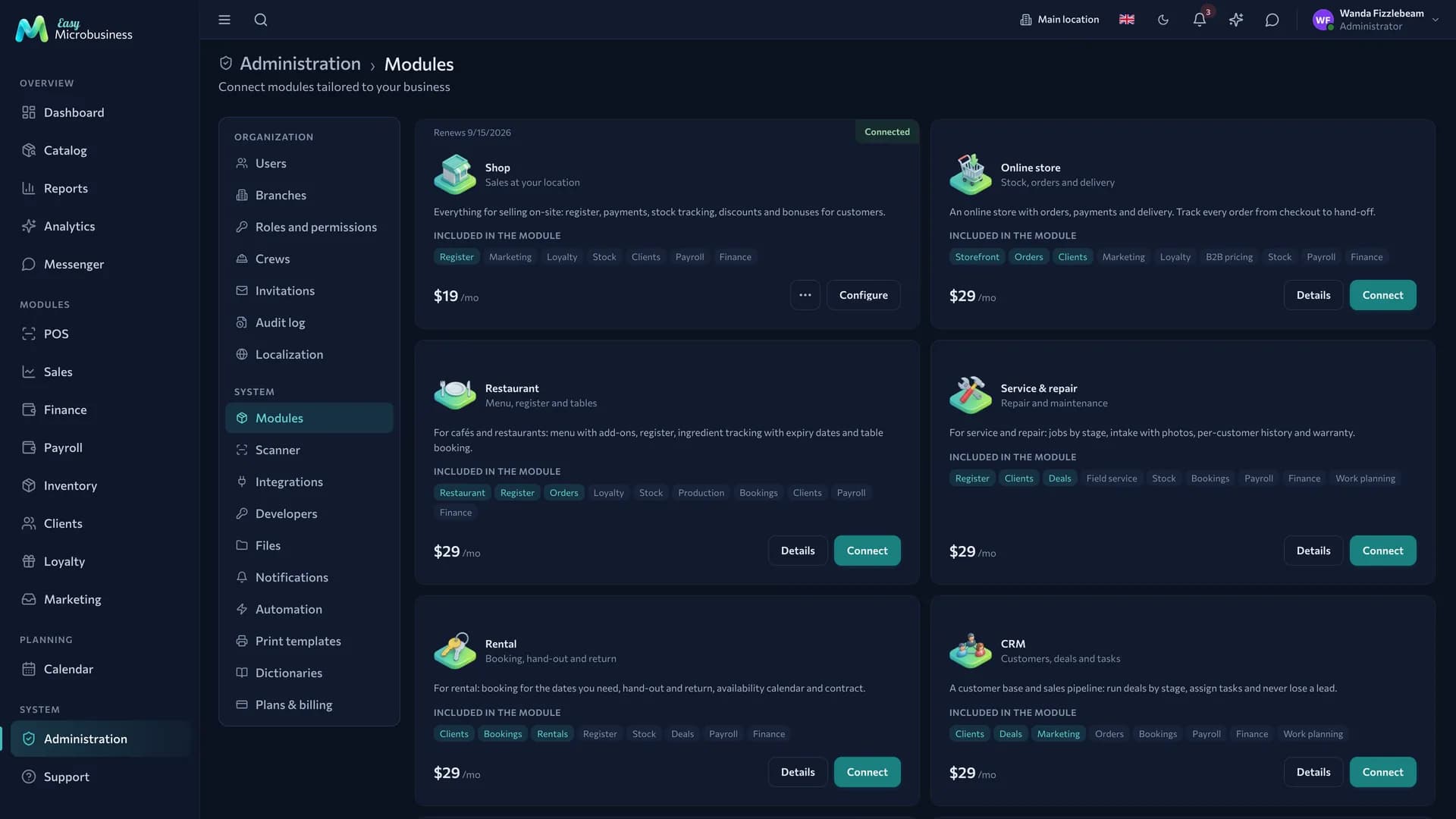
- Find the module card. It shows the description, the monthly price and the list of components: core ones in dark, optional ones in light.
- Press Connect — the sections appear in the menu without a page reload.
On connection the system switches on the core components, creates deal types, stages and reference books for the trade, adds print templates and fills in defaults where you have not set anything yourself.
Disconnecting is reversible: the screens go, the data stays.
How to switch a component on or off
Every component has a toggle in its card. The rules are:
- Keep the core components of a module on: the process leans on them — the POS on the catalog, orders on customers.
- Turn optional ones on as you need them. Not everyone needs inventory; payroll matters once you have employees.
- A switched-off component hides its sections and keeps the data.
- You can only switch on what belongs to a connected module. For anything else the system offers to connect the right module in the marketplace: components are paid for through modules.
- Catalog, calendar, reports, messenger and the system core are available to everyone and stay on.
- Integrations and the AI assistant have no toggle. These are platform-wide capabilities: integrations connect external services and hardware, and the assistant works across every section, spending the AI balance.
Changes reach an employee at their next login. If a colleague still sees the old menu, ask them to sign in again.
Useful component settings
| Component | Setting | What it does |
|---|---|---|
| POS | Default POS catalog | What opens first: products or services |
| POS | Primary dashboard action | The dashboard button: new sale or new intake |
| POS | Weighing mode | Adds weight entry to the receipt and accepts weight from connected scales |
| POS | Max manual discount, % | The ceiling for a discount set by hand |
| Inventory | Batch allocation policy | Earliest expiry first, earliest arrival first, or manual |
| Inventory | Warn about expiry (days) | How many days ahead expiring batches are highlighted |
| Inventory | Block selling below zero | Keeps sales within the available stock |
| Inventory | Executor writes off supplies from a field job | Lets a master write off material from their own site |
| Deals | Client portal by link | Allows giving the customer a link to the deal with stages and files |
| Deals | Customer approval of files | Lets the customer approve a file or send it back with a comment; works together with the portal |
| Deals | Require a loss reason | Asks for a reason when a deal moves to Lost |
| Deals | Book the master's time in the schedule | A field job with a time and an executor creates a booking |
| Deals | Book the venue by event date | An event with a date holds the hall; without a name match it holds the owner |
| Deals | Default event duration, hours | How long an event booking lasts when only the start is set; 4 by default, 1 to 24 |
| Orders | Price lists and customer groups | Shows the price list and group sections and wholesale documents in the customer card |
| Orders | Ship orders in parts | Adds the Shipments tab to an order and the Orders → Shipments section |
| Orders | Enforce minimum batch and multiples | Checks the quantity rules set on the product when an order is placed |
| Orders | Buyer cabinet by link | Opens the customer cabinet through a personal link |
| Orders | Confirm cabinet orders immediately | An order from the cabinet is confirmed and reserves stock without a manager |
| Storefront | Show out-of-stock products | Keeps zero-stock items on the storefront |
| Storefront | Require online prepayment | The order is confirmed after payment |
| Storefront | Minimum order amount, ₽ | The threshold below which a cart cannot be placed |
| Clients | Points / cashback | Turns on loyalty |
| Clients | Service reminders | Warns about scheduled maintenance; 7 days ahead by default |
| Scheduling | Customer reminders | A message about the booking in advance; the hour is set in the next field |
| Scheduling | Burn a visit on a no-show | A missed class uses up a package visit |
| Scheduling | Free cancellation window, hours | The boundary after which a cancellation counts as a no-show; 24 by default |
| Scheduling | Allow online booking into group classes | Shows the class schedule with free seats on the public page |
| Scheduling | Client cabinet | A cabinet by link: package balance, own classes and cancellation |
| Work planning | WIP limit (0 — no limit) | How many tasks the company keeps in the In progress column |
| Work planning | Daily capacity per person | The threshold at which a day goes red in People load; 3 by default |
| Work planning | Shift following tasks when dates move | Cascade along finish-to-start links. On by default |
| Production | Block a run when raw material is short | Off by default: a shortage only warns |
| Production | Yield warning threshold, % | Below this value the run row is highlighted; 95 by default |
| System | Ultra-simple mode | The bare minimum of fields and buttons — for locations with one or two products |
| System | Detect address coordinates | Puts field jobs on the map of the day in Dispatch |
| System | Map and geocoder provider | OpenStreetMap (no key) or Yandex Maps (API key required) |
Restaurant settings — payment and order acceptance — live on the Restaurant → Menu & settings screen. See Restaurant floor and kitchen.
Two components in the list share a name — Scheduling. Tell them apart by the subtitle: "Bookings and resources" is bookings and packages, "Task board and work schedule" is deal work planning.
When a module is connected, settings come from the module and the scenario, and your own choices stay: the system only fills in what you have not touched.
Access keys such as the geocoder API key are shown masked after saving, because the settings list is readable by every role. Leave the mask as it is if you are not changing the key — saving will not overwrite it.
A section switched off by a setting greets an employee with This section is switched off by a setting and a button to component settings.
Work scenarios
A module may have several scenarios — Workshop and Car service, Coffee shop and Full-service restaurant. The scenario can be changed after connecting: it brings the missing fields, categories and templates and aligns component settings with its own values. Look through the settings afterwards.
An extra scenario can be added to a connected module — for example, field jobs and product sales on top of a workshop. That creates a new deal type with its own stages and leaves the existing process alone.
Who has access
The section is open to the administrator: connecting modules affects charges to the balance, and switching a component off hides sections for the whole team.
In short
- A module is connected with the Connect button and brings its sections right away.
- Components are switched with a toggle; a switched-off one hides sections and keeps data.
- Component settings come from the module and the scenario, but your own choices are kept.
- Changing the scenario aligns component settings with its values — review them afterwards.
Related sections
- Business modules — what each module gives.
- System components — what each screen does.
- Plans and billing — charges and balance.