
Work planning
The component for orders that live for weeks and break into dependent stages: a flat being finished, a sign being installed, a video production, a design project, a print run, an event being prepared. It answers two questions: what is being done right now and what will slip if a piece of work is late.
In the menu it is the Work planning section with two screens — Task board and Work schedule.
Next to it in the menu there is a section with a similar name — bookings and scheduling. Tell them apart by their sub-items: work planning has "Task board" and "Work schedule", scheduling has "Bookings", "Front desk" and "Packages".
The component works on top of deal tasks. A task is the same one in the deal card, on the board and on the schedule: mark it done on the board and it is closed in the deal.
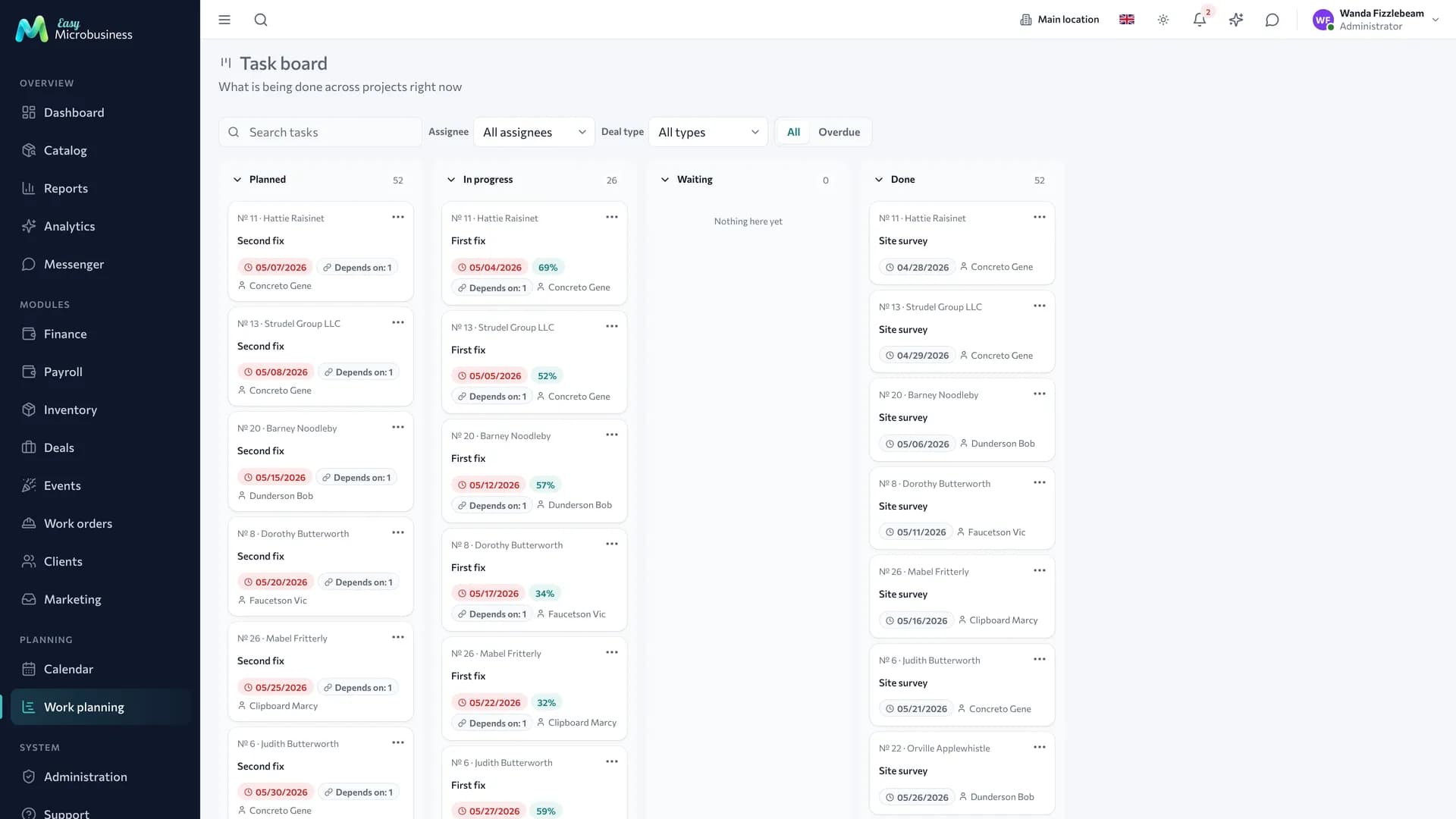
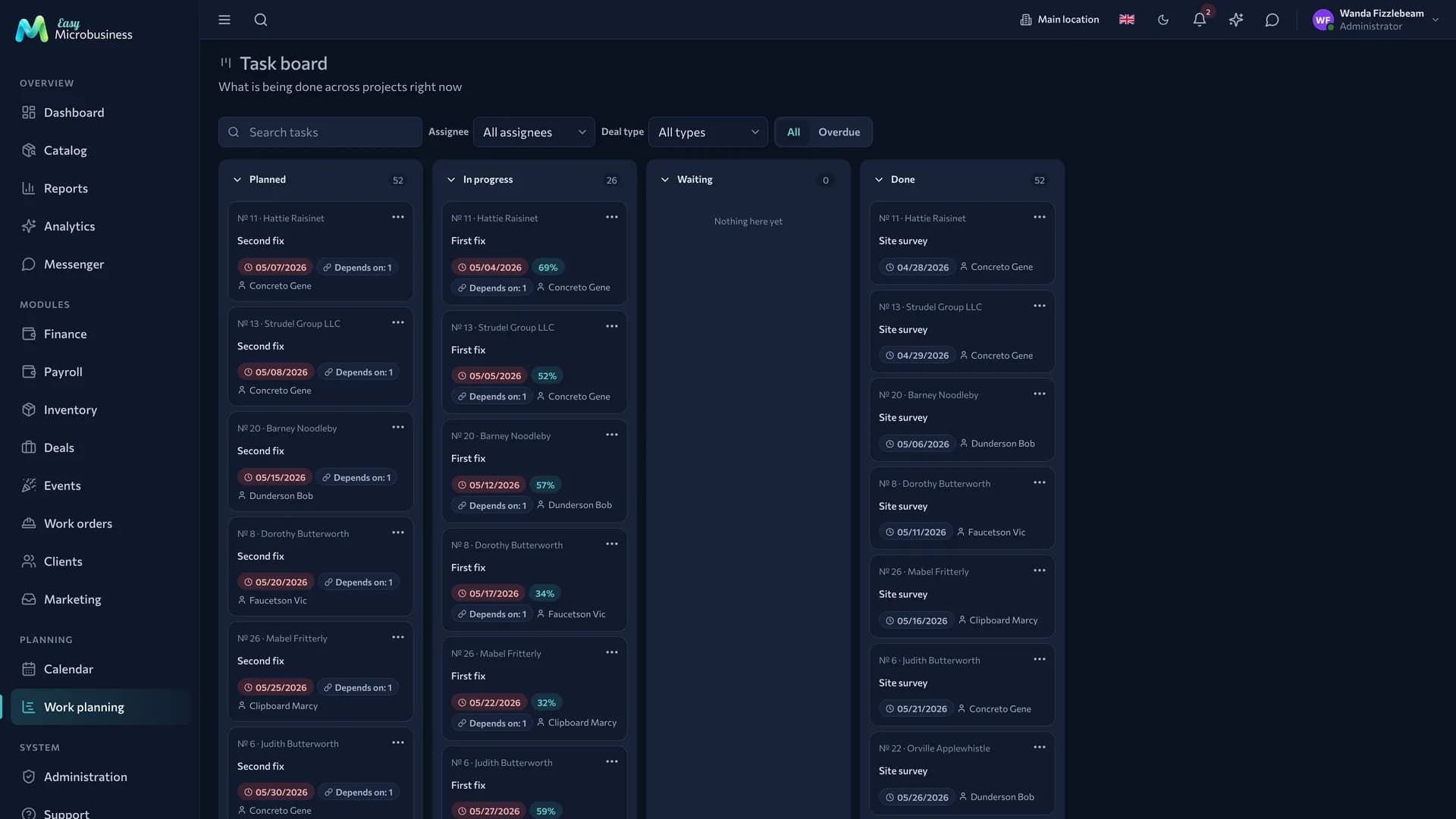
Task board
The columns show the state of the work rather than the deal stage: Planned → In progress → Waiting → Done. Stages live on the deal board; here you look at the load of the day.
A card shows the deal number and name, what to do, the deadline, the executor, the progress and a "Depends: N" marker when a task has predecessors. An overdue deadline is red, and a milestone carries an icon.
A card is moved with the mouse, with a long press, from the keyboard (space picks it up, arrows move it, a second space drops it, Esc cancels) or through the card menu, the Move to "…" item.
What a move does:
- into Done — the task is closed and the progress becomes 100 %;
- out of Done — the task reopens and the progress is cleared;
- into Waiting — the task is marked as waiting, and the card asks you to write in the comment what for.
Above the board there is a search by task name, a filter by deal type and an All / Overdue switch; administrators also get a filter by executor. Tasks of closed deals do not appear on the board.
Each column loads up to 50 cards, and the counter shows the real number of tasks.
The work-in-progress limit is soft. The In progress column shows
7/5and an overload warning, and still lets a card through: it is a hint for a foreman.
Work schedule
The second screen is a Gantt chart. A deal runs as a summary bar with its tasks inside; milestones are drawn as diamonds. A task without dates stays as a row with no bar, so you can see where the plan is still missing.
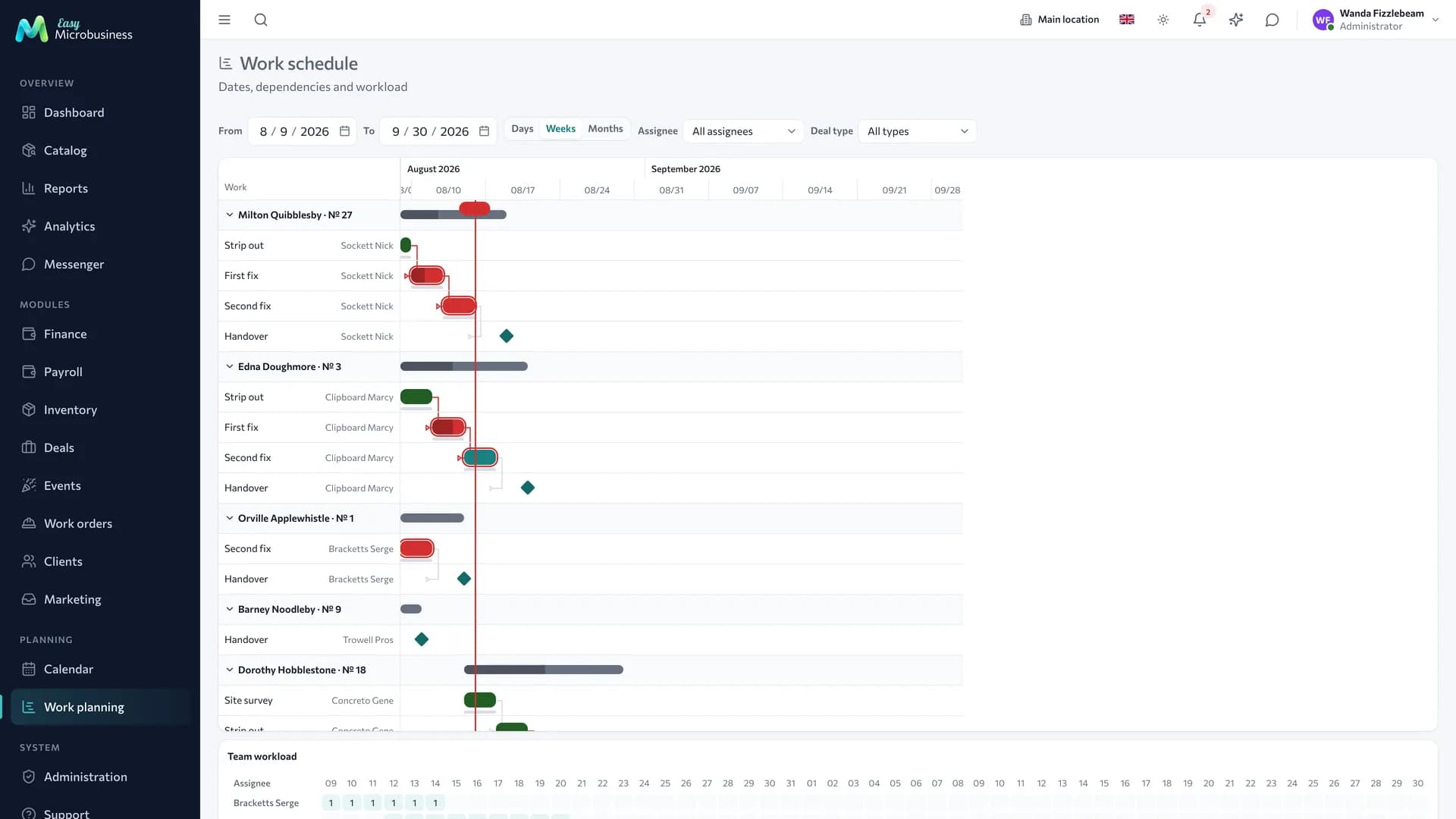
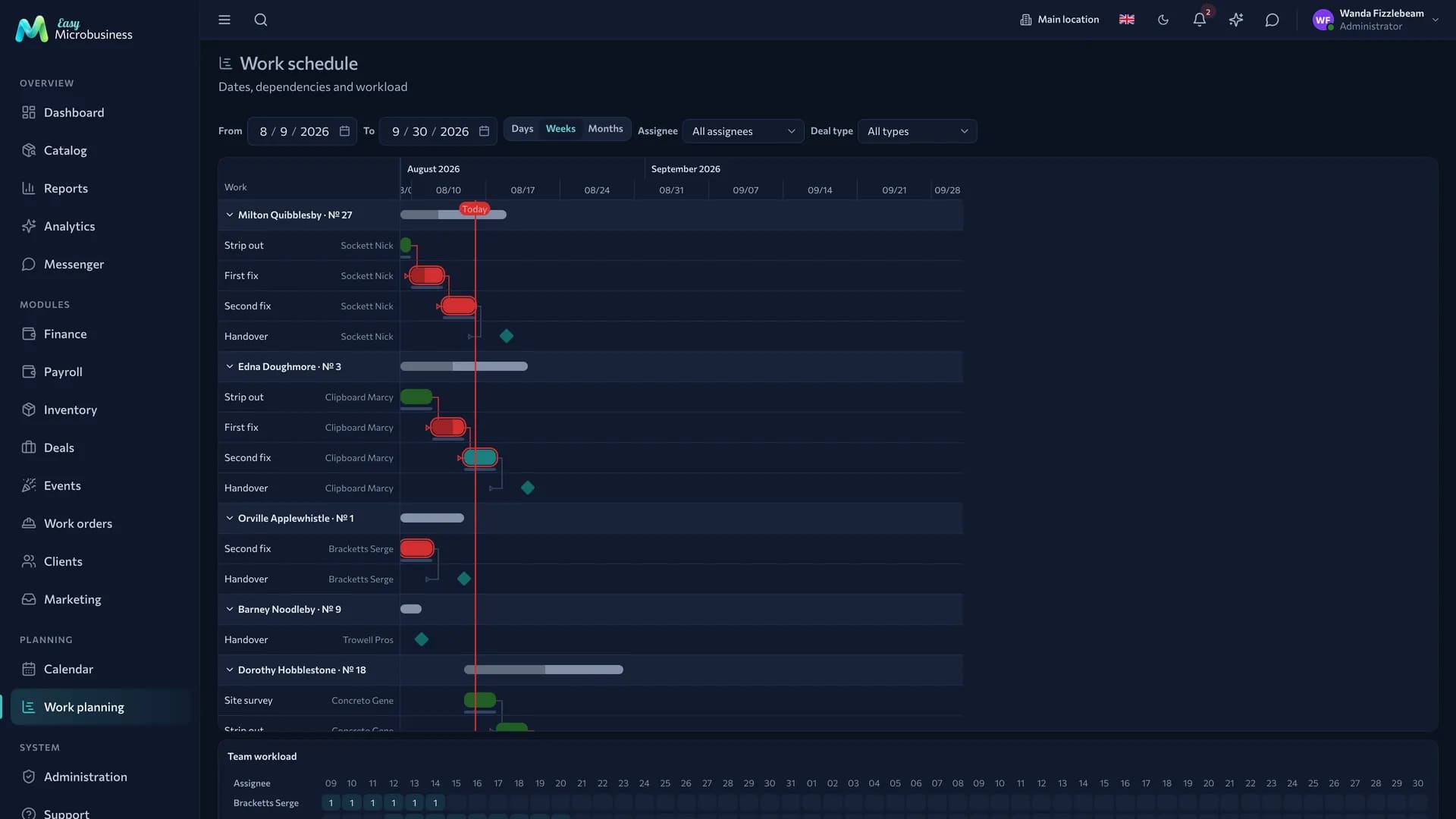
- The window is set with the "From" and "To" fields; by default it runs from last week to a month and a half ahead.
- The scale is Days, Weeks or Months. The starting one is set by a component setting.
- Dates are edited right on the canvas: drag a bar to move the work, or pull an edge to stretch it. Clicking a row opens the task panel, where dates are edited from the keyboard and on a phone.
- The critical path is outlined: these are works with no slack, where any shift moves the finish of the whole deal. It is calculated across all the deal's tasks, so a filter by executor does not change the picture.
- The "today" line and weekends on the scale show where the plan has drifted from the calendar.
How to link tasks
- Open the task panel and find the Depends on tasks block.
- Pick a predecessor.
- Add a lag in days if needed — paint dries for two days, materials travel for three.
- Press Link.
A link works as finish-to-start: the next piece of work starts after the previous one ends, plus the lag. Tasks can be linked within one deal, and a loop will not be created.
After that the link works by itself. The Shift following tasks toggle (on by default) means that when you move dates, the successors move with them. Only those with no slack move: work that still has three free days stays where it is.
Baseline
The Fix the plan button remembers the current dates of every task in the deal. After that the schedule draws the original position next to the bar — you can see how far the work has drifted from what was promised to the client.
The button is always on the Schedule tab of a deal card, and on the shared schedule it appears when a single deal is left in the selection.
People load
Under the schedule there is a People load table: how many pieces of work fall on a person on each day of the period. An overloaded day is highlighted.
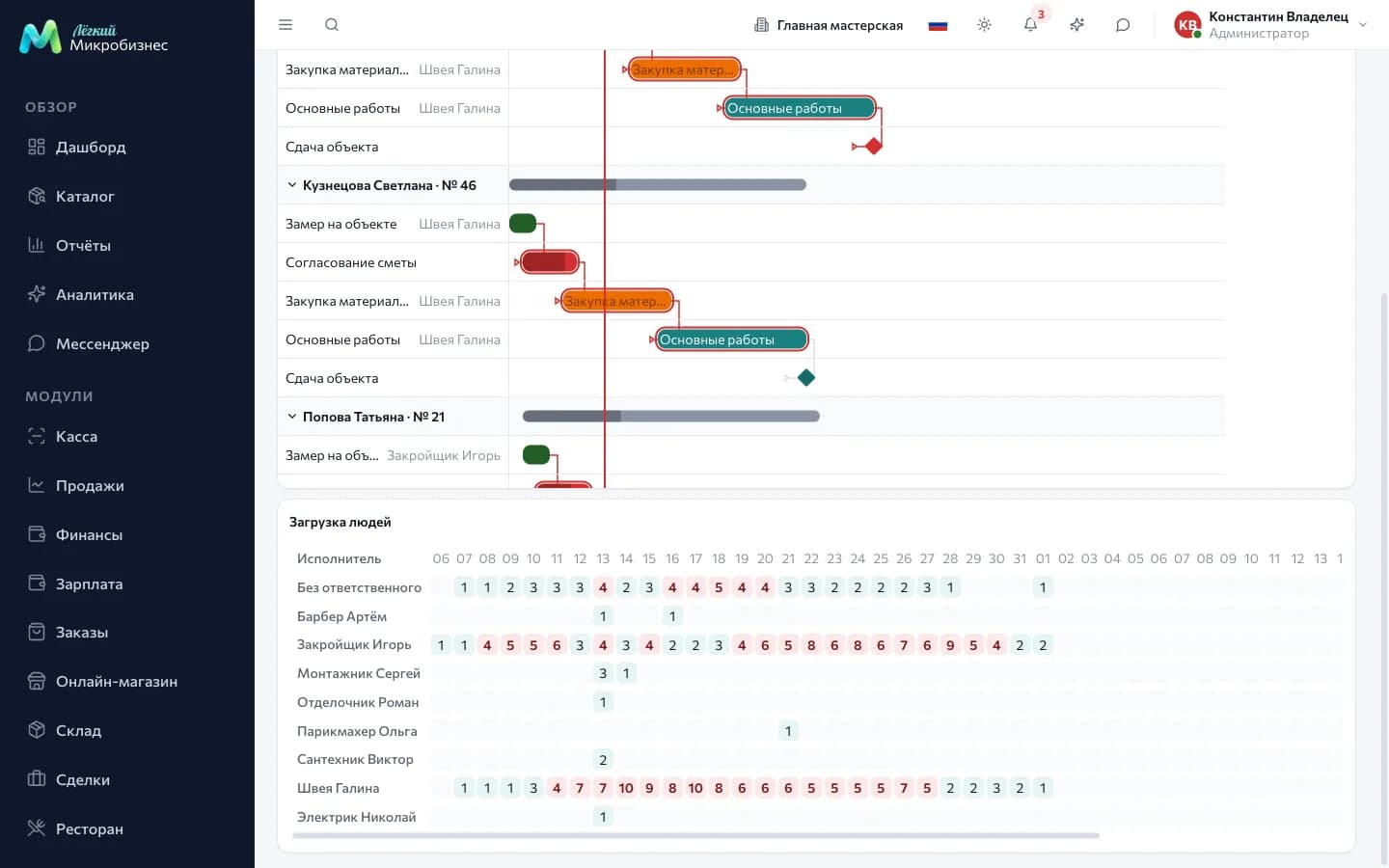
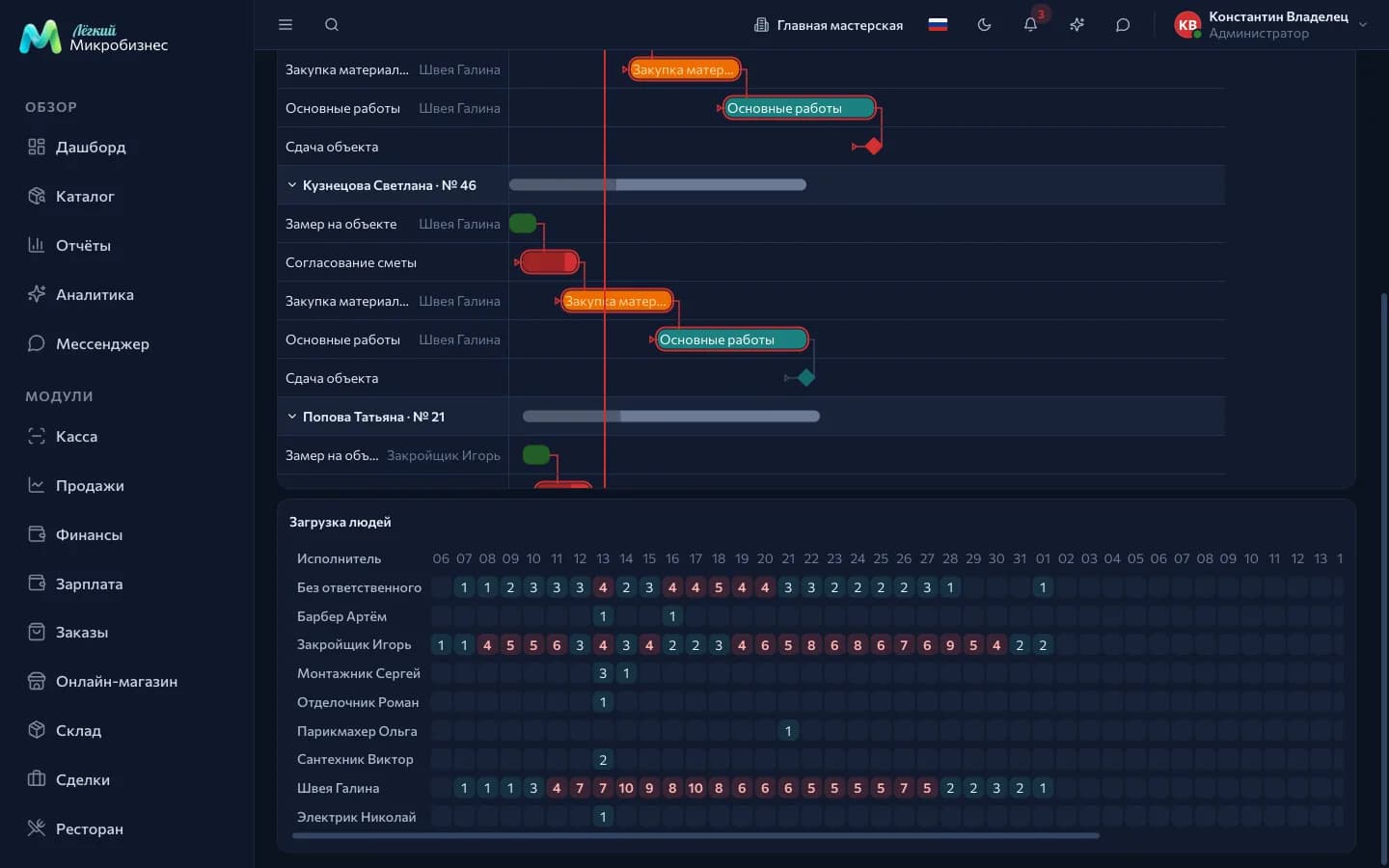
It counts simultaneous pieces of work rather than hours: planning usually happens in "how many sites per person per day". Three sources feed it — plan tasks, work orders and bookings in scheduling: a master free of tasks may be on a field job all day.
The norm is set by a component setting, three works a day by default.
Schedule in a deal card
With the component on, a deal gets a Schedule tab: the same chart for one deal, with a window fitted to its dates. The baseline is fixed from here and the shared schedule opens from here.
Planning fields also appear in deal tasks: next to "Deadline" there are Start, Executor and a Milestone toggle.
What to set up
| Setting | What it does |
|---|---|
| WIP limit (0 — no limit) | How many tasks the company allows in the In progress column |
| Daily capacity per person | The threshold at which a day goes red in People load; 3 by default |
| Default schedule scale | Days, weeks or months; weeks by default |
| Shift following tasks when dates move | Cascade along links; on by default |
| Show weekends on the schedule | Highlighting Saturdays and Sundays |
Every stage of a deal type also gets a Card limit — the same soft limit for the deal board.
Who does what
- Employees see their own tasks on the board and the schedule and change the column and the progress.
- Managers and directors plan dates, set links and milestones and fix the baseline.
- Administrators additionally assign executors and filter the board and schedule by people.
The section is also limited by branch: employees and managers see the work of their location. More detail is in Roles and permissions.
How to connect
Work planning is part of the core of two modules:
Individual scenarios switch it on too: "Video production" and "Design studio" in Studio, "Print shop" and "Outdoor advertising" in Printing and advertising.
It is offered as an option by Service and repair, Field services, Manufacturing and workshops and CRM.
The component works together with Deals: it plans their tasks.
Frequently asked
The schedule is empty although there are tasks. The tasks have no dates or fall outside the chosen window. A task without dates is a row with no bar — fill in "Start" and "Finish" in the task panel.
I moved one piece of work and half the schedule went with it. That is the cascade along links. Turn off the "Shift following tasks" toggle in the task panel or the component setting as a whole.
Two tasks cannot be linked. Links are made inside one deal and must not close a loop: if A already waits for B, the reverse link is rejected.
An employee does not see a colleague's task. On the planning board they see what is assigned to them.
In short
- The board shows the state of the work, the schedule shows dates and dependencies.
- A finish-to-start link with a lag moves the successors automatically.
- The baseline shows how far the work has drifted from what the client was promised.
- People load counts tasks, work orders and bookings together.
Related components
- Deals — the tasks themselves, stages and the site card.
- Scheduling — time bookings that feed into people load.
- Crews and work orders — work orders that also occupy a person.
- Reports — deadlines and overdue work in the wider picture.