
Construction and renovation
The module for building and renovation: a site is run as a deal, materials are issued to it from stock as the work goes, crews receive work orders, and the profit on every site is visible while the work is still under way.
It fits renovation crews, finishers, installers, small construction companies and workshops that make items to order with installation.
What is included
Core components
- Inventory — materials: purchasing, stock, issuing to a site and returns.
- Clients — clients, site addresses, work history.
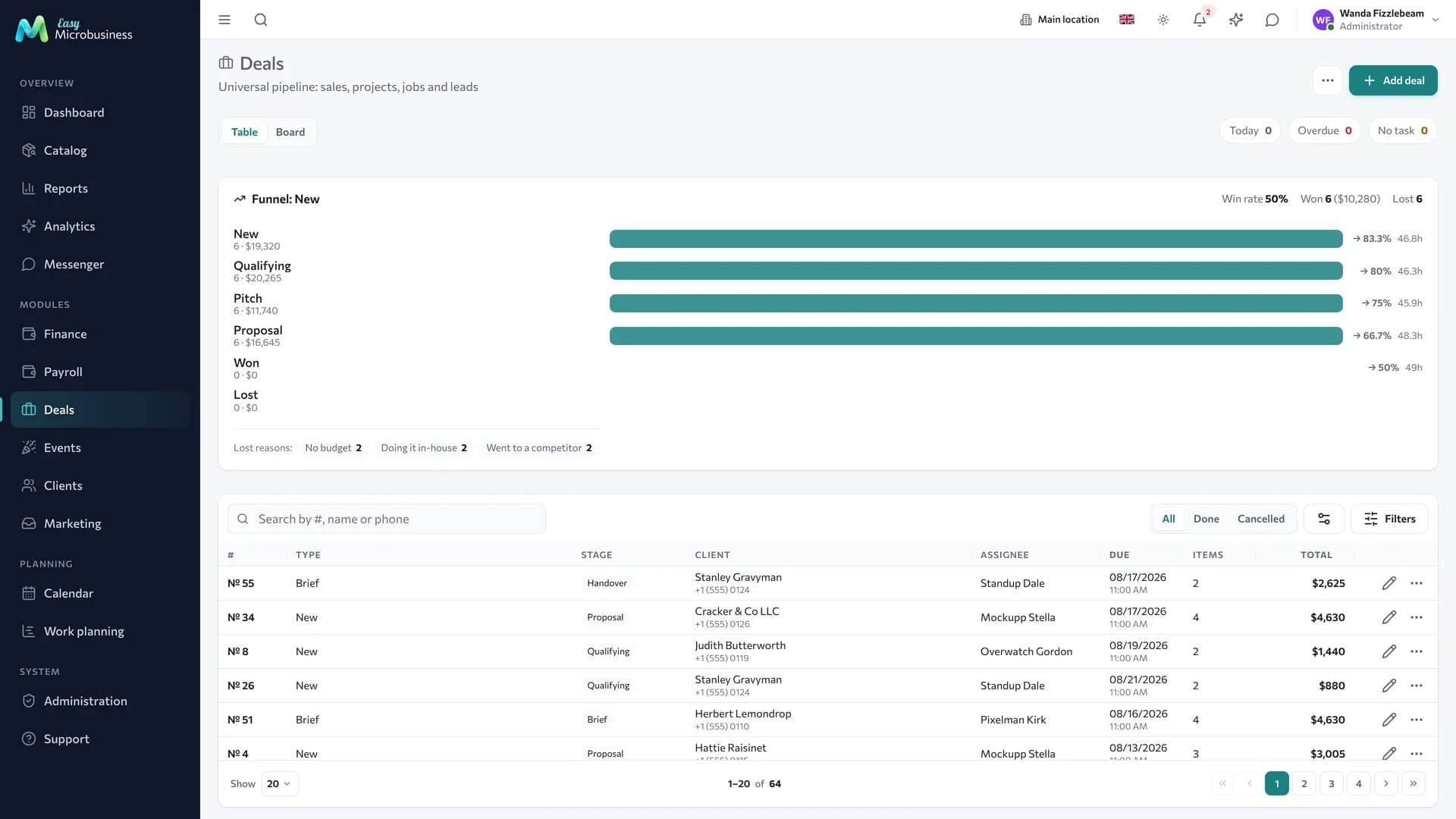
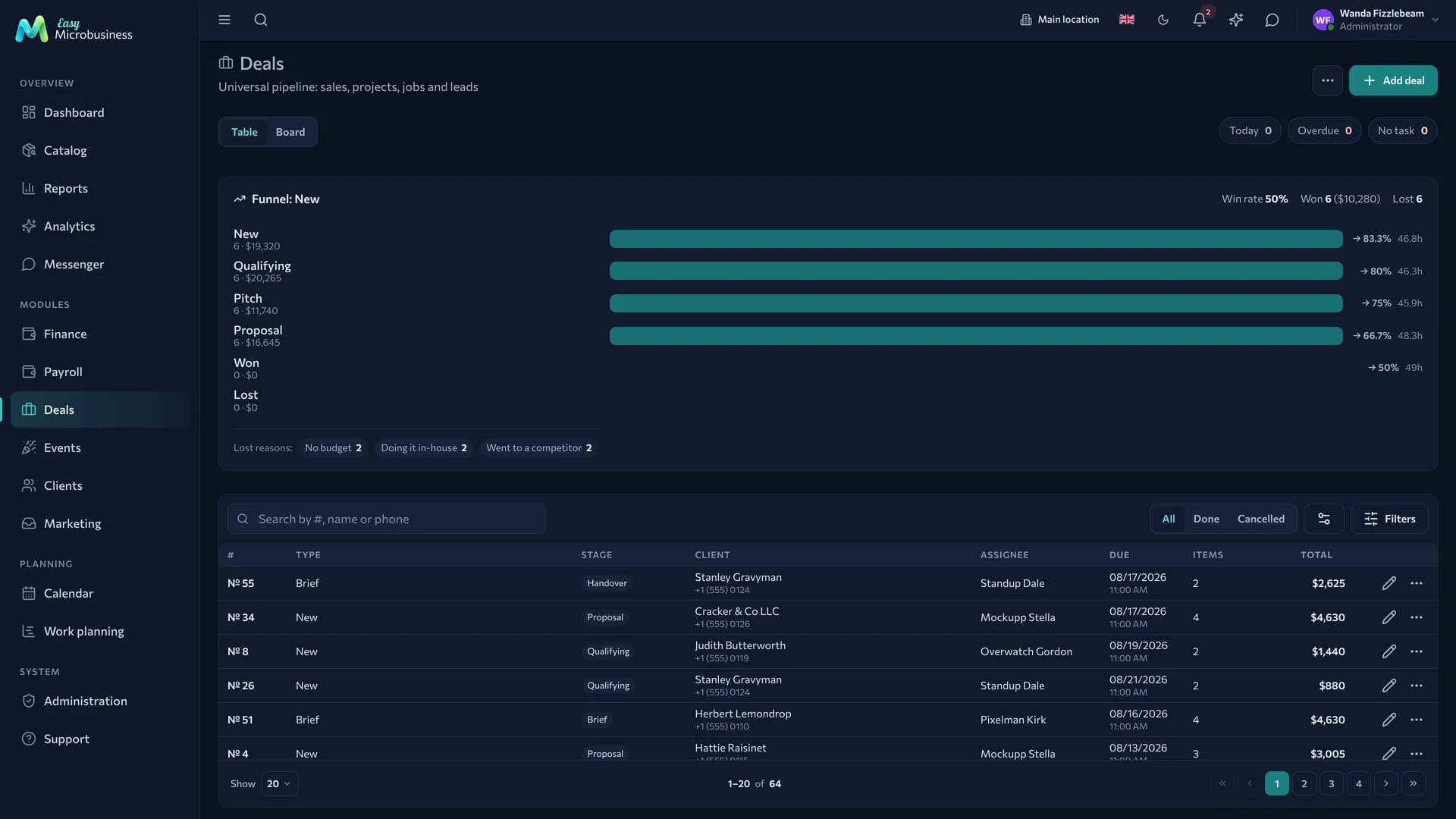
- Deals — the site as a project with an estimate, stages and the client portal.
- Crews and work orders — crews with shares and work orders with piece-rate pay.
- Work planning — site stages with dates and dependencies, the schedule and crew load.
- Payroll — piece-rate pay to crews for closed work orders.
Optional components
- Point of sale — taking stage payments in cash and by card.
- Scheduling — a schedule of crew visits and measurements.
- Field service — work at the client's site.
- Finance — expenses, profit and customer debts.
- Marketing — requests from capture forms, segments and campaigns.
Catalog, reports, calendar, messenger, integrations and the AI assistant are available right away.
Four scenarios
| Scenario | What it is about | What it sets up |
|---|---|---|
| 🏠 Interior finishing (default) | Flats and offices from measurement to handover | "Room type" and "Number of rooms" fields, categories for finishing and rough materials |
| 🔧 Installation and building systems | Electrics, plumbing, ventilation | "System type" and "Warranty until" fields, a one-off field request next to the site, switches on scheduling |
| 🏗 Turnkey construction | Whole houses and buildings | A "Construction stage" field from design to landscaping, "Land registry number", building material categories, switches on the POS |
| 🪚 Made-to-order items with installation | Furniture, windows, staircases | "Item type" and "Measurement date" fields, adds a Production deal type |
Fields shared by every scenario are "Site address" and "Area, m²", with a 30 % default advance.
How a site goes
- Measurement. The request becomes a site: address, area, owner, stage.
- Estimate. Works and materials with prices are added. The contents are fixed as an estimate version.
- Approval and advance. The client confirms the estimate on the site portal or verbally, and you record the approval. The advance and stage payments are tracked in the site payments.
- Materials. What is actually taken to the site is issued from stock; what is not used comes back.
- Work. A work order is issued to a crew, executors mark what is done, and closing the work order accrues piece-rate pay.
- Handover. An act and a contract are printed and the site is closed.
Profit on a site is visible on the Finance tab at any moment rather than only at the end.
Materials on a site
The Materials tab in the site card shows how much material the estimate allows for and how much has been issued.
To issue material:
- Open the Materials tab and add a line.
- Pick the product — the stock of the selected warehouse is shown next to it. For a product with variants, pick the variant.
- Enter the quantity and confirm.
The warehouse is only asked for when the branch has several. Warehouses of other branches are not available: material gets there by transfer.
An issue reduces warehouse stock and increases the site cost at batch value.
Returning what was not used is done from the log row. In the return window enter the quantity; an empty field returns the whole outstanding remainder. Returns can be partial — fifty bags were delivered, three came back sealed.
Above, you see "Per estimate", "Actually issued" and either "Overspend" or "Saving", plus an "Estimate used" bar.
The tab appears together with Inventory. Deal types that write off materials themselves at closing do not have it.
Work orders for crews
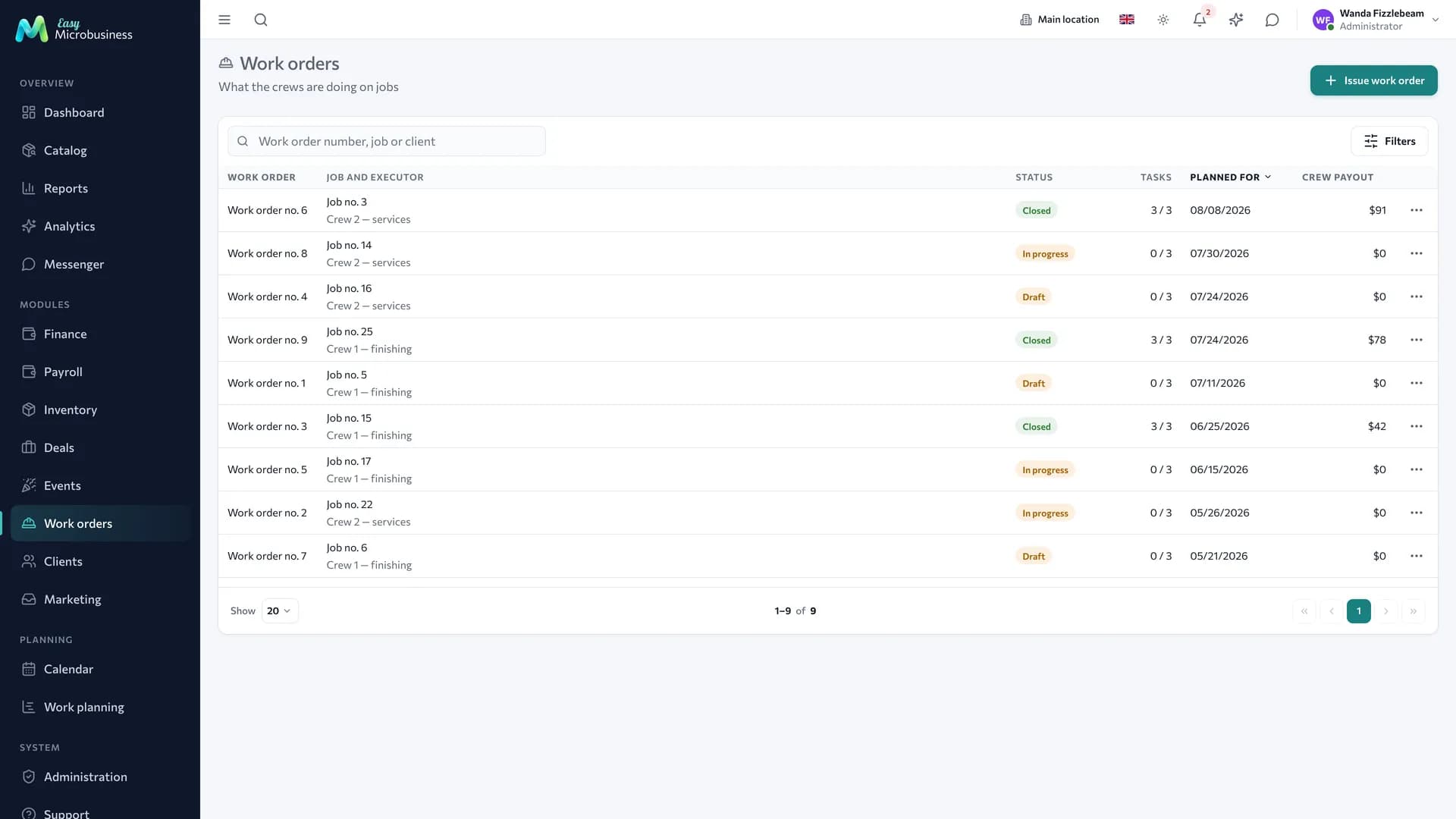
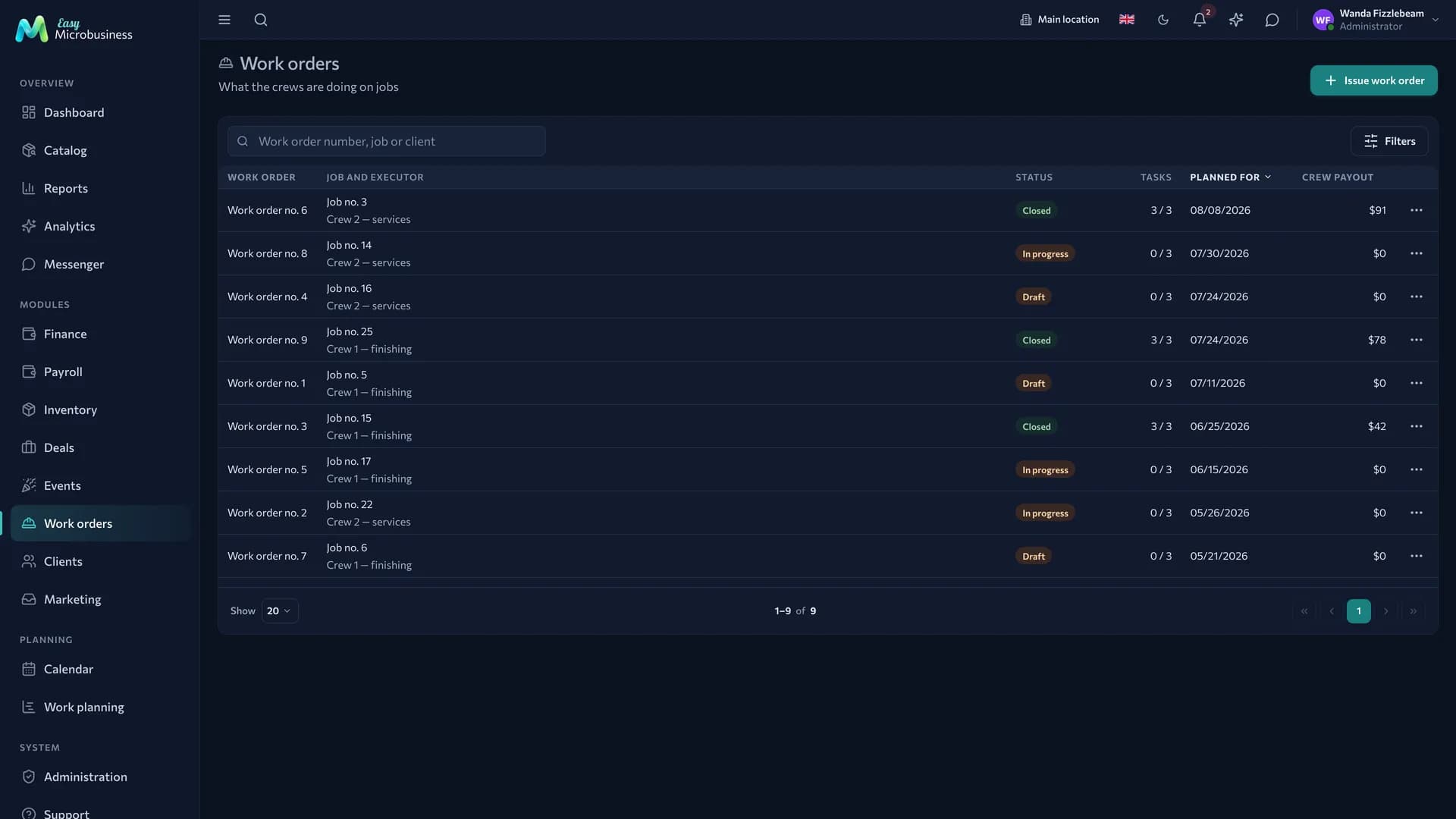
A work order is a task for specific work: lines with volume, unit and rate. It can be issued from the Work orders tab of a site card or with the Issue work order button in the Work orders menu section.
| Field | What to enter |
|---|---|
| Request | The site or the field job — searched by number and by customer |
| Crew or employee | The work order goes to a whole crew or to a single executor |
| Planned date | Which day the work is planned for |
| Works | Name, volume, unit and rate per unit |
As you fill it in, Total to the crew is calculated at the bottom — the amount that will be accrued at closing.
From there the work order goes like this:
- It is created as a draft for the chosen crew or employee.
- The executor marks completed works — in the site card or from the field screen "My field jobs". The first mark moves the work order to "In progress".
- Close and accrue becomes available once at least one work is marked. Before closing the system names the amount, and afterwards it shows the breakdown of who received how much.
- The accruals land in the piece-rate pay of Payroll on the closing date.
A wrong work order is cancelled and no accruals appear. A closed one stays as it is, and mistakes are corrected with an adjustment in payroll.
Work orders are issued, closed and cancelled by administrators, directors and managers. Employees mark the works on their own work order.
A work mark is queued when there is no connection on site and is sent when the network returns.
Crew membership and shares are managed in the Crews section.
Estimate versions
An estimate lives through changes: the client asks for more sockets, extra work appears. The Estimate versions tab fixes the contents as a snapshot — with items, prices, discount and total. Each version shows how much the amount grew compared with the previous one.
A version is marked approved by hand or by the client on the portal. Fixing a new version clears the approval: the "Approve" button appears on the portal again. The confirmation warns about this.
The site portal
The client receives a permanent link to the site — the Client portal tab. Through it, without a password, they see:
- work stages with dates and a "Next up" hint;
- the files you marked as visible;
- with the setting on — the current estimate version with prices, the total, the payment schedule and an "Approve estimate" button.
The link opens without authorisation and can be forwarded by anyone. Internal comments on payments are not shown to the client; amounts and dates are.
Two Deals settings drive this: "Client portal by link" and "Show the estimate and payments to the client". The module switches both on at connection.
A separate setting, "Customer approval of files", lets the client confirm a plan or a sketch on the portal. How it works is in Deals.
Site finance
The Finance tab of a site shows income, cost, expenses, actuals for materials and works against the estimate, and profit.
- Profit is income minus cost minus expenses.
- Materials and works are already inside the cost: only the overspend is added to the estimate.
- A saving leaves the cost as it is: the estimate is agreed with the client, and material you saved stays yours.
What to set up after connecting
- Site stages — bring them to your process: measurement, design, rough works, finishing, handover.
- A price list of works — add works as catalog services with their cost structure, so the plan splits into materials and labour.
- Crews — membership and piece-rate shares in the Crews section.
- Print templates — the estimate, the act of completed work and the contract are created at connection; check the header, the warranty and the terms for extra work.
- Automation — two scenarios arrive switched off: an overdue reminder and a low-stock notification.
What to look at in reports
- Profit by site — revenue, materials, works, expenses, profit and margin per site, with material overspend in its own column.
- Crew output and load — how many work orders were closed, across how many sites and for how much.
- Receivables in Finance — which stages are handed over but not paid.
Frequently asked
What about changes during the work? Add items to the estimate and fix a new version: the history is kept, and the client sees the new contents and the new total on the portal.
Can one crew run several sites? Yes. The crew list shows how many open work orders it has, and piece-rate pay is counted on works actually closed.
Too much material was delivered. Return the surplus to stock from the materials log: stock is restored and the site cost goes down.
Where do we keep photos and documents for a site? In the site card on the Files tab: measurements, the contract, stage photo reports. Marked files are visible to the client on the portal.
In short
- A site is run as a deal: estimate, stages, materials, work orders and money in one card.
- Materials are issued from stock by fact and returned in parts.
- Closing a work order accrues piece-rate pay by the crew shares.
- Profit on a site is visible at any time, not only at handover.
Similar modules
- Repairing equipment rather than premises — Service and repair.
- One-off field jobs without estimates and materials — Field services.
- Making structures in a shop without installation — Manufacturing and workshops.