
Wholesale and distribution
The module for selling to businesses in bulk: every customer has their own price, a large order leaves in parts, and a regular buyer places a repeat order themselves. It fits distributors, suppliers to cafés, manufacturers with a wholesale channel and cash-and-carry bases.
Four scenarios
At connection the module asks what you trade in. The answer drives the components, the order and inventory settings, catalog categories and extra customer fields.
| Scenario | What it is about | What it sets up |
|---|---|---|
| 📦 Goods distributor (default) | A flow of B2B orders: hundreds of items, a price list per customer | Minimum batch rules, a buyer cabinet without auto-confirmation, inventory blocking sales below zero. Categories for professional chemicals, paper, equipment. Customer fields "Agreed product list" and "Delivery site addresses" |
| 🍽 Supplier to cafés and restaurants | Regular deliveries on a schedule: order at night, delivery in the morning | The same plus auto-confirmation of cabinet orders — the chef orders at night and makes the morning van. Inventory releases batches by nearest expiry and warns 3 days ahead. Fields "Delivery days", "Receiving hours", "Who receives the goods" |
| 🏭 Manufacturer with wholesale sales | Own goods in bulk: production, finished stock, pallets | Switches on Production. The buyer cabinet is off: a manufacturer has a dozen regular buyers and a direct phone line. Fields "Packaging", "Net weight, kg", "Pieces per pallet" |
| 🥬 Cash-and-carry base | Small and large wholesale over the counter: from a kilogram to a tonne | Switches on the POS and the simplified mode. Manual discount without a ceiling, scales, selling below zero allowed. Categories for vegetables, fruit, nuts and packaging |
Price lists, customer groups, shipments and documents come with all four scenarios. What differs is the catalog content and how strictly a shipment is counted.
The scenario can be changed in Administration → Modules. A change adds the missing categories, attributes and fields and aligns component settings with the new scenario. Look through the settings afterwards.
What is included
Core components
- Inventory — stock, batches, goods in, reserve for an order.
- Orders — the order, shipments, payments and documents.
- Clients — business customers, details, payment terms, credit limit.
- B2B pricing — price lists with volume tiers, customer groups, the buyer cabinet.
Optional components
- Deals — long negotiations before an order.
- Point of sale — cash sales over the counter.
- Production — making your own goods.
- Payroll — a manager's percentage.
- Finance — expenses, profit and customer debts.
- Marketing — requests from capture forms, segments and campaigns.
Catalog, reports, calendar, messenger, integrations and the AI assistant are available right away.
How a customer price is calculated
The same item goes out at different prices, depending on who is buying and how much. The system calculates the price rather than a manager's memory.
The order of checks is:
| Level | Where it is set | When it applies |
|---|---|---|
| 1. Customer special price | Customer card → "Prices and interactions" → "Special prices (B2B)" | Always, when it exists for this product |
| 2. Personal price list | Customer card → "Personal price list" | When it is set and in force |
| 3. Group price list | Customer group | When the customer has no list of their own |
| 4. Default price list | The list marked "Default" | When the customer is outside a group |
| 5. Catalog price | Product card | When the chosen list has no price for this item |
It works in two steps. First one applicable price list is chosen — the customer's own, their group's or the shared one; prices are looked up in it. For items missing there, the catalog price is used. A special price outranks everything.
Inside a list, the tier with the highest threshold that does not exceed the quantity on the line is used.
For example, a price list reads: from 1 — 1 200 ₽, from 12 — 1 090 ₽, from 48 — 980 ₽. Order 30 pieces and the price is 1 090 ₽. Raise it to 48 and the price becomes 980 ₽ by itself.
A group discount applies on top of the price list and catalog prices. A group with a 5 % discount gives 931 ₽ on those same 48 pieces. A group discount does not apply to a special price: that figure has already been agreed with the customer.
Only lists in force are used. Archived ones and those whose dates have not started or have passed give no prices. The cascade works the same way in an order, at the POS, in a deal and in the buyer cabinet.
The price changes as you type the quantity
In the order editor and at the POS the price recalculates on every change of quantity. Next to the item there is the price source — "Price list «Chain customers», from 12". Below the line the next tier is shown — "from 48 — 980 ₽ each": the manager immediately knows how much more to add and can offer it to the customer.
Only the items added or changed in this session recalculate. Opening an August order for a readiness date will not rewrite the prices agreed back then with a September price list. A price a cashier set by hand is not recalculated either.
How to create a price list
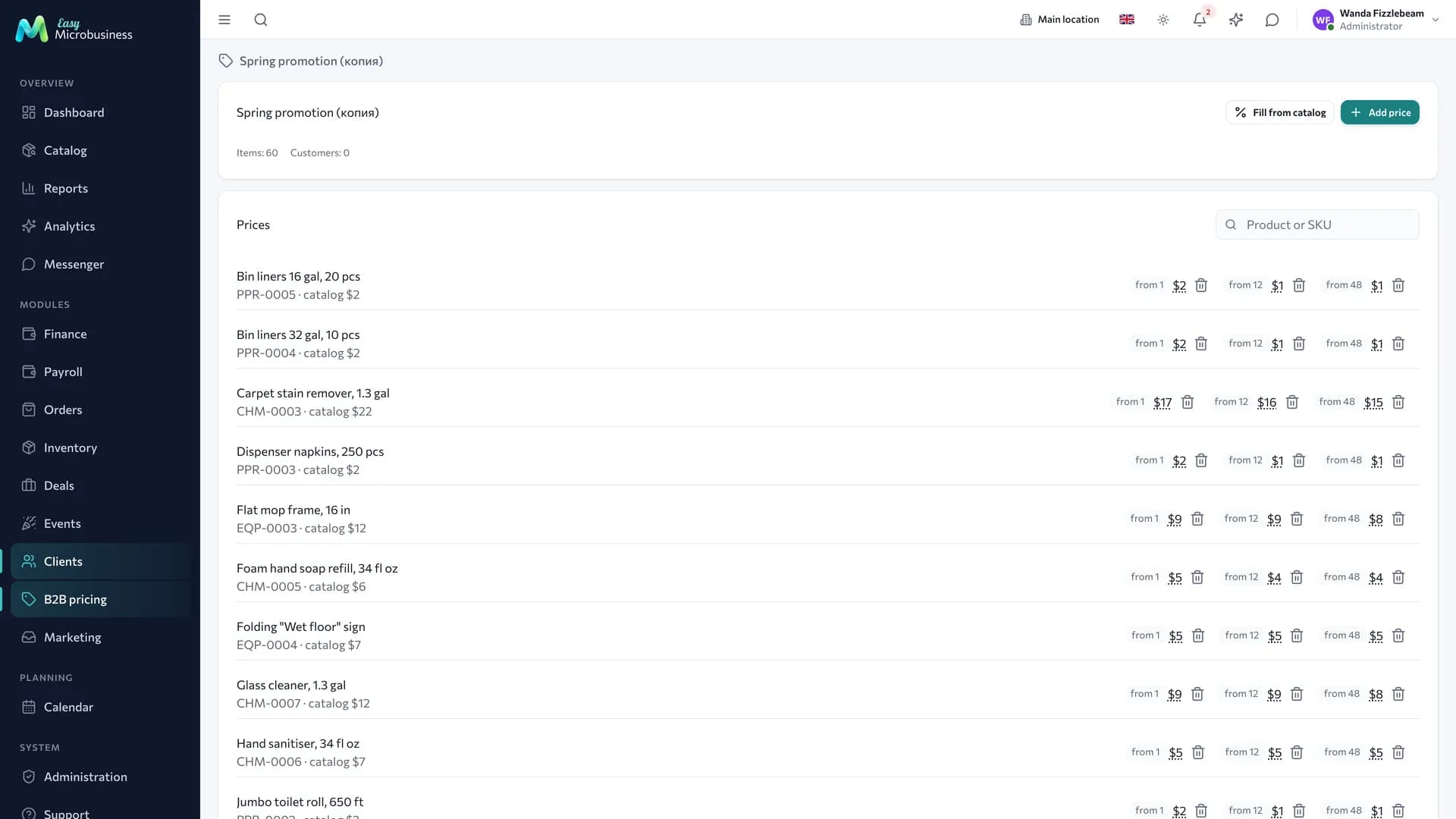
The B2B pricing → Price lists section. A price list is a set of prices with a validity period.
- Press Add price list.
- Fill in the name, "Valid from" and "Valid to". Empty fields mean no expiry.
- Press Add price and set the product, "Quantity from" and the price.
One product can carry any number of thresholds — that is volume pricing. The catalog price is always shown next to yours, so you can see what you are giving away. A ready price is edited by clicking the row. To move a threshold, delete the tier and create a new one.
What else the section can do:
- Fill from catalog copies catalog prices with a percentage shift:
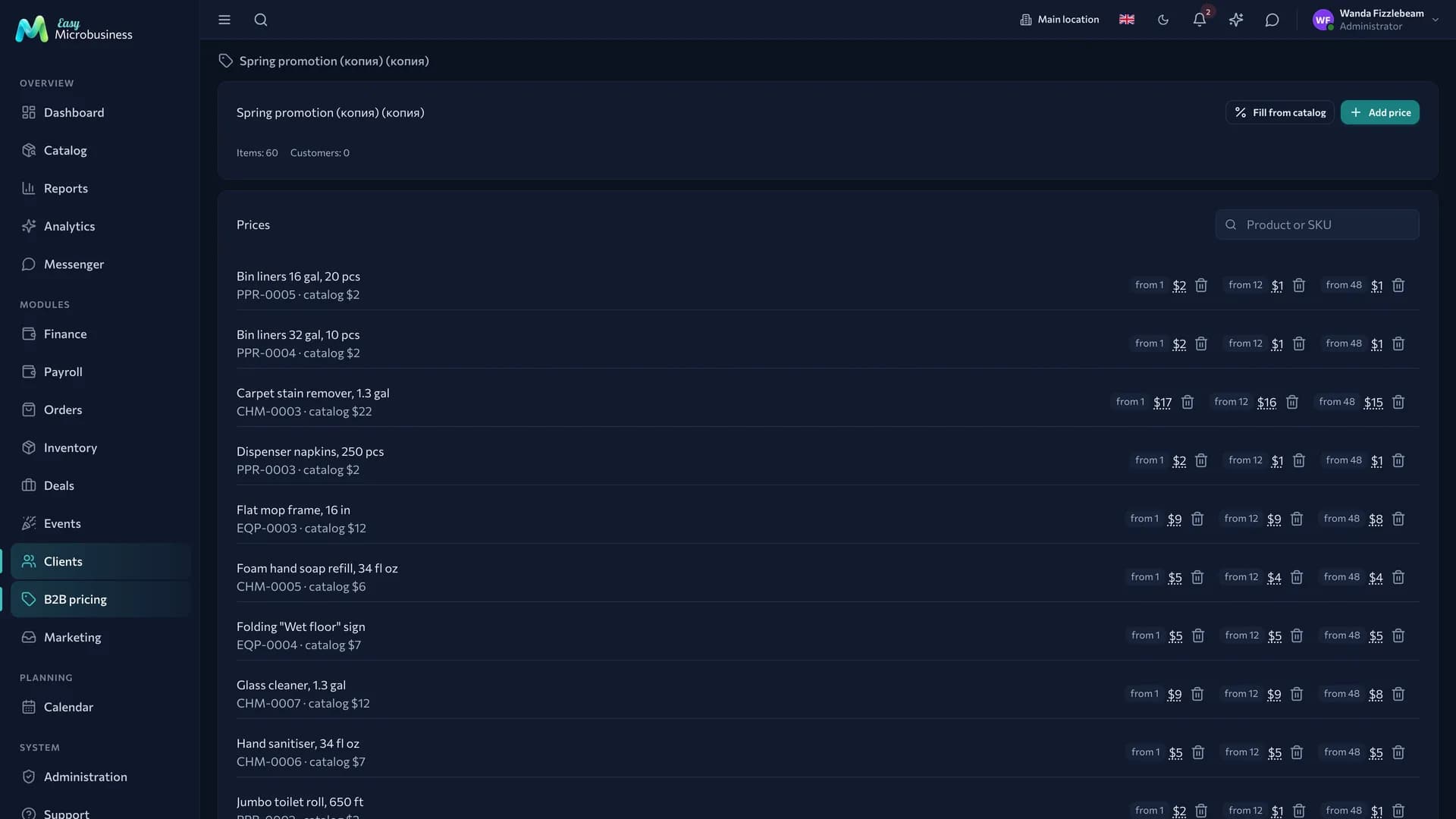
−15gives a 15 % discount,20a mark-up. You can limit it to one category and pick the tier. The "Overwrite prices already set" checkbox is off by default, so manual prices stay. - Copy creates "Base (copy)" with every tier. Handy as a draft for a new year or a promotion.
- The default price list is one per company. Assigning a new one clears the mark on the old.
- The archive keeps a price list in history and takes it out of pricing. The list is filtered with the "Active / Archived / All" switch.
- Search by product and article number saves scrolling: items load with a "Show more · 50 of 1 240" button.
A price list outside its dates carries a Not started yet or Expired badge, visible right in the table.
Price lists are created, edited and filled by administrators, directors and managers, and deleted by administrators and directors. The delete confirmation says how many customers will move to catalog prices.
Customer groups
The B2B pricing → Customer groups section. A group holds the commercial terms of a segment: one price list and one discount for all of its customers. One set for chains, another for cafés, a third for one-off buyers.
A group has two parameters: a price list (optional) and a discount percentage.
A customer joins a group through the Customer group field in their card. The Personal price list field is there too and overrides the group list. Both fields sit in the "Wholesale terms" block and exist for any customer, including sole traders and individuals. Payment terms and the credit limit live in the "Contract" block, shown for companies.
Deleting a group leaves its customers in place, on the general terms.
How to ship an order in parts
A month's order rarely leaves in one van. Every handover of goods is its own shipment: a document with a number, contents and a delivery note.
- Open the order card, the Shipments tab, and press Ship.
- Check the quantities. Every item shows what was ordered, what has already left, what remains and what is free in stock. Correct them by hand — only what was actually loaded goes out.
- Press Save draft while the van is still loading, or Ship to post the document right away.
- On a posted shipment press Delivery note — the form covers what left in this van.
Posting writes off goods from the branch warehouse, reduces the order reserve by what was shipped and marks the items fulfilled. A kit is written off by its composition.
An order with three shipments has three delivery notes: the recipient signs for what was actually delivered. A delivery note is issued on a posted shipment — on a draft the goods have not left stock yet.
Orders can be shipped in the Confirmed, In progress and Ready statuses.
If the wrong things were shipped. A draft is simply closed. A posted shipment is cancelled — the goods return to stock, the order reserve is restored, the fulfilment marks roll back. Administrators, directors and managers can cancel.
While an order has a live shipment — even a draft — its contents stay frozen. To add a product, cancel the shipment or create a separate order for what is missing.
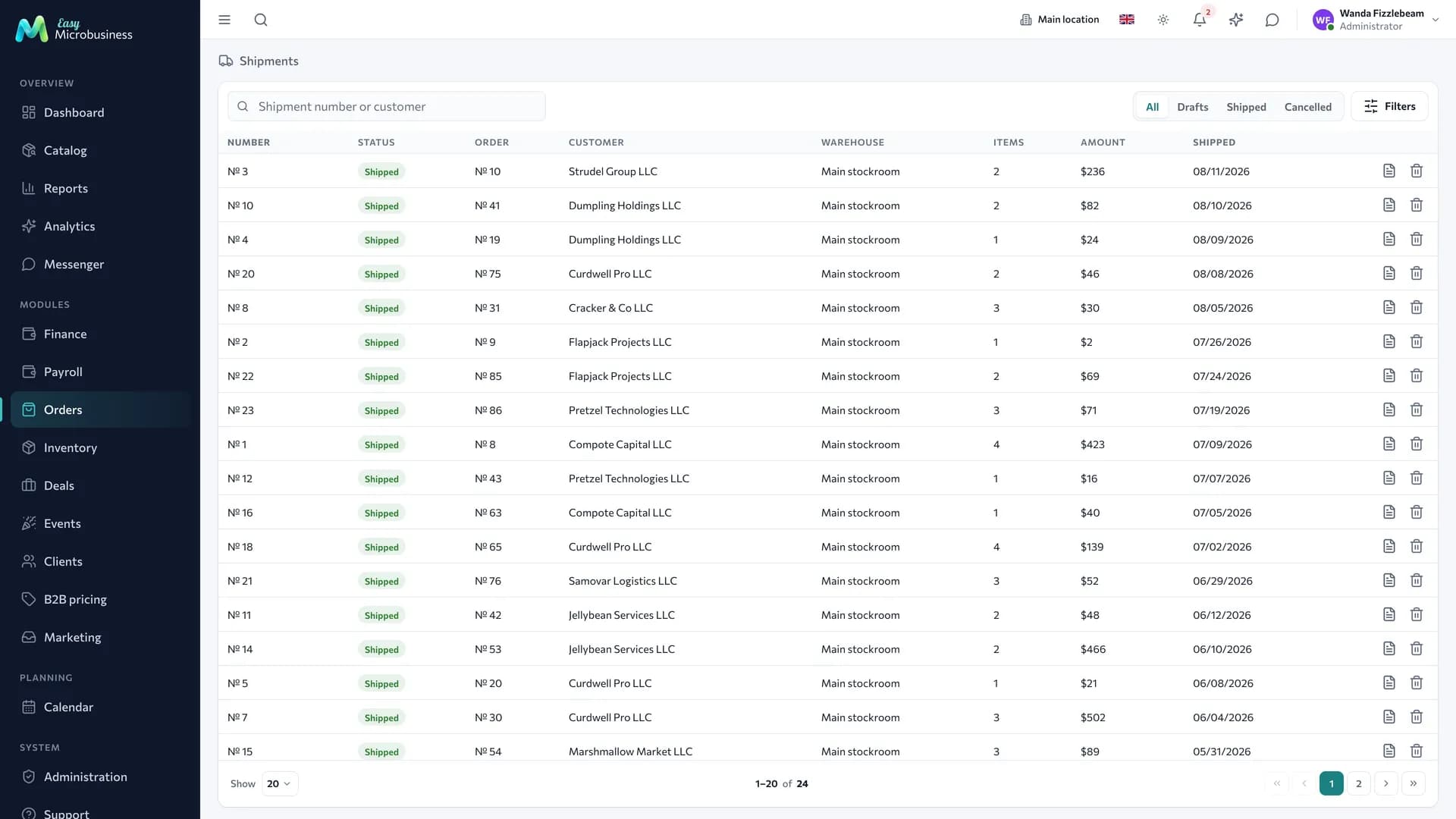
Every shipment of the company is collected in the Orders → Shipments section: an "All / Drafts / Shipped / Cancelled" switch, search by number and customer, filters by customer, warehouse and period. A draft is posted straight from its row.
Closing an order that did not leave in full
An order with delivery notes behind it is closed by completing it. Stock is not touched — the delivery notes moved it — and the cost of the lines is aligned with what was actually shipped, so what was not delivered does not enter profit.
An order without a single shipment closes the old way: its whole contents are written off at completion.
Minimum batch and multiples
A product carries two fields: Minimum batch ("we do not deliver less than a case") and Order multiple ("boxes of 12 only"). An empty field means no rule.
The rules are checked when an order is placed, while the manager is still on the phone with the customer and the quantity can be corrected. They work when the Orders component setting Enforce minimum batch and multiples is on. The Distributor, Supplier to cafés and Manufacturer scenarios switch it on themselves.
Quantity is counted across the whole order: two lines of 6 pieces make one box of 12. Services and packages are exempt. In the buyer cabinet the minimum batch always applies: for a customer it is a delivery condition.
The buyer cabinet
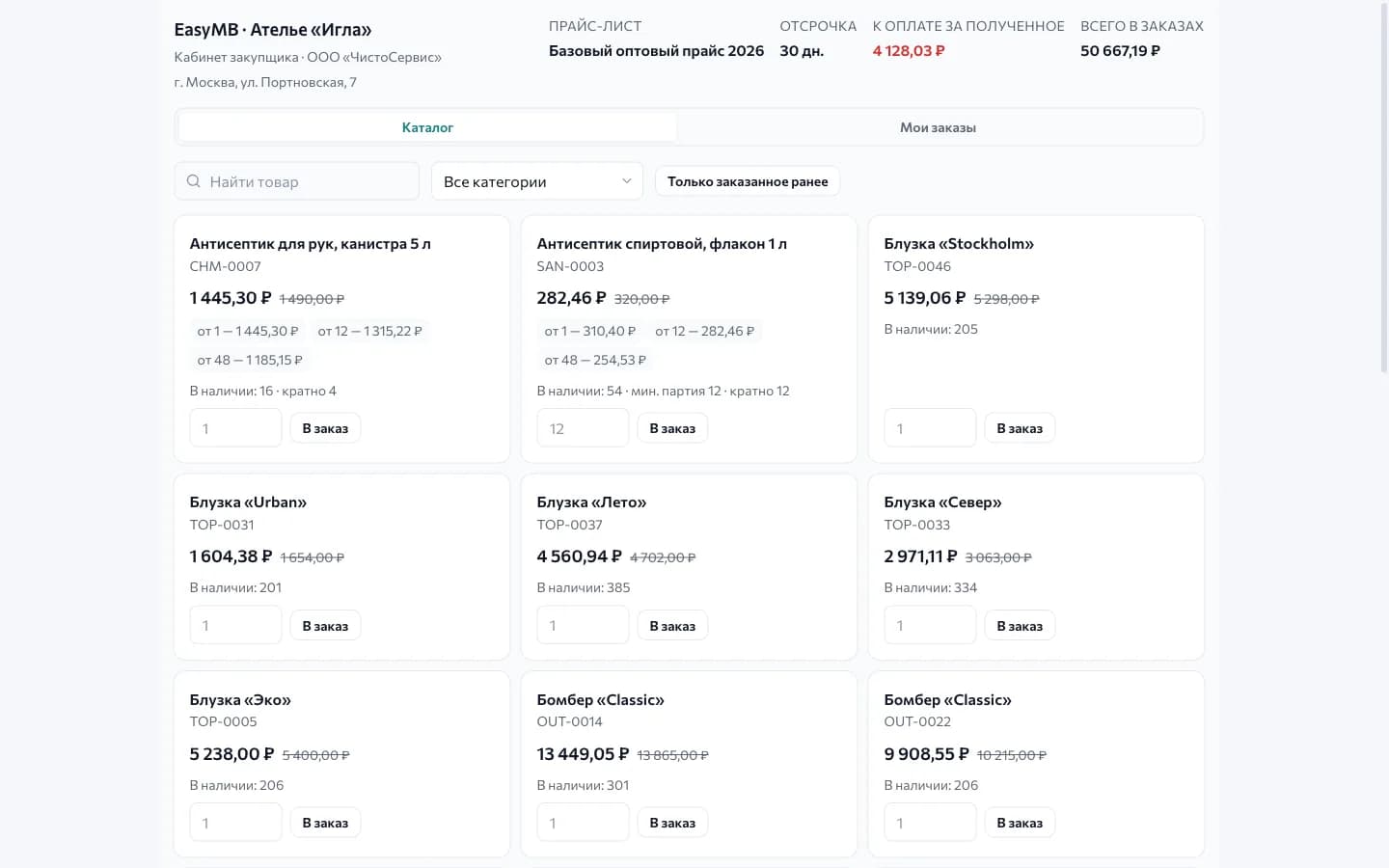
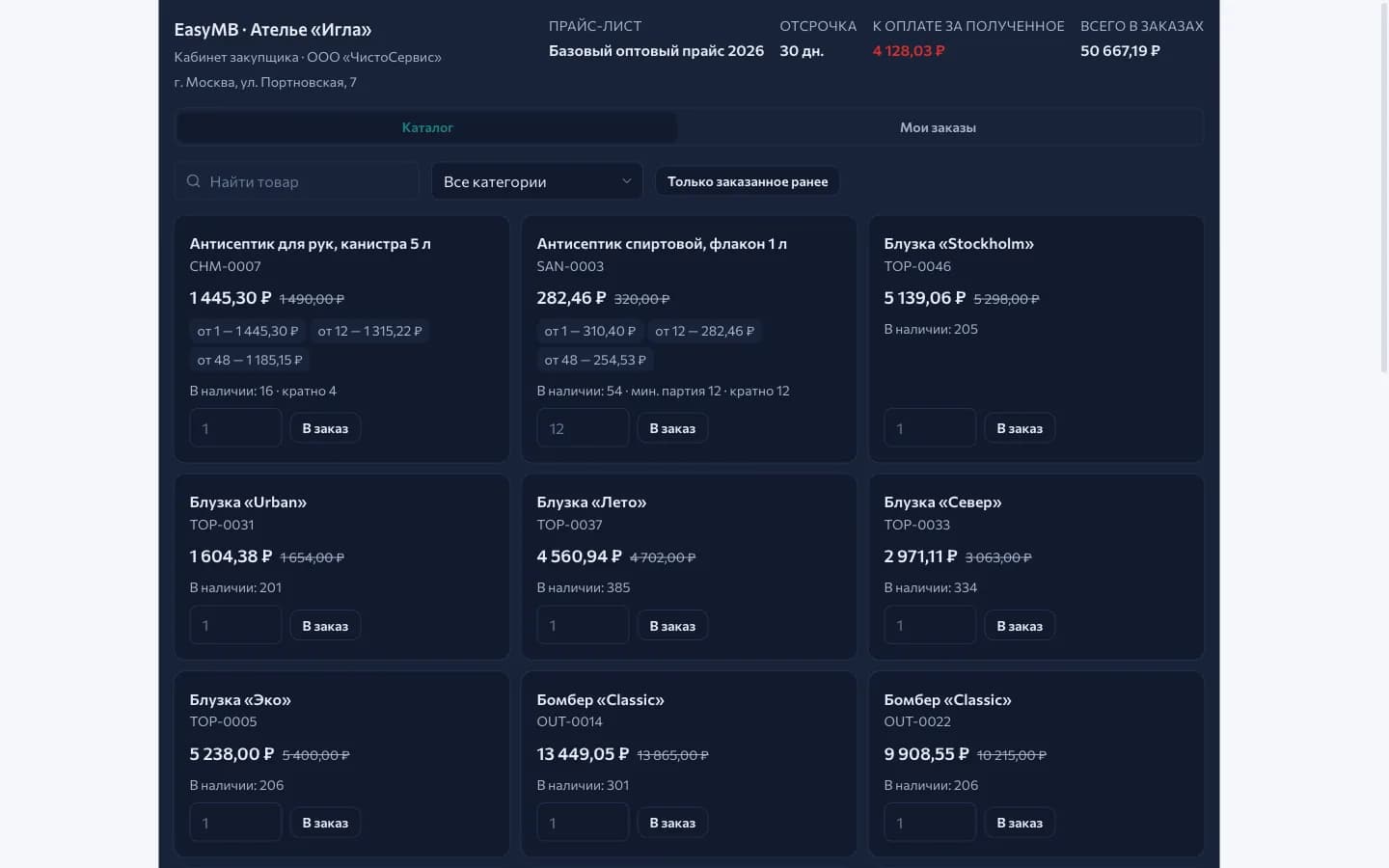
A regular buyer checks their price and repeats a past order themselves — through a personal link, without a password or an account.
To grant access:
- Turn on the Orders component setting Buyer cabinet by link.
- Open the customer card, the "Prices and interactions" tab, the Buyer cabinet block.
- Press Issue link and pass it to the buyer.
Next to it you can see whether and when the customer visited. Reissue replaces the previous link instantly — that is how access is closed for a buyer who has moved on. Revoke closes it altogether. The cabinet page is closed to search engines, so prices and debts do not reach it.
What the customer sees:
- their price from the cascade with the catalog price struck through, and every volume tier — how many pieces make it cheaper;
- free stock at your branch warehouse, the minimum batch and the multiple. The "Add to order" button fills in the minimum batch;
- search, categories and an Ordered before filter — a short path to a repeat purchase. The catalog loads with a "Show more" button;
- the My orders tab: status, payment, due date and a "18 of 40 shipped" progress by quantity. The "Contents" button opens the items;
- in the header — the name of their price list, the payment terms and two figures: "Due for delivered goods" (exactly what sits in your receivables) and "Total in orders" including what has not left yet.
Quantity rules are checked before submission. The field is highlighted with a hint ("min. batch 12", "multiples of 12"), "2 items break the supply rules" appears next to the cart total, and the buyer corrects the quantity on the spot. At checkout they set When it is needed and a Comment ("deliver before noon"), and the manager sees both in the order.
An order from the cabinet follows the usual rules: prices are recalculated, goods are reserved, the due date comes from the payment terms, the credit limit is checked. The Confirm cabinet orders immediately setting decides whether the reserve is placed without a manager. If the same cart is submitted twice within a couple of minutes, the cabinet answers: "This order has already been accepted — № 41. A new one was not created".
The Repeat button on a past order asks for confirmation with the number and the amount, then assembles the same contents at current prices. Items taken off sale are named by the cabinet: "Not on sale, not included: …".
Documents
The module brings four print forms, and together they cover a wholesale delivery end to end.
| Form | Printed from | What is in it |
|---|---|---|
| Invoice | Order card → Documents | Order contents, party details and bank details, notes on the reserve and payment terms |
| Delivery note | The "Delivery note" button on a shipment | Only what left in this van |
| Reconciliation act | Customer card → Balance and packages | Opening balance, turnover by date, closing balance for a period |
| Customer price list | The same place | This customer's own prices: their list, tiers and group discount |
The act period is set with the "Period from" and "Period to" fields in the "Customer documents" block; empty fields mean "from the start of the year to today". The balance is signed: plus means the customer owes, minus means you do. The customer price list carries up to 500 items.
The act counts a customer's obligation by goods delivered: for an order with delivery notes, instead of a "Order № 12" line on the order date there are "Delivery note № 13 on order № 12" lines — each on the date of its shipment and for its amount with the order discount. An order without delivery notes enters the act for its own amount. Receivables and the buyer cabinet follow the same rules, so the act, the report and the figure the customer sees all agree.
The forms are edited in Print templates: their wording is a working draft rather than legal advice.
What to set up after connecting
- Wholesale sections — turn on the "Price lists and customer groups" setting in the Orders component. Without it, the price list and group sections and the reconciliation act and customer price list in a customer card are not shown. Wholesale scenarios turn it on themselves.
- A default price list — create one shared list, fill it from the catalog with your wholesale discount and mark it "Default". Then add lists for segments.
- Customer groups — "Chains", "Cafés", "One-off": that way a price stops depending on which manager took the call.
- Payment terms and credit limit — the "Payment terms, days" and "Credit limit, ₽" fields in a customer card. The order due date and overdue receivables are counted from the terms; the limit is checked on creating and editing an order.
- Minimum batch and multiples — set them on your products and only then turn on the "Enforce minimum batch and multiples" setting.
- Partial shipping — the "Ship orders in parts" setting adds the Shipments tab to an order and the Orders → Shipments section. With it, order progress is counted by delivery notes. Off, an order closes as a whole, as in retail.
- The buyer cabinet — turn the setting on and issue links to those who order regularly. Decide at the same time whether to confirm their orders immediately.
- Receivables live in the Finance section, available without the POS component.
- Automations arrive switched off: "Low stock", "Order ready" and "Customer stopped ordering". Overdue debt is watched by the Receivables section and the "Overdue receivables" signal.
- Customer texts — the module brings the "Invoice issued" and "Payment reminder" templates, and every scenario adds its own. They are edited as ordinary text and sent through connectors in Integrations.
- Company details in the invoice and the delivery note — write yours straight into the template.
The settings live in Administration → Modules, the Orders component card. An employee arriving at a switched-off section sees This section is switched off by a setting with a button to component settings.
What to look at in reports
- Shipments and volumes show what actually left and to whom: amount, units and number of shipments by customer, day, warehouse or branch. They are counted on posted shipments and answer "who buys regularly and in what volumes". The latest shipments also appear on the dashboard as a widget.
- Receivables in Finance show who owes and how many days overdue. Debt on an order with delivery notes is the goods delivered with the order discount, minus what has been paid.
- Orders — how many orders and for how much, by customer and period.
- Turnover shows what is sitting in the warehouse and tying up money.
- ABC analysis splits items into those that feed you and those that take up shelf space.
- Profit and loss bring together revenue, cost and profit. An order's result is recognised at its completion, and the cost is taken for what was actually shipped. A large order that has been travelling for three months appears in the report in the month it is completed; volumes shipped before that are in the "Shipments and volumes" report.
Frequently asked
A customer asks for a price that is in no price list. Set them a special price in their card: it outranks both the list and the group discount.
Six pieces were ordered on two lines and the multiple is 12. Such an order goes through: quantity rules add the product up across the whole order. Tier pricing, though, is counted per line, so two lines of 6 do not reach the "from 12" price.
The wrong things were shipped. Cancel the shipment — the goods return to stock and the fulfilment marks roll back — and create a new one. Mark a printed delivery note as voided in the document log.
There is not enough stock for the whole request. Ship what you have. The rest stays on the order and leaves with the next delivery; the progress is visible to you and to the customer in the cabinet.
An item needs adding and a shipment already exists. The order contents are frozen. Cancel the shipment and rebuild the order, or place a separate order for what is missing — that way the signed delivery note stays untouched.
A customer declined the remainder of an order. Complete the order: stock is not touched and the debt stays exactly for the goods delivered.
The price in an old order did not change after a new price list. That is by design: only the lines you touched in this session recalculate. To apply the new list, change the quantity on a line.
How do we handle a customer return? A return is processed against the order: items go back into stock, and the money goes against the debt or back to the customer.
Can we also sell retail? Yes. Switch on the Point of sale component or add Retail store: the catalog and inventory stay shared, and price lists work where a customer is specified.
In short
- A customer price is calculated in a cascade: special price → personal list → group list → default list → catalog.
- Inside a list the price depends on the quantity on the line and recalculates as you type.
- Every van is its own shipment with its own delivery note; an order with delivery notes is closed by completing it.
- The buyer cabinet shows a customer their price, stock and debt and accepts repeat orders.
- The invoice, delivery note, reconciliation act and customer price list print from built-in templates.
Similar modules
- Retail trade at a location — Retail store.
- Selling through a website with delivery to individuals — Online store.
- Making your own products — Manufacturing and workshops.