
Education and courses
The module for schools, studios, clubs and tutors. A group with a fixed membership receives a schedule for the whole course in one setup, the teacher marks attendance in the log, and classes are deducted from a package as students arrive.
It fits children's centres, language schools, driving schools and anyone teaching one to one.
The interface terms are neutral — Groups, Attendees, Instructor. In this article we say "group", "student" and "teacher".
What is included
Core components
- Scheduling — the schedule, packages and their templates, the waitlist, the online booking page.
- Study groups — fixed membership, the course schedule and the attendance log.
- Clients — students and their families: the card, the "Education" tab, parent-child relations.
Optional components
- Point of sale — selling packages and single classes.
- Payroll — paying teachers for classes taught.
- Finance — expenses, profit and customer debts.
- Marketing — requests from capture forms, segments and campaigns.
Catalog, reports, calendar, messenger, integrations and the AI assistant are available right away.
Four scenarios
| Scenario | What it is about | What it sets up |
|---|---|---|
| 🧸 Children's centre (default) | Clubs and developmental classes | Categories for developmental classes, crafts and school preparation; "Age" and "Attendance notes" fields; a package expiry warning 7 days ahead; freezing extends validity |
| 🗣 Language school | Courses by level and conversation clubs | Categories for group, individual and club classes; "Level" (A1–C1) and "Learning goal" fields; a warning 14 days ahead; a class burns on a no-show, a 24-hour cancellation window |
| 🚗 Driving school | Theory in groups, driving one to one | Categories for theory, driving practice and extra lessons; "Licence category" and "Medical certificate until" fields; a class burns on a no-show, a 12-hour window |
| 📚 Tutor | One-to-one lessons | Categories for individual lessons and exam preparation; "Grade/year" and "Parent contact" fields; a reminder 12 hours ahead |
All four add "Training contract" and "Package receipt" print forms. Shared fields are "Parent contact" on a student and "Class topic" on a class, plus a lesson reminder a day ahead.
The scenario creates catalog categories, rooms with working hours and a package price list. Groups and courses you create yourself.
How a school year goes
- Rooms. Created as Place resources in Scheduling: a classroom, a hall, a workshop.
- Courses. Subjects are created as catalog services, with a duration and a price per class.
- Package price list. In Scheduling → Package templates describe what you sell: "8 classes over 90 days for 6 800 ₽".
- A group. Created in the Study groups section: name, room, course, instructor, number of seats.
- The schedule. Set once and unfolded into a series of classes.
- Enrolment. Students join the group and land in every created class; some arrive through the online booking page.
- Payment. A package is sold at the POS — the money and the bundle of classes appear in one operation.
- Classes. The teacher marks attendance in the log, and classes are deducted from packages.
- Renewal. Packages running out are visible in a report, and the customer gets a warning in advance.
The group
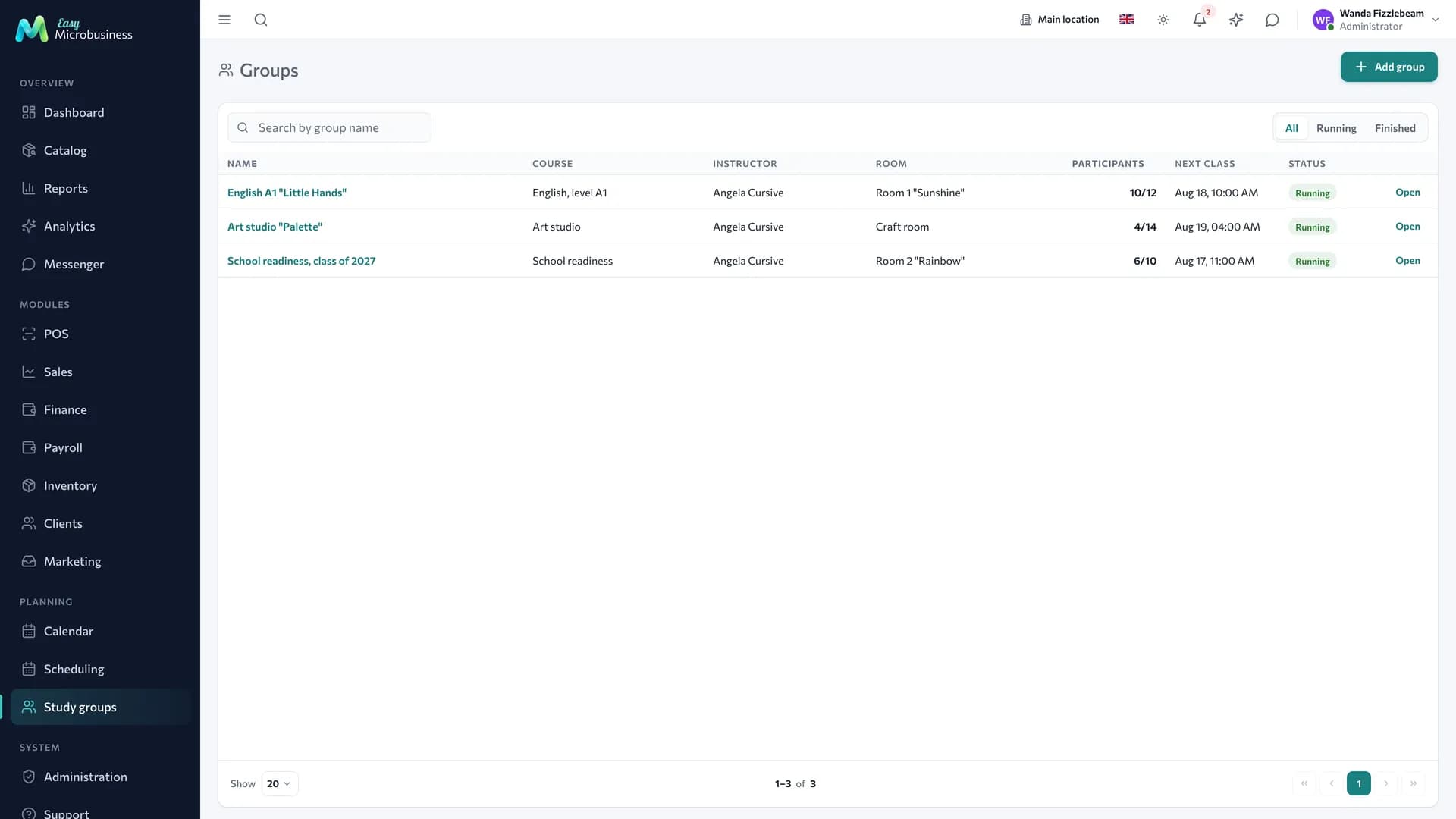
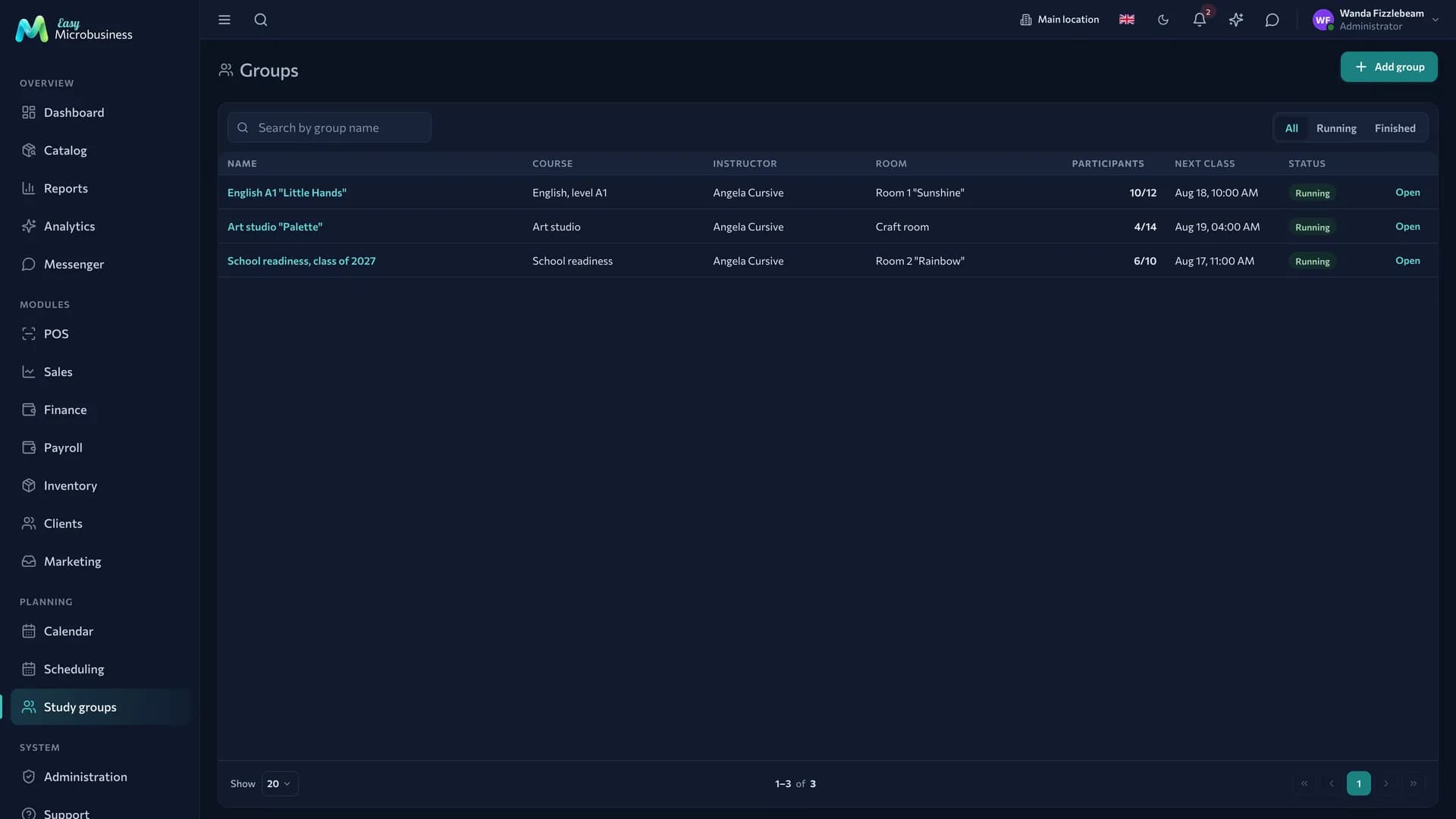
The list shows the course, the instructor, the room, the number of attendees ("5/12"), the date of the next class and the status.
| Status | What it means |
|---|---|
| Running | The group is studying; enrolment is possible while seats remain |
| Paused | A break: holidays, a change of teacher |
| Completed | The course has ended; the group stays in history with its log |
The card has four tabs: General, Members, Schedule, Log.
The group schedule
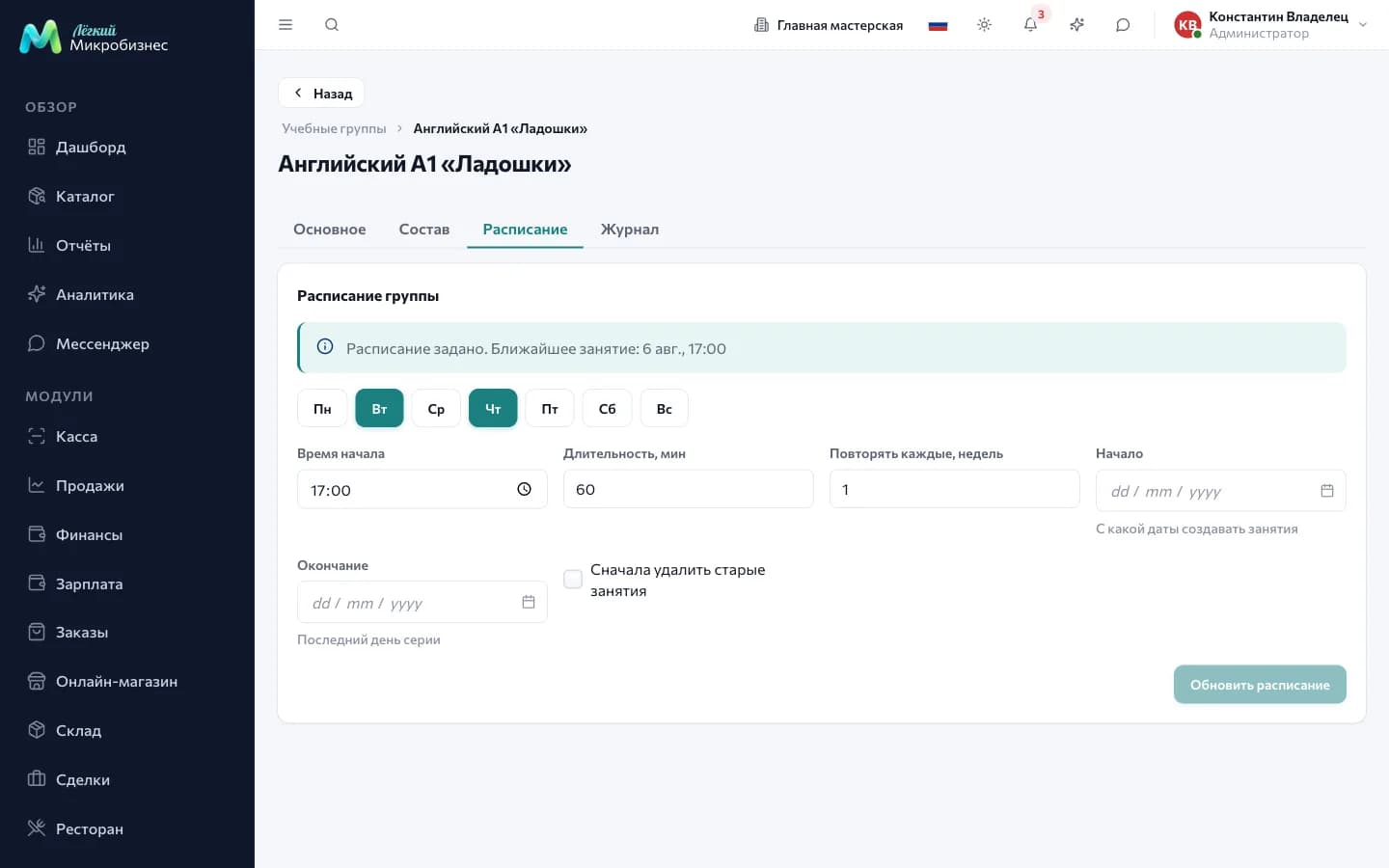
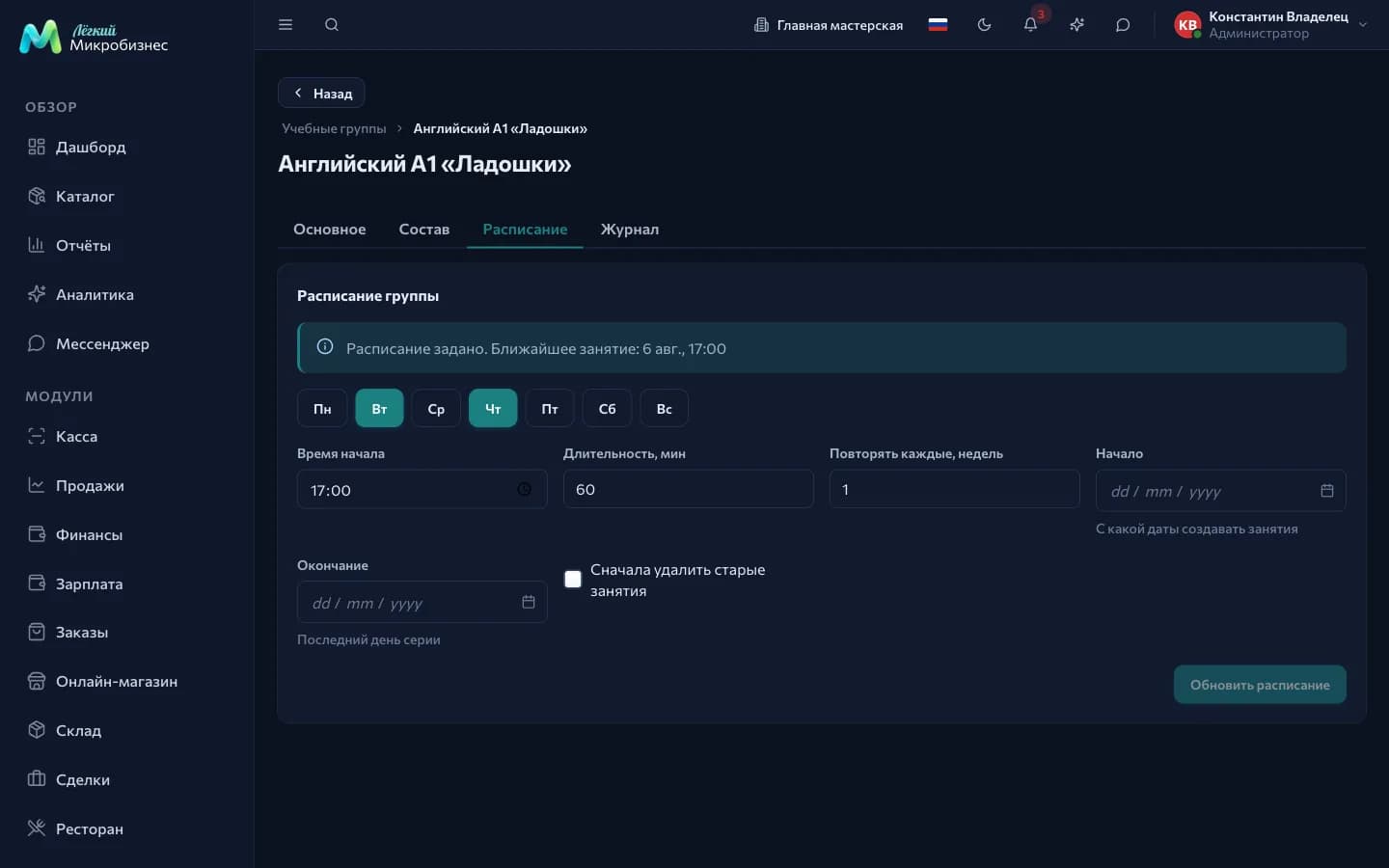
- Open the Schedule tab.
- Tick the days of the week and the start time, set the duration in minutes.
- Set the repeat step: "every 1 week" or "every 2 weeks".
- Set the start date and the end date.
- Press Create schedule.
Group members go straight into every class.
After generation the system reports what came out: how many classes were created and how many attendees enrolled, which classes were skipped because the room was busy or the time was outside working hours, and how far ahead the planning reached. Up to 180 days and up to 200 classes are created at a time, so a schedule for a whole academic year is extended the same way closer to the boundary.
The "Remove old classes first" checkbox removes the future classes of the current schedule together with attendee bookings and asks for confirmation. Past classes and their log stay in place.
Changing the room does not need a schedule rebuild: change the room on the General tab and every future class moves with it. If another group is in the new room at that time, the system names the date of the first clash.
Group members
Enrol an attendee opens the choice of a customer and their package. The package is picked explicitly or left on Pick automatically — then at the moment of marking attendance a suitable active package with the nearest expiry is used.
The "Enrol into already created future classes" checkbox adds the student to every upcoming class of the group.
When no seats remain, a freed seat is offered to those on the waitlist: their row has a Book button.
Remove takes a student off future classes and keeps the history: they stay in the membership marked "Removed" and are visible in the log for past dates.
The "Package" and "Remaining" columns are filled for those whose package was assigned explicitly. With automatic selection, check the balance in the customer card or in the Packages section.
Attendance log
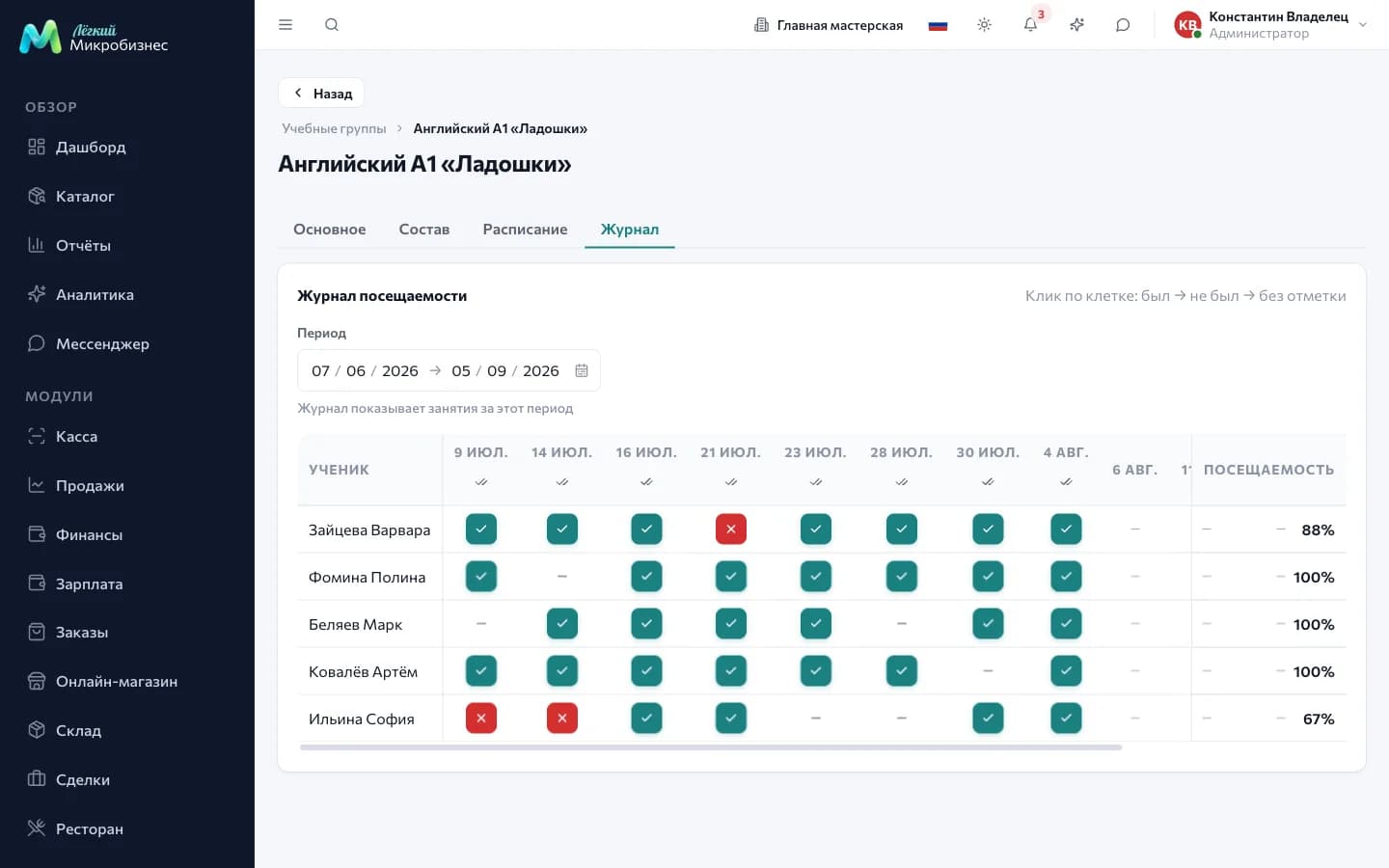
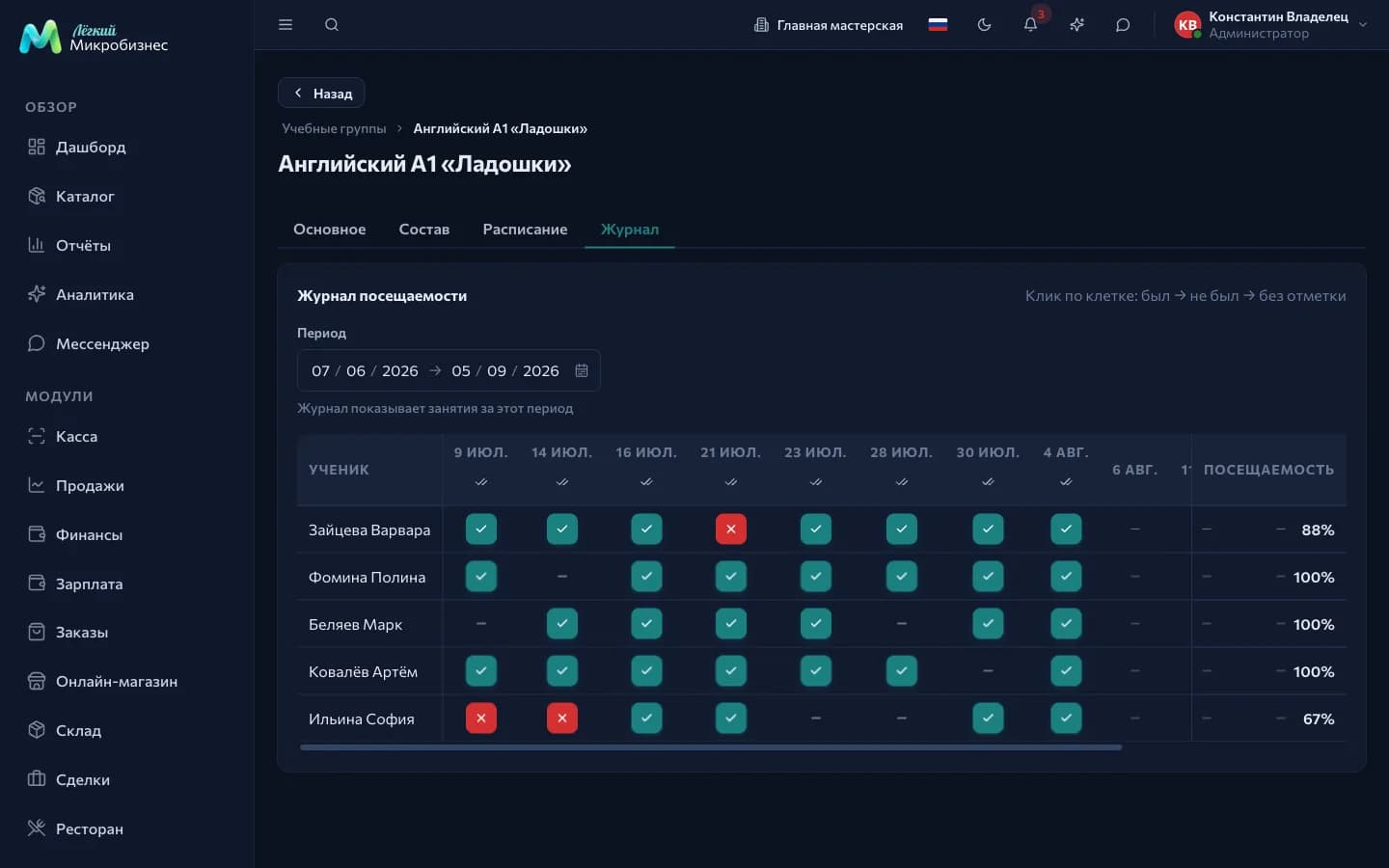
The log is an "attendee × class" matrix for the chosen period. Clicking a cell cycles the mark: attended → missed → cancelled in advance → no mark. On a future class a click only sets "cancelled in advance", so a parent's warning is recorded ahead of time.
The button above a date column marks everyone who has no mark yet as present. After confirmation the system reports how many were marked and how many classes were deducted.
- The Attendance column is the share of attended classes among those marked "attended" and "missed". A timely cancellation does not spoil the rate. A newcomer with no marks shows a dash.
- The log shows removed students and one-off guests booked into a single class.
- The same marks can be set per student in the class card.
Packages: from price list to receipt
A package template is what you sell. In Scheduling → Package templates you set the name, the number of classes, the validity in days, the price and the service. Without a service the template works as "Any course".
The on sale checkbox takes a template out of the POS without touching packages already issued.
Selling at the POS. A Packages segment appears in the POS catalog with template tiles. The cashier adds a package to the receipt, picks a customer and takes the payment. Validity counts from the moment of sale. More detail is in Point of sale.
A parent pays and a child attends — that is the usual case. Keep the payer as the receipt customer, press Choose participant in the package line and pick the child: classes are deducted from their package while the sale keeps who paid. In the picker the buyer's children come first.
Issuing by hand — the Scheduling → Packages section, the Issue package button. The "Price list position" field fills in the name, price, validity and service of the chosen template: that is how gift and contract packages are handled.
How a package is used up
| Mark | What happens to the package |
|---|---|
| Attended | One class is deducted — from the assigned package, or from a suitable active one with automatic selection |
| Missed | Deducted if the "Burn a class on a no-show" setting is on |
| Cancelled in advance | The seat is freed; the class stays on the package when the warning came before the free cancellation window |
| No mark | A previously deducted class returns to the package |
Cancelling a class and removing a student from a class also return what was deducted. If a package has run out, the attendance mark is still set.
A package can be frozen for illness or a holiday and extended by changing the end date. Freezing asks for confirmation and explains what happens to the validity; full days are counted.
The package row menu has two more actions:
- Return a class — give one deduction back with a reason;
- Movement history — every deduction, return and adjustment with date, class, reason and author.
The rules are set in the Scheduling component settings:
| Setting | What it does | Default |
|---|---|---|
| Burn a class on a no-show | The "missed" mark also deducts a class | Off |
| Free cancellation window, hours | The boundary after which "cancelled in advance" counts as a no-show | 24 |
| Freezing extends package validity | Idle days are added to the end date | Off |
| Warn about package expiry, days | How many days ahead a student is messaged; 0 means no warning | 0 |
| Allow online booking into group classes | Opens a schedule page for students | Off |
| Client cabinet | Gives a student a link with their package balance and classes | Off |
Family: parent, child, payer
The customer card has a Family and payer block on the "Prices and interactions" tab. Press "Add relation", pick the second customer and say who they are: parent, child, payer or other. The relation is two-way.
What it gives you every day:
- lesson reminders reach not only the student but their parents and payers. With a shared phone, the message arrives once;
- the package expiry warning goes to the same addresses;
- one click from a child's card to the adult's and back.
The student card: the Education tab
Three figures on top: classes attended, missed and the package balance. Active packages count towards the balance; at zero, a "package has run out" note appears next to it.
Below are the student's groups with course, instructor, next class and attendance rate, and under those the visit history: date, class, mark and which package a class was deducted from. The group name leads into its card.
Booking a class from the website
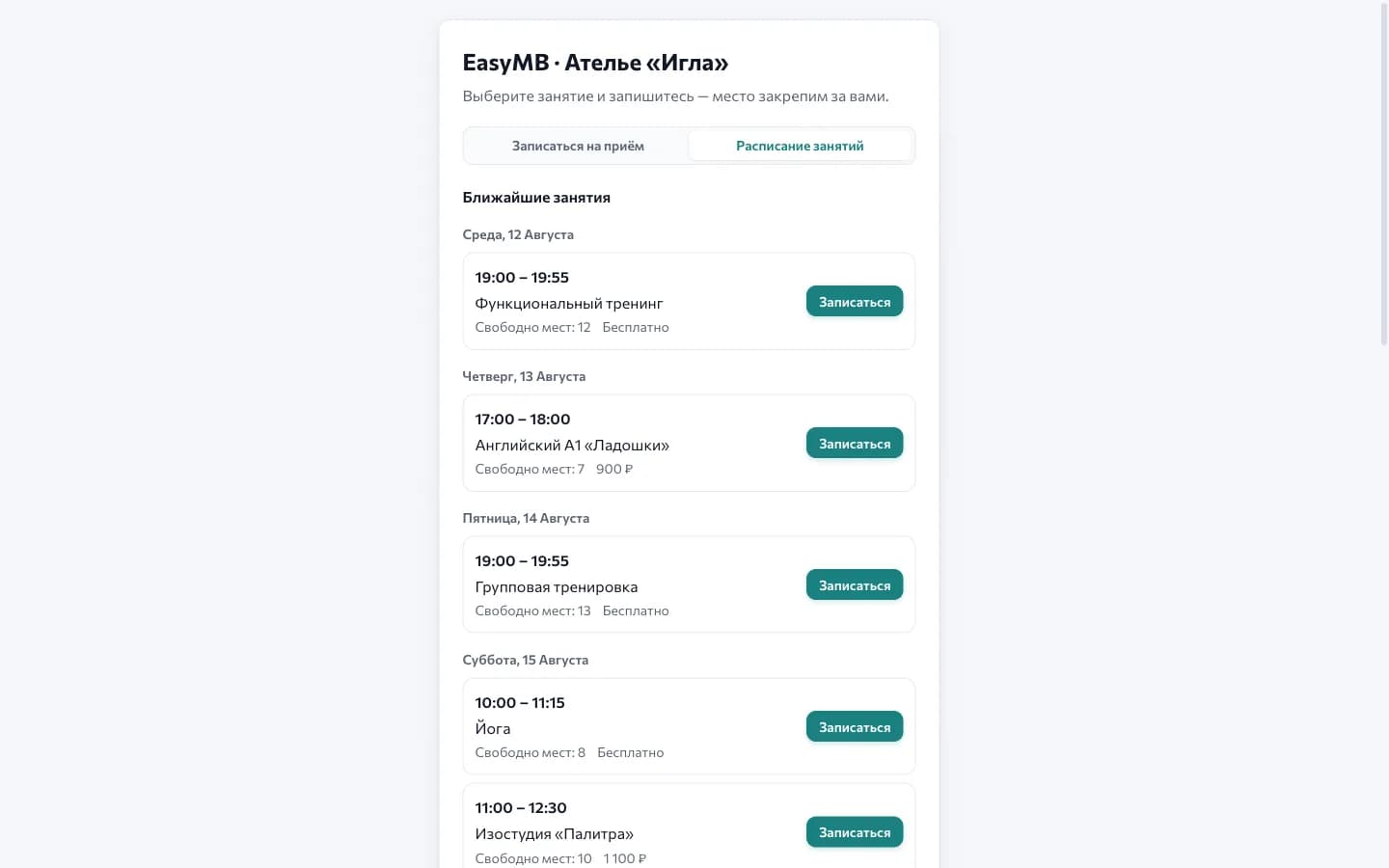
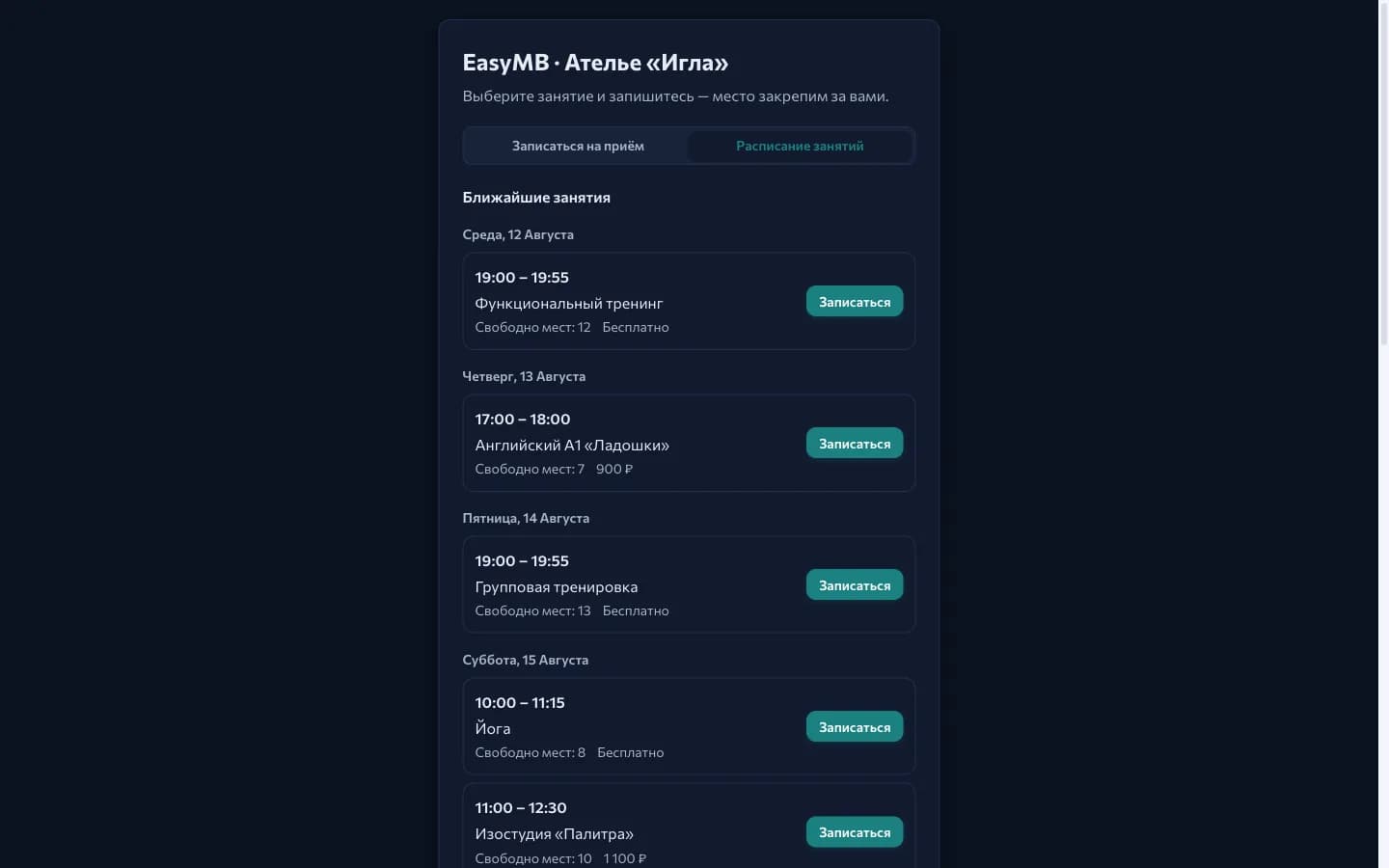
The Allow online booking into group classes setting adds a second mode to the public page — Class schedule. It shows classes for the next two weeks by day, with the number of free seats and the price. On a full class the button becomes Join the waitlist.
Of group classes, only groups in the "Running" status are shown. Next to them are single classes flagged as "Open class", so one-off workshops appear on the page too.
The Book button opens a short form: Who is booking, the adult's name, phone and email, and a comment. If the "Who is booking" field is filled in, the system creates a student card and links it to the contact as parent-child. The student name is remembered: to book the same child again, enter it the same way.
The seat is taken immediately: if the last one went while the parent was filling in the form, the schedule refreshes and offers another time.
A notification arrives about a new booking: who booked, for which class and when it starts. The booking is visible in the class roster, in the group log and in the audit log.
Up to ten different students a day are booked from one phone number. Students are counted rather than classes, so a parent can book a child for a whole month.
Lesson reminders
Reminders are switched on by a Scheduling component setting; the module turns them on at connection and sets them a day before a class. For a group class every student, their parents and payers receive their own message. A group class is cancelled by an administrator.
Dashboard and reports
The dashboard takes a Classes today panel and the Classes today and Attendance over 7 days indicators.
- Attendance — the attendance rate, the number of visits and misses, class occupancy. Breakdowns: by group, attendee, instructor and day.
- Packages — how many were issued and for how much, what share of classes has been used and what expires within two weeks.
The package report shows money already received but not yet earned: a large remaining balance is an obligation rather than profit.
Who does what
- Administrators, directors and managers create groups, schedules and package templates, enrol and remove attendees, issue packages, work at the front desk.
- Teachers see groups, membership and schedules, keep the log and mark attendance.
The employee list is open to administrators, so the "Instructor" field is filled in from their account.
Frequently asked
How do we move a single class? Move the booking in the schedule — the roster and the marks stay with it.
What do we do after holidays? Return the group to "Running" and extend the schedule: the same days and times with a new end date.
Are one-to-one lessons supported? Yes. Create a group with one seat, or run the student with ordinary Scheduling bookings.
Can we sell a monthly package instead of a class bundle? Yes: create a template with a large number of classes and a one-month validity — the date will be the limit.
Someone came once without joining a group. Book them into a specific class — they appear in the group log as a separate row.
A customer changed their mind right after buying a package. Refund the receipt: an untouched package is cancelled together with the money. If a class has already been taken, agree the amount, reduce the number of classes in Scheduling → Packages and refund the difference as a separate operation.
In short
- A group schedule is set by one rule and unfolds into classes for the whole course.
- The log is an "student × class" matrix; the "attended" mark deducts a class from a package.
- Family relations carry reminders to both the student and the parent.
- The remaining balance on packages is an obligation to customers rather than profit.
Similar modules
- Training sessions and club memberships — Fitness and sports.
- One-to-one sessions with a specialist — Beauty and care.
- One-off workshops and events — Events and catering.