
Printing and advertising
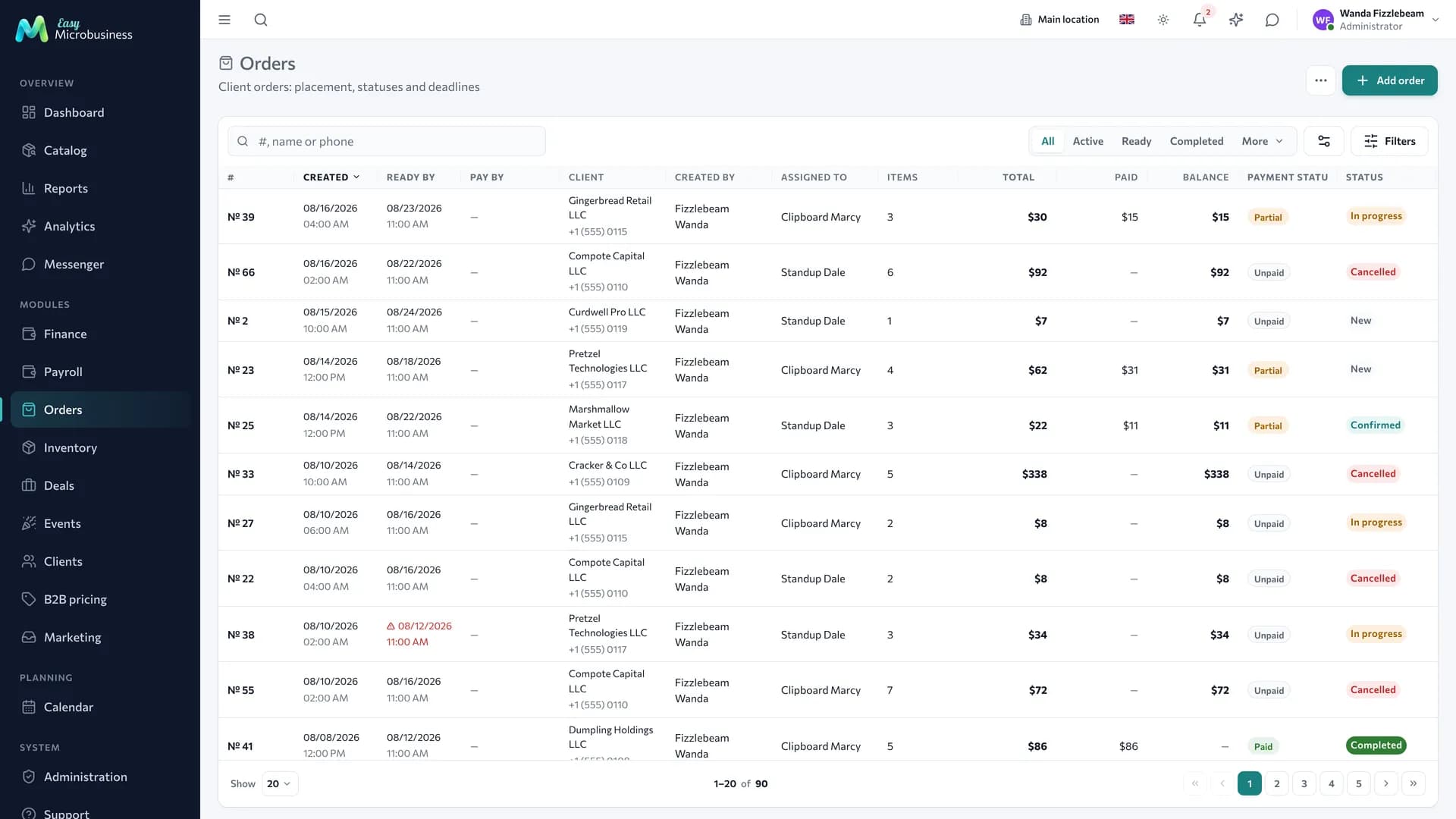
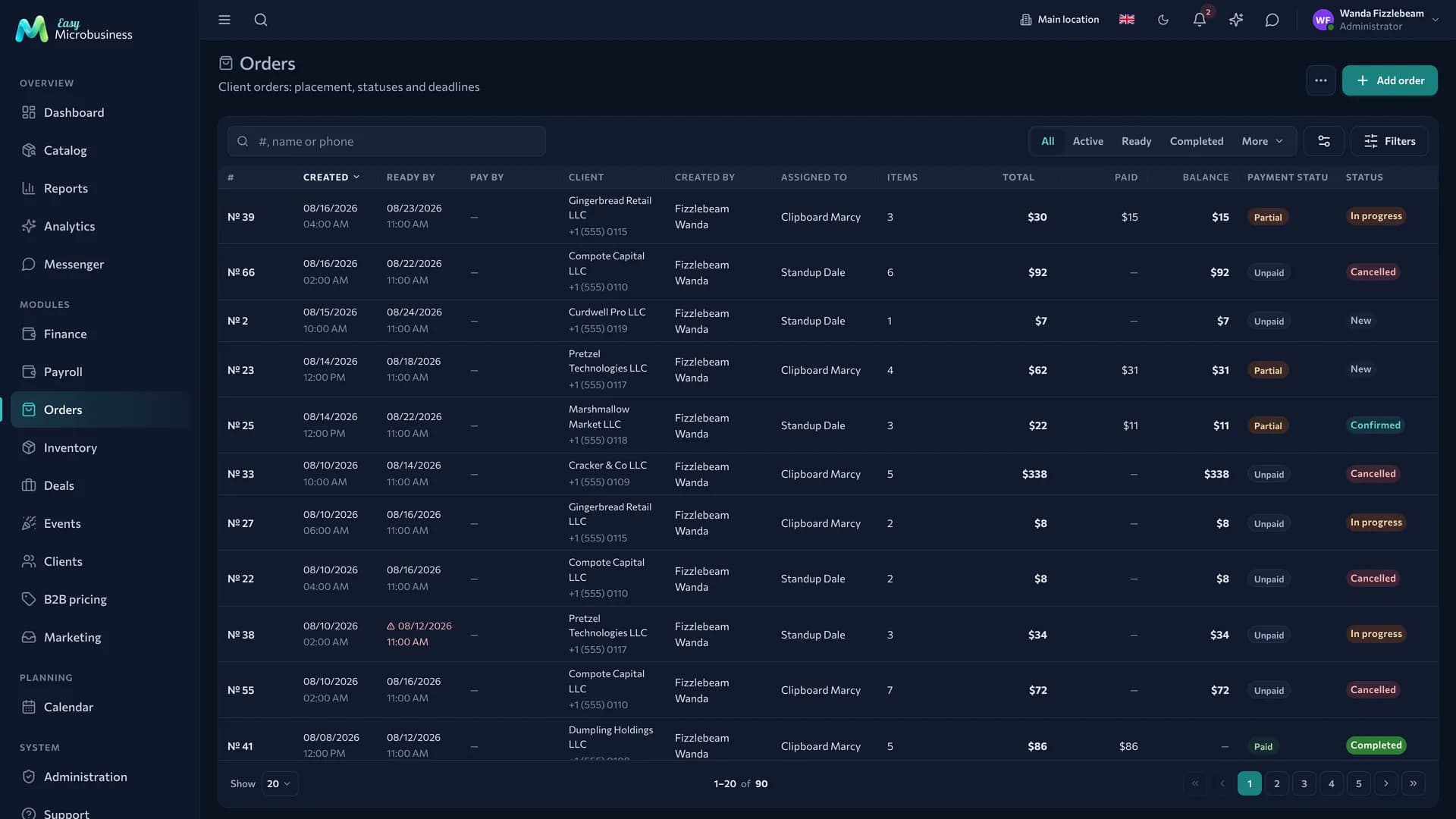
The module for print and advertising production: an order by stages from quotation to handover, customer approval of a layout through a link, and the print run and material right in the order card. It fits copy centres, print shops, outdoor advertising makers and merchandise producers.
Four scenarios
| Scenario | What it is about | What it sets up |
|---|---|---|
| 🖨 Copy centre | Printing, copies and ID photos in a minute | The POS and inventory, a service price list and sales with a receipt; "Print run" and "Format" fields; categories for Printing and copies, ID photos, Merchandise, Stationery, Consumables |
| 📚 Print shop | A run that takes a week | Inventory, the full order funnel with checklists; "Print run", "Material", "Format", "Finishing" fields; categories for materials and finished goods |
| 🪧 Outdoor advertising | Signs, banners, wide format | Inventory and a project deal type for measurement and installation; "Installation address", "Size, m", "Material", "Installation" fields; categories for films, composite, lighting and fixings |
| 👕 Merchandise | Printing on blanks from stock | Inventory and the same funnel as the print shop; "Print run", "Item", "Printing method" fields; categories for blanks and printing consumables |
The scenario is changed in Administration → Modules: a change brings the missing fields and templates and aligns component settings with its own values. Entered data stays in place.
Extra fields appear in production orders rather than in every company deal. "Print run" is the main order field, so it shows in the Production queue as the "Parameter" column.
What is included
Core components
- Orders — the customer order with contents, print run, deadline and payment.
- Clients — customers, run history, repeat orders.
- Deals — the production process: quotation, layout, approval, printing, finishing, handover.
Optional components
- Inventory — paper, film, ink, blanks. Switched on by every scenario.
- Point of sale — payment on the spot and prepayments.
- Production — the shop-floor queue and production runs with scrap.
- Work planning — dates for prepress, printing, finishing and installation.
- Payroll — piece-rate pay for operators.
- Finance — expenses, profit and customer debts.
Catalog, reports, calendar, messenger, integrations and the AI assistant are available right away.
How a print run goes
The print shop and merchandise scenarios get an industry funnel of nine stages.
- New. The enquiry is recorded, the parameters are not clarified yet.
- Quotation. The checklist reminds you to clarify the run, the material and the format, calculate the cost and the deadline and send the quotation. For that the module brings the "Order calculation" print form.
- Layout. Source files are received, bleeds, margins and the colour profile are checked, the file is attached to the order.
- Layout approval. The file goes to the customer portal.
- Printing. Materials are written off from stock by the bill of materials: what the shop recorded as a run at the moment of the run, the rest at order closing.
- Finishing. Cutting, lamination, binding, a quality check of the run. Scrap is written off as a separate operation.
- Ready for handover.
- Handed over — the order is closed with the "Completed" outcome.
- Cancelled — with the "Cancelled" outcome.
The copy centre and outdoor advertising work on a short funnel, "New → In production → Produced": printing a copy in a minute does not need nine stages. Outdoor advertising also gets a project deal type for site measurement and installation at an address.
If the module is connected to a company that already runs orders on its own funnel, the missing stages are added to the existing ones. Check the stage order in the deal type settings.
How to get a layout approved
Printing without a "yes" from the customer means reprinting a run at your own expense. The module moves that "yes" from the message thread into the order.
- Open the order, the Client portal tab, and turn on the link for this order.
- Press Send for approval on the layout file — it becomes visible to the client and takes the Waiting for a reply status.
- The client opens the link without a password and sees the order stages, the deadline, the files and two buttons — Approve and Send back. The second asks for a comment.
- The decision comes back into the order card as an "Approved" or "Sent back" badge with the client's comment. The owner receives a notification and the event lands in the audit log.
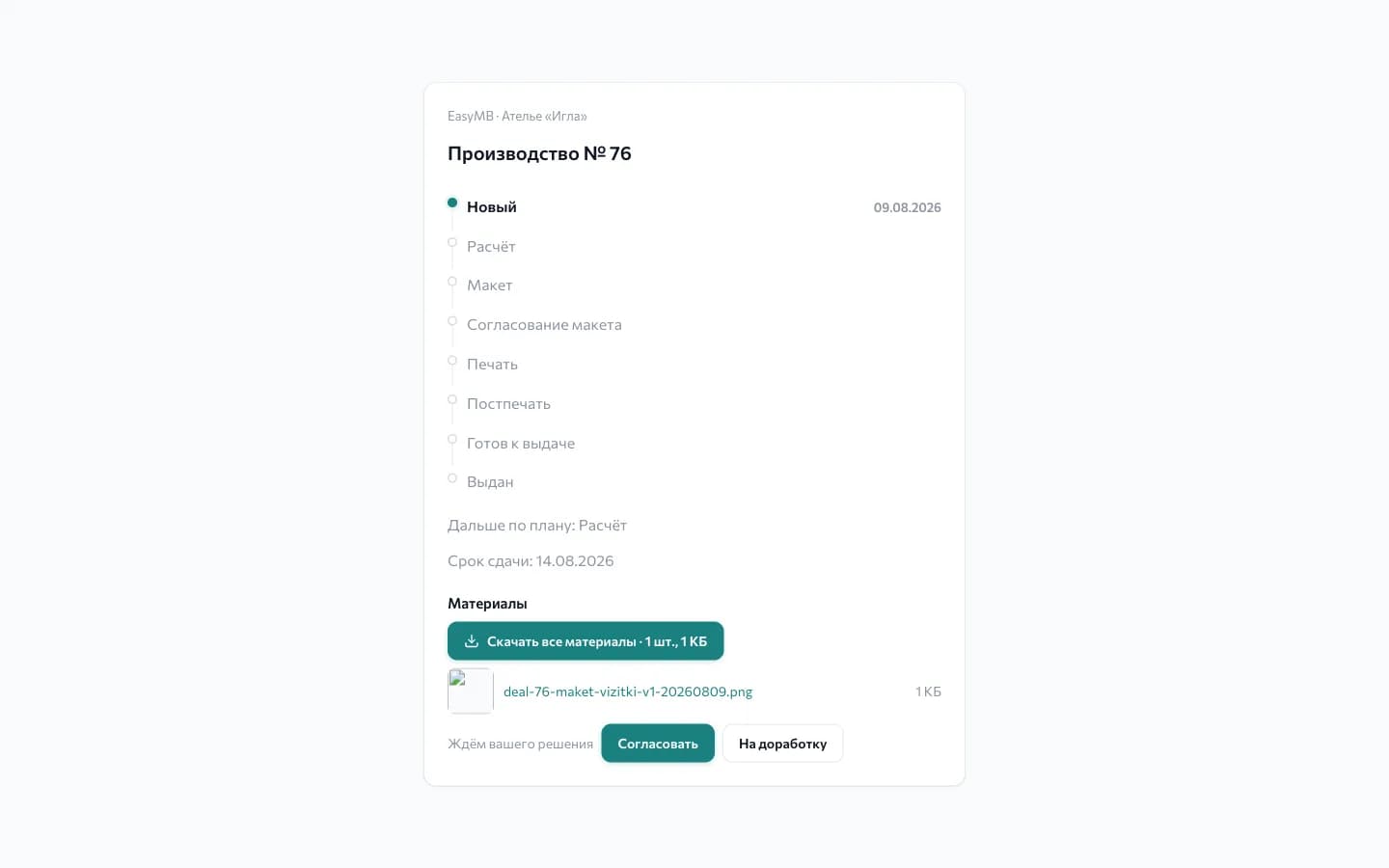
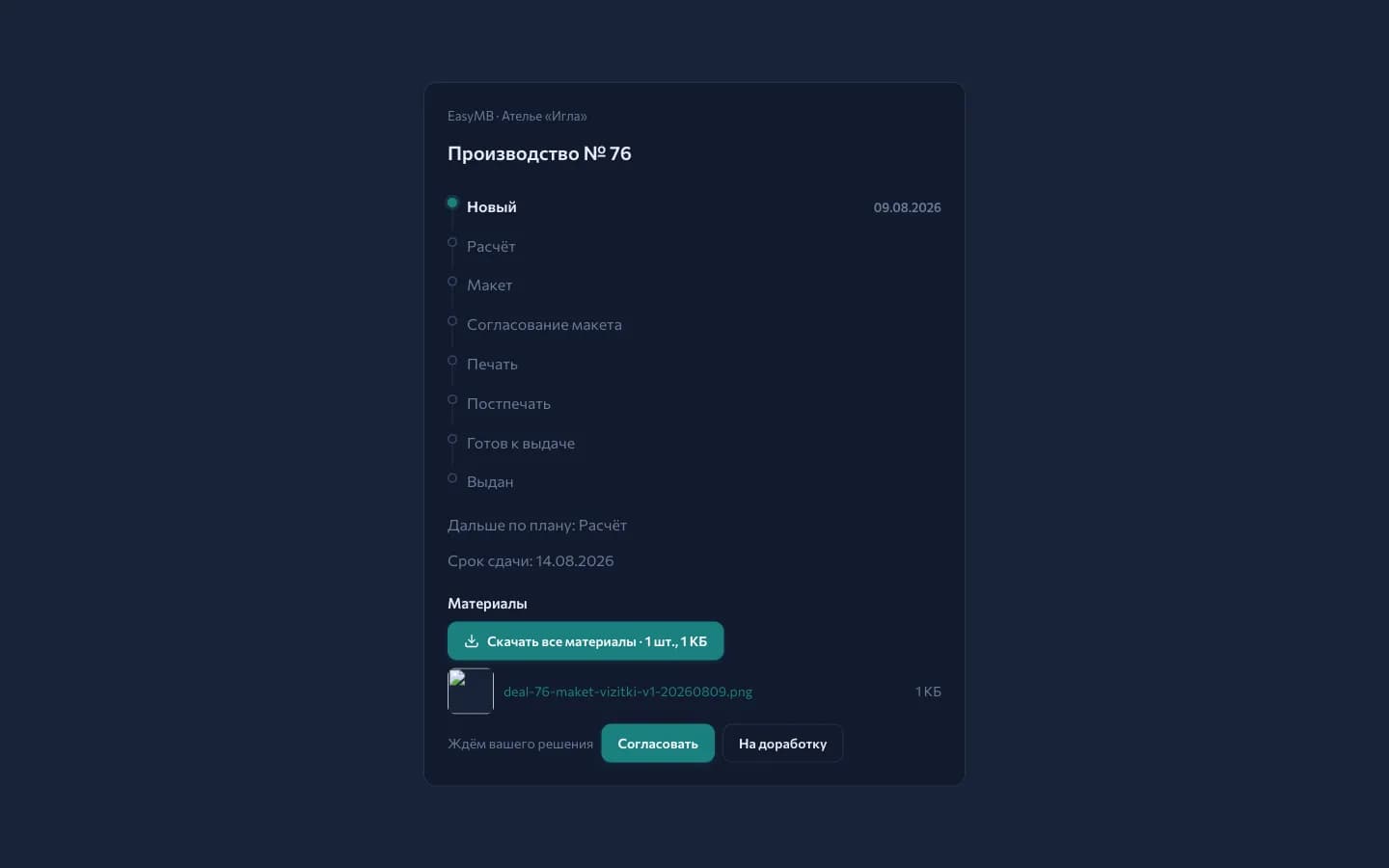
The Withdraw from approval button takes the file out of waiting together with the decision made, so re-approval starts fresh.
While a file is waiting, the client can change their mind: pressing again changes the decision and you see the latest one.
This works with two Deals component settings — Client portal by link and Customer approval of files. The module turns both on at connection. Showing the estimate and payments to the client is left to you.
The link opens without a password and can be forwarded by anyone. The decision on a layout is made by whoever holds it.
Customer messages
The print run scenario talks to the customer at three stages out of nine.
| Stage | What goes out |
|---|---|
| Layout approval | "The layout for order № … is ready. Please review and approve it through the link" |
| Printing | "The layout is approved, the order has gone to print" |
| Ready for handover | "Your order is made and ready for collection" |
The texts and channels are edited in the message templates, and the whole conversation is switched off with the Notify the customer about stage changes toggle.
The portal link is inserted into the first message when it has been issued for this order.
What to set up after connecting
- A parametric price list — create positions for typical work: business cards, banners, T-shirts, so the price follows the run.
- Materials — paper and consumables with purchase prices: cost is counted from them.
- A bill of materials — to have paper and ink written off automatically, set the composition in the product card, see Catalog.
- Print templates — the module brings the Production order and the Order calculation. Check the header and the terms: the production order carries the note "To print only after the layout is approved by the customer".
- Automation — the scenarios arrive switched off: an overdue reminder and a low-stock notification.
- Layout storage — agree how long files are kept and put it in the contract.
What to look at in reports
- Profit per order with materials taken into account.
- Deadlines: how many orders are overdue and which stages they sit at.
- Repeat customer orders — the backbone of revenue in this trade.
- Material overspend and scrap: the yield of production runs in Production.
Frequently asked
Are layout versions stored? Every new version is a new file in the order. Put the version number in the file name (cards-v2.pdf): the list then shows which layout is the latest, and the client decision sits on a specific file.
How do we charge for rush orders? Create a separate "rush" service with a mark-up and add it to the order.
What about scrap? Write off spoiled material as a separate operation and record printing scrap in the production run: the cost then shows the real picture.
Can we take requests online? Yes, through a capture form: a request with parameters lands in leads and from there into an order.
In short
- A print run order goes through nine stages, a copy centre through three.
- Layout approval moves the client's "yes" from a message thread into the order card.
- Materials are written off by the bill of materials at a run or at order closing.
- "Print run" is the main order field and shows in the production queue.
Similar modules
- Making items from a bill of materials — Manufacturing and workshops.
- Design without printing — Studio.
- Selling finished goods from stock — Wholesale and distribution.