
Catalog
The catalog is the single reference of what a company sells. POS, orders, inventory, the storefront, the menu, bookings and reports all point at it, which is why setup starts here. The component is always on and needs no connecting.
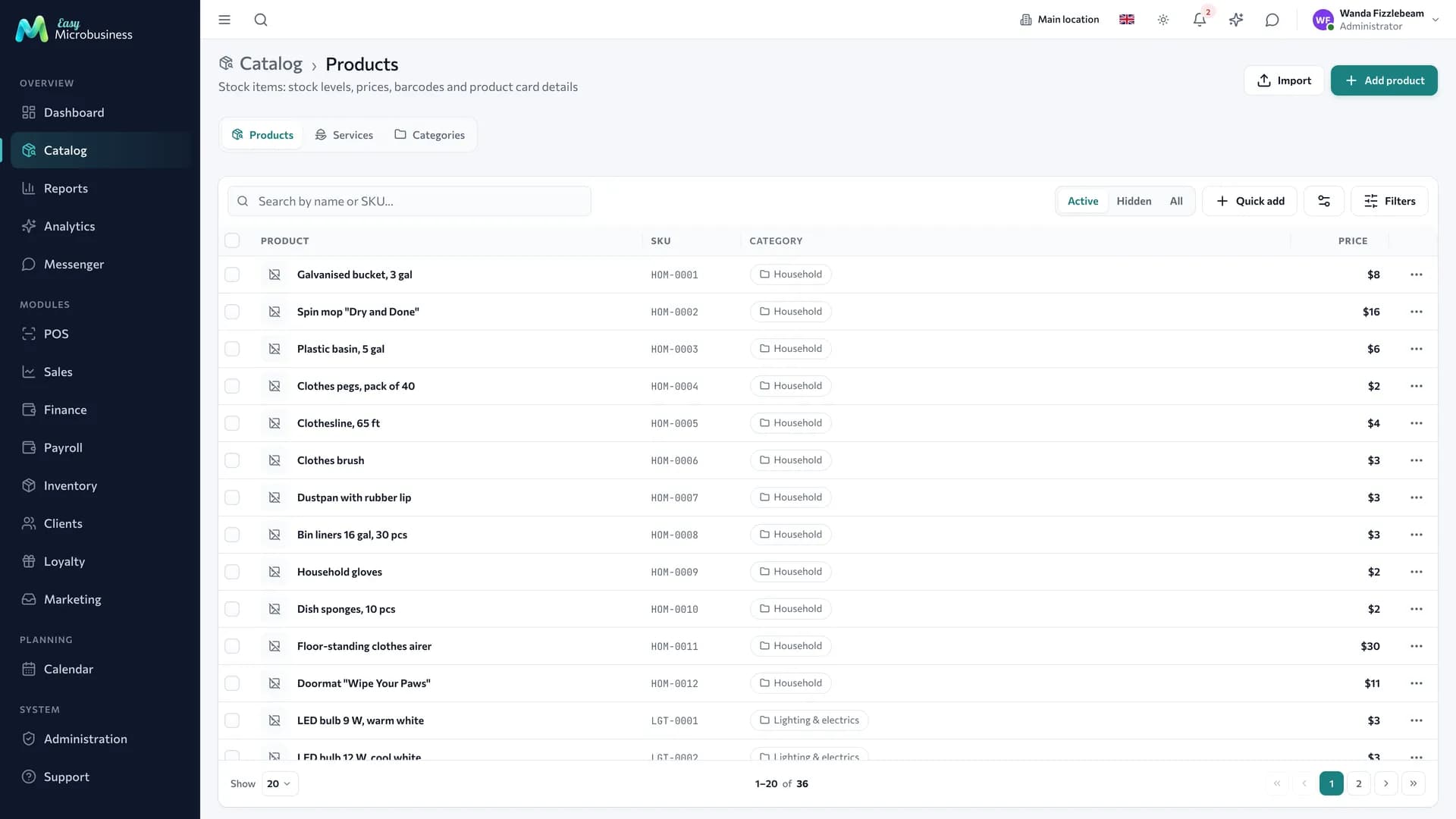

What lives in the catalog
- Products — items with stock: materials, accessories, food, finished goods.
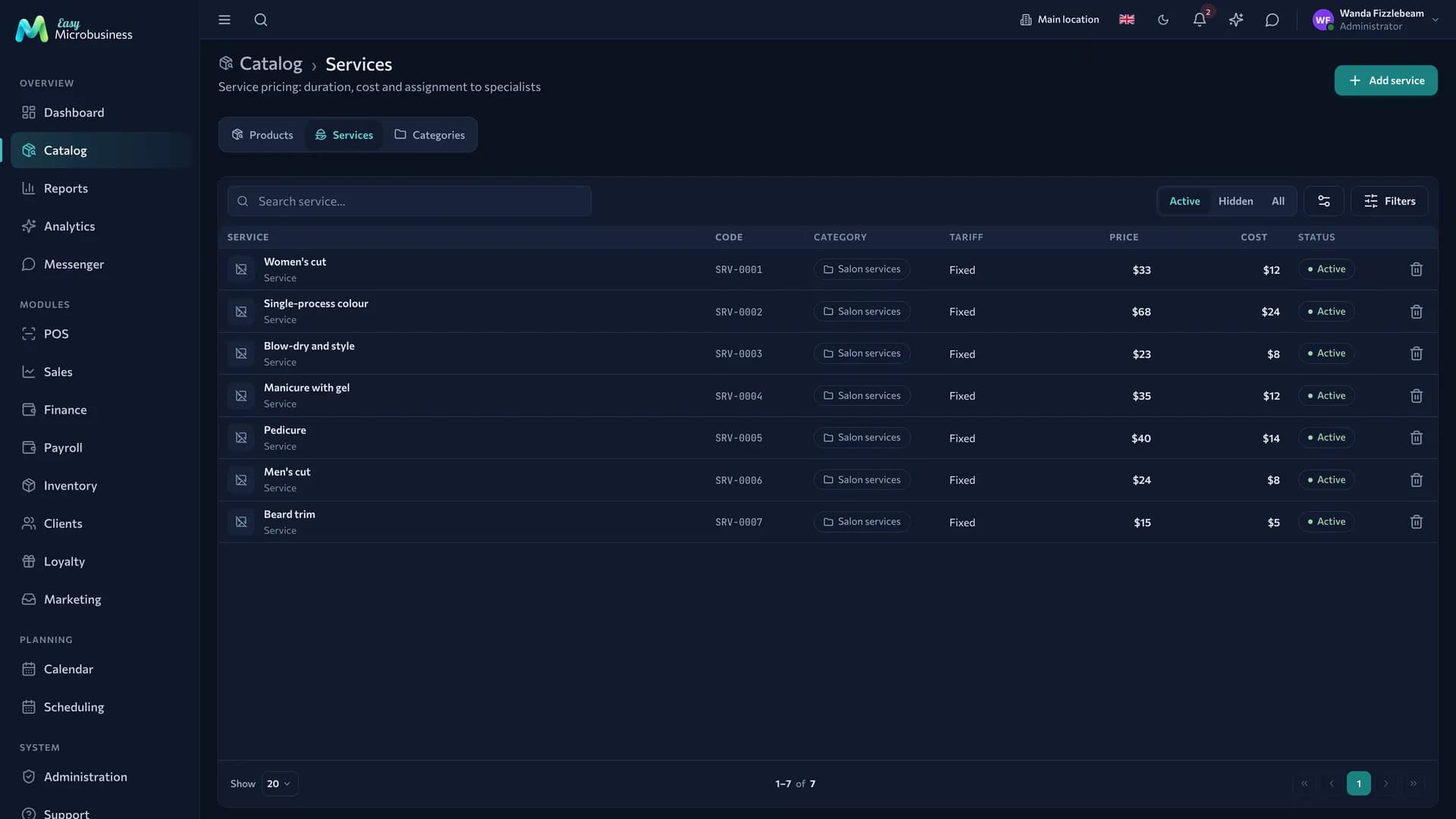
- Services — items without stock: a haircut, a diagnostic, an hour of rental, a consultation. A service has a duration that the booking grid is built from.
- Categories — a hierarchy. They work both as navigation at the POS and as a breakdown in reports.
- Variants — sizes, colours, volumes of one product. Each has its own stock, barcode and, where needed, its own price.
- Attributes — extra properties of an item: composition, brand, compatibility. Some arrive with a business module.
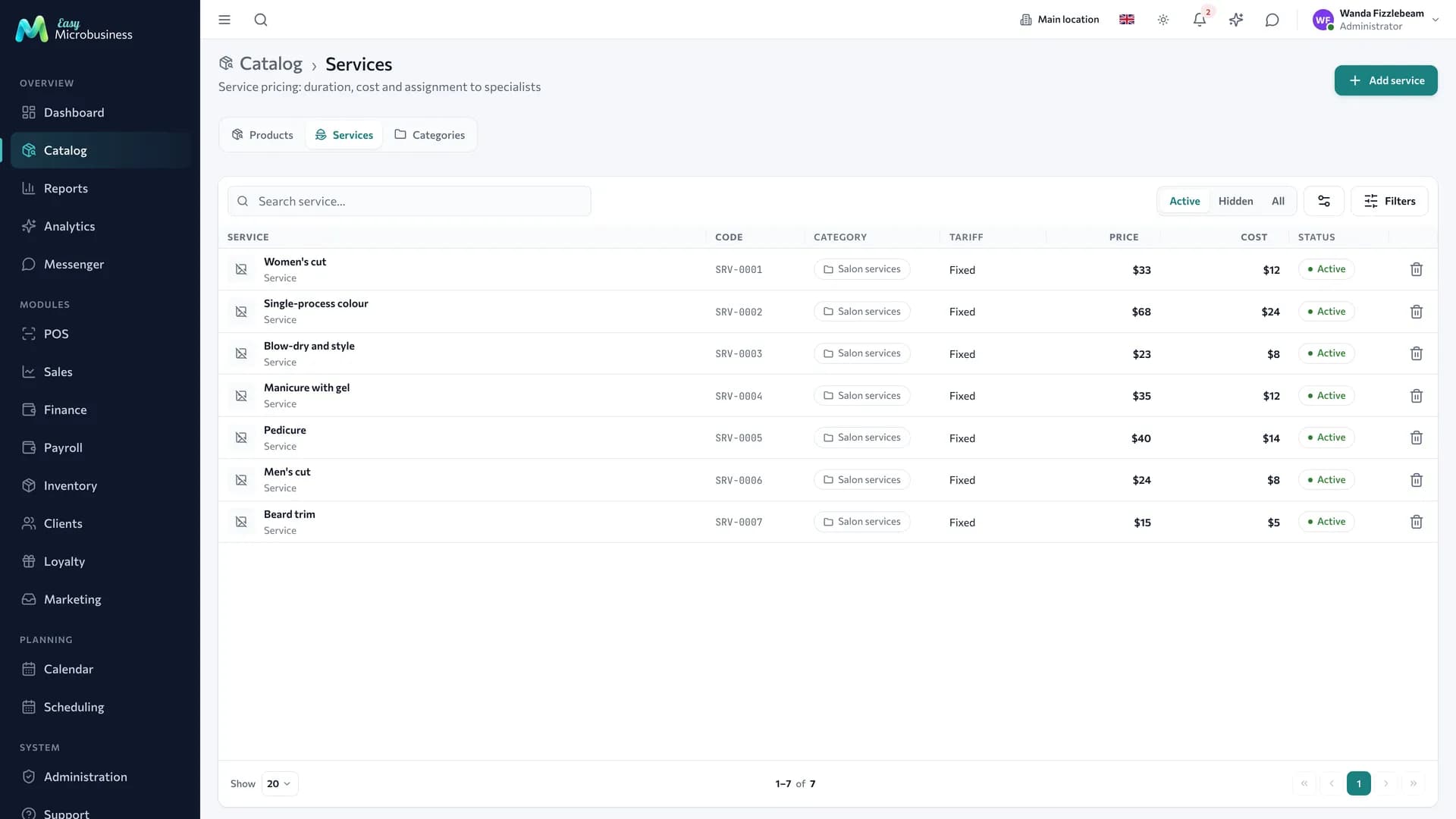
How to add a product
- Open Catalog → Products and start a new item.
- Fill in the name, category, sale price and unit of measure.
- Enter the purchase price — profit is calculated from it.
- Turn on Track stock if the product sits on a shelf.
- Add a barcode and a photo if you have them.
The item card
| Field | What it is for |
|---|---|
| Name | Searched at the POS and on the storefront |
| Category | Navigation and grouping in reports |
| Sale price | Fills into receipts, orders and estimates |
| Purchase price | The base for profit calculation |
| Unit of measure | Pieces, kilograms, hours, metres |
| Barcode | Instant lookup with a scanner |
| Photo | Storefront, menu, quick pick at the POS |
| Visibility | Whether the item shows on the storefront and in the menu |
| Minimum batch | Wholesale: an order below this quantity is not accepted |
| Order multiple | Wholesale: a box of 12 means orders of 12, 24, 36 |
| Track stock | Whether stock is kept for this item |
Track stock is off for a new item. While it is off, the product sells but stock does not move: receiving it, counting it in a stock count and issuing it to a site become available once it is on. Turn it on for everything that sits on a shelf. Leave it off for what has no stock: a master's labour, delivery, gift wrapping.
Empty "Minimum batch" and "Order multiple" mean there is no rule. They are checked when an order is placed and only with the Orders setting "Enforce minimum batch and multiples" on.
Files, manuals and certificates are attached to an item and stay available everywhere it is used.
Categories

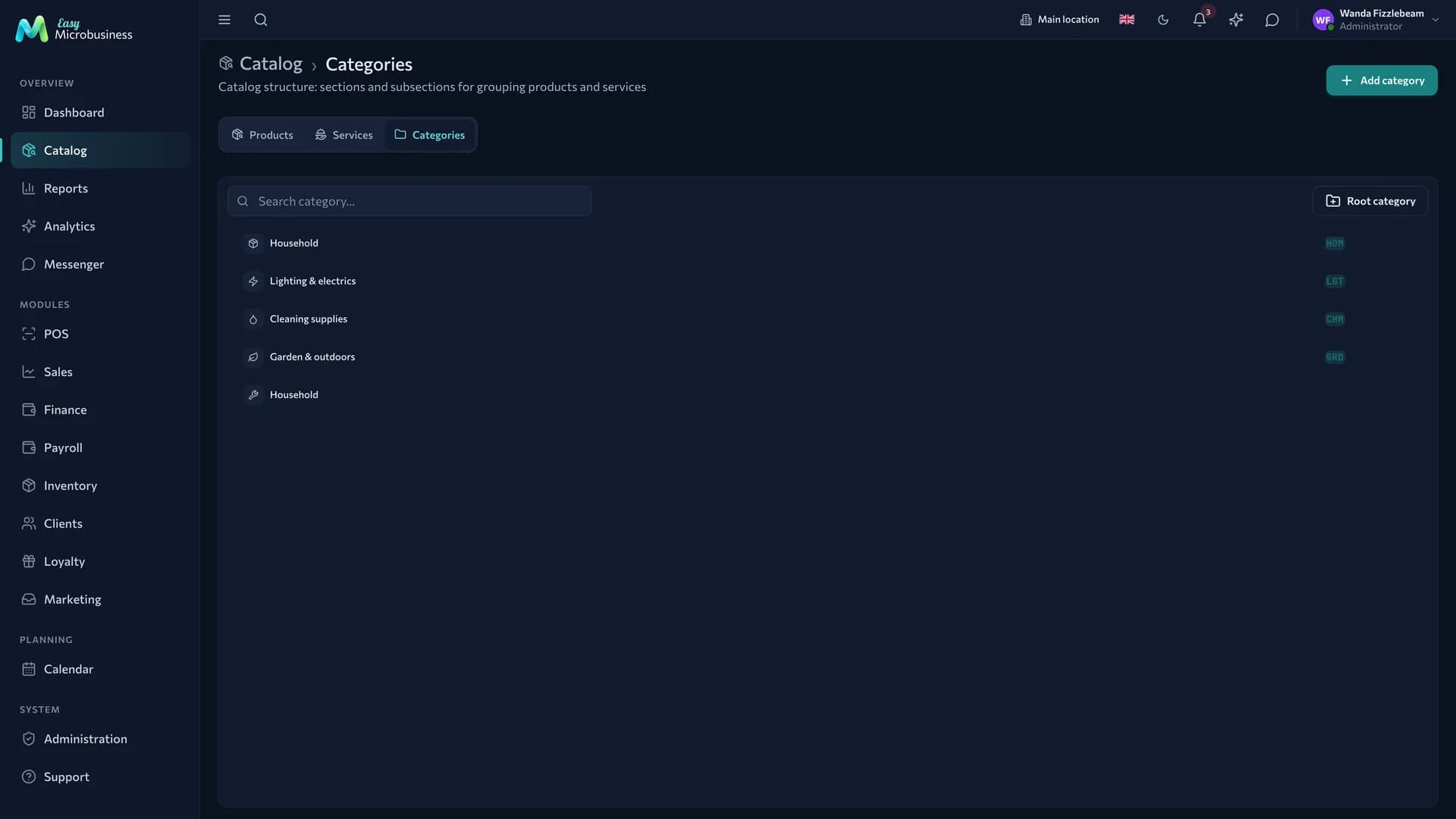
Keep 7–10 top-level categories: that way a cashier searches instead of scrolling. In a coffee shop those could be coffee, tea, desserts, pastry and beans to go. Rare properties are better described with attributes than with new categories.
Product variants
If a product differs by size, colour or volume, add variants instead of separate cards. Then:
- stock is counted per variant;
- at the POS the choice takes two steps: product, then variant;
- reports show which size sells and which one sits;
- on the storefront the buyer picks a variant inside the product card.
Bill of materials
If an item is assembled or manufactured, describe its composition on the Composition tab of the product card: which materials and how much go into one unit. The tab is available for any product, and the "kit" flag is set as soon as the composition is filled in.
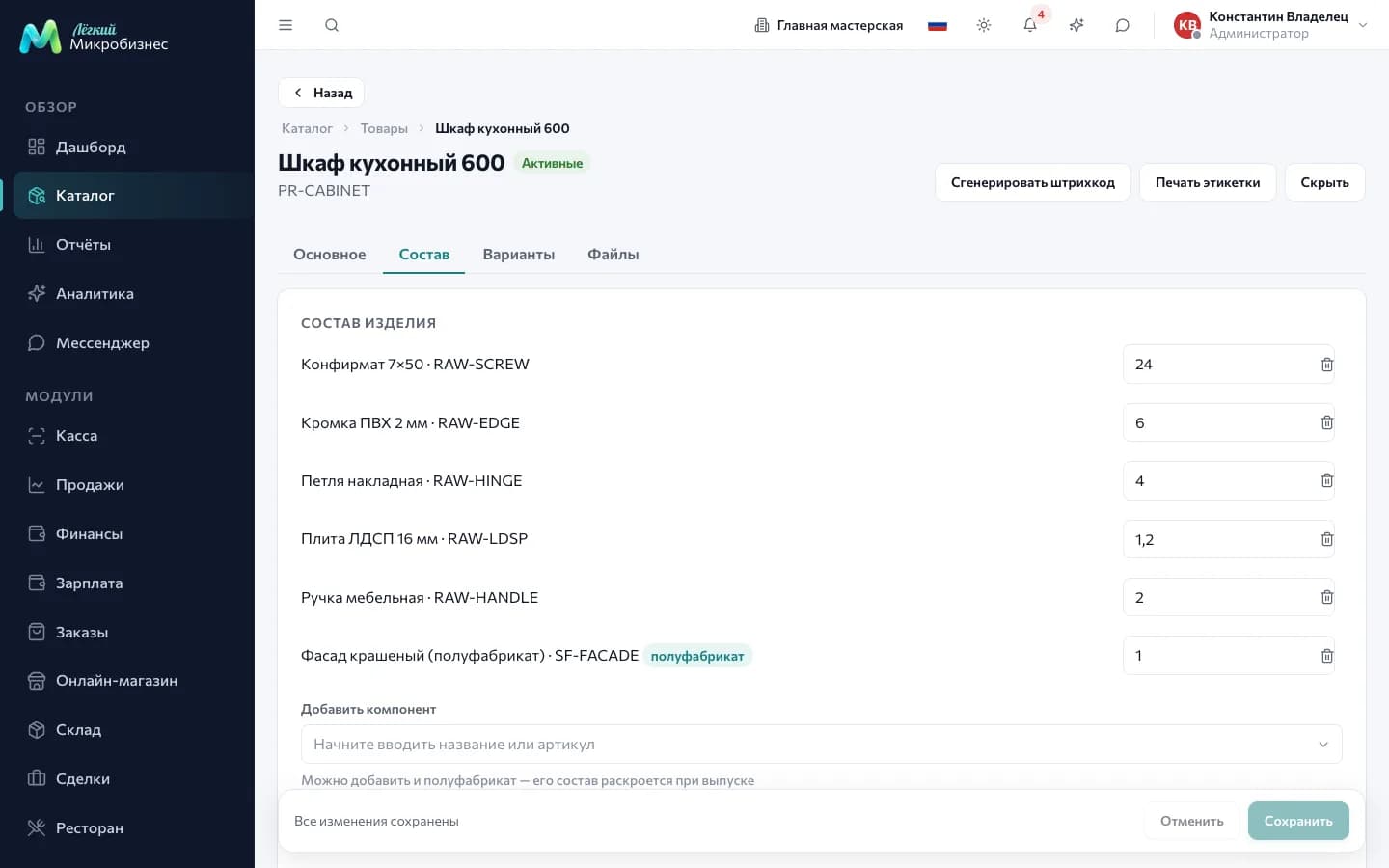
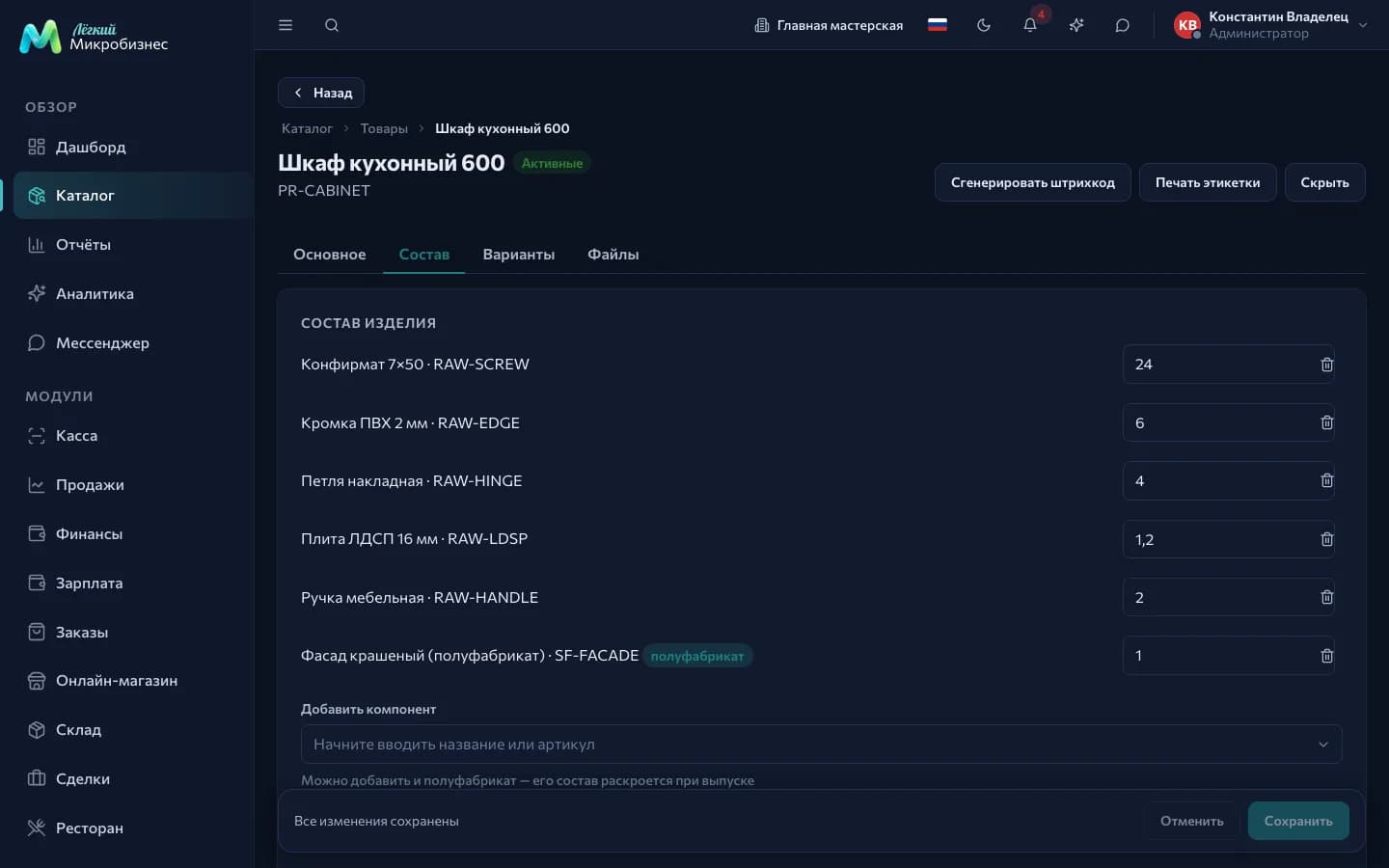
The composition works in three places:
- at the POS — selling a kit writes off its parts;
- in an order — the same on handover;
- in production — a run writes off materials and puts the finished item into stock with its actual cost.
Another item with its own composition can be nested — a semi-finished product. If it tracks stock, it is written off as ready; if it does not, its composition unfolds down to raw materials.
Under the composition list there are two figures: the cost of the selected lines and the cost with semi-finished items unfolded. They differ when a semi-finished item has an outdated price in its card.
Price and discounts
An item has a base price. Discounts and mark-ups are applied at the level of a sale, an order or a customer, so the same item can sell at different prices: on a promotion, to a regular customer, as part of a package.
For wholesale, prices come from price lists: a customer may have their own list, their group's list or the company default, and inside a list the price depends on volume ("from 12", "from 48"). The catalog price comes last in that chain. The order is explained in the Wholesale and distribution module.
What happens to an item next
- Creation — a manager adds a product or a service with a price and a category.
- Use — the item is available at the POS, in orders, on the storefront, in the calendar and in reports.
- Hiding — the item is marked deleted: it leaves selection and stays in sales history and past reports.
An item may have made it into a closed receipt, so it is kept in history even after it leaves the catalog.
Who works with this
- Managers and administrators add and edit items and manage categories and prices.
- Employees pick items into a receipt. The catalog as a whole is closed to them by default, because the product card shows the purchase price — see Roles and permissions.
In short
- The catalog is the shared source of items for POS, orders, storefront, menu and estimates.
- "Track stock" is turned on for everything that sits on a shelf.
- Variants replace separate cards for sizes, colours and volumes.
- A bill of materials writes off components on a sale, a handover and a production run.
Related components
- Point of sale — picking items into a receipt.
- Inventory — stock for catalog products.
- Orders — order contents.
- Online storefront and Restaurant floor and kitchen — what the customer sees.
- Scheduling — booking a catalog service.