
Calendar
The calendar is the visual schedule for anyone who works by appointment: salons, masters, rooms, studios, training centres, field crews. It shows who is busy and when and links a booking with a customer, a service and an employee.
The component is always on. Availability rules, rates and packages live in Scheduling, and the calendar displays them.
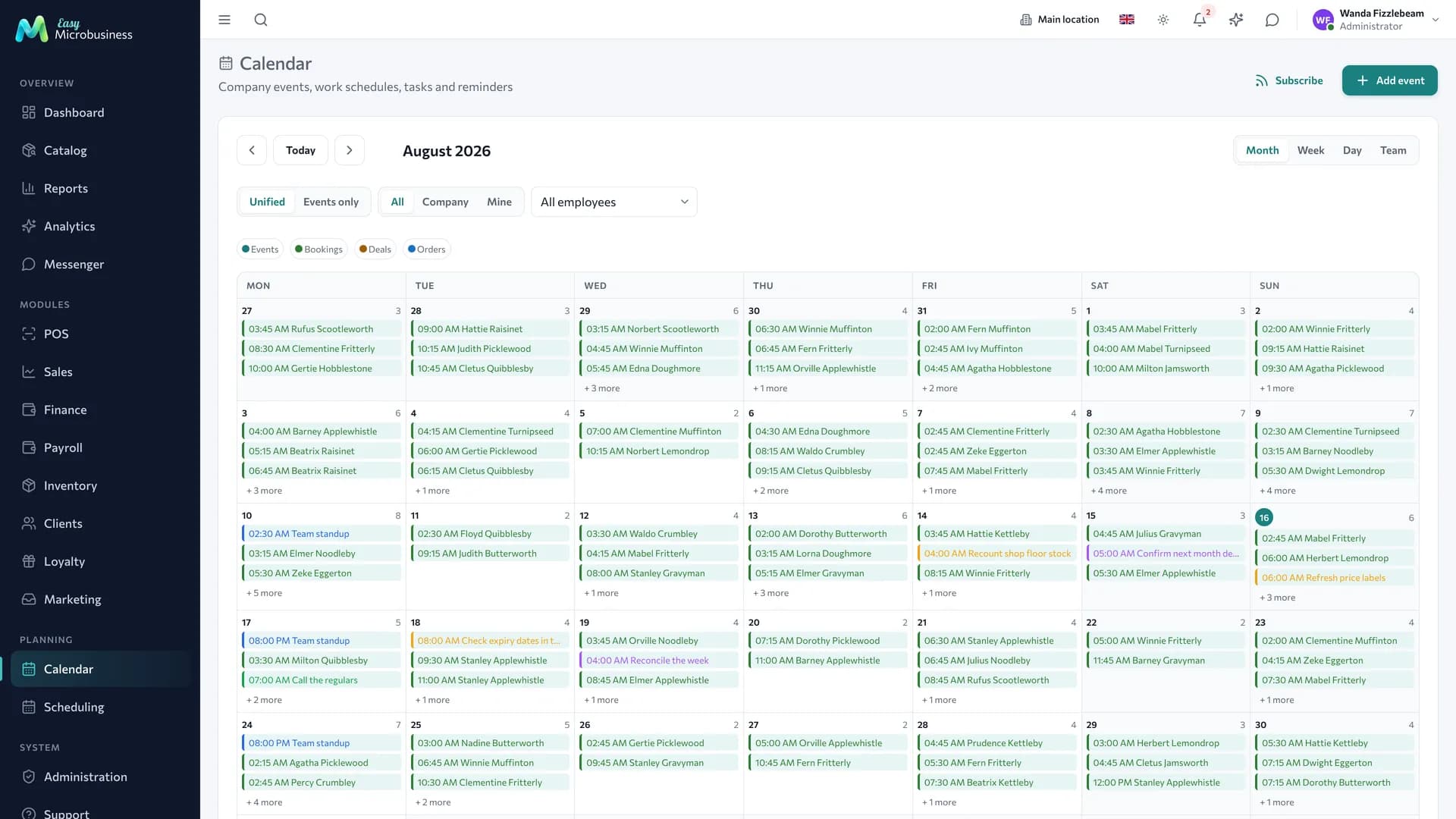
What is on the screen
- Resource columns — by master, room or hall. Free slots are visible at a glance.
- Bookings with the customer, the service and the duration. The colour shows the status: confirmed, completed, cancelled, no-show.
- The period switch — day or week; on a phone, day.
- Branch and employee filters — so you do not look for yourself among twenty columns.
How to book a customer
- Click a free slot — a form opens.
- Pick the customer and the service. The duration comes from the service card.
- Save the booking.
The customer gets a confirmation and a reminder the day before, if notifications are on. Two customers at the same time with one master will not be booked.
Moving is done by dragging: a booking travels to another time or another master, and the customer receives a notification about the change.
What happens after a visit
- The booking is marked completed or gets a no-show status. No-shows are visible in reports.
- The service is paid at the POS, and a package deducts a visit if there is one.
- The visit lands in the customer history.
Online booking
A public link lets a customer book themselves: they see free slots and pick a service and a master. The link goes into social media, onto a website or into a message signature.
Settings decide whether to ask for an address and a brief from the customer, how far ahead booking opens and when it closes. More detail is in Scheduling.
One feed of everything
Besides customer bookings, the calendar collects everything else that is tied to time.
| What lands in the feed | Where it comes from |
|---|---|
| Customer bookings | Resource bookings from Scheduling |
| Deals | A field job date, a measurement or a deal deadline |
| Orders | The order readiness date |
| Company events | A stock count, a meeting, a party |
The feed depends on connected modules. Clicking an item opens its original card, so there is no need to hunt for an order in another section.
Your own company events
Employees also put their own records into the calendar:
- Event — a stock count, a meeting, a party.
- Work shift — an employee schedule; shifts feed the timesheet and take part in payroll.
- Day off — a day when a person is not booked.
- Task — a to-do with a deadline, marked done when finished.
- Reminder — a one-off nudge at the right moment.
Repeating events are described by a rule: "every Tuesday", "on the first of the month".
Reminders and subscription
- An event reminder arrives in the app and, if configured, by email.
- Customer booking reminders go through the company connectors — email or SMS.
- A resource schedule can be subscribed to in a personal calendar through a link: availability shows up on a phone without logging in. The subscription carries no customer names, only busy intervals.
- A subscription link can be reissued, and the old one stops working right away.
In short
- The calendar shows resource availability for a day or a week.
- A booking is created by clicking a free slot, and the duration comes from the service.
- Bookings, deals, orders and company events all land in one feed.
- A resource schedule is subscribed to in a personal calendar through a link.
Related components
- Scheduling — resources, rules, rates, packages.
- Catalog — the service sets duration and price.
- Clients — visit history and reminders.
- Point of sale — paying for a visit.
- Deals — field jobs and intakes in the schedule.