
External links
Part of the work happens outside your workspace: a customer books their own slot, a buyer assembles an order at night, a guest scans a QR code at the table, a client approves a design. These are external links — addresses that open without a login and a password.
Three kinds of links
| Kind | What it looks like | Who gets it |
|---|---|---|
| Public company address | app.easymb.ru/shop/your-address | Everyone: advertising, social media, a business card |
| Personal link | app.easymb.ru/b2b/dR7f… | One person: it carries the access key itself |
| Service link | Arrives by email or in a QR code | One action: confirm, pay, unsubscribe |
The public address is one you invent yourself; it is short and safe to print on a banner. A personal link works like a password: whoever opens it is in, so it is given out individually, reissued and revoked. Service links are created by the system when it sends a letter or prints a document.
A personal link can be forwarded to anyone and it will open. If a link went to the wrong person, reissue it — the previous one stops working right away.
What links exist
| What opens | Which component gives it | Who receives it |
|---|---|---|
| Online storefront | Online storefront | All buyers |
| Online booking page | Scheduling | All customers |
| QR menu | Restaurant floor and kitchen | Guests at a table |
| Website request form | Marketing | Visitors of your site |
| Buyer cabinet | Orders | A wholesale customer |
| Client cabinet | Scheduling | A customer with a package |
| Client portal for a site | Deals | A project client |
| Repair status by QR | Deals | A service customer |
| Order status and payment | Online storefront | A buyer |
| Table bill and payment | Restaurant floor and kitchen | A guest at a table |
| Booking confirmation | Scheduling | The customer who booked |
| Chat with the company | Messenger | A customer in a conversation |
| Calendar subscription | Calendar | An employee in their own calendar |
| Campaign unsubscribe | Marketing | A letter recipient |
The storefront, online booking, the menu, both cabinets and the client portal stay open while their component is on. Switch the component off and the issued links close too — the fastest way to close all of them at once.
One public address for everything
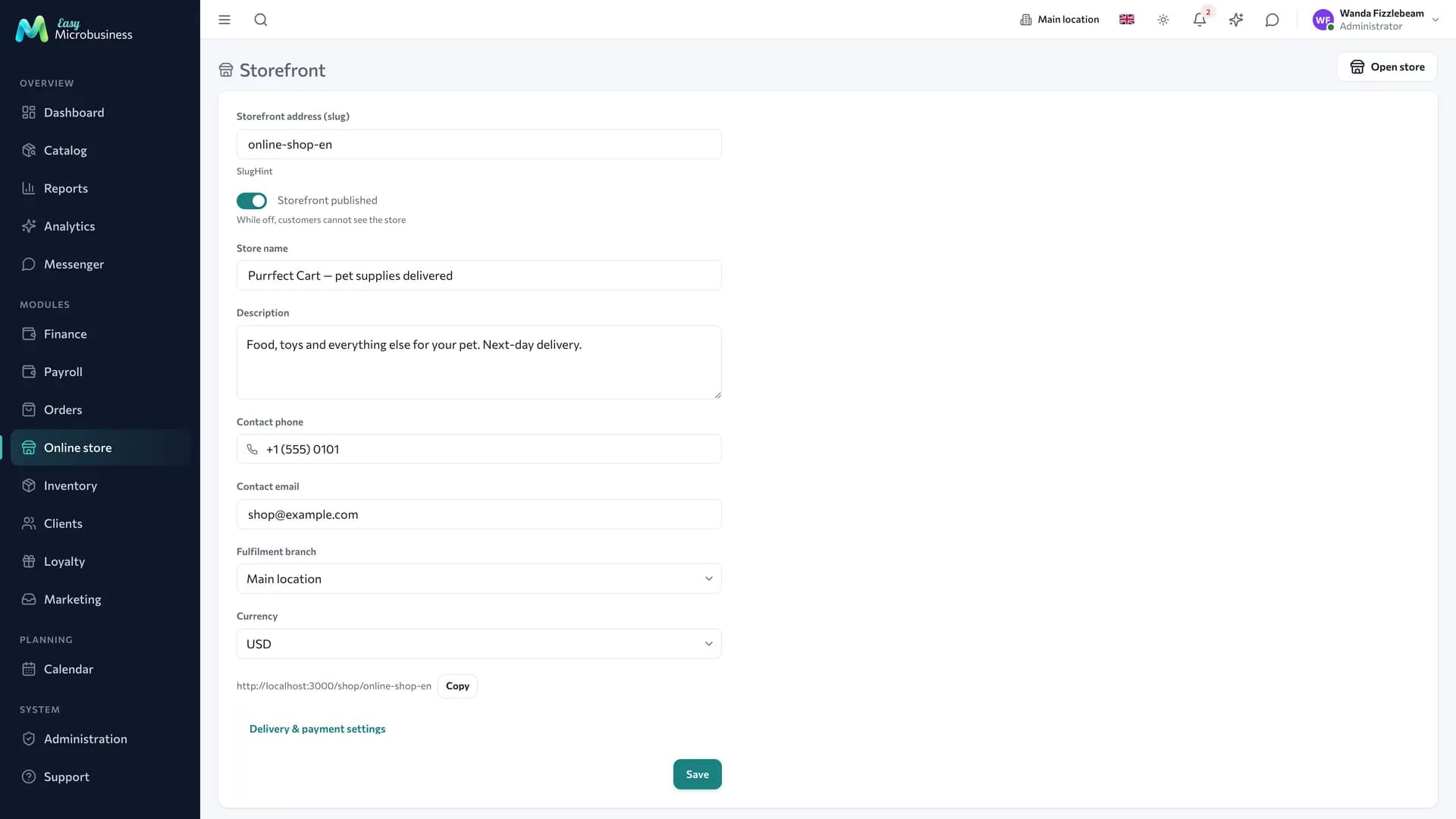
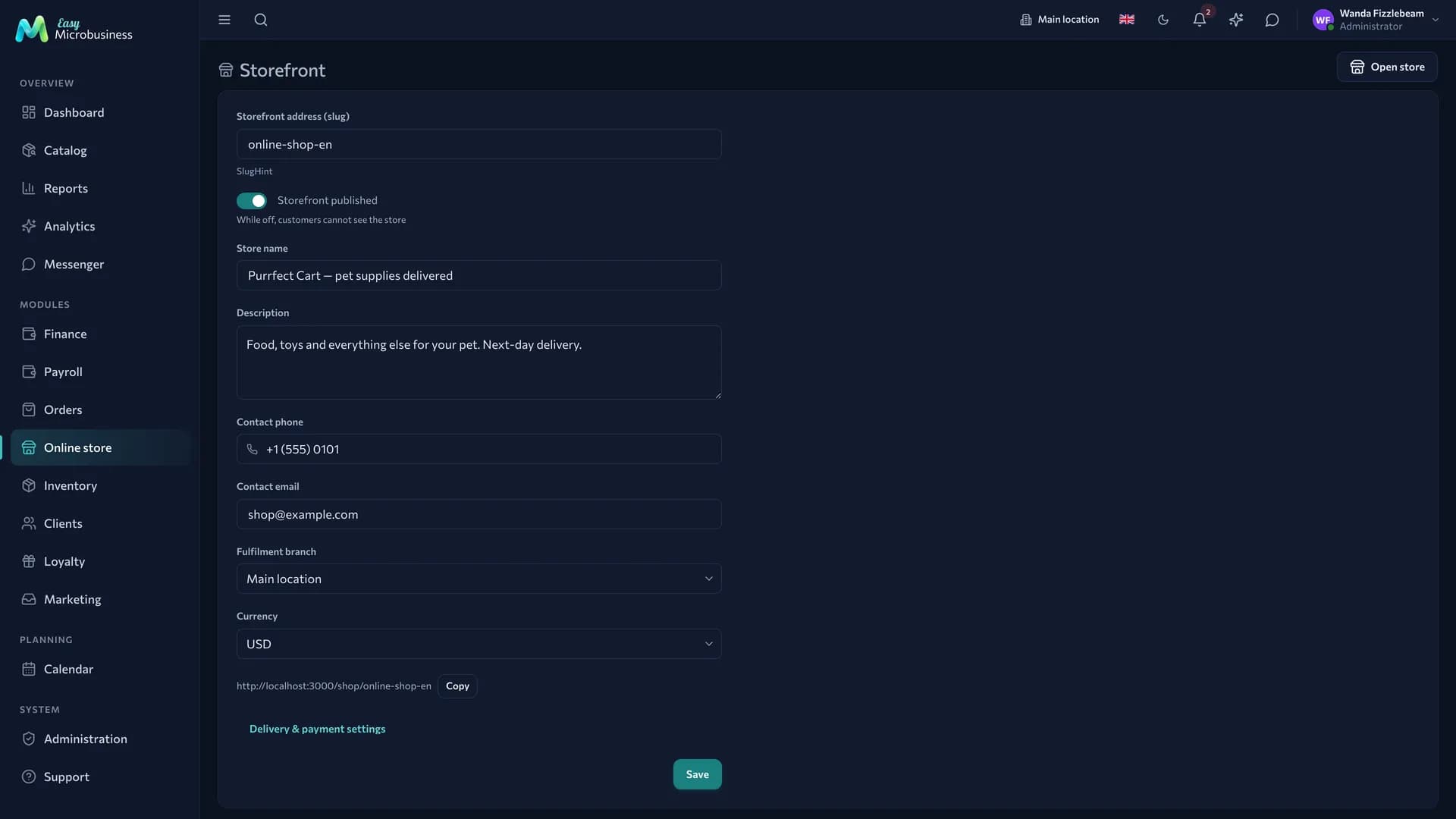
The company address is shared by the storefront, the online booking page and the QR menu. It is unique across the platform and can be changed in any of three places:
- Online store → Storefront — the publication toggle and the address field;
- Scheduling → Online booking — "Accept online bookings" and "Page address";
- Restaurant → Menu & settings — "Menu published" and "Menu address".
The rules are the same everywhere: Latin letters, digits and hyphens, 3 to 64 characters.
Changing the address replaces every old link at once, including QR codes printed on tables and in advertising. Pick the address before you send artwork to the printer.
The storefront and the booking page are open to search engines and can go into advertising. The menu, the cabinets and pages behind a personal link are closed to search — they are found only through your link.
How to give a customer a cabinet
- Open Clients and find the customer card.
- Go to the block you need: Buyer cabinet or Client cabinet.
- Press Issue link and copy it.
- Send it to the customer any way you like — by email, in a messenger, over the phone.
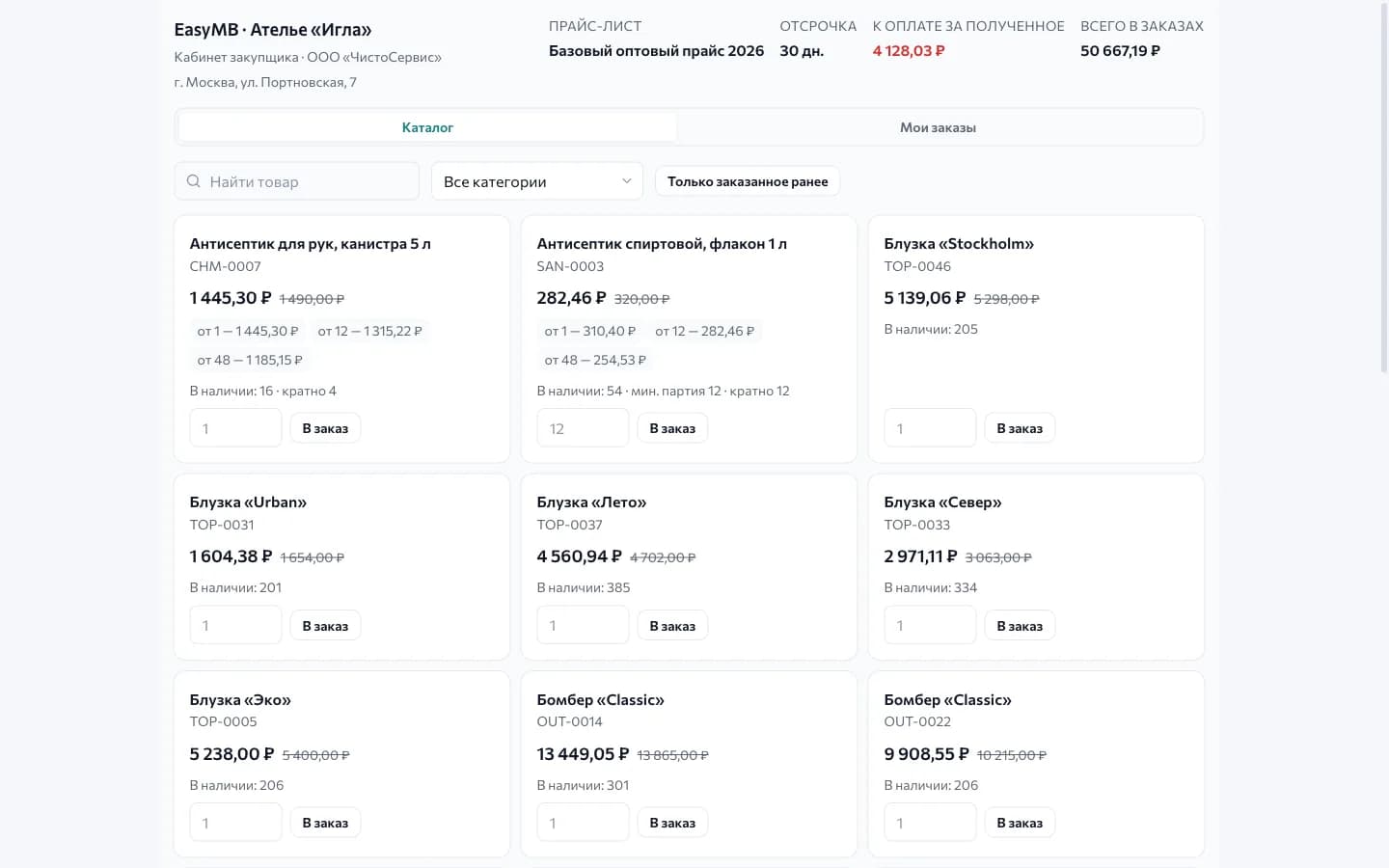
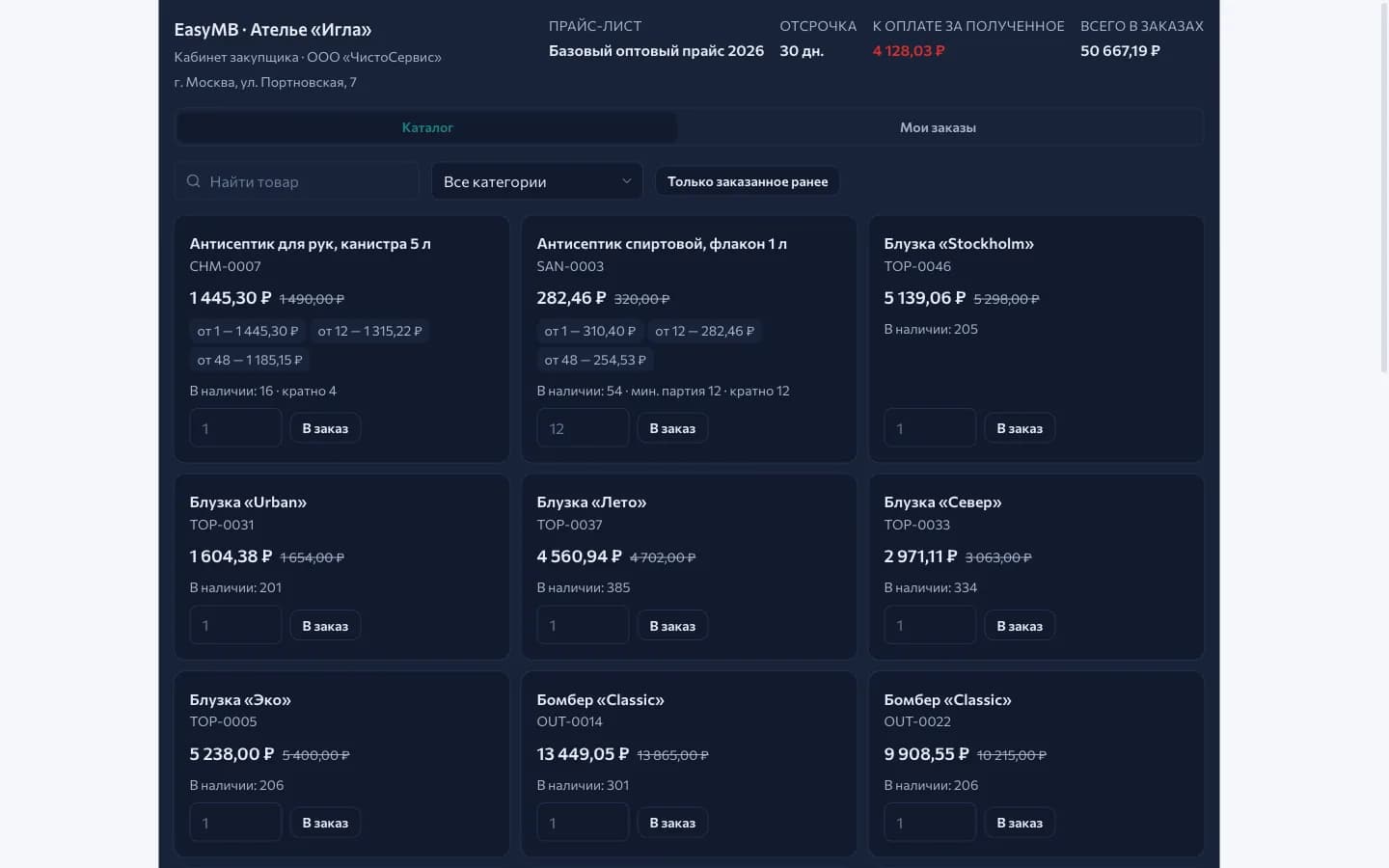
The buyer cabinet shows the customer's price list with volume tiers, free stock, order history, one-click repeat of a past order and two debt figures. It works when the Orders setting "Buyer cabinet by link" is on. The neighbouring setting, "Confirm cabinet orders immediately", decides whether the order goes straight into work or waits for a manager.
The client cabinet shows the package balance and expiry, upcoming bookings, self-service cancellation, booking into a class with free seats and the waitlist. It works when the Scheduling setting "Client cabinet" is on.
Both blocks have the same three buttons — Issue link, Reissue and Revoke — and the date of the customer's last visit. The cabinets are separate: the package link shows no price list and no debt.
Client portal and repair status
The client portal opens on a site: the deal card → the Client portal tab → Open the portal for the client. Through the link the client sees the work stages with dates and the files you marked as visible. Optionally — the current estimate version with prices, the payment schedule, estimate approval and a decision on every file: approved or sent back with a comment. All materials download as one archive.
The portal works when the Deals setting "Client portal by link" is on; showing the estimate and approving files are turned on by separate settings next to it. Revoking a link closes the page, and the files stay with you.
The repair status lives in a QR code on the intake receipt and on the item label. The customer scans it with a phone camera and sees the stage of the work, without amounts and without the order contents. The link is created at the first document print and keeps working after the company address changes. More detail is in Print templates.
Orders, invoices and confirmations
The system sends these links itself. They need no setup, but it helps to know the customer receives them.
| Link | When it goes out | What the customer does |
|---|---|---|
| Store order status | By email right after checkout | Looks at what is happening with the order |
| Order payment | The same letter, if the store works on prepayment | Pays |
| Table bill | Through the QR code at the table, after ordering | Sees the bill, calls a waiter |
| Booking confirmation | In the visit reminder | Confirms or cancels |
| Campaign unsubscribe | In every marketing letter | Unsubscribes |
The confirmation link goes to the owner of an individual booking. Group classes are cancelled by an administrator.
Unsubscribe appears only in marketing letters. Order notifications and visit reminders are operational and keep arriving after an unsubscribe.
Request forms and enquiries from other sites
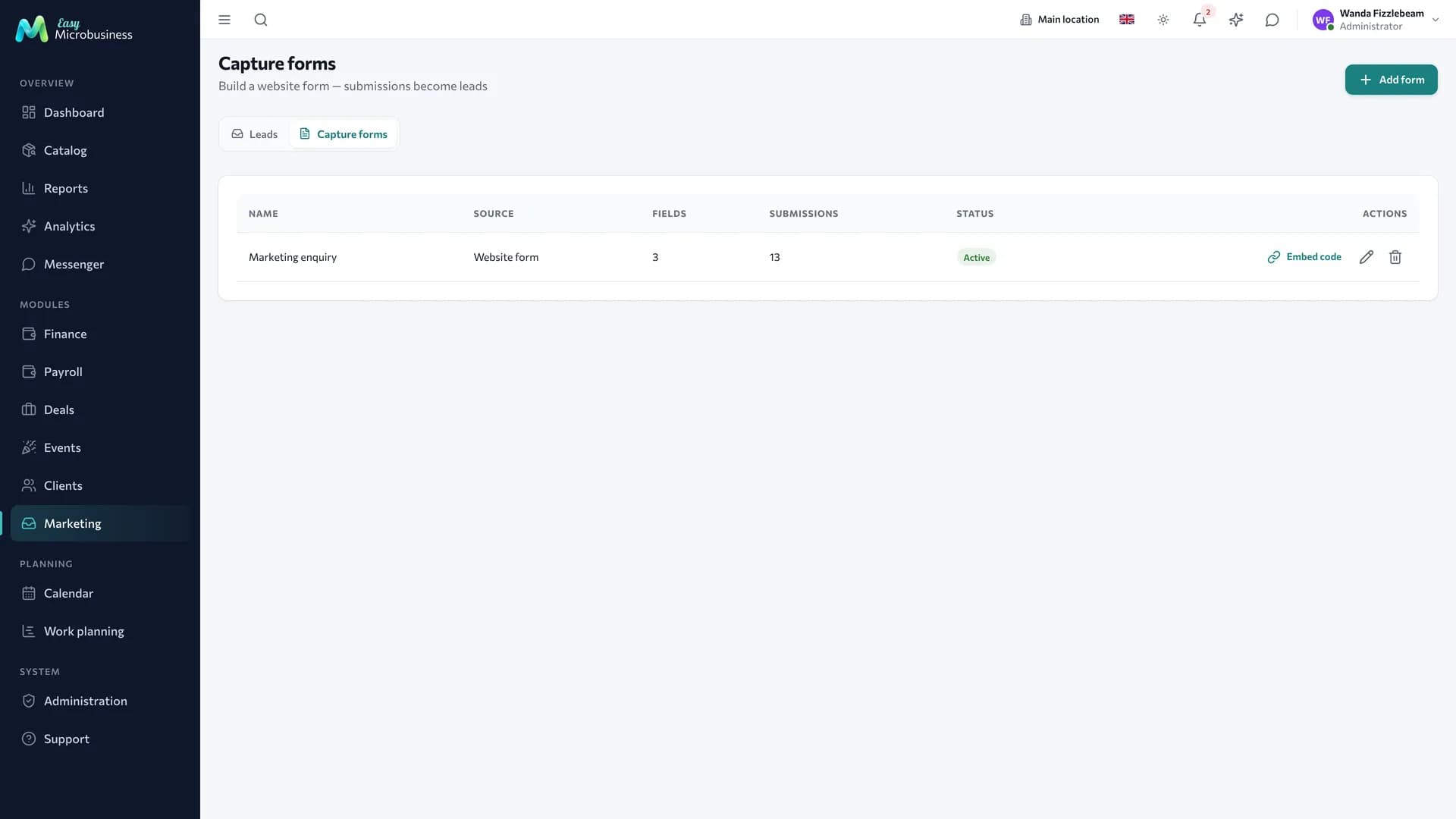
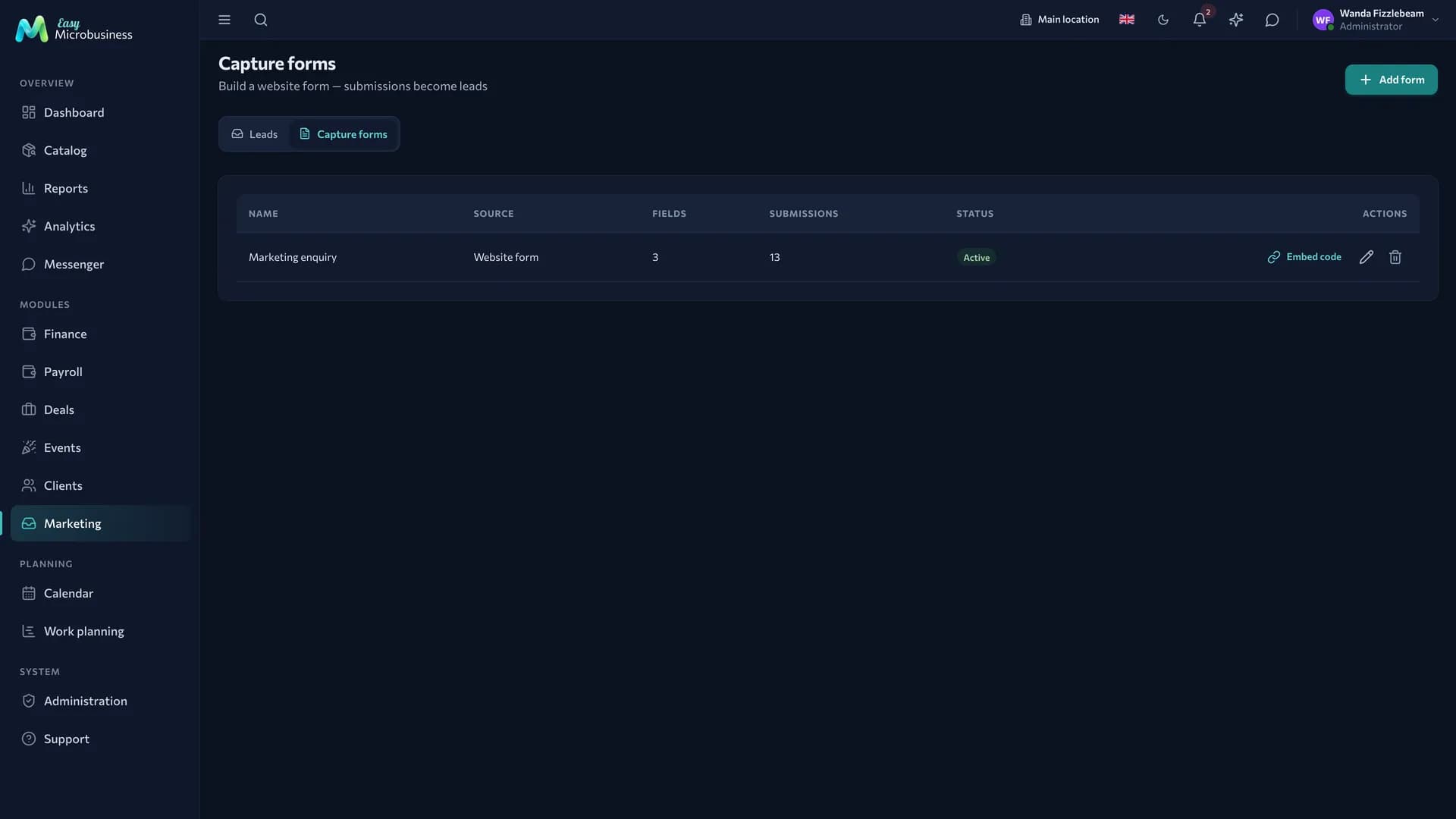
Marketing → Leads → Capture forms is a builder for a form that collects enquiries straight into Leads. A form has two uses: a standalone link for social media and an Embed code for your website. A switched-off form stops opening by link.
Next to it on the Leads screen is Request intake (webhook) — an address that other services and marketplaces send enquiries to. It goes into another site's builder or into a Telegram bot. If the address ends up in the wrong hands, press Reset token and the old one stops working.
Chat with a customer
A customer chats with the company without installing an app, through their own link. It is created in two ways: in Messenger through "New chat" → "Create an invitation link", or in the customer card, the "Invitation link" block.
Through the link the customer confirms their phone number and lands in a chat with your company. The chat page can be added to a phone home screen with notifications. The link works until it is reissued; a lost one is restored by phone number with a code from a message.
Calendar subscription
This is a link for an employee: an address added to a Google, Apple or Outlook calendar so the work schedule shows up on their phone. It updates itself and is read-only.
- Company calendar — Calendar → Subscribe.
- Resource calendar (a room, a master, a venue) — the resource card in Scheduling → Resources, the iCal export block.
Both links are built on one company key. Reissuing from a resource card replaces every issued subscription at once, and employees will need to subscribe again.
Links for employees
- An employee invitation goes by email from Administration → Invitations: the person sets a password and joins your company.
- Address confirmation reaches the owner after company sign-up.
- A short link with an invitation code like
easymb.ru/go/YOURCODEopens company sign-up with the code already filled in. More detail is in the sign-up article.
Security rules
- A personal link works like a password — send it to a specific person.
- Reissuing replaces a link immediately, so prepare where the new one goes first.
- Revoking is reversible: access can be granted again, with a new link.
- Switching a component off closes all of its links at once. A capture form is switched off by the toggle on the form itself.
- Public pages are protected from brute force: frequent requests from one address are throttled.
- Issuing, reissuing and revoking links go into the audit log.
Frequently asked
The customer says the link does not open. Check in order: is the component on, was the link revoked, was it reissued after sending, are the storefront or the menu published.
Can one link be given to all customers? One link for everyone means the storefront, the booking page and the capture form. Cabinets are personal: each customer sees only their own data.
What happens to links if the company address changes? The storefront, booking page and menu move to the new address. Personal links and the repair status QR keep working — they do not depend on the address.
How do I know whether a customer uses their cabinet? The cabinet block in the customer card shows the date of the last visit.
In short
- One public address serves the storefront, online booking and the QR menu.
- A personal link equals a password: give it out individually and reissue it if it leaks.
- Switching a component off closes all of its external links at once.
- Every issue, reissue and revoke is visible in the audit log.
Related sections
- Component settings — where cabinets, the client portal and online booking are switched on.
- Print templates — QR codes on receipts and labels.
- Audit log — who issued and who revoked access.