
Automation
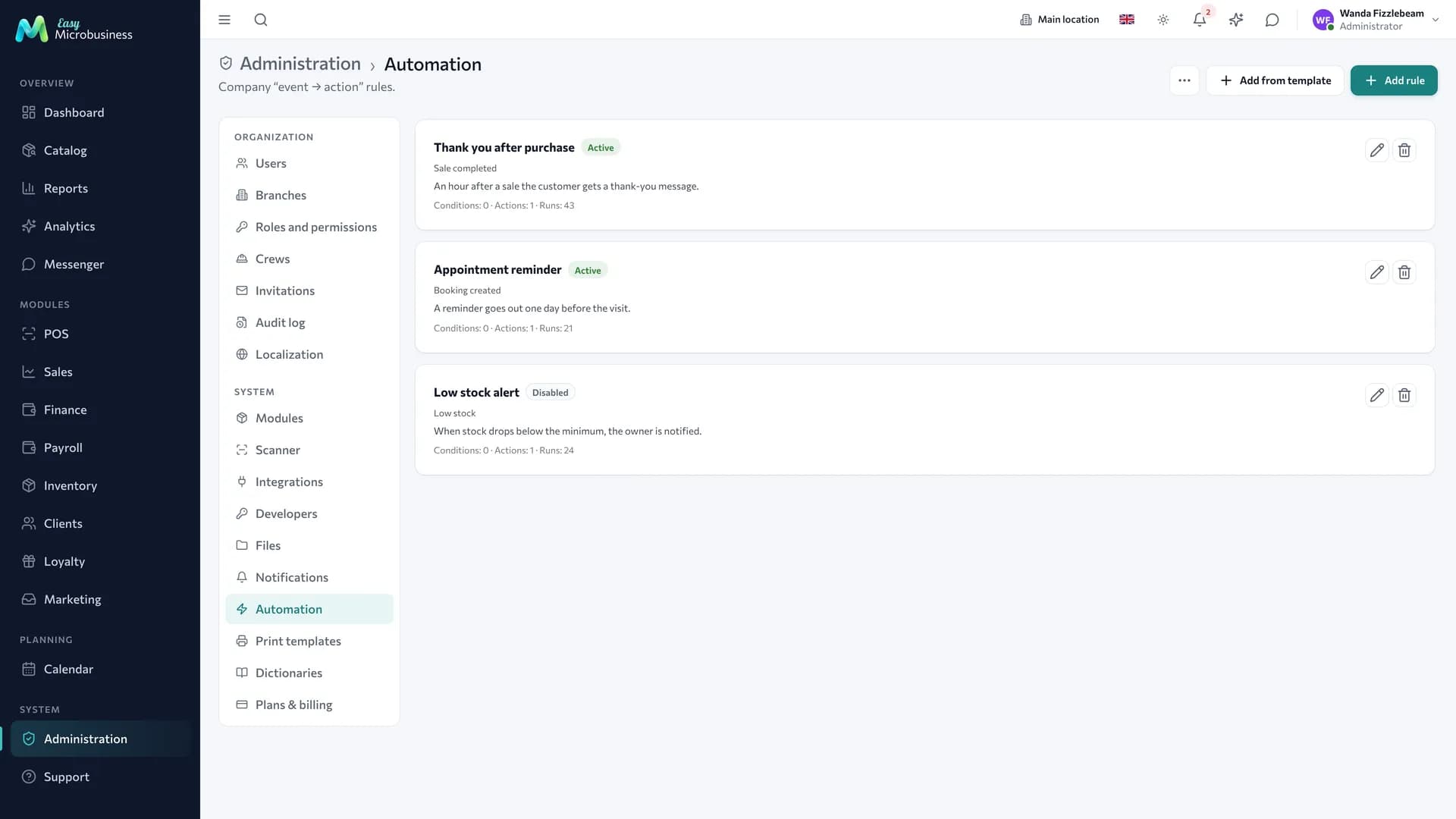
Automation handles the routine without a person: it reminds a customer about a booking, gives a manager a task, notifies about a new order, brings attention back to a stalled deal. In the interface these rules are called scenarios.
How to create a scenario
- Open Administration → Automation and press Add scenario.
- Give it a name and a description.
- Pick the trigger event — what has to happen.
- Add conditions if the scenario is not needed every time. Without conditions it fires on every event.
- Add one or several actions.
- Turn the Active toggle on and save.
A scenario can be prepared in advance and started later: while it is off, it does not fire.
What a scenario is made of
The event — what happened. Events are grouped by section: POS, inventory, orders, customers, deals, bookings, payroll, messenger and others. A separate group is By time: before a booking starts, by an asset service date, after a deal is completed, an order deadline approaching.
Conditions compare event fields with a value: equals, does not equal, contains, greater, less, between, is set, is in a list. So one scenario works only for large orders and another only for a specific branch.
Actions — what to do:
| Action | What happens |
|---|---|
| Notify (in-app) | A message inside the system to those with the right role |
| Notify the customer | A letter or an SMS through your channel |
| Bring a customer back | A message to those who have not been around for a while |
| Note in the customer card | An entry in the card history |
| Add a tag to the customer | A mark that segments are built from |
| Assign an owner | A deal, order, booking or customer gets an executor |
| Change the deal stage | The request moves along the funnel |
| Change the order status | The order moves to the needed state |
| Create a task | A to-do with a deadline for the owner |
| Delay an action | Run the next action in N hours or days |
| Outgoing webhook | Tell an external system about the event |
Event data can be inserted into the notification title and body: the field name goes in double curly braces, for example {{displayName}}.
Ready-made scenarios
Some scenarios arrive with a business module — for example bringing "sleeping" customers back for salons and gyms. These arrive switched off: campaigns cost money and are worth turning on deliberately.
Where to start
Two scenarios pay off almost always: a booking reminder (fewer no-shows) and a task for a new lead (fewer lost enquiries). Add the rest as you notice repeating manual work.
| Goal | Event | Action |
|---|---|---|
| Reduce no-shows | A day before a booking | Notify the customer |
| Stop losing enquiries | A lead is created | Create a task for a manager with a deadline |
| Move the funnel | A deal with no movement for 7 days | Notify the owner |
| Bring customers back | Not seen for 60 days | Bring a customer back with a message |
| Watch payments | An order is ready but not paid | Notify the customer and the manager |
| Watch stock | Stock below the threshold | Notify the person responsible for purchasing |
How many messages reach a customer
- A daily limit applies: one customer will not receive a dozen messages a day even if several scenarios fired. The threshold is set by the "Daily marketing message limit" setting of the System component.
- Customers without consent to communications receive nothing.
- Messages go through your connector. Until one is set up, the system says so with a signal.
How to check that a scenario works
- Turn it on and do the thing that should trigger it: create a test order, move a deal to a stage.
- Open the run history — it shows the date and the status: Success, Error or Skipped. Runs are filtered by status and searched by details.
- No runs — widen the conditions: a scenario most often stays silent because a condition is too narrow.
- There was a run but the message did not arrive — check the channel: mail and SMS go through the connector.
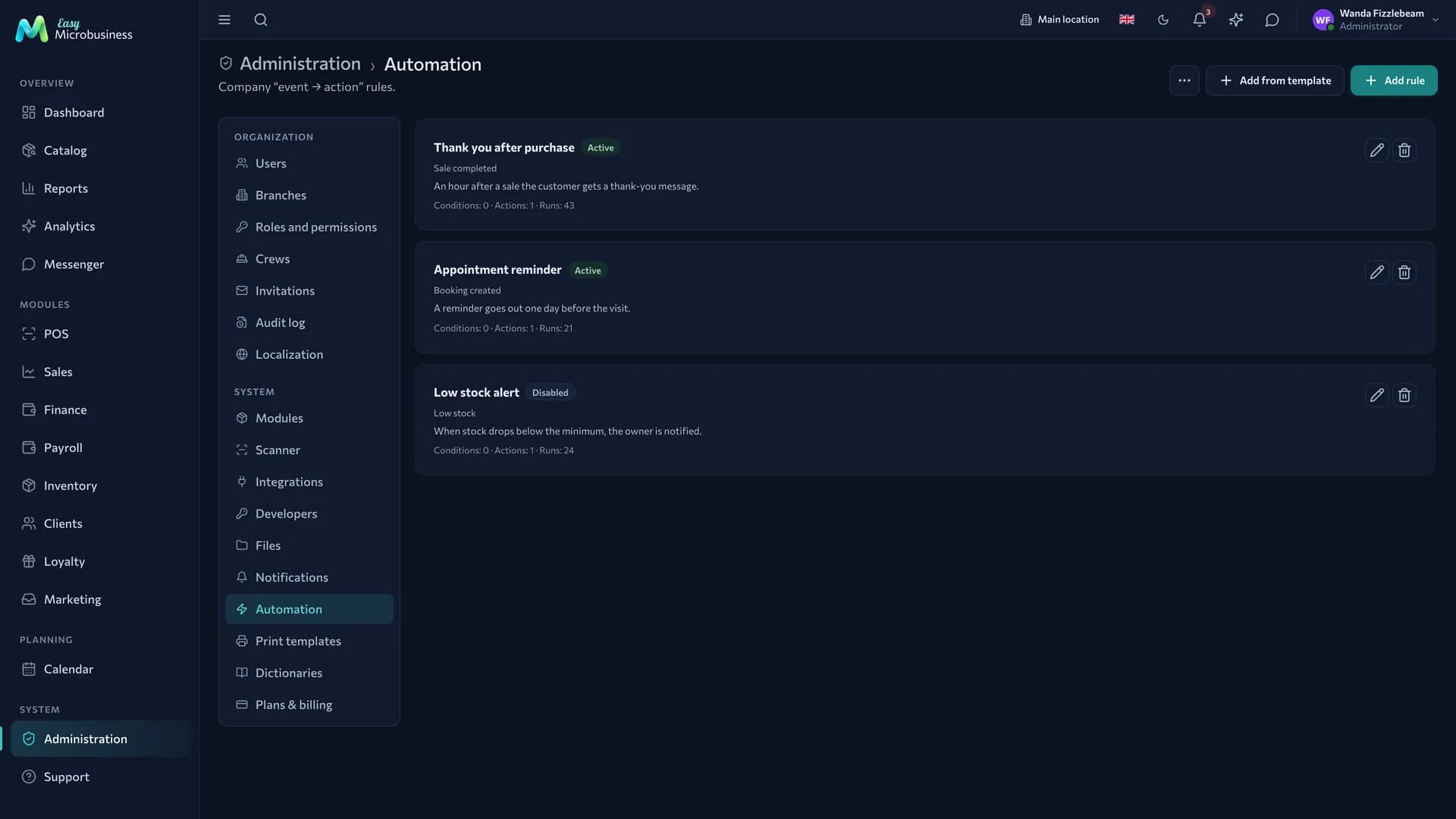
The scenario row shows a summary: Conditions: 2 · Actions: 1 · Runs: 47.
Moving to another company
The Export button saves scenarios to a file, and Import loads them into another company. This helps when you run several legal entities with the same processes. After an import you see how many scenarios were created and how many were skipped as name duplicates; the loaded ones arrive switched off.
In short
- A scenario is made of an event, conditions and actions; without conditions it fires on every event.
- Ready-made scenarios from modules arrive switched off.
- The run history shows the status of every firing and helps find the cause.
- Scenarios move between companies with the Export and Import buttons.